
Setting Up Pomona Box
Last updated on 2026-08-27 | Edit this page
Estimated time: 25 minutes
Overview
Questions
- How do I configure rclone for Pomona’s Box storage?
- How does OAuth authentication work with Box?
- How do I verify the Box connection?
Objectives
- Configure a new rclone remote for Box using OAuth
- Complete the Box OAuth authorization flow
- Verify the connection with rclone about and rclone lsd
Configuring rclone for Box
This episode assumes you are connected to Sagehen HPC with port forwarding and have rclone loaded (see Episode 2). Start the configuration:
Type n to create a new remote.
Name Your Remote
rclone will ask for a name. This is what you’ll use in commands to reference your Box storage:
name> pomona-boxYou can use any name you like (e.g., my-box,
box-backup). We’ll use pomona-box in
examples.
Select the Storage Type
rclone will list available storage types. Type box or
the corresponding number:
Storage> boxOAuth Authentication (Browser)
Back on Terminal
Once you’ve granted access in the browser, rclone will automatically receive the token:
2026/03/05 14:22:05 NOTICE: Box (pomona-box) Waiting for local client...
2026/03/05 14:22:15 NOTICE: Box authorization successfulAnswer the Web-Browser Question
rclone then asks one more question the older docs didn’t show:
Use web browser to automatically authenticate rclone with remote?
 * Say Y if the machine running rclone has a web browser you can use
 * Say N if running rclone on a (remote) machine without web browser access
If not sure try Y. If Y failed, try N.

y) Yes (default)
n) No
y/n>
Answer n on Sagehen — the cluster has
no web browser. rclone will then show instructions to run
rclone authorize "box" on your own laptop (which does have
a browser) and paste the resulting JSON blob back into the
config_token> prompt on Sagehen. Paste the
entire JSON output, braces included — a bare token string will
fail with a decode error.
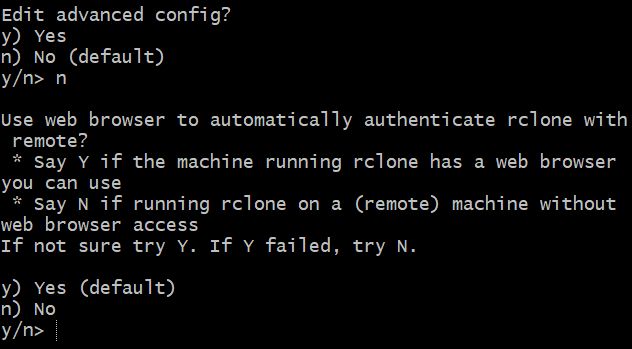
n to the browser question because
Sagehen HPC is a remote machine without one.Verify the Connection
Test that rclone can access your Box account:
Expected output:
Total:   1.0T
Used:    25.3G
Free:    974.7G
Trashed: 0B
Other:   0B
Also try listing your Box home directory:
Expected output:
          -1 2026-02-15 10:30:00        -1 My Research
          -1 2026-01-20 14:45:00        -1 Shared
If you see your Box files listed, setup is successful!
For VS Code Remote-SSH Users (Cleanup)
If you configured port forwarding in your .ssh/config
for VS Code, it may show port 53682 in its PORTS tab. After rclone setup
is complete, you can delete this port from the PORTS tab to reduce
clutter. Your rclone connection will still work.
You should see output similar to:
Total:   1.0T
Used:    25.3G
Free:    974.7G
Trashed: 0B
Other:   0B
The exact numbers depend on your Box usage. Seeing storage info (no
errors) confirms your pomona-box remote is configured
correctly. If you see ERROR: access_token_expired, revisit
the OAuth steps above.
Challenge 3.2: List Your Box Contents and Create a Test Folder
- Box uses Pomona’s Single Sign-On (SSO) for authentication, which may include two-factor authentication
- rclone configuration stores OAuth tokens securely in ~/.config/rclone/rclone.conf and does not store your password
- Test your configuration with rclone about and rclone lsd commands to verify the connection works
- The rclone remote name (e.g., pomona-box) is your local reference for this Box account and can be customized