
Launching Jupyter Notebooks
Last updated on 2026-08-27 | Edit this page
Overview
Questions
- How do you launch a Jupyter notebook from OnDemand?
- How do you configure resources for your notebook session?
- How do you use notebook cells, run code, and write documentation?
- How do you install additional Python packages?
Objectives
- Launch a Jupyter notebook session from OnDemand
- Configure CPU, memory, and time for your session
- Create and execute code and markdown cells
- Upload data and install packages in the notebook environment
Launching Jupyter
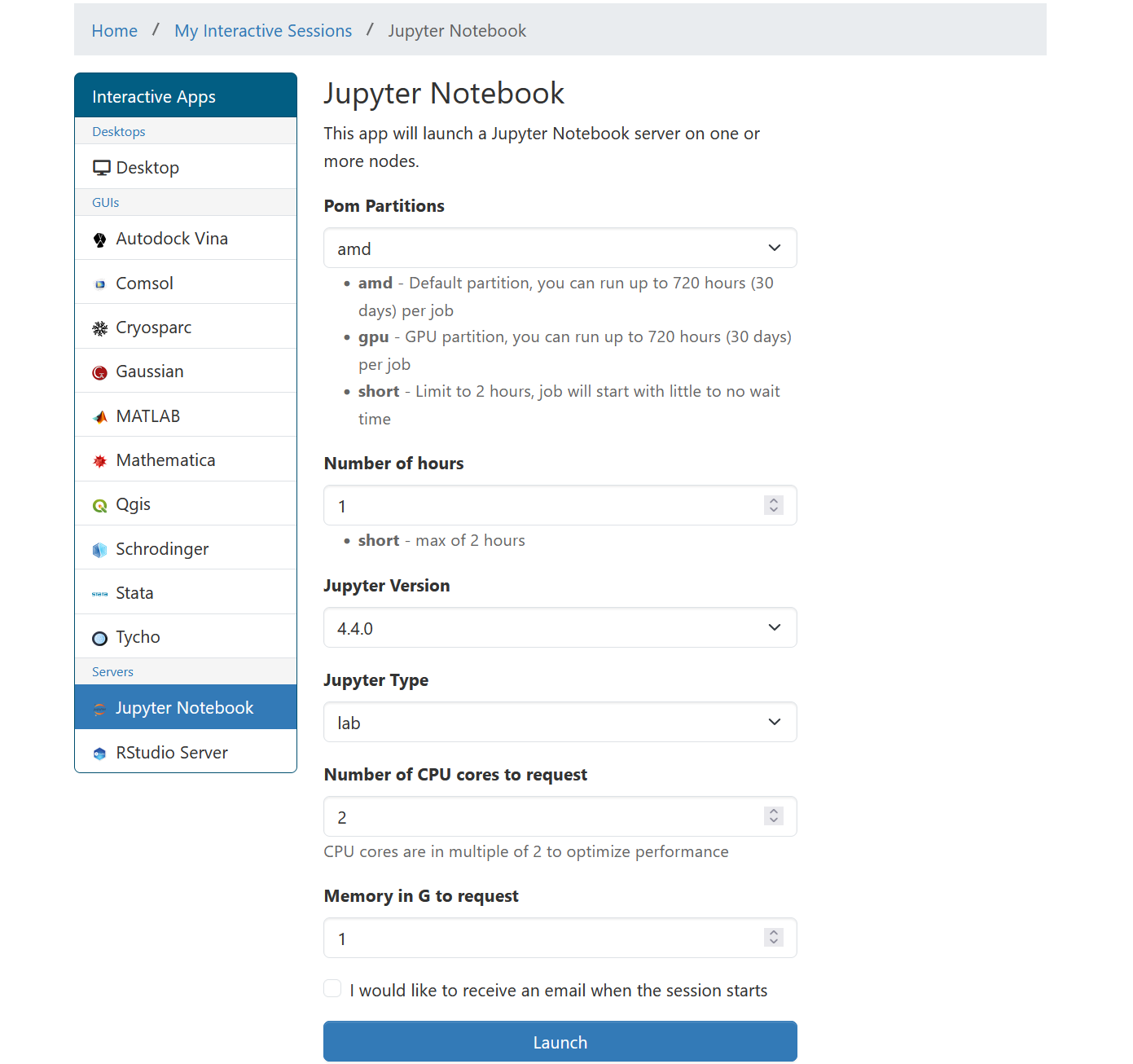
- Click Interactive Apps in the left sidebar
- Select Jupyter Notebook (or Jupyter Lab)
- Configure your resources:
- CPU cores: 1–4 for most work
- Memory: 4–16 GB depending on dataset size
- Time: 1–8 hours
- GPU (optional): Select if you need accelerated computing
- Click Launch
- Wait for allocation (typically 1–5 minutes)
- Click Connect to Jupyter when the session is ready
First Launch Takes Time
When you request Jupyter, expect to wait 1–5 minutes for resource allocation, especially during busy hours. The system is requesting compute nodes for your session. Subsequent launches typically start faster.
Using Jupyter Notebooks
Creating a Notebook
Click New then Python 3 to create a
new notebook. Each notebook is a .ipynb file saved in your
working directory.
Cell Types and Execution
- Code cells: Write Python code and press Shift+Enter to execute
- Markdown cells: Write formatted text, headings, and documentation
- Output: Results, tables, and plots appear directly below each cell
A common first cell:
Session Management
- Sessions expire after idle time or when the requested time limit is reached
- Save your work frequently with Ctrl+S
- Download important notebooks before your session expires
- Check remaining time in the OnDemand Active Jobs view
Use batch jobs (sbatch) for computations longer than 8
hours instead of interactive Jupyter sessions.
Challenge: Create Your First Notebook
Launch a Jupyter notebook from OnDemand with 1 core, 4 GB memory, and 1 hour
Create a new Python 3 notebook
In cell 1, import numpy, pandas, and matplotlib
-
In cell 2, create a sample dataset:
-
In cell 3, create a histogram:
Save your notebook
- Jupyter launches after 1–5 minutes of resource allocation
- A new notebook opens with an empty code cell
- All three libraries import without errors
-
df.describe()prints count, mean, std, min, max, and quartiles - A histogram appears inline showing a normal distribution centered around 50
- The notebook saves as an
.ipynbfile in your working directory
If your session takes a long time to start, the cluster may be busy – try reducing your resource request or launching during off-peak hours.
- Launch Jupyter from Interactive Apps with configurable CPU, memory, and time
- Expect 1–5 minutes for initial resource allocation
- Use code cells for Python and markdown cells for documentation
- Install packages with !pip install directly in notebook cells
- Save work frequently and download notebooks before sessions expire
- Use batch jobs for computations longer than 8 hours