
Pipes and Filters
Last updated on 2026-08-24 | Edit this page
Overview
Questions
- How can I use existing commands in combination to perform new tasks?
Objectives
- Learn how to redirect the output of a command into a file.
- Understand how to create command pipelines comprising multiple stages.
- Discuss the typical behavior of programs or pipelines when no input is provided.
- Highlight the benefits of connecting commands using pipes and filters.
With an understanding of basic commands, we’re poised to delve into
what truly sets the shell apart: its capability to seamlessly combine
programs into novel functions. We’ll explore this feature using the
shell-lesson-data/exercise-data/artifact-catalogs
directory, which contains various text files detailing archaeological
finds and analyses. The files, identifiable by the .txt
extension, encompass a range of topics from artifact listings to
excavation reports.
OUTPUT
Animal-Figurines-List.txt  Artifact-Aging-Data.txt  Excavation-Finds-Report.txt
Neolithic-Tools-Inventory.txt  Pillar-Symbols-Analysis.txt  Stone-Carvings-Catalogue.txt
For example, let’s execute a basic command:
OUTPUT
42 314 2537 Animal-Figurines-List.txtHere, wc (word count) computes the number of lines,
words, and characters within files, listed in that specific order.
Using wc *.txt applies the wildcard * in
*.txt to match any sequence of characters, effectively
including all .txt files in the directory:
OUTPUT
  30  246 1858 Animal-Figurines-List.txt
   6   35  251 Artifact-Aging-Data.txt
   5   42  300 Excavation-Finds-Report.txt
   6   32  224 Neolithic-Tools-Inventory.txt
   5   32  240 Pillar-Symbols-Analysis.txt
   5   35  295 Stone-Carvings-Catalogue.txt
  57  422 3168 total
This command also provides a total count across all files as its last line of output.
Switching to wc -l modifies the command to only display
the count of lines per file:
OUTPUT
  30 Animal-Figurines-List.txt
   6 Artifact-Aging-Data.txt
   5 Excavation-Finds-Report.txt
   6 Neolithic-Tools-Inventory.txt
   5 Pillar-Symbols-Analysis.txt
   5 Stone-Carvings-Catalogue.txt
  57 total
Furthermore, wc can be paired with -m and
-w options to focus on character counts or word counts,
respectively, offering a granular look at the data contained within
these archaeological records.
Handling Commands Without Input
Ever wondered what happens if you run a command that typically processes a file but don’t provide a filename? For instance, consider running:
without following it with *.txt or any input. In such
cases, wc expects to receive input directly from the
command line, leading it to wait for user input interactively. To an
observer, it may appear as though the command has stalled or isn’t
executing any task.
If you find yourself in this situation, you can exit by pressing Ctrl+C. This key combination interrupts the current command, allowing you to regain control.
Redirecting Command Output
Among these files, which one has the least number of lines? Answering this becomes challenging with a larger dataset. The initial step towards solving this is:
The > symbol instructs the shell to
redirect the output from wc into a file
named lengths.txt rather than displaying it on the screen.
If lengths.txt doesn’t exist, the shell creates it; if it
already exists, the file is overwritten without warning, posing a risk
of data loss. Hence, caution is advised with redirection operations.
To verify the file’s creation:
OUTPUT
lengths.txtThe contents of lengths.txt can be displayed using
cat lengths.txt, which outputs the file’s contents to the
screen. The name cat comes from ‘concatenate’, meaning to
link things together sequentially. With only one file specified,
cat simply displays its contents:
OUTPUT
  30 Animal-Figurines-List.txt
   6 Artifact-Aging-Data.txt
   5 Excavation-Finds-Report.txt
   6 Neolithic-Tools-Inventory.txt
   5 Pillar-Symbols-Analysis.txt
   5 Stone-Carvings-Catalogue.txt
57 totalViewing Output in Manageable Portions
While cat is useful for its simplicity and consistency,
it’s not always practical because it outputs an entire file at once. An
alternative is the less command (e.g.,
less lengths.txt), which displays the file content a page
at a time. You can navigate through the file by pressing the spacebar to
move forward a page or b to move back. Press q
to exit the view.
Sorting Output Numerically
We’ll now explore how to use the sort command to
organize the data within the lengths.txt file numerically.
Before we dive into sorting our file, let’s familiarize ourselves with
the sort command through a quick exercise:
Understanding sort -n
Command
Given the file
shell-lesson-data/exercise-data/numbers.txt with these
contents:
10
2
19
22
6
Running sort on this file yields:
OUTPUT
10
19
2
22
6
However, applying sort -n to the file changes the output
to:
OUTPUT
2
6
10
19
22
Why does -n modify the output in this manner?
The -n flag tells sort to arrange the lines
based on numerical values rather than treating them as text, which leads
to a natural numerical order.
We’ll apply the -n flag to ensure the sort
command arranges our lengths.txt data numerically. This
action doesn’t alter the file itself but displays the sorted
results:
OUTPUT
   5 Excavation-Finds-Report.txt
   5 Pillar-Symbols-Analysis.txt
   5 Stone-Carvings-Catalogue.txt
   6 Artifact-Aging-Data.txt
   6 Neolithic-Tools-Inventory.txt
  30 Animal-Figurines-List.txt
  57 total
To save our sorted data, we redirect the output to a new file,
sorted-lengths.txt, using
> sorted-lengths.txt. Afterwards, we can utilize the
head command to display the top entry in
sorted-lengths.txt:
OUTPUT
5 Excavation-Finds-Report.txtThe head -n 1 command specifies that we want only the
first line from the file. Since sorted-lengths.txt lists
file lengths in ascending order, the first line shows the file with the
fewest lines.
Distinguishing Between > and
>>
While > is familiar for redirecting output to files,
>> serves a similar yet distinct purpose. Discover
the differences between these operators by using the echo
command to print text:
OUTPUT
The echo command prints textExperiment with the following commands to understand how
> and >> differ:
and:
Tip: Execute each command twice consecutively and then check the contents of the files.
Using > overwrites testfile01.txt with
‘hello’ each time it’s executed, resetting the file’s contents.
Conversely, >> appends ‘hello’ to
testfile02.txt, accumulating the output with each execution
if the file already exists.
Merging Data with Append
We’re already acquainted with the head command, which
displays the initial segments of files. In contrast, tail
fetches the file’s concluding segments.
Given the file
shell-lesson-data/exercise-data/excavation-sites/Gobekli-Tepe-Site-Data.csv,
predict the result of the following commands and determine what
Gobekli-Tepe-Subset.csv will contain:
BASH
$ head -n 3 Gobekli-Tepe-Site-Data.csv > Gobekli-Tepe-Subset.csv
$ tail -n 2 Gobekli-Tepe-Site-Data.csv >> Gobekli-Tepe-Subset.csv
Options:
- The top three lines from
Gobekli-Tepe-Site-Data.csv. - The bottom two lines from
Gobekli-Tepe-Site-Data.csv. - The first three lines and the last two lines of
Gobekli-Tepe-Site-Data.csv. - Just the second and third lines of
Gobekli-Tepe-Site-Data.csv.
Option 3 is correct. The initial command writes the first three lines
into Gobekli-Tepe-Subset.csv. Following this, the second
command appends the file’s last two lines. The other options do not
correctly represent the effects of using head and
tail in conjunction with redirection and appending.
Streamlining Command Output
In the process of identifying the file with the fewest lines, we’ve
been using intermediate files like lengths.txt and
sorted-lengths.txt to hold our data, which can be
confusing. Simplifying this process involves directly piping
sort into head:
OUTPUT
9 methane.pdbHere, the pipe | allows us to feed the output of
sort directly as input to head, eliminating
the need for sorted-lengths.txt.
Linking Commands in a Pipeline
We can extend the concept of piping to connect multiple commands in a
sequence without intermediate files. For instance, we can pipe the
output of wc directly into sort, and then into
head, negating the need for any temporary storage:
First, we pipe wc’s output to sort:
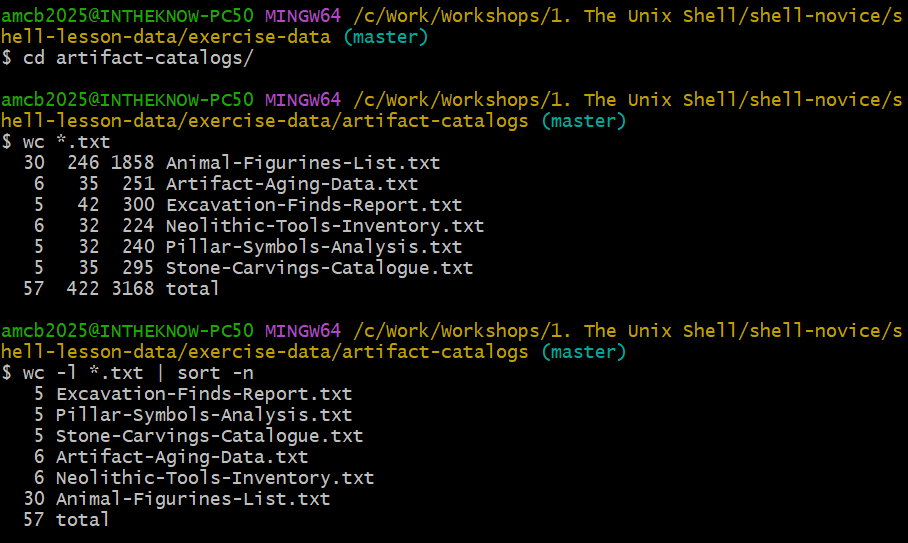
wc *.txt, then piping
wc -l into sort -n to order the catalog files
by length.OUTPUT
   5 Excavation-Finds-Report.txt
   5 Pillar-Symbols-Analysis.txt
   5 Stone-Carvings-Catalogue.txt
   6 Artifact-Aging-Data.txt
   6 Neolithic-Tools-Inventory.txt
  30 Animal-Figurines-List.txt
  57 total
Next, we funnel that sorted list directly into head:
OUTPUT
5 Excavation-Finds-Report.txtThis final command string is akin to applying functions in
mathematics, such as log(3x), and means “the smallest line
count of *.txt files, sorted numerically.”
The conceptual flow of these redirections and pipes is captured in the diagram below:

Identifying the Top 3 Shortest Files
In the current directory, we aim to pinpoint the three files with the smallest number of lines. Which of the following commands accomplishes this?
Options:
wc -l * > sort -n > head -n 3wc -l * | sort -n | head -n 1-3wc -l * | head -n 3 | sort -nwc -l * | sort -n | head -n 3
Option 4 is the correct approach. It uses pipes | to
seamlessly connect the output from wc to sort
and then to head, effectively finding the three files with
the least number of lines without creating intermediate files. Options
involving > incorrectly attempt to redirect output to
files instead of chaining commands.
Embracing the Unix Philosophy
The Unix philosophy’s cornerstone is the concept of chaining small,
specialized programs to achieve complex tasks, a model known as ‘pipes
and filters’. This approach has contributed significantly to Unix’s
enduring success. Instead of crafting monolithic programs that tackle
multiple tasks, Unix developers prioritize creating a suite of simple,
focused tools. Each tool excels at a singular function and seamlessly
integrates with others. Filters, like wc (word count) or
sort, exemplify this philosophy by taking a stream of
input, processing it, and outputting the result. Typically, Unix
utilities consume standard input and output their results to standard
output unless specified otherwise.
This interoperability principle means any tool that reads text lines from standard input and outputs text lines can be woven with others, enhancing their utility. Adopting this practice in your programming allows you and others to incorporate your tools into pipelines, exponentially increasing their functionality.
Understanding Pipelines
Given a file named Gobekli-Tepe-Site-Data.csv in the
shell-lesson-data/excavation-sites/ directory with the
content:
Site ID, Location, Area (sq. meters), Excavation Start Date, Lead Archaeologist, Notable Finds
GT-01, North Sector, 500, 2020-04-15, Dr. Alex Erdem, Ancient ceremonial relics
GT-02, South Sector, 750, 2021-05-22, Dr. Maria Işık, Neolithic tools and pottery
GT-03, East Sector, 600, 2021-06-18, Dr. Emre Yılmaz, Stone carvings and monoliths
GT-04, West Sector, 650, 2022-03-30, Dr. Leyla Akın, Bronze Age artifacts
GT-05, Central Piazza, 800, 2022-07-15, Dr. Hasan Demir, Ritual sites and animal figurines
Can you decipher the flow of text through each pipe and redirection
in the following command sequence? Remember, sort -r sorts
the input in reverse order.
Tip: Incrementally build up the pipeline to check your understanding.
Initially, head selects the first five lines from
Gobekli-Tepe-Site-Data.csv. Subsequently, tail
extracts the final three lines from these five. Applying
sort -r reverses the order of these three lines. The
resulting sorted output is then redirected into final.txt.
To examine the resultant file, use cat final.txt,
revealing:
GT-04, West Sector, 650, 2022-03-30, Dr. Leyla Akın, Bronze Age artifacts
GT-03, East Sector, 600, 2021-06-18, Dr. Emre Yılmaz, Stone carvings and monoliths
GT-02, South Sector, 750, 2021-05-22, Dr. Maria Işık, Neolithic tools and pottery
Mastering Command Pipelines
The Unix philosophy emphasizes creating compact, modular tools that
accomplish one task well and can be interconnected. This ‘pipes and
filters’ model has fueled Unix’s success. In Unix, a
filter is any program, like wc (word
count) or sort, that takes a stream of input, transforms
it, and outputs the result. Most Unix tools default to reading from
standard input and writing to standard output unless directed
otherwise.
This interoperability principle means that any program reading and writing lines of text can be part of a pipeline, enhancing flexibility and power. Designing your programs to support this model allows you and others to weave these tools into powerful command sequences.
Decoding Animal Data
Given the Gobekli-Tepe-Site-Data.csv file from earlier,
containing various site data, explore how to use the cut
command to isolate sections of each line:
Here, cut removes sections from each line, using the
comma as a delimiter (-d ,), and extracts the second field
(-f 2). This command outputs location names:
OUTPUT
  Location
  North Sector
  South Sector
  East Sector
  West Sector
  Central Piazza
To refine this list to unique site data names (in this case they are
already unique, but imagine two sites both in South Sector: uniq would
remove one of them, leaving a single line), how would you extend this
command sequence using uniq and another command?
Identifying Unique site data
Given Gobekli-Tepe-Site-Data.csv with multiple entries
per location, use commands to count each location occurrences. Consider
uniq’s -c option for counting occurrences.
Which command sequence accurately counts each site data type?
sort Gobekli-Tepe-Site-Data.csv | uniq -csort -t, -k2,2 Gobekli-Tepe-Site-Data.csv | uniq -ccut -d, -f 2 Gobekli-Tepe-Site-Data.csv | uniq -ccut -d, -f 2 Gobekli-Tepe-Site-Data.csv | sort | uniq -ccut -d, -f 2 Gobekli-Tepe-Site-Data.csv | sort | uniq -c | wc -l
Option 4 accurately counts each locations. It extracts the location names, sorts them, and then counts each occurrence.
Cecil’s Pipeline: Data Verification
Cecil, working on their gobekli-tepe-excavation project,
uses the following commands to check their data files:
Noticing a discrepancy in one file’s line count, he investigates further:
Discovering a file with fewer lines, Cecil deduces it resulted from a machine error. He then checks for excessively long files:
Spotting an aberrant ‘Z’ in a filename, they identify it as a marker for missing information. To find similar cases:
Confirming missing data, Cecil opts to exclude these files from his analysis, planning to use specific wildcard expressions for future data selection.
Cleanup Processed Data
Imagine wanting to keep only raw data files (.dat) and a
processing script, removing processed files (.txt) to save
space. Which command removes only the processed data files?
rm ?.txtrm *.txtrm * .txtrm *.*
-
rm *.txtis the correct answer, targeting and removing all processed.txtfiles without affecting raw.datfiles or other content.
-
wcquantifies lines, words, and characters. -
catdisplays file contents. -
sortorganizes input. -
headshows the first 10 lines. -
tailreveals the last 10 lines. -
command > [file]directs output to a file, overwriting existing content. -
command >> [file]appends output to a file. -
[first] | [second]creates a pipeline, using the output of the first command as input for the second. - Combining simple, focused programs into pipelines epitomizes the shell’s most effective usage.