
SLURM Integration
Last updated on 2026-08-27 | Edit this page
Overview
Questions
- How do I automatically upload results after a SLURM job finishes?
- How do I build multi-step pipelines with rclone and SLURM?
- How do I handle token expiration in automated jobs?
- What logging do I need for unattended runs?
Objectives
- Implement post-job upload automation in SLURM scripts
- Build multi-step data pipelines that download, process, and upload data
- Verify token validity before running automated jobs
- Add logging and error handling to SLURM-rclone workflows
Why Automate Cloud Transfers in SLURM
Manual rclone copies work for one-off uploads, but research workflows generate results continuously. Submitting a job, waiting for it to finish, then logging in to copy results is fragile: jobs end at 3 AM, you forget which directory the results live in, and the latest run gets confused with the previous one. Automating cloud transfers inside the SLURM script removes these failure modes. The job pulls input from cloud at start, runs the analysis, and pushes results back at the end, all without any human intervention.
This pattern is especially valuable for collaborative research, where teammates expect new data to land in a shared Box folder on a known schedule, and for long sweeps where you need to start the next experiment as soon as the previous results are safely uploaded.
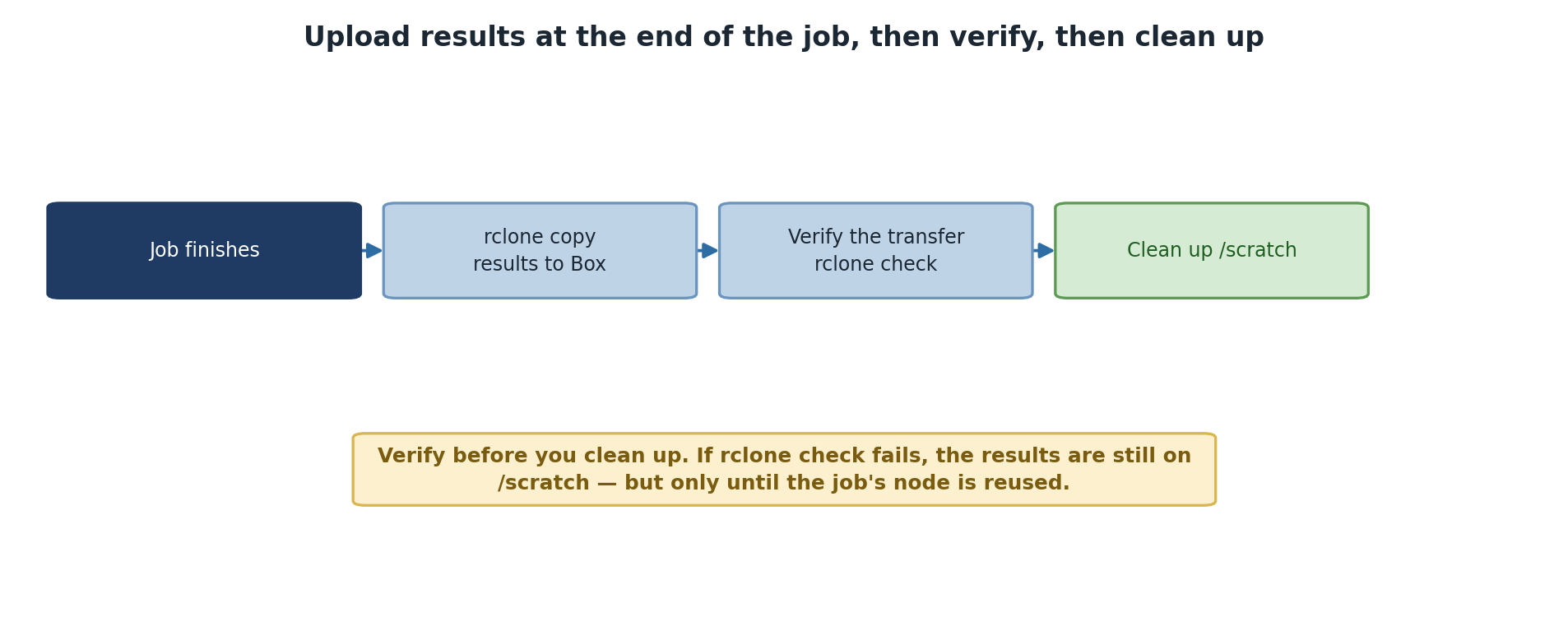
Post-Job Upload
You can have rclone upload results automatically after a SLURM job completes:
BASH
#!/bin/bash
#SBATCH --job-name=simulation
#SBATCH --time=6:00:00
#SBATCH --ntasks=16

# Load modules
module load rclone
module load miniconda3   # plus whatever else your job needs

# Your simulation
./my-simulation --input data.txt --output results.dat

# After job finishes, upload results
rclone sync ./results pomona-box:/simulation-results/$(date +%Y-%m-%d) \
  --log-file $HOME/rclone-upload-$(date +%Y-%m-%d).log

# Optional: Email notification
if [ $? -eq 0 ]; then
  echo "Job complete. Results uploaded to Box." | mail -s "Job finished" $USER@pomona.edu
else
  echo "Job complete, but upload failed. Check logs." | mail -s "Job finished (upload FAILED)" $USER@pomona.edu
fi
Key points:
- Load rclone module at the start so it is available for the whole script.
- Use
--log-fileto capture transfer details for later debugging. - Check exit code (
$?) right after each rclone command, before any other command resets it. - Use
$(date +...)for timestamped output folders so multiple runs do not collide.
The rclone sync (vs rclone copy) deletes
files at the destination that are not in the source. This is useful for
“the source is the canonical state” patterns and dangerous if you
accidentally point sync at the wrong destination. Use copy
when in doubt; switch to sync only when you intend the
destination-pruning behavior.
Multi-Step Workflow with Verification
A more complete pipeline downloads input, processes it, verifies the output, and uploads:
BASH
#!/bin/bash
#SBATCH --job-name=data-pipeline
#SBATCH --time=2:00:00

module load rclone
module load miniconda3   # plus whatever else your pipeline needs

# Step 1: Download data from Box
echo "Downloading data..."
rclone sync pomona-box:/input-data /scratch/pipeline-input

# Step 2: Run pipeline
echo "Running pipeline..."
./pipeline /scratch/pipeline-input /scratch/pipeline-output

# Step 3: Verify output
if [ ! -d /scratch/pipeline-output ] || [ -z "$(ls -A /scratch/pipeline-output)" ]; then
  echo "ERROR: Pipeline produced no output!" >&2
  exit 1
fi

# Step 4: Upload results
echo "Uploading results..."
rclone copy /scratch/pipeline-output pomona-box:/results/run-$(date +%Y-%m-%d-%H%M%S)

echo "Pipeline complete!"
The verification step (number 3) is critical for unattended runs. Without it, a pipeline that silently failed could “succeed” by uploading nothing, and you would not know until checking the next morning. Treat the verification as load-bearing infrastructure: write it once, then reuse it across pipelines.
Bandwidth and rclone
The Sagehen HPC connection to Box and OneDrive is fast (typically 100+ MB/s for large files), but small-file transfers spend most of their time on per-file overhead. If your pipeline output is a directory of 10,000 small files, transfer time will be dominated by HTTP round-trips, not raw bandwidth.
Two mitigations:
Pack small files into a tarball before upload:
tar czf results.tar.gz /scratch/output, then
rclone copy results.tar.gz pomona-box:.... One large file
uploads much faster than 10,000 small ones.
For Box specifically, rclone’s --transfers=8 runs 8
concurrent transfers. Box’s API tolerates this well. For OneDrive, stay
at the default --transfers=4 to avoid throttling.
Handling Token Expiration in Automated Jobs
Problem
If an automated job runs and your token has expired, the upload step will fail. Without a check, the job appears to succeed (the simulation finished) but the results never make it to cloud.
Solution: Verify Token Before Running Sync
Add a token check to your job script:
BASH
#!/bin/bash
#SBATCH --job-name=safe-upload
#SBATCH --time=1:00:00

module load rclone

# Check if token is valid
rclone about pomona-box: > /dev/null 2>&1

if [ $? -ne 0 ]; then
  echo "rclone token for pomona-box has expired!" | mail -s "Action required" $USER@pomona.edu
  echo "ERROR: Token expired. Skipping upload." >&2
  # Continue with computation but skip upload
fi

# Run your computation
./my-computation

# Upload only if token was valid
rclone about pomona-box: > /dev/null 2>&1
if [ $? -eq 0 ]; then
  rclone copy ./results pomona-box:/job-results
fi
The rclone about REMOTE: command makes a lightweight API
call that returns quickly. If the token is invalid, it fails with a
non-zero exit. Two checks (one before, one after) protect against tokens
that expire mid-job.
For long-lived workflows, refresh the token proactively each morning before submitting jobs. The Box and OneDrive default token lifetimes are 60 days and 90 days respectively; a calendar reminder catches expiry before it bites. NOTE: These token lifetimes (Box 60 days, OneDrive 90 days) are tenant-dependent — verify current values with ITS.
Logging that helps when things go wrong
For unattended jobs, you cannot debug live. Logs are your only diagnostic. Make them complete:
BASH
LOG=$HOME/logs/$SLURM_JOB_ID.log
{
  echo "=== Job $SLURM_JOB_ID started $(date) ==="
  rclone copy /scratch/output pomona-box:/results --log-file $LOG --log-level INFO
  echo "Exit code: $?"
  echo "=== Job $SLURM_JOB_ID finished $(date) ==="
} >> $LOG 2>&1
The --log-level INFO (or DEBUG) gives
rclone-specific detail beyond the bash output. The job ID in the
filename keeps logs separated even when many jobs run concurrently.
Challenge 10.1: Create a Post-Job Upload Script
Create a SLURM job script that uploads results automatically:
BASH
cat > ~/test-job.slurm << 'EOF'
#!/bin/bash
#SBATCH --job-name=test-upload
#SBATCH --time=0:10:00

# Simulate a job that produces results.
# NOTE: /scratch is only writable from INSIDE a running job -- trying this
# mkdir on the head node fails with "Permission denied". Inside the job,
# use the job's own auto-created scratch directory:
RESULTS=/scratch/$SLURM_JOB_USER/$SLURM_JOB_ID/job-results
mkdir -p "$RESULTS"
echo "Job completed on $(date)" > "$RESULTS/results.txt"


# Load rclone
module load rclone

# Upload results
echo "Uploading results..."
rclone copy "$RESULTS" pomona-box:/job-uploads/$(date +%Y-%m-%d-%H%M%S) \
  --log-file $HOME/rclone-job-upload.log

# Check result
if [ $? -eq 0 ]; then
  echo "Upload successful!"
else
  echo "Upload failed! Check log."
  cat $HOME/rclone-job-upload.log
fi
EOF

chmod +x ~/test-job.slurm
Submit the job with sbatch ~/test-job.slurm, then verify
the upload.
Challenge 10.2: Add Token Verification
Modify the script from Challenge 10.1 to check the token before computing and again before uploading. If the token is expired at either point, send an email and exit cleanly without losing the computation.
BASH
#!/bin/bash
#SBATCH --job-name=safe-upload
#SBATCH --time=0:15:00

module load rclone

# Verify token before starting
if ! rclone about pomona-box: > /dev/null 2>&1; then
  echo "Token invalid before computation; aborting." | mail -s "Token expired" $USER@pomona.edu
  exit 1
fi

# Computation (inside the job's auto-created scratch directory)
RESULTS=/scratch/$SLURM_JOB_USER/$SLURM_JOB_ID/job-results
mkdir -p "$RESULTS"
echo "Job completed on $(date)" > "$RESULTS/results.txt"

# Verify token still valid before upload. IMPORTANT: /scratch is deleted when
# the job ends, so if the upload can't happen, rescue the results to /rhome
# first -- otherwise they are gone.
if ! rclone about pomona-box: > /dev/null 2>&1; then
  cp -r "$RESULTS" $HOME/rescued-job-results-$SLURM_JOB_ID
  echo "Token expired during job; results rescued to ~/rescued-job-results-$SLURM_JOB_ID" \
    | mail -s "Upload failed, results saved" $USER@pomona.edu
  exit 0
fi

rclone copy "$RESULTS" pomona-box:/job-uploads/$(date +%Y-%m-%d) \
  --log-file $HOME/rclone-job-upload.log
Notice the dual-check pattern: refusing to start if the token is bad (so you do not waste compute) and warning but preserving results if it expires mid-job (so manual recovery is possible).
- SLURM job scripts can include rclone copy/sync commands to automatically upload results after a job finishes
- Multi-step pipelines can download data from cloud, process it on HPC, and upload results back to cloud
- Always verify token validity before automated uploads to avoid silent failures
- Use –log-file to capture transfer details for debugging failed uploads
- Pack many small files into a tarball before upload to avoid per-file overhead
- Use
rclone synconly when you intend destination-pruning;rclone copyis safer - Always include output verification before uploading to catch silent pipeline failures