
FileZilla File Operations
Last updated on 2026-08-27 | Edit this page
Estimated time: 30 minutes
Overview
Questions
- How do I transfer files using FileZilla’s drag-and-drop interface?
- How do I monitor transfer progress?
- How do I manage files on Sagehen HPC through FileZilla?
Objectives
After completing this episode, participants will be able to: - Transfer files using drag-and-drop - Upload and download directories - Monitor transfer progress and speed - Manage remote files (rename, delete, create directories)
Navigating Filesystems
The left panel shows your local computer; the right panel shows Sagehen. Double-click folders to enter them, or type a path directly in the path field.
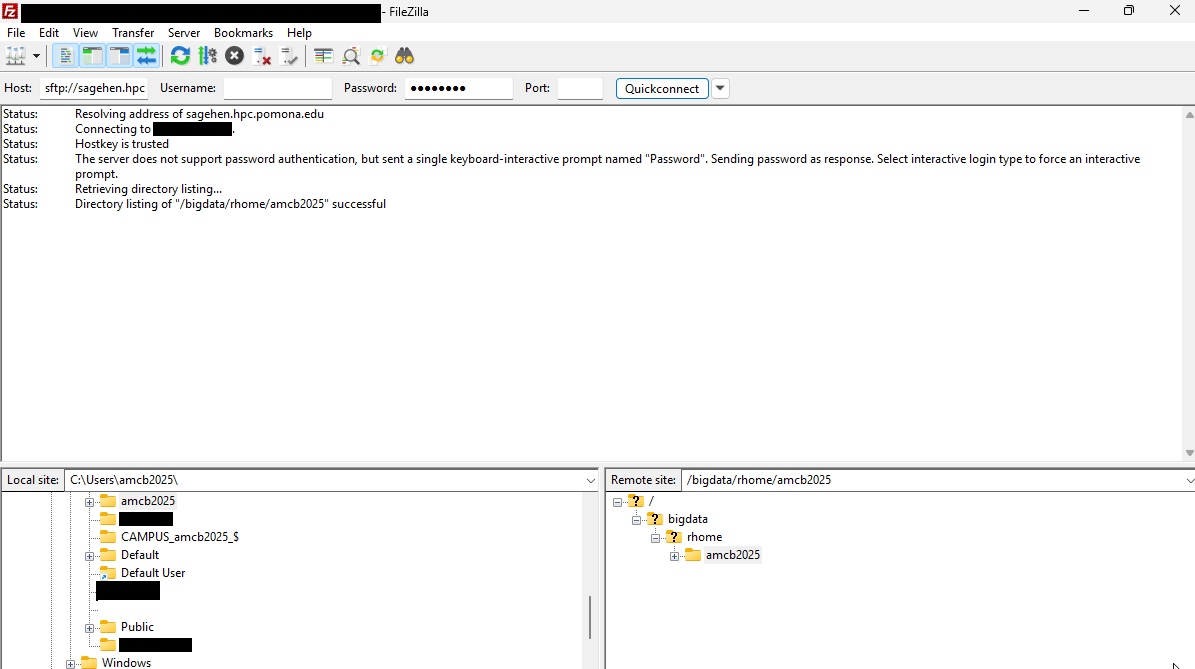
To access lab storage, type /bigdata/lab/<labname>
in the remote path field and press Enter.
Uploading Files
Drag and drop: Locate a file in the local panel (left), drag it to the remote panel (right), and release. The transfer begins immediately.
Right-click menu: Right-click a file in the local panel and select Upload.
Multiple files: Hold Ctrl (or Cmd on Mac) and click to select multiple files, then drag them all to the remote panel. FileZilla queues and transfers them in sequence.
Directories: Right-click a directory in the local panel and select Upload. FileZilla uploads the directory and all its contents, preserving the folder structure.
Downloading Files
Drag files from the remote panel (right) to the local panel (left), or right-click a remote file and select Download.
Transfer Monitoring
The bottom panel shows active and queued transfers with real-time speed and progress:
Speed: 12.3 MB/s
Time remaining: 2 minutes 15 seconds
Data transferred: 100 MB / 250 MB (40%)
Typical speeds: 1-5 MB/s (slower connection), 5-20 MB/s (good), 20+ MB/s (fast).
File Management
- Create directory: Right-click in remote panel > Create directory
- Rename: Right-click file > Rename
- Delete: Right-click file > Delete (permanent, use with caution)
Verifying Transfers
After upload, compare file sizes between local and remote:
Troubleshooting
- Transfer hangs: Wait, then try Pause/Resume. For very large files, use rsync instead
- Files not appearing: Press F5 to refresh the remote view
-
Connection refused: Verify hostname is
sagehen.hpc.pomona.eduport 22 - Authentication failed: Verify Pomona credentials, check for Duo notification
Challenge: Round-Trip Transfer
- Navigate the local panel to a file on your computer (1-100 MB)
- In the remote panel, create a directory:
filezilla_test - Upload the file to
filezilla_test/ - Note the transfer speed from the progress panel
- Download the file back and verify the size matches
Expected result: the file appears in
/rhome/<myusername>/filezilla_test/ with matching
size. Transfer speed depends on your network – typical range is 5-15
MB/s. The downloaded copy should be identical to the original.
- Drag-and-drop makes FileZilla transfers intuitive for uploads and downloads
- The transfer queue shows real-time progress, speed, and estimated time
- Compress files before transfer to reduce time significantly
- Good for interactive transfers up to several hundred MB; use rsync for larger files