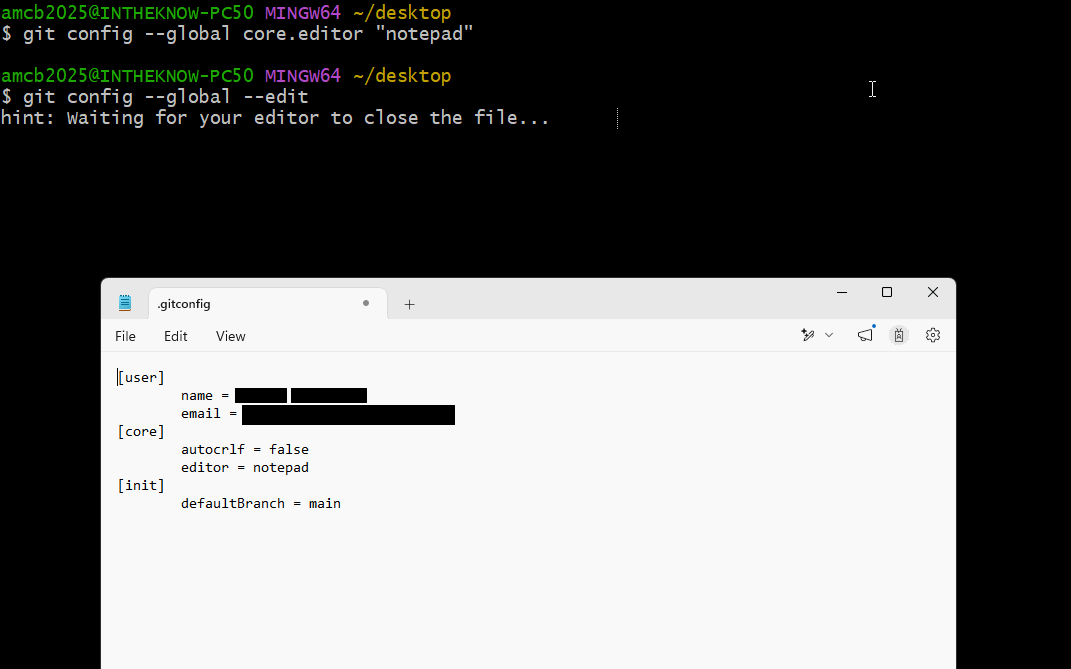
Image 1 of 1: ‘A Git Bash terminal runs git config global edit and prints a hint that Git is waiting for the editor to close the file. A Notepad window shows the .gitconfig file with user, core, and init sections, including autocrlf false, editor notepad, and defaultBranch main.’
git config --global --edit opens
your .gitconfig in the configured editor — Notepad here on
Windows — while Git waits.
Figure 2
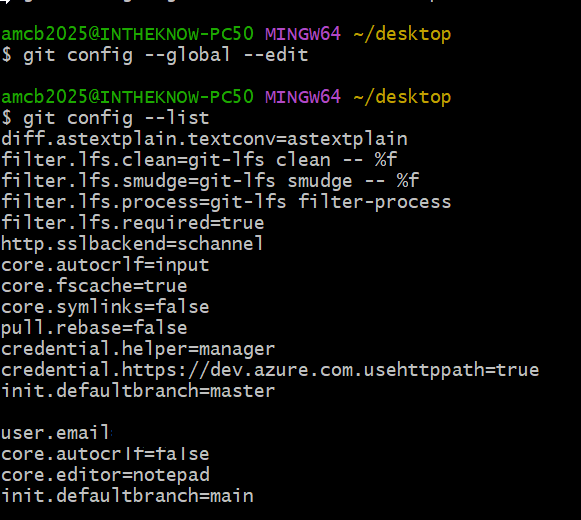
Image 1 of 1: ‘Terminal output of git config list in Git Bash. The list includes system-level entries such as Git LFS filters and the credential manager, followed by the configured core.autocrlf false, core.editor notepad, and init.defaultbranch main. The variable init.defaultbranch appears twice, once as master and once as main, illustrating override order.’
git config --list shows every
effective setting; later global entries override earlier system defaults
— note init.defaultbranch appears twice.
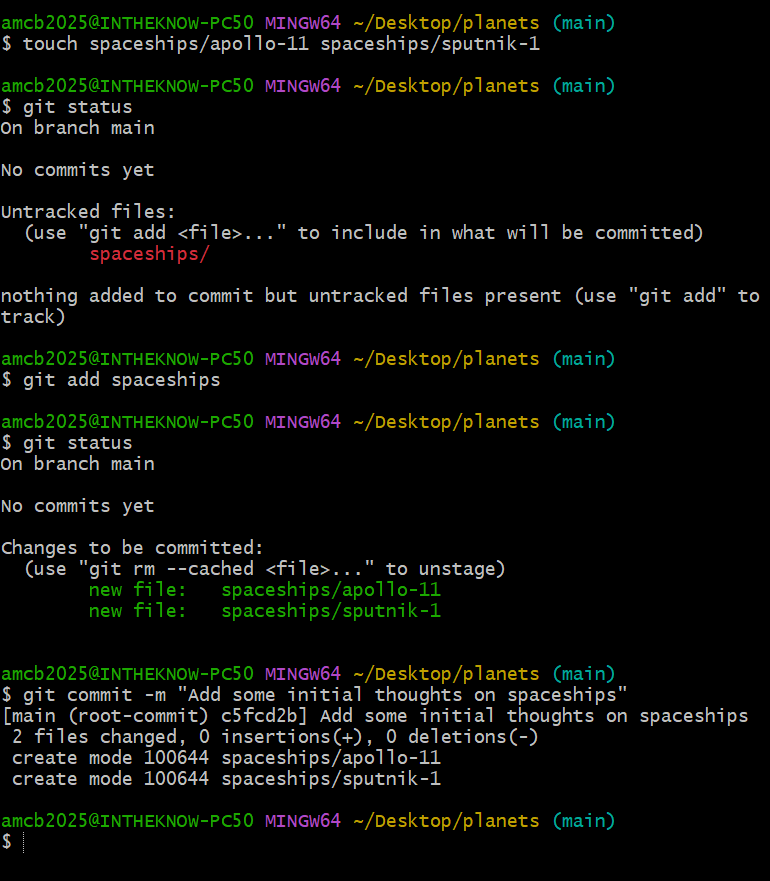
Image 1 of 1: ‘Terminal session in the planets repository. Two files are created inside spaceships with touch; git status lists only the untracked directory. After git add spaceships, git status shows both files staged as new files, and the commit reports two files changed.’
Adding a whole directory:
git add spaceships stages both files inside it for a single
commit.
Figure 3
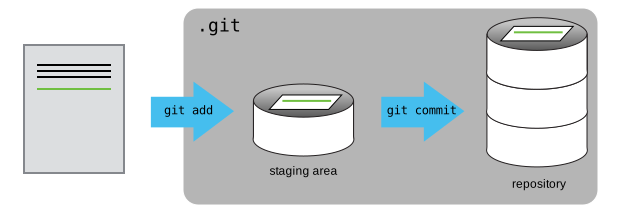
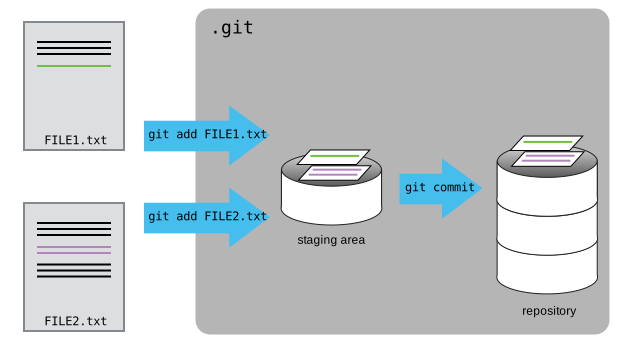
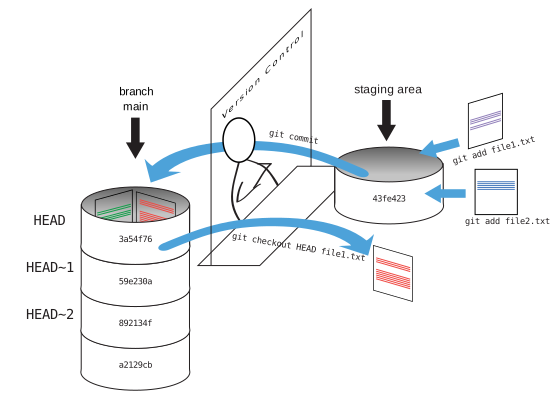
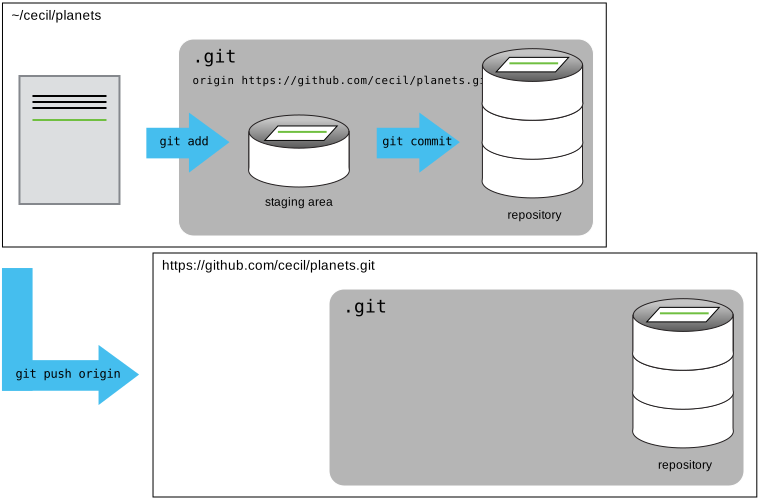
Image 1 of 1: ‘The Git Commit Workflow’
Figure 4
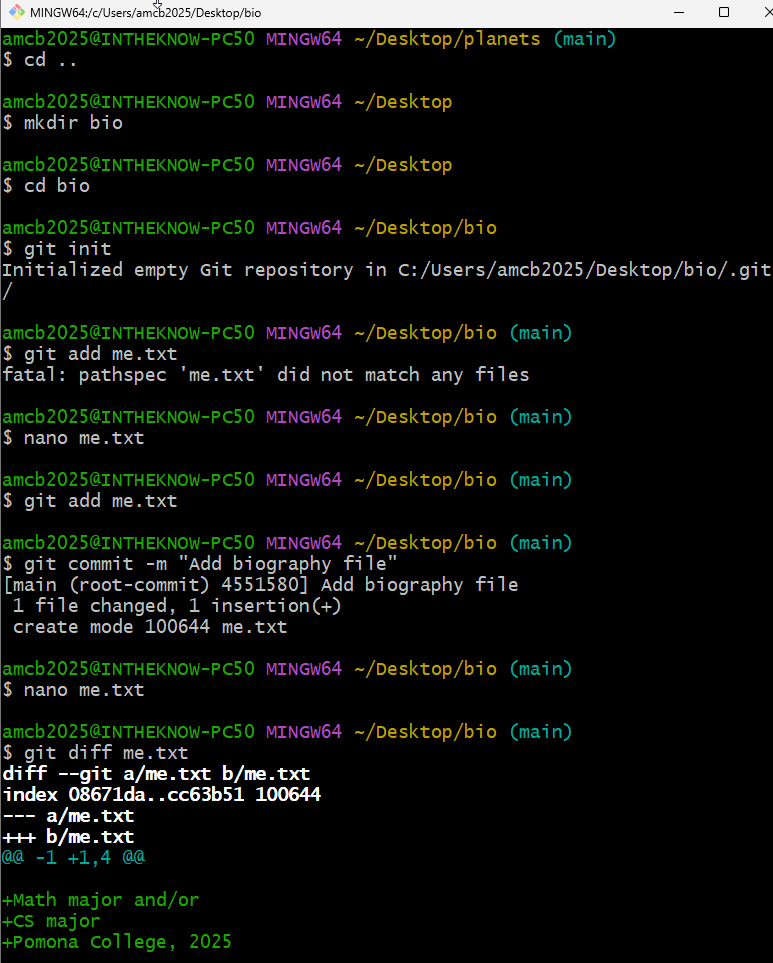
Image 1 of 1: ‘Terminal session creating a new bio repository. git init initializes it; an early git add me.txt fails because the file does not exist yet. After creating and committing me.txt, the file is edited again and git diff shows one modified line and three added lines.’
The full bio walkthrough —
including the instructive fatal: pathspec error from adding
a file before it exists.
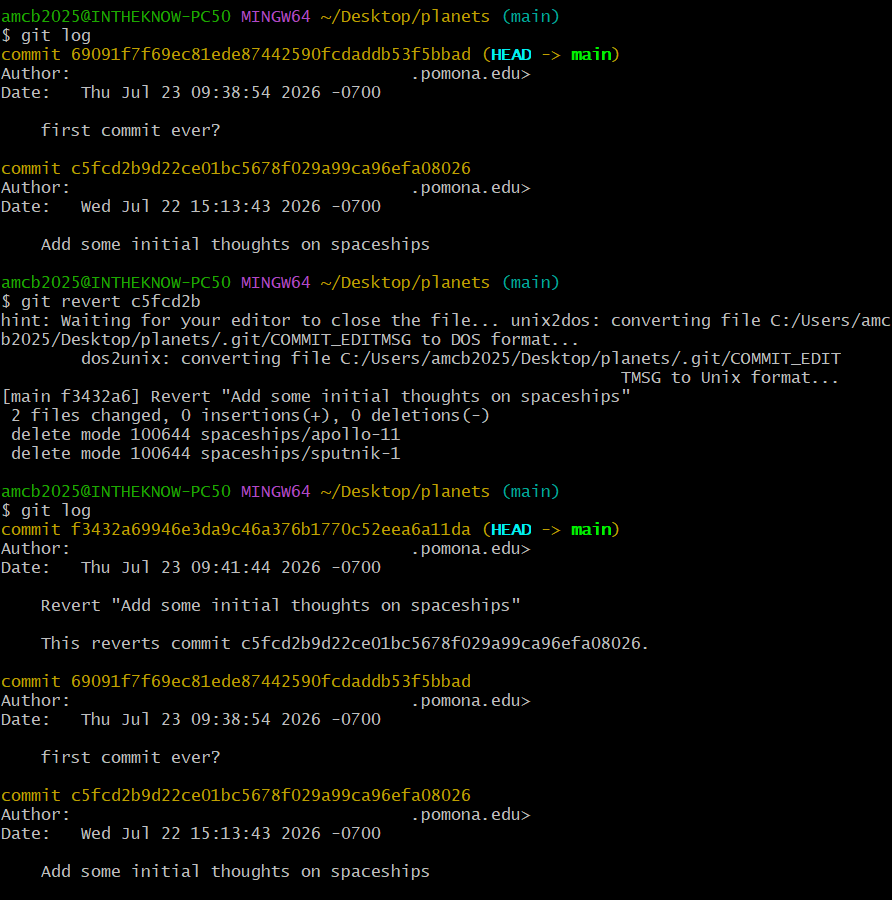
Image 1 of 1: ‘Terminal session demonstrating git revert. An initial git log shows two commits. Running git revert on the spaceships commit opens the editor for the revert message and reports a new commit deleting both spaceship files. A second git log shows the Revert commit at the top with the originals still below it.’
git revert <id> creates a new
commit that undoes the reverted one — both spaceship files deleted,
history preserved.
Figure 4
Image 1 of 1: ‘Terminal output where git log patch HEAD tilde 9 star dot txt fails with a fatal ambiguous argument error because the repository has too few commits, and Git suggests using a double dash to separate paths from revisions.’
In a repository with fewer than ten commits,
HEAD~9 fails with “ambiguous argument”, and Git hints at
using -- to separate paths from revisions.
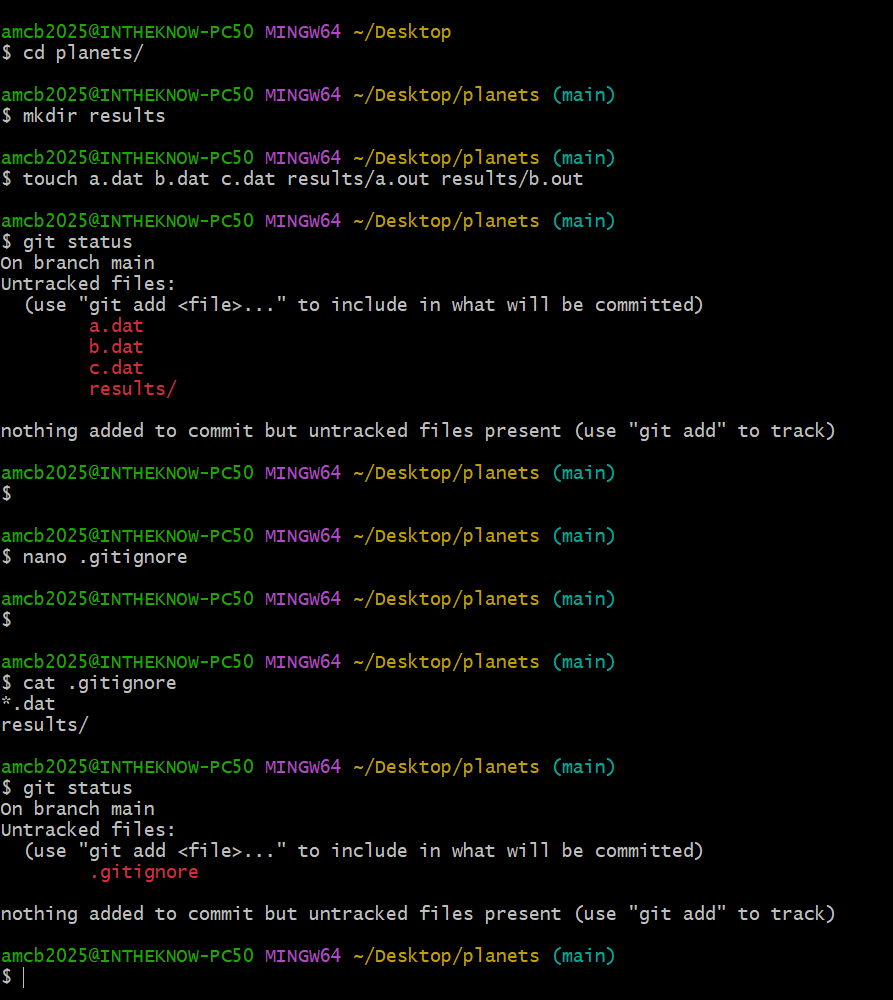
Image 1 of 1: ‘Terminal session in the planets repository. Dummy dat files and a results directory are created and git status lists them all as untracked. A .gitignore containing star dot dat and results slash is created with nano, and a second git status shows only .gitignore as untracked.’
The whole flow: dummy files created,
.gitignore written, and git status now showing
only the .gitignore itself.
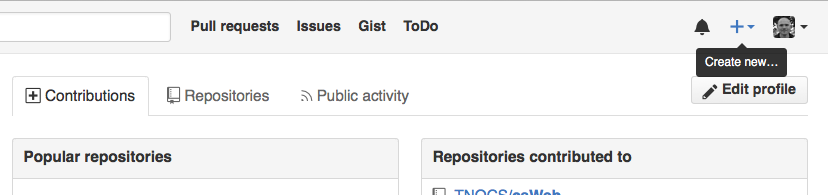
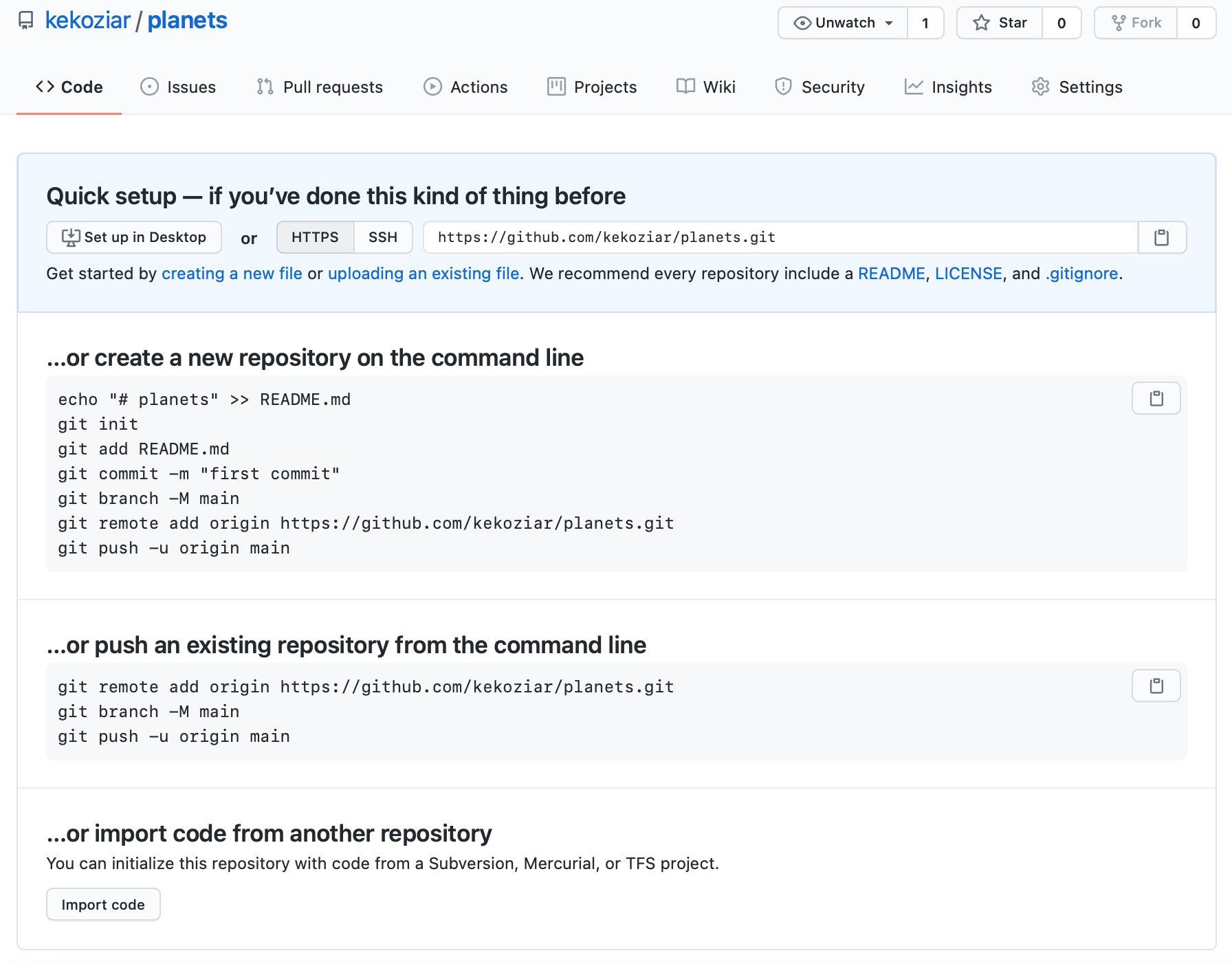
Image 1 of 1: ‘Creating a Repository on GitHub (Step 1)’
Figure 2
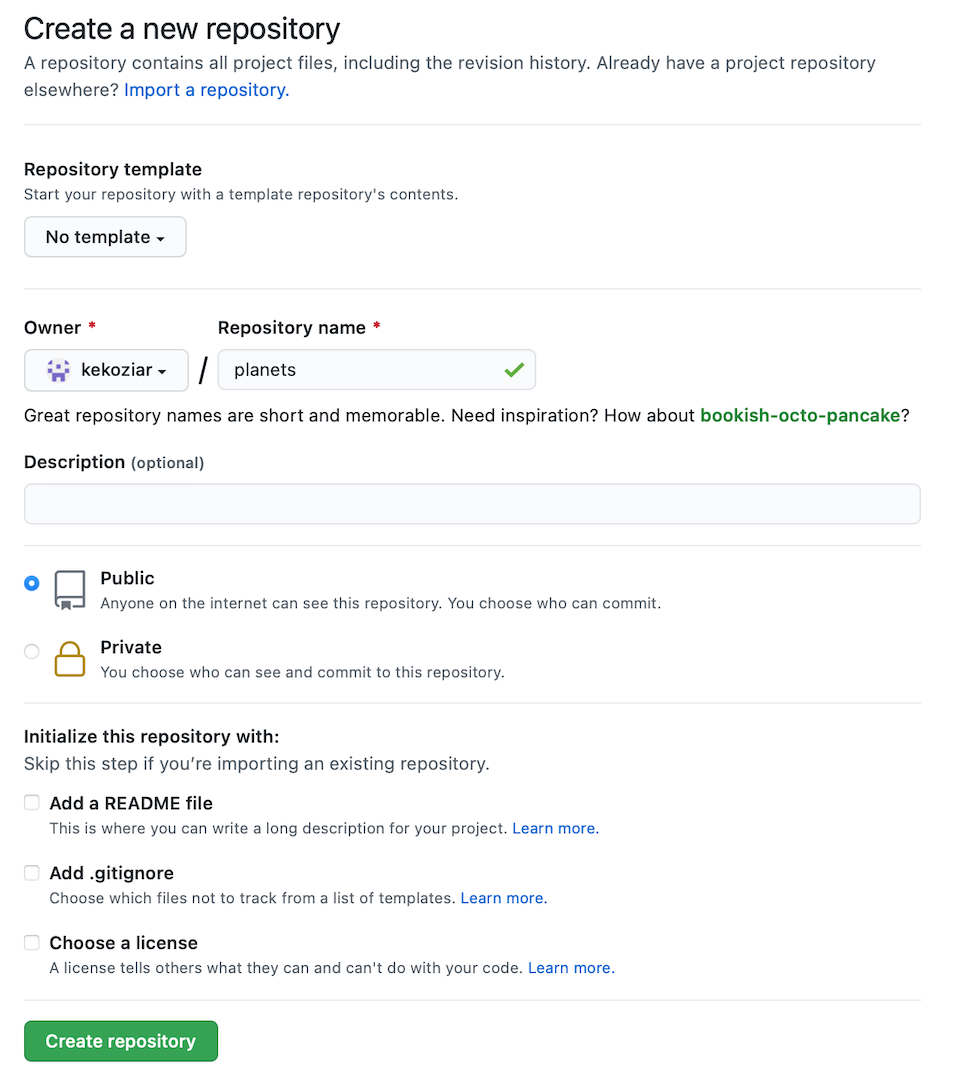
Image 1 of 1: ‘Creating a Repository on GitHub (Step 2)’
Figure 3
Image 1 of 1: ‘Creating a Repository on GitHub (Step 3)’
Figure 4
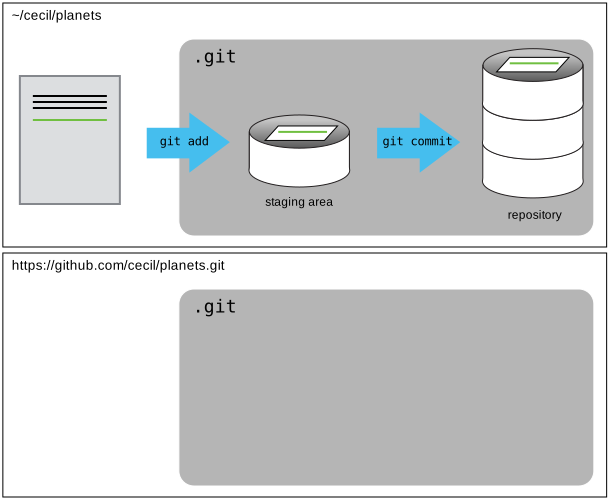
Image 1 of 1: ‘The Local Repository with Git Staging Area’
Figure 5
Image 1 of 1: ‘Freshly-Made GitHub Repository’
Figure 6
Image 1 of 1: ‘Where to Find Repository URL on GitHub’
Figure 7
Image 1 of 1: ‘Changing the Repository URL on GitHub’
Figure 8
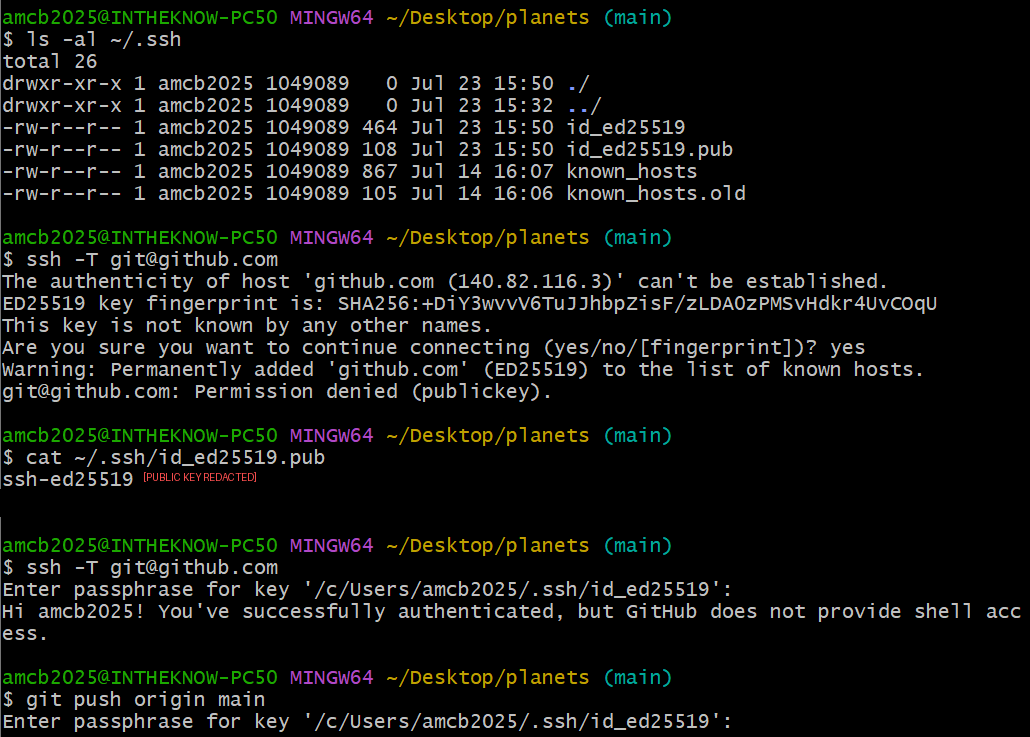
Image 1 of 1: ‘Terminal session verifying SSH access to GitHub. Listing the .ssh directory shows an ed25519 key pair. The first ssh -T attempt asks to confirm the host fingerprint and ends with Permission denied publickey. After the public key is added to GitHub, a second ssh -T prompts for the key passphrase and prints a successful authentication message, and git push begins by asking for the same passphrase.’
SSH setup end to end: denied before the key is
on GitHub, successful after — then git push asks for the
key passphrase.
Figure 9
Image 1 of 1: ‘GitHub Repository After First Push’
Figure 10
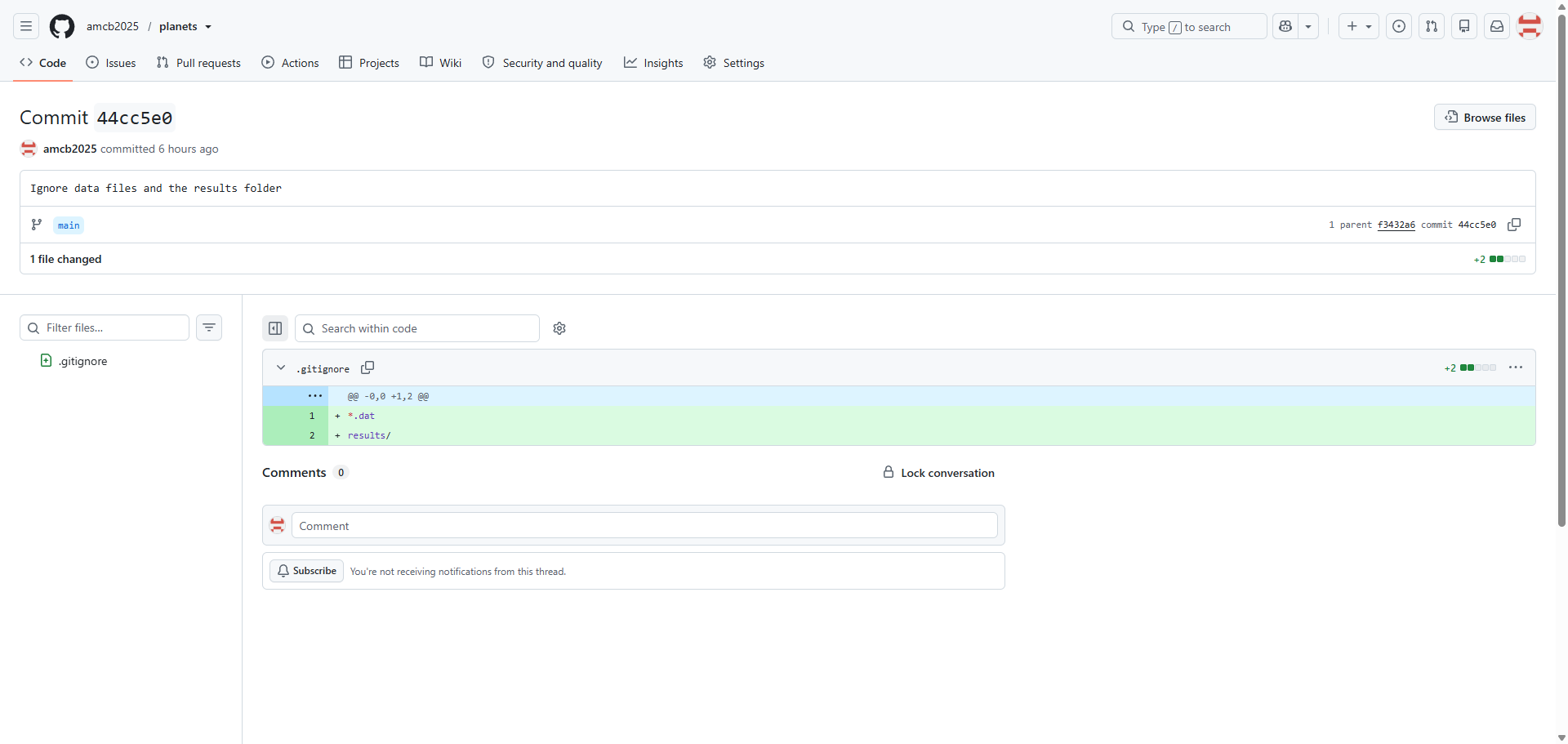
Image 1 of 1: ‘GitHub commit detail page for a repository named planets. The header shows the commit message Ignore data files and the results folder, the main branch badge, the parent commit link, and the abbreviated hash. Below, a diff of .gitignore highlights two added lines in green.’
A commit’s page on GitHub: message, author,
branch, full hash, parent link, and the line-by-line diff — the web view
of git log + git show.
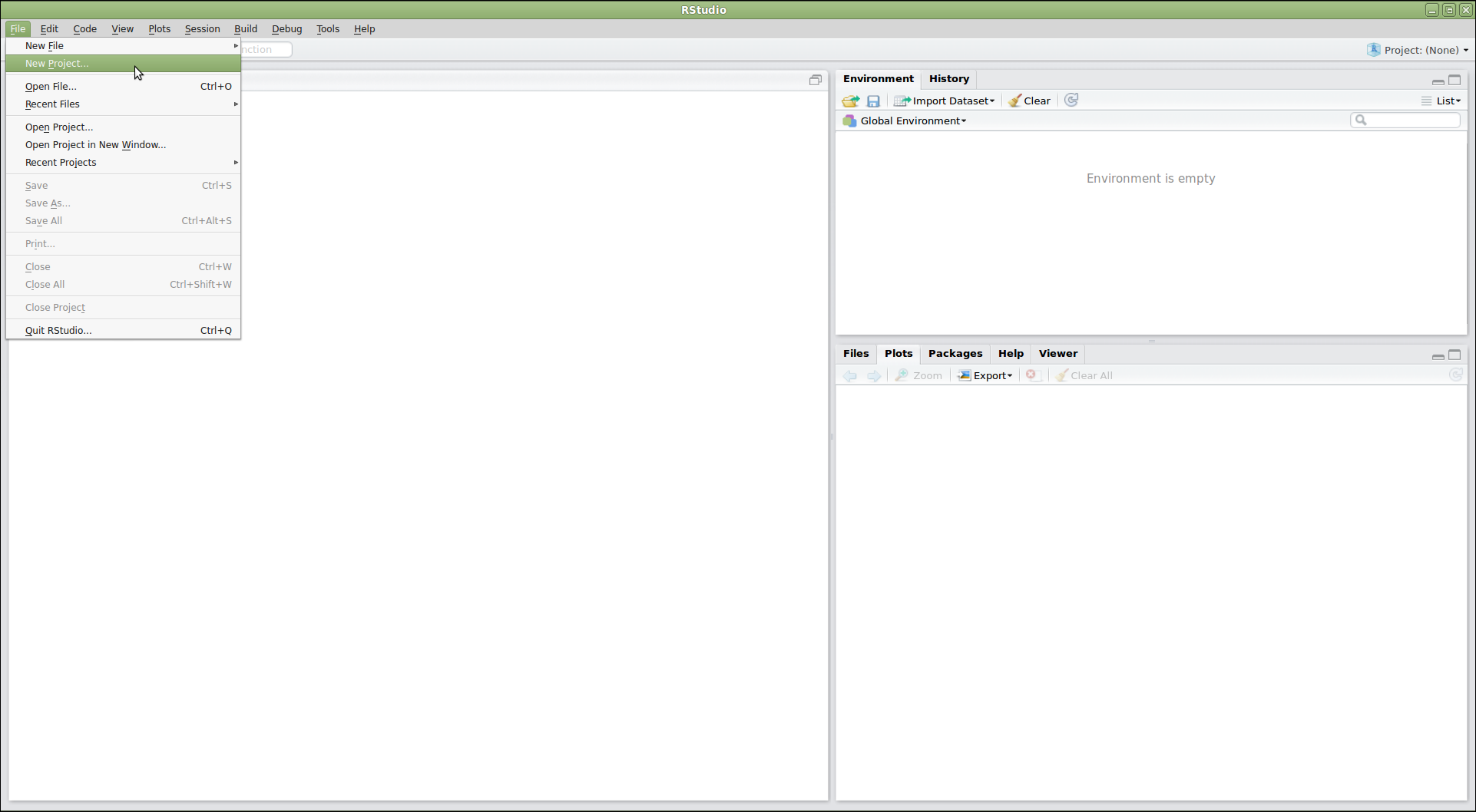
Image 1 of 1: ‘RStudio screenshot showing the file menu dropdown with "New Project..." selected’
Figure 2
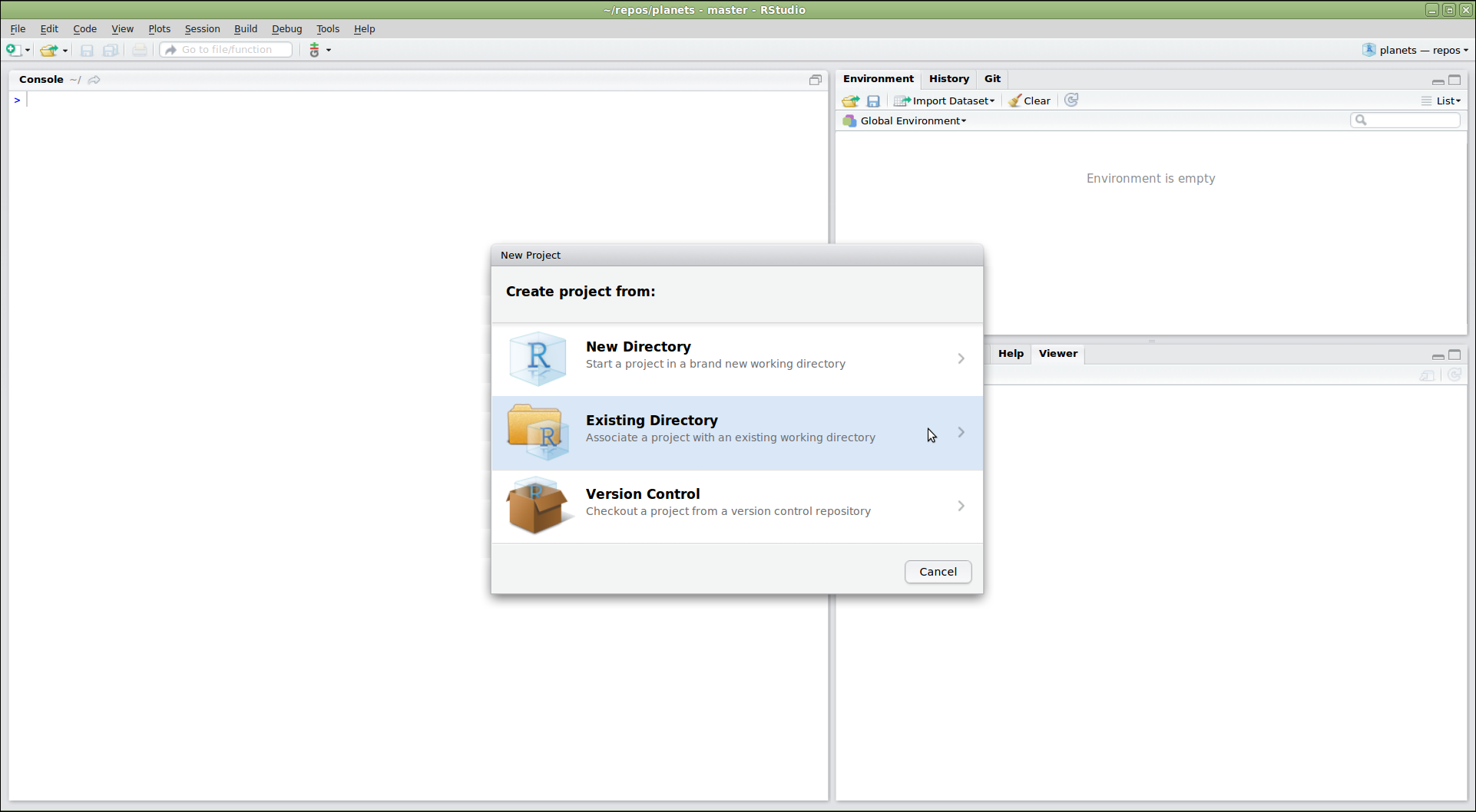
Image 1 of 1: ‘RStudio screenshot showing New Project dialog window with "Create project from existing directory" selected’
Figure 3
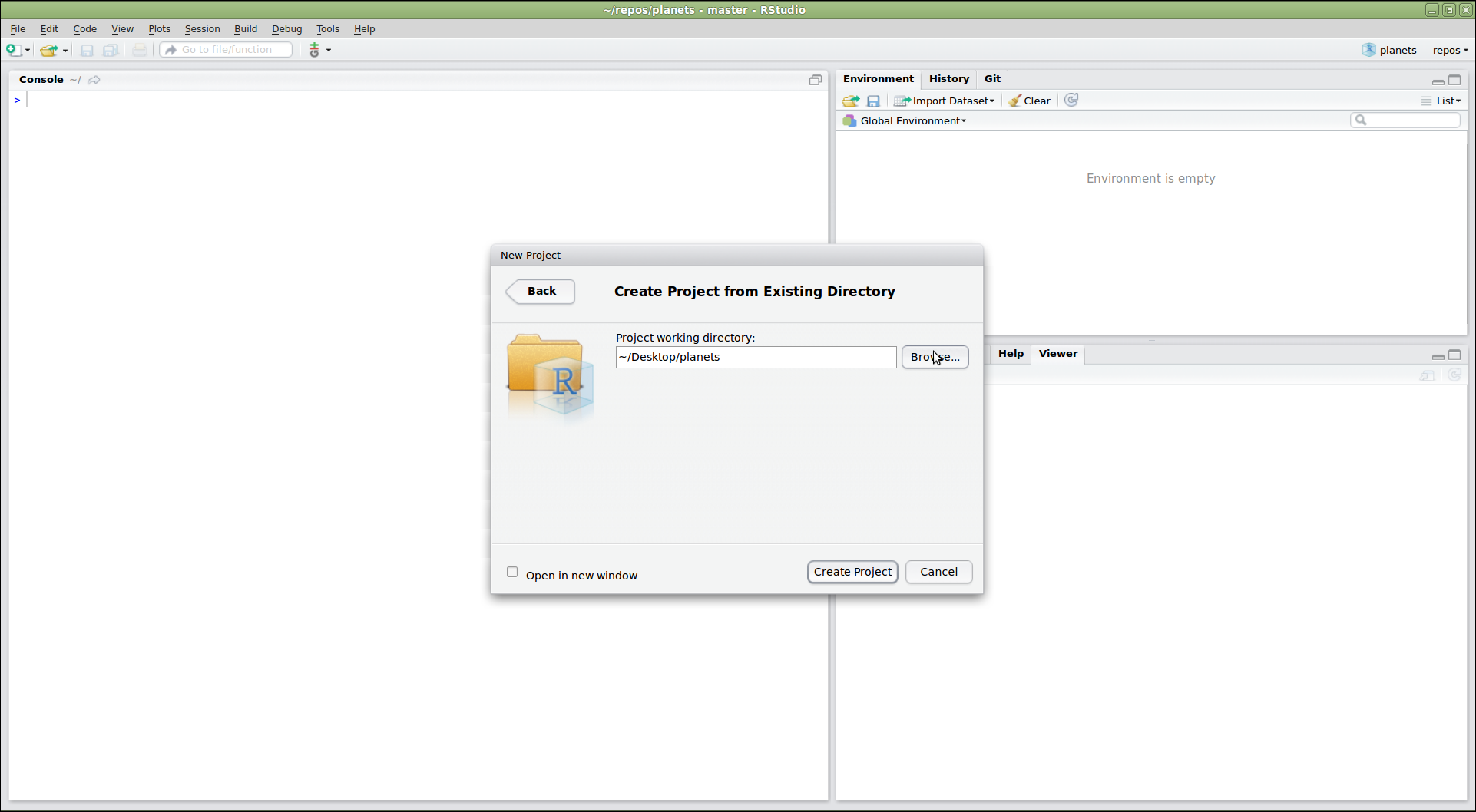
Image 1 of 1: ‘RStudio New Project dialog with the Browse button used to navigate to the existing planets directory’
Figure 4
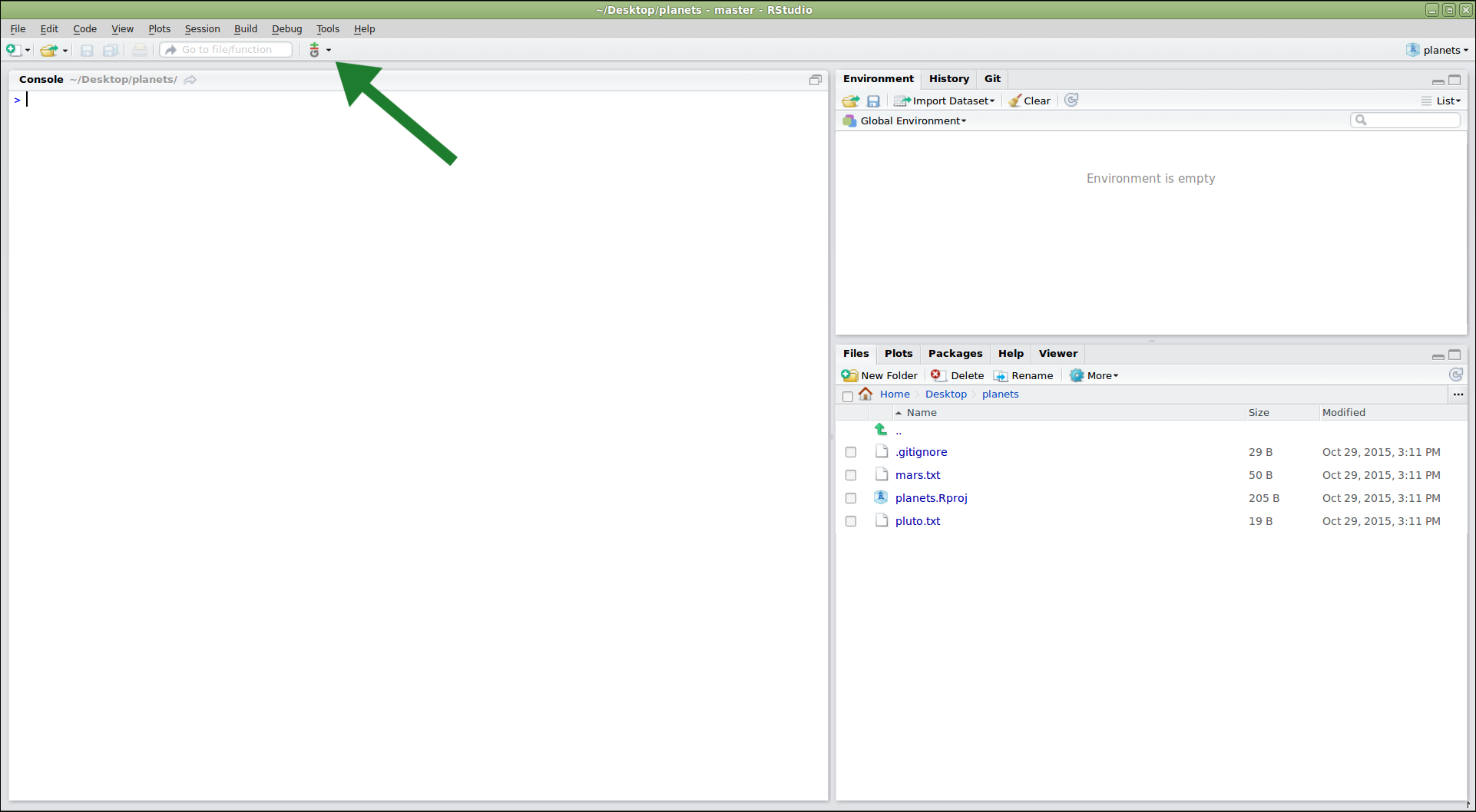
Image 1 of 1: ‘RStudio window after new project is created with large arrow pointing to vertical Git menu bar.’
Figure 5
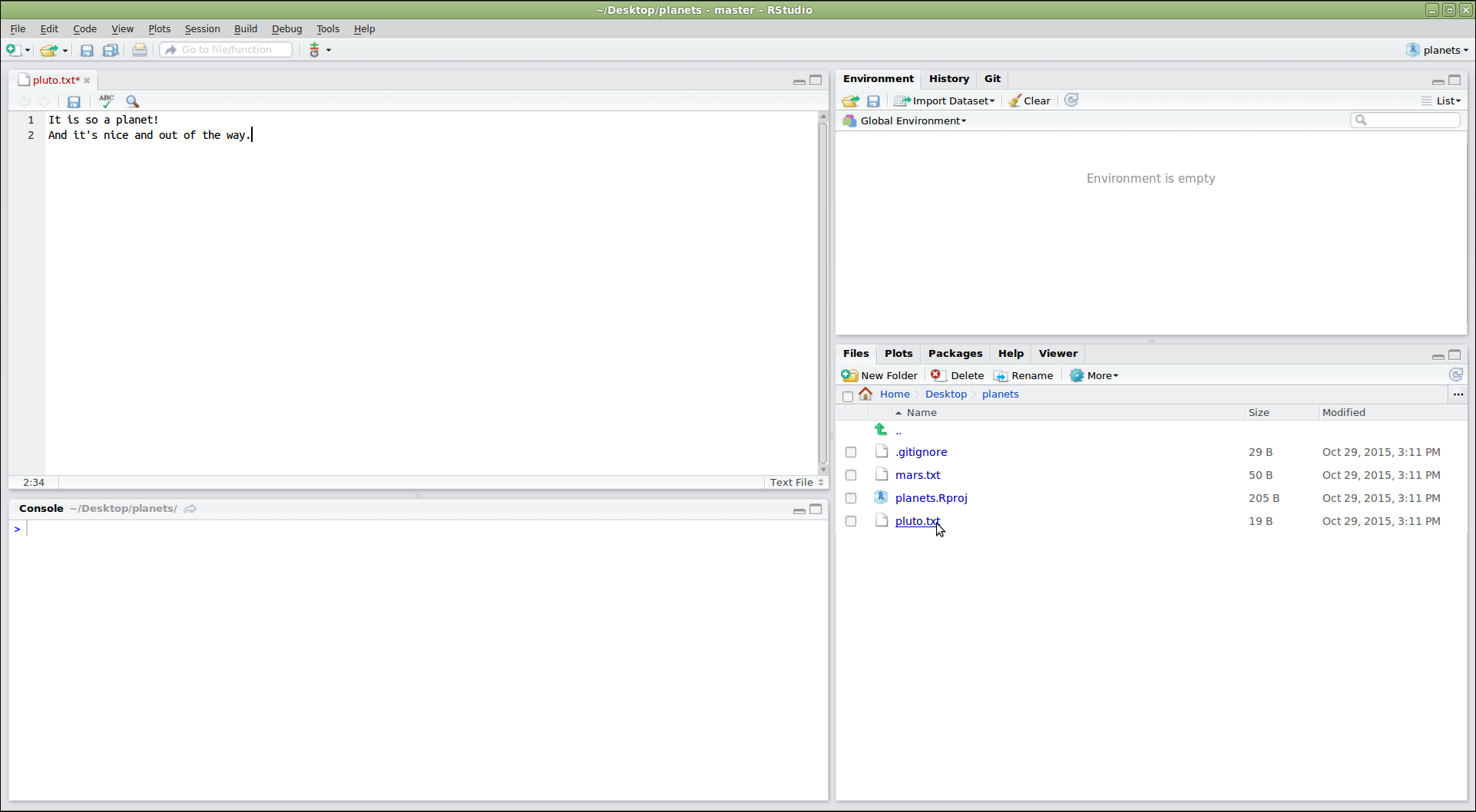
Image 1 of 1: ‘RStudio editor pane with a file from the repository open for editing, and the Git pane showing the modified file’
Figure 6
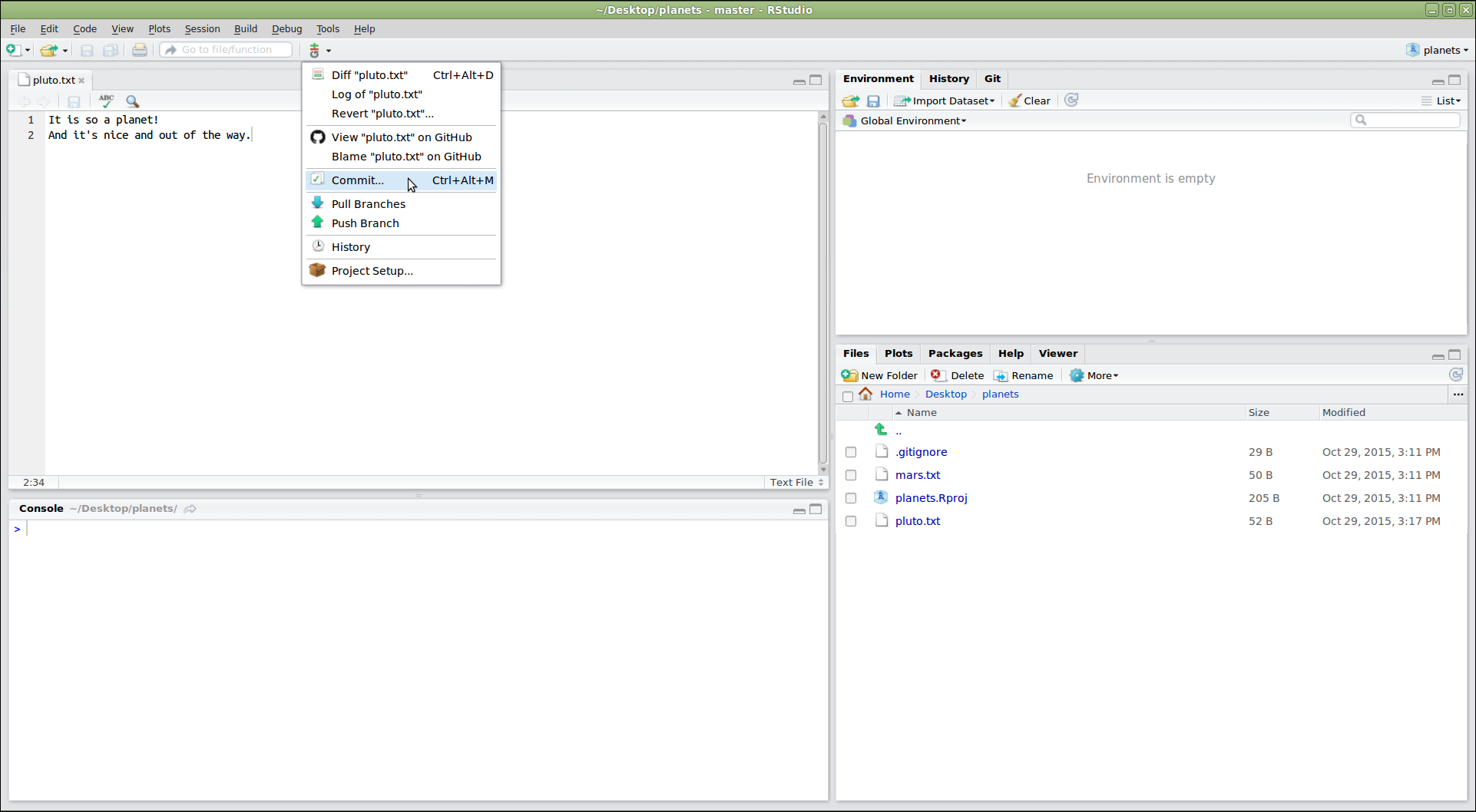
Image 1 of 1: ‘RStudio screenshot showing the Git menu dropdown with "Commit..." selected’
Figure 7
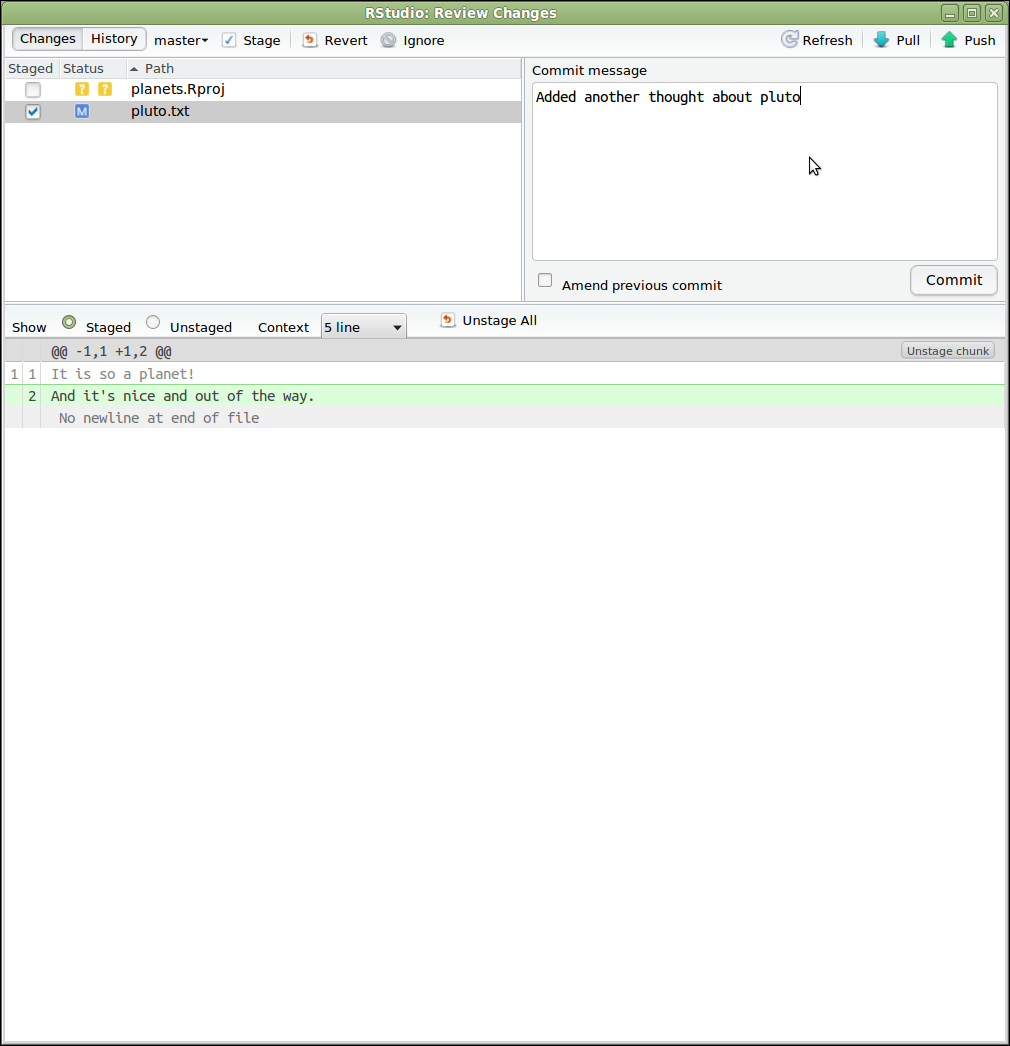
Image 1 of 1: ‘RStudio Review Changes window showing staged files, a commit message box, and a diff of the changes highlighted in green and red’
Figure 8
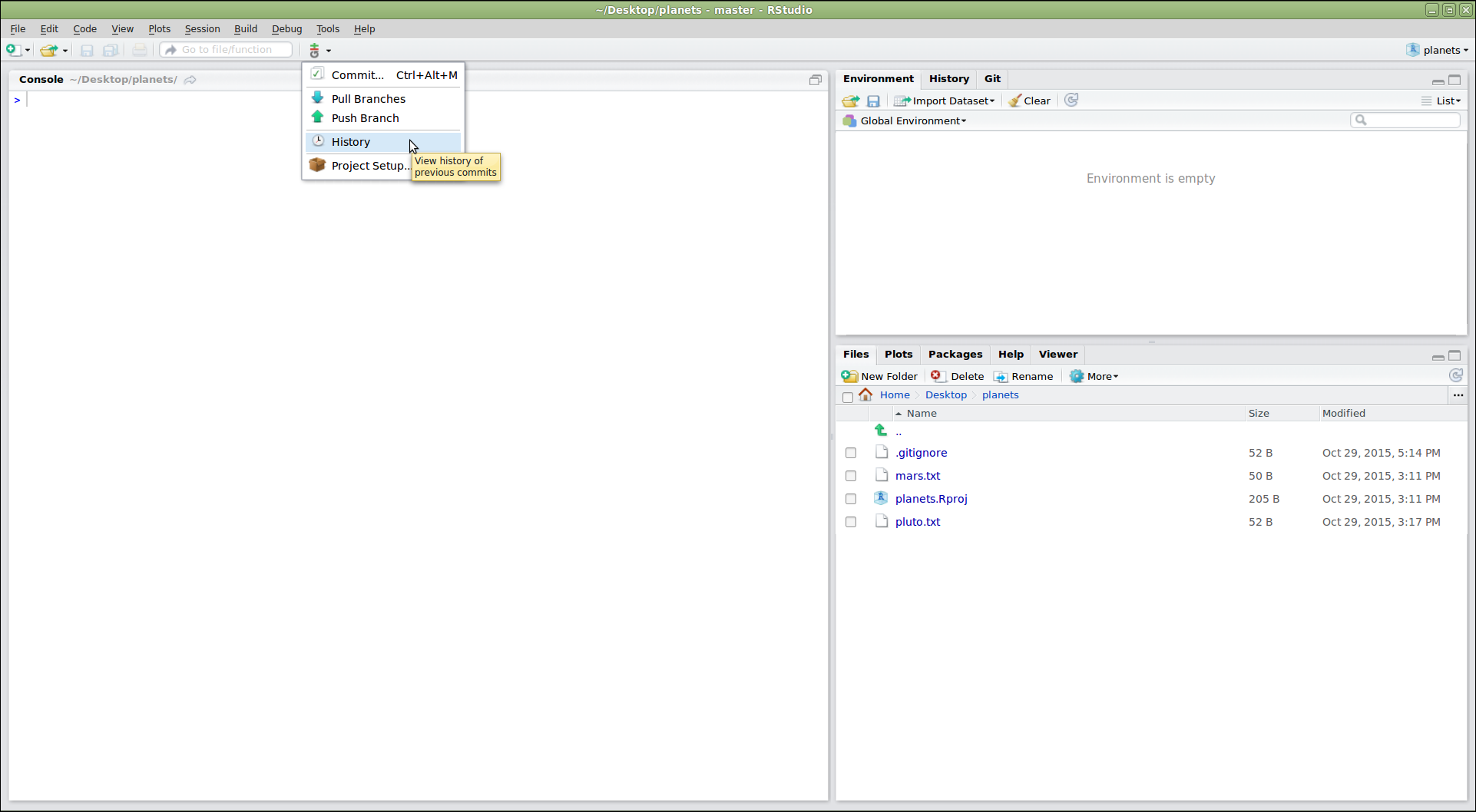
Image 1 of 1: ‘RStudio screenshot showing the git menu dropdown with "History" selected’
Figure 9
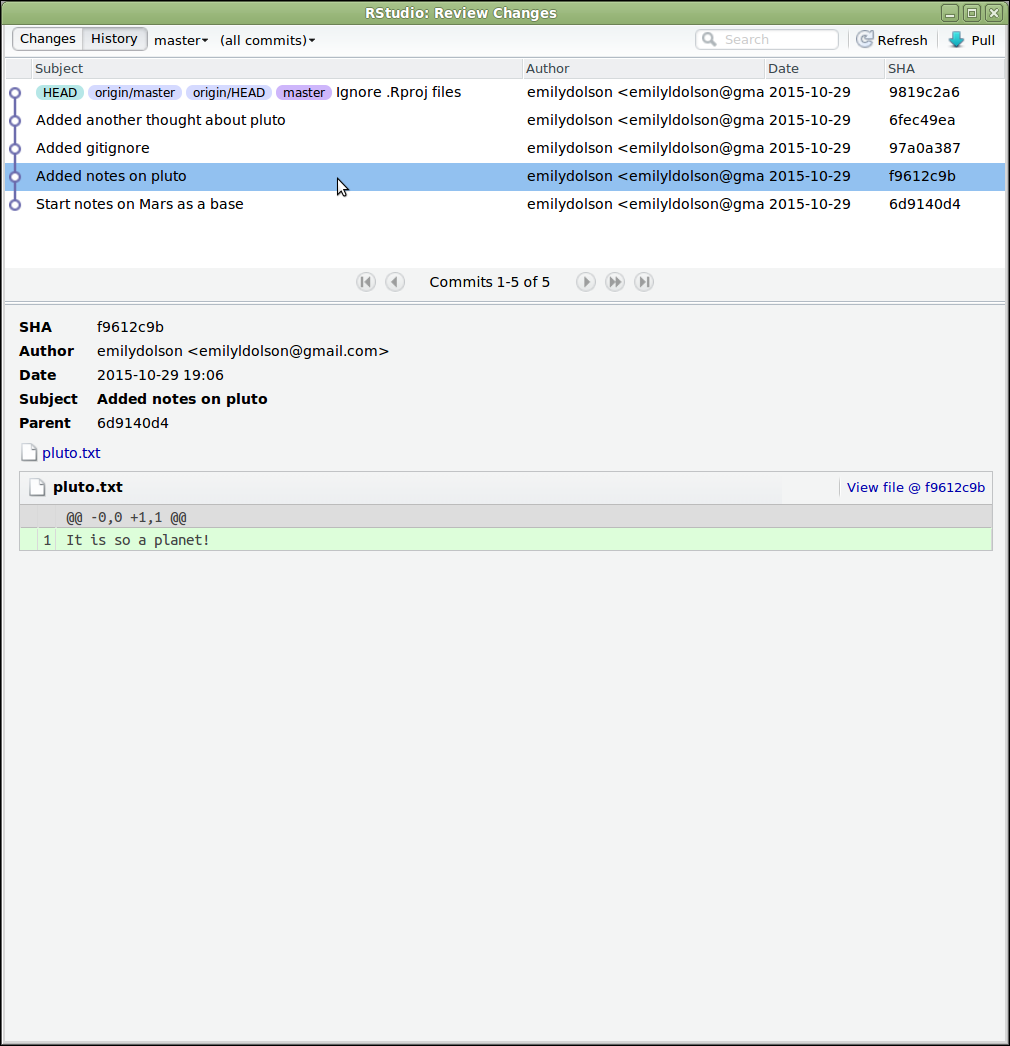
Image 1 of 1: ‘RStudio history window listing past commits with their messages, authors, dates, and SHA identifiers’
Figure 10
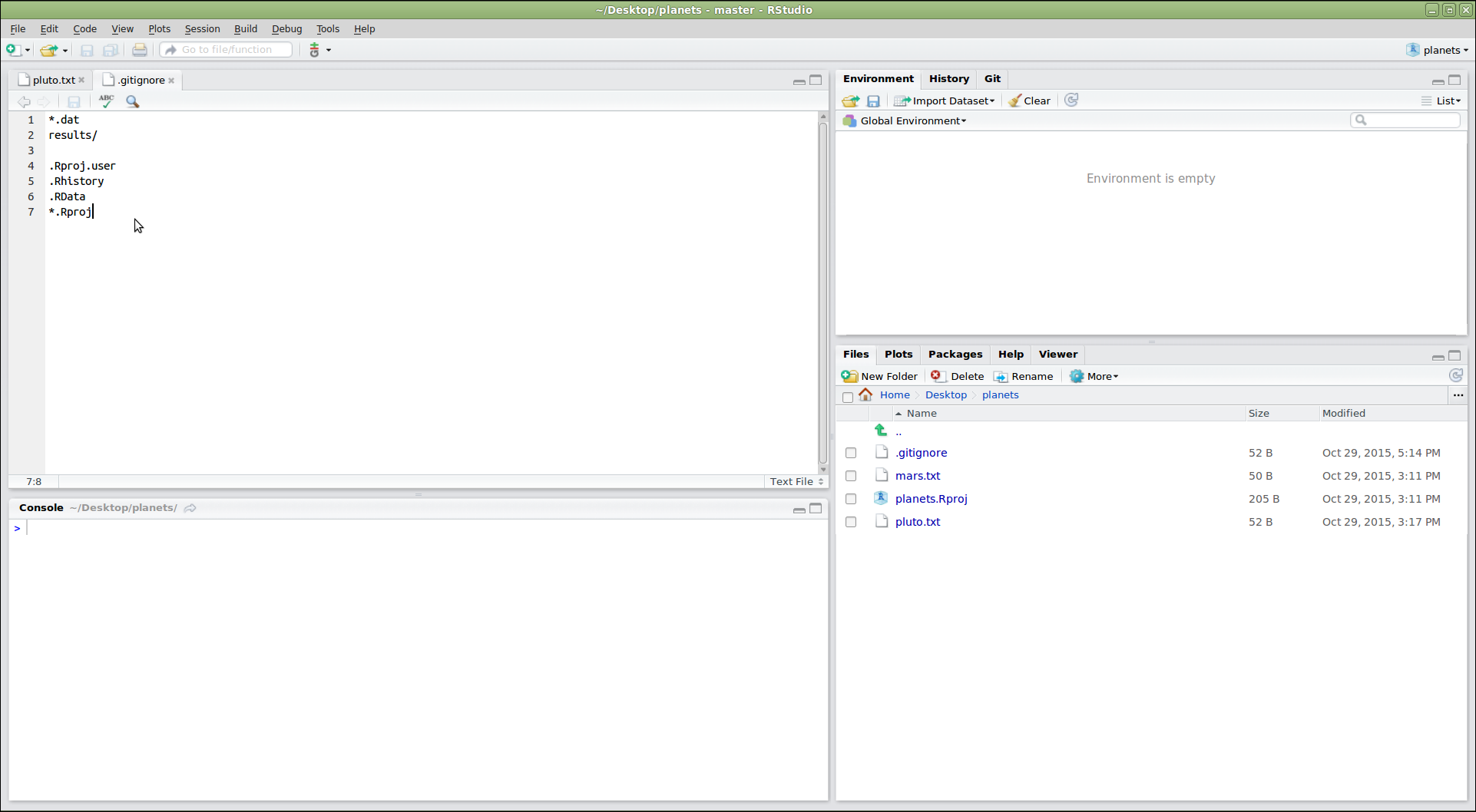
Image 1 of 1: ‘RStudio screenshot showing .gitignore open in the editor pane with the files .Rproj.user, .Rhistory, .RData, and *.Rproj added to the end’