
Managing Kernels and Environments
Last updated on 2026-08-27 | Edit this page
Overview
Questions
- What is a kernel and how does it affect my notebook?
- How do I manage and restart kernels?
- What is a Python environment and why do I need one?
- How do I create a conda environment for my project?
Objectives
- Understand what the kernel is and how it maintains state
- Restart and manage kernels effectively
- Understand what Python environments are and why they matter
- Create and activate conda environments
- Install packages and register Jupyter kernels
The Kernel: Python’s Memory
The kernel is the Python interpreter running behind the scenes. It maintains:
- All variables you’ve created
- All imported libraries
- All function definitions
- All state from executed cells
When you run a code cell:
Those variables exist in the kernel’s memory. In later cells, you can use them:
Restarting the Kernel
Sometimes you want to clear all variables and start fresh (e.g., to debug issues or verify your notebook works from scratch).
To restart:
- Click Kernel then Restart Kernel
- Or press the “restart” button in the toolbar
- You’ll see a confirmation dialog
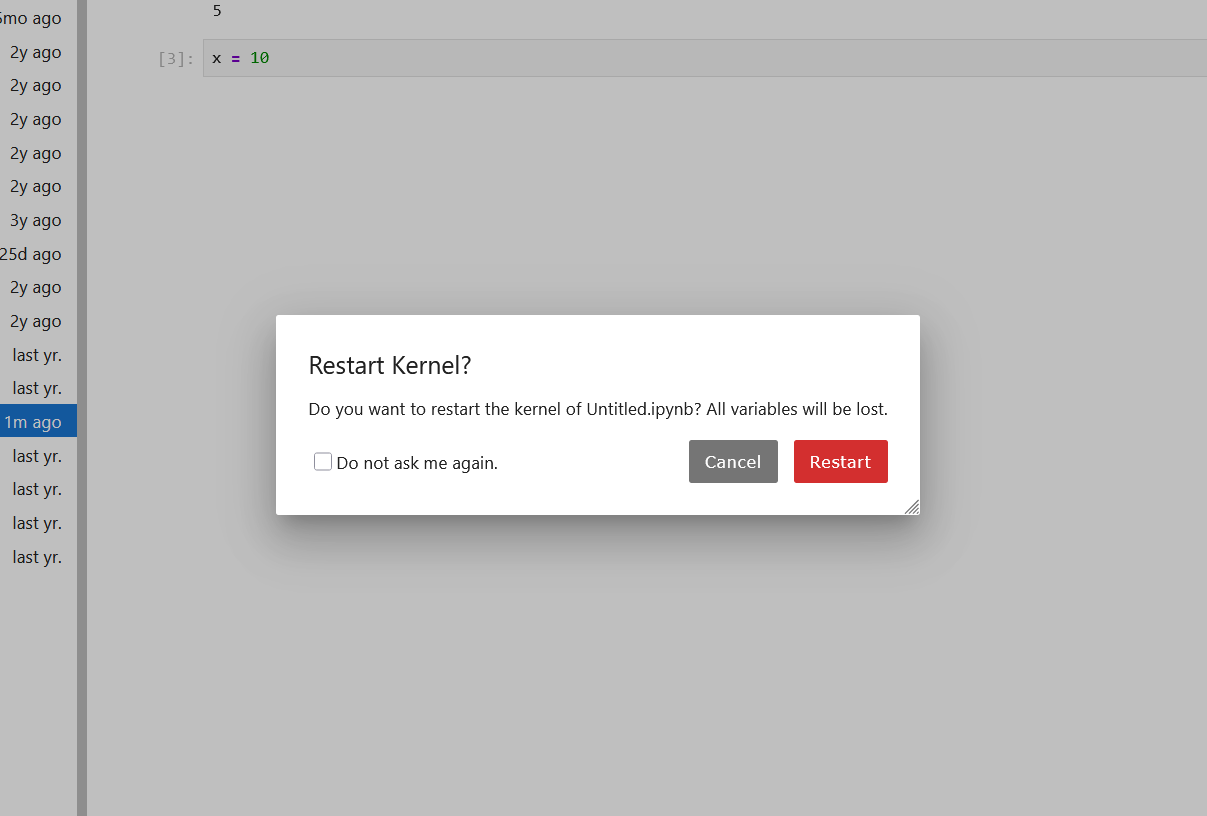
- Click “Restart”
After restarting, all variables are gone. If you run cells again, you’re starting fresh.
When to restart the kernel
- You want to verify your notebook works from the beginning
- You have mysterious errors that might be due to out-of-order execution
- You want to clear memory (e.g., if you loaded a huge dataset)
- You modified imported code and want to reload it
What Are Python Environments?
A Python environment is an isolated installation of Python with a specific set of packages. Think of it as a container holding Python and libraries.
Why environments matter
Imagine you have two projects:
- Project A: Needs numpy 1.20, matplotlib 3.3
- Project B: Needs numpy 1.25, matplotlib 3.8
If you install all packages in Python’s default location, they conflict. Environments solve this by keeping packages isolated.
Without environments:
System Python
  numpy 1.25
  matplotlib 3.8
  pandas 2.0
  ... (all packages mixed together)
With environments:
Python installation
  project_a_env
    numpy 1.20
    matplotlib 3.3
    pandas 1.5

  project_b_env
    numpy 1.25
    matplotlib 3.8
    pandas 2.0
Creating conda Environments
conda is Pomona’s recommended tool for managing Python environments. On Sagehen HPC, load conda first:
Using Environments in Jupyter
To use a conda environment in Jupyter, you must install a kernel:
BASH
# Activate your environment
conda activate myproject

# Install jupyter and ipykernel
conda install jupyter ipykernel

# Install the kernel
python -m ipykernel install --user --name myproject --display-name "My Project (Python 3.11)"
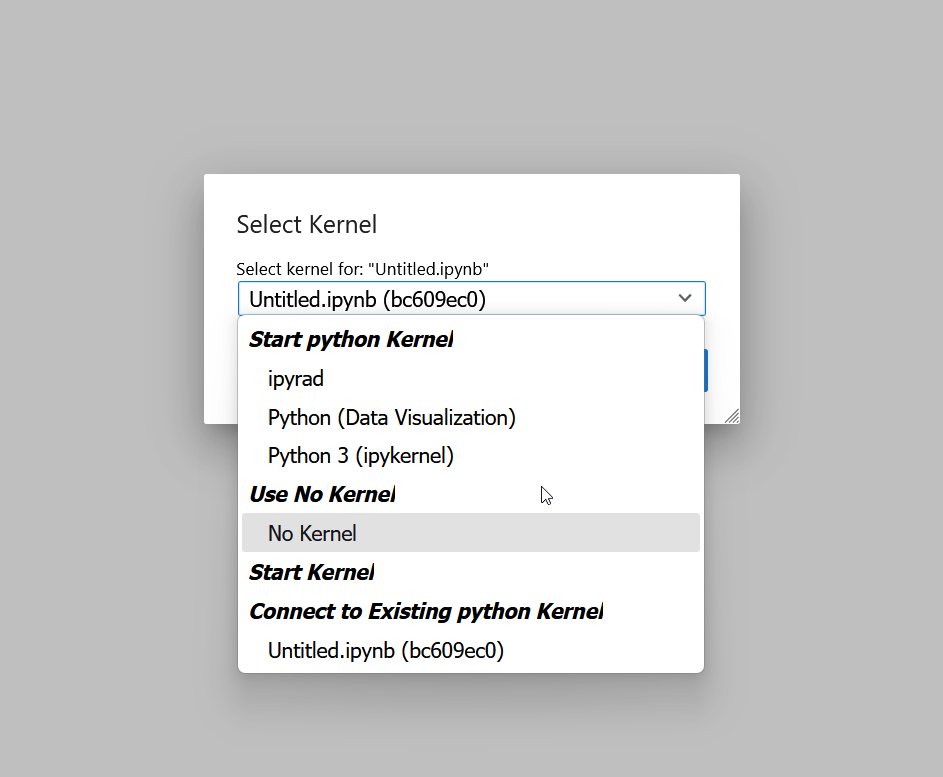
Selecting kernel in notebook
When you create a new notebook in JupyterLab:
- Click “Select Kernel” when creating the notebook
- Or click the kernel name in the top-right of JupyterLab
- Choose your environment’s kernel from the list
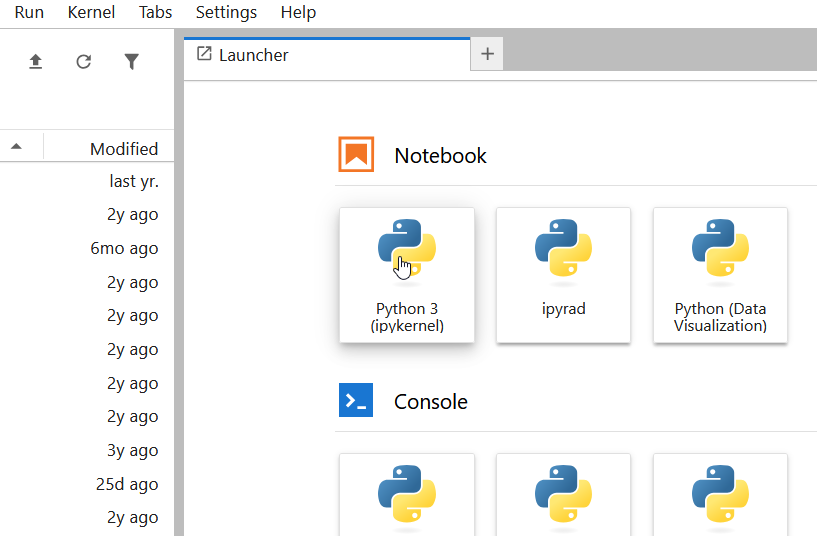
On Sagehen, you’ll see multiple kernels available in the Launcher:
Verifying your environment
In a notebook using your environment:
PYTHON
import sys
print(sys.executable)  # Shows the Python in your environment
print(sys.version)     # Shows Python version

import numpy
print(numpy.__version__)  # Verify packages are installed
Challenge 1: Create a conda environment
Open a terminal (SSH to Sagehen or use OnDemand terminal):
-
Load conda and create an environment:
-
Activate it and install the kernel:
Verify with
conda list(you should see numpy, pandas, matplotlib).
Step 2 (create environment): conda asks
Proceed ([y]/n)? – type y and press Enter. It
downloads and installs packages (takes 1-2 minutes).
Step 3 (activate and install kernel): Your prompt
changes to (workshop) $. Kernel install outputs:
Installed kernelspec workshop in /rhome/<myusername>/.local/share/jupyter/kernels/workshopTroubleshooting: - “conda: command not found” – Try
module load anaconda3 or check with
module avail - Kernel doesn’t appear in JupyterLab – You
may need to restart JupyterLab or refresh the page
Challenge 2: Use environment in Jupyter
Launch JupyterLab through OnDemand
Create a new notebook and select the “Workshop (Python 3.11)” kernel
-
In the notebook, run:
Verify the Python executable path contains
envs/workshop.
Expected output:
/opt/miniconda3/envs/workshop/bin/python
numpy version: 1.24.x
pandas version: 2.0.x
If sys.executable shows /usr/bin/python or
/opt/miniconda3/bin/python (without
/envs/workshop), you selected the wrong kernel. Go to the
kernel selector (top-right of JupyterLab) and switch to “Workshop
(Python 3.11)”.
- The kernel is the Python interpreter that maintains all variables and state
- Restart the kernel to clear state and verify notebooks work from scratch
- Interrupt the kernel to stop long-running cells
- Python environments isolate packages, preventing version conflicts
- conda is Pomona’s recommended tool for managing environments
- Install kernels to use custom environments in Jupyter notebooks