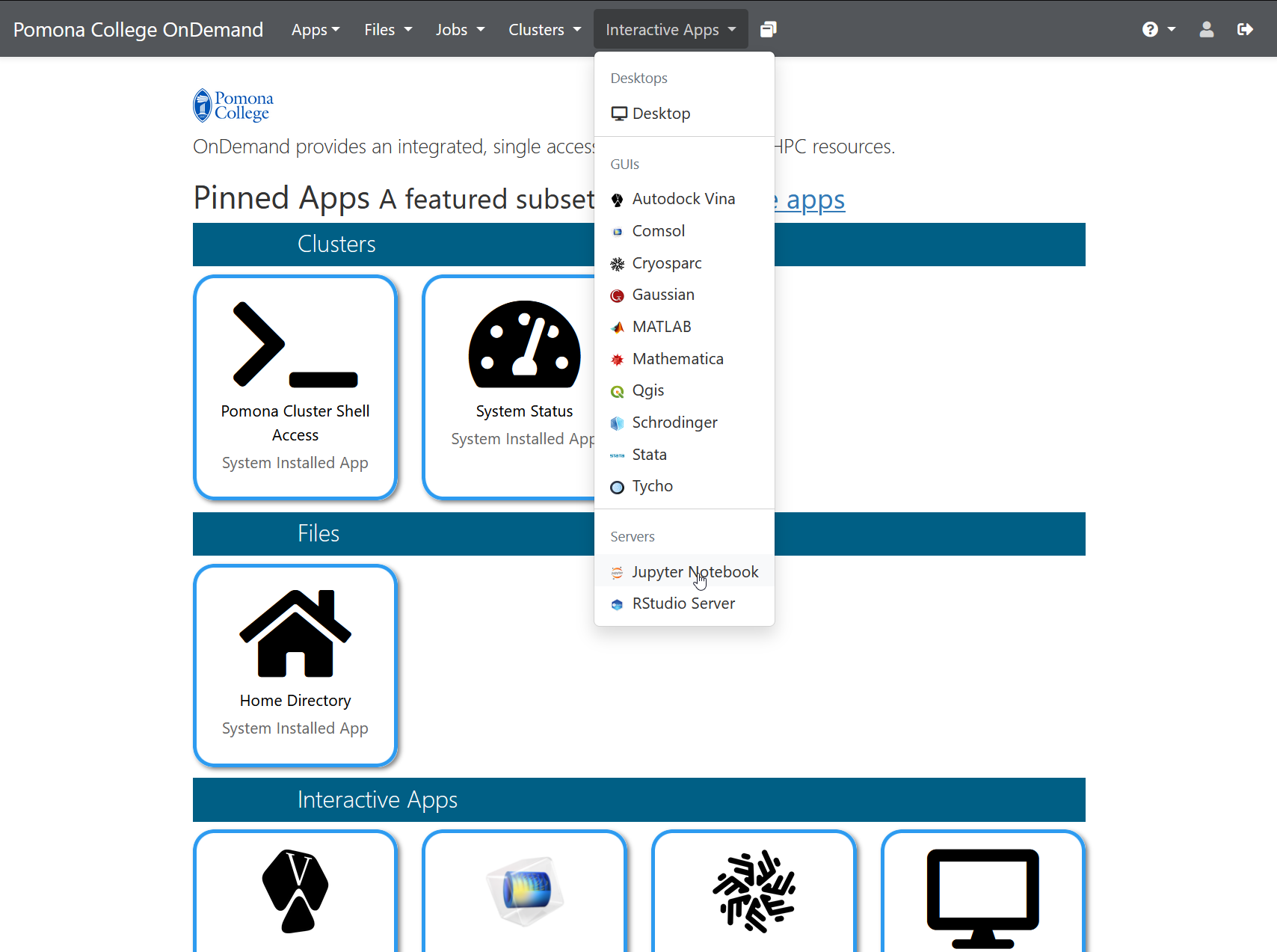
Image 1 of 1: ‘The Interactive Apps dropdown menu open on the OnDemand dashboard. It lists a Desktop entry, then a GUIs group containing Autodock Vina, Comsol, Cryosparc, Gaussian, MATLAB, Mathematica, Qgis, Schrodinger, Stata and Tycho, then a Servers group containing Jupyter Notebook and RStudio Server.’
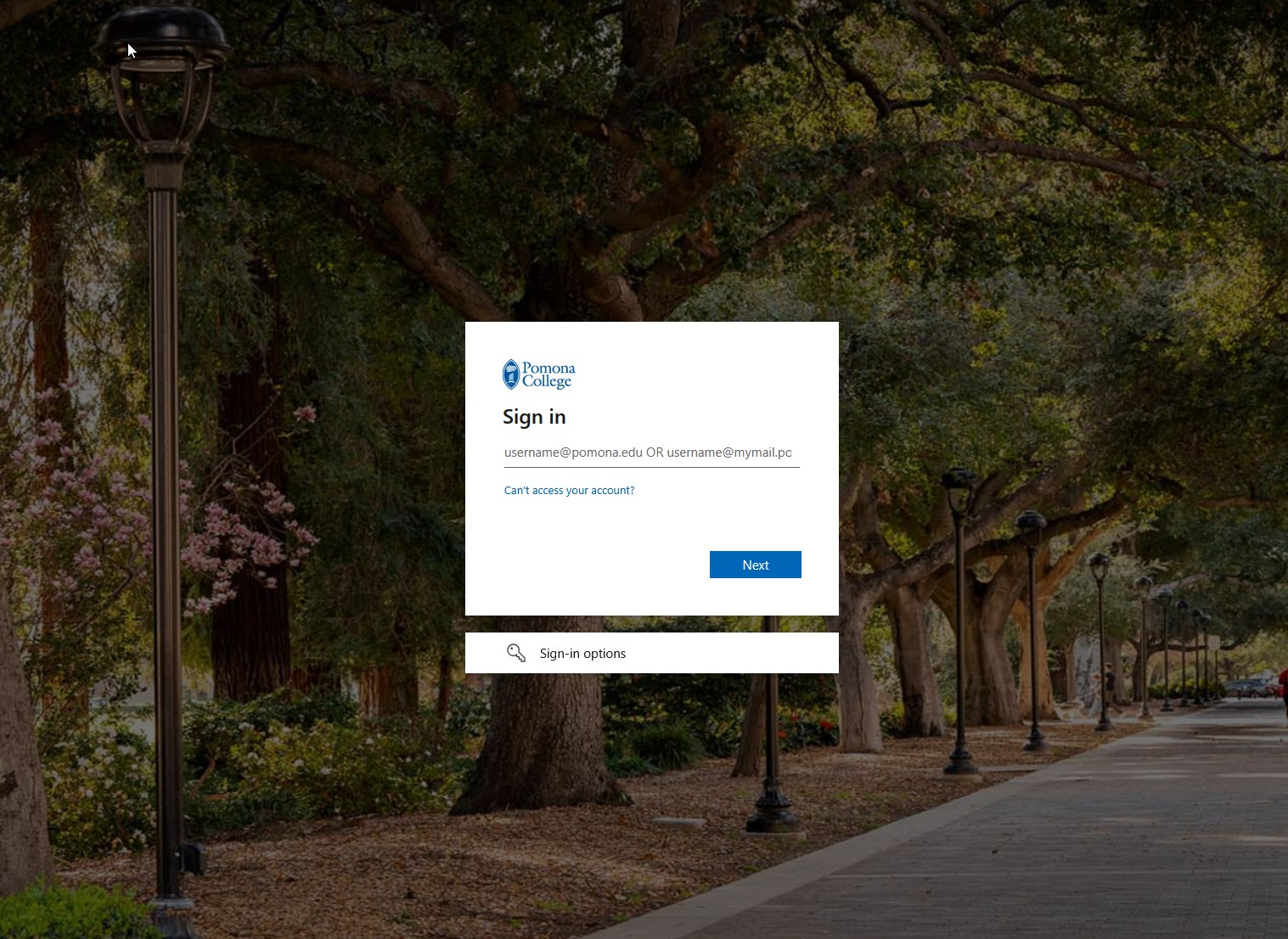
Image 1 of 1: ‘The Pomona College sign-in page shown on a photograph of campus. A dialogue box asks for username@pomona.edu or username@mymail.pomona.edu, with a Next button, a link for people who cannot access their account, and a sign-in options link.’
The Pomona College single sign-on page that
OnDemand hands you off to.
Figure 2
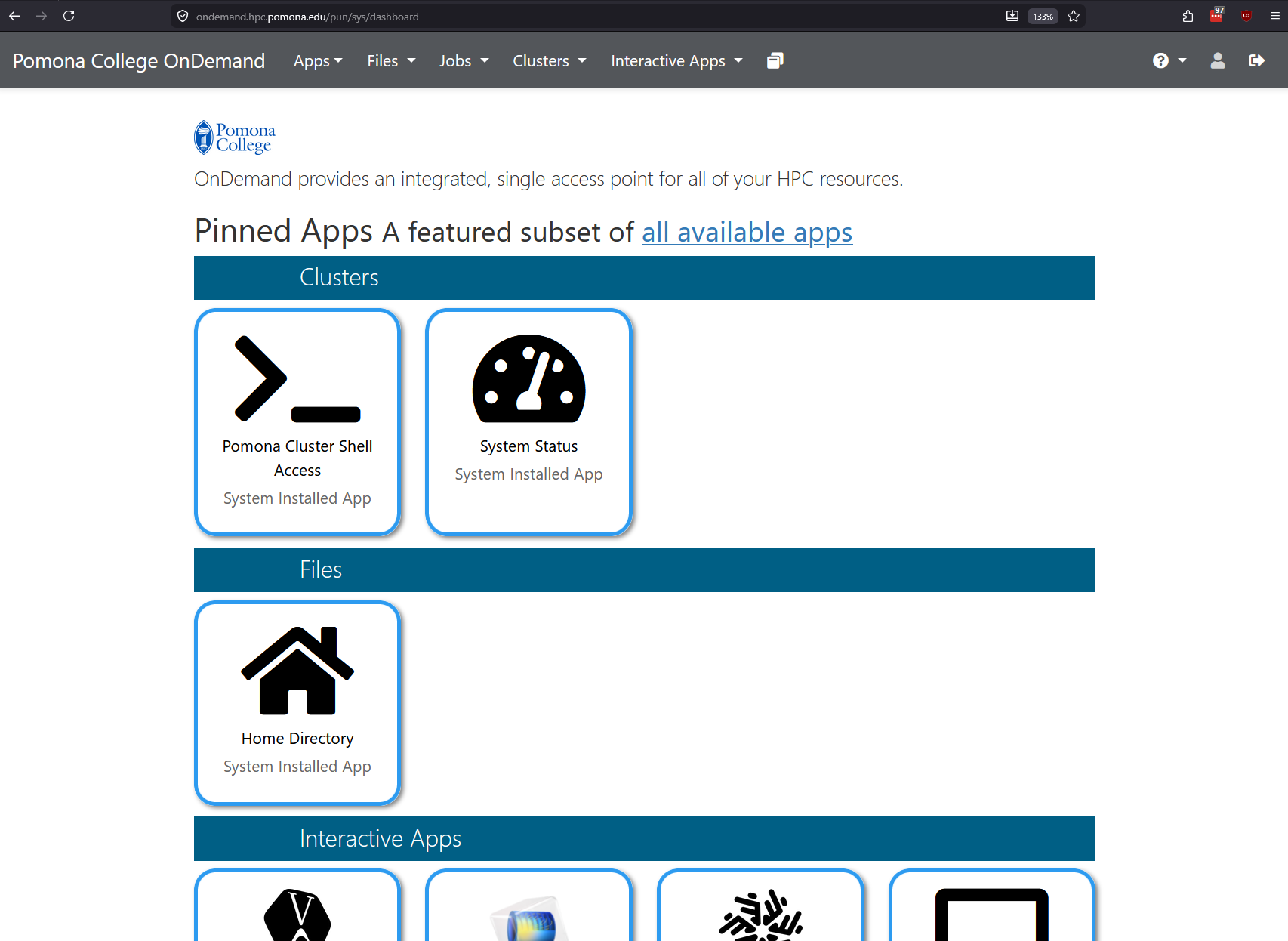
Image 1 of 1: ‘The Pomona College OnDemand dashboard. A top menu bar offers Apps, Files, Jobs, Clusters and Interactive Apps. The page below shows pinned apps grouped under three headings: Clusters, containing Pomona Cluster Shell Access and System Status; Files, containing Home Directory; and Interactive Apps.’
The dashboard you land on: pinned apps grouped
into Clusters, Files and Interactive Apps.
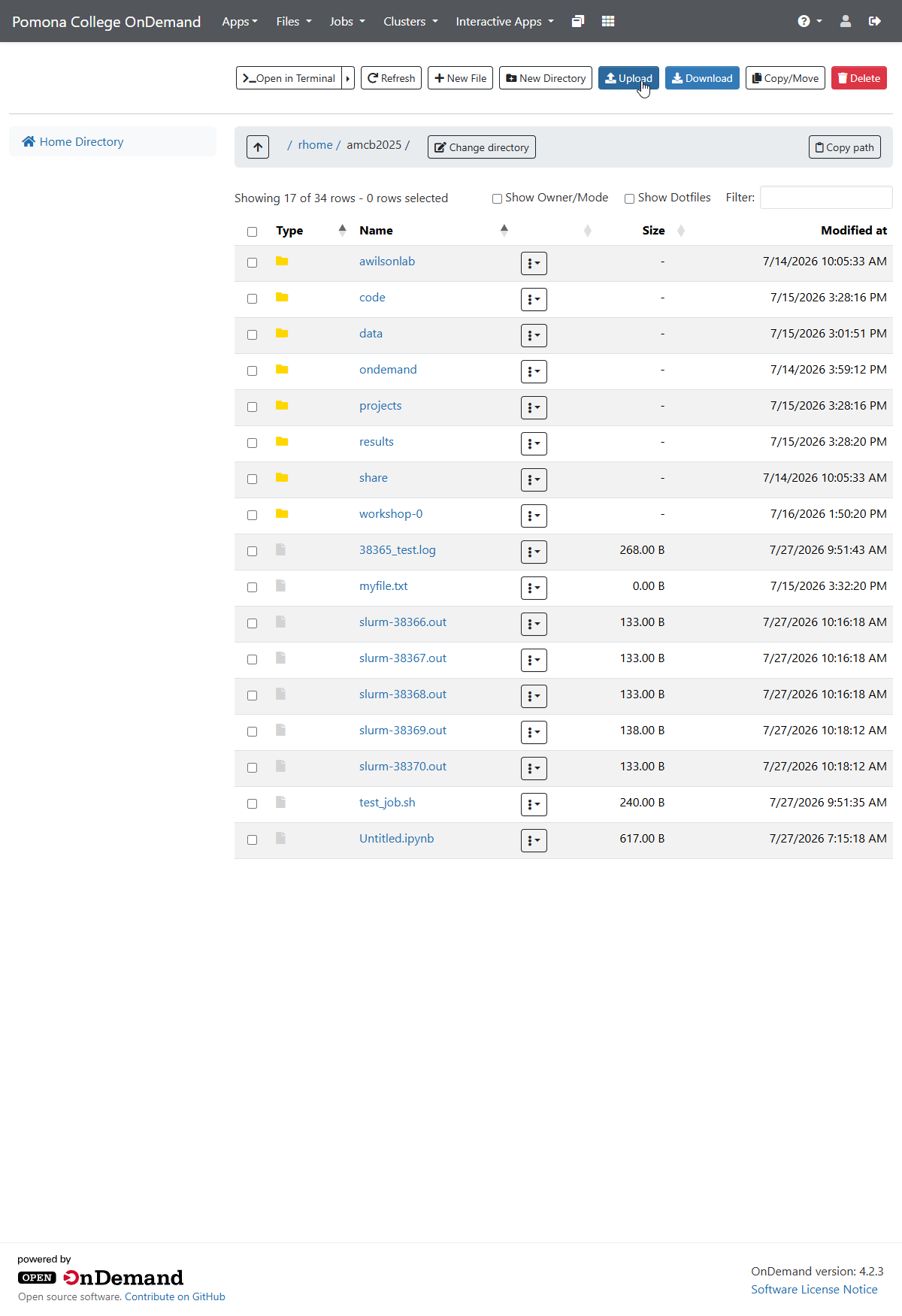
Image 1 of 1: ‘The Pomona College OnDemand Files app showing the home directory. A toolbar across the top offers Open in Terminal, Refresh, New File, New Directory, Upload, Download, Copy Move, and Delete. The listing includes folders such as code, data, and projects plus several slurm output files.’
The file manager in your home directory, with
the Upload button in the toolbar.
Figure 2
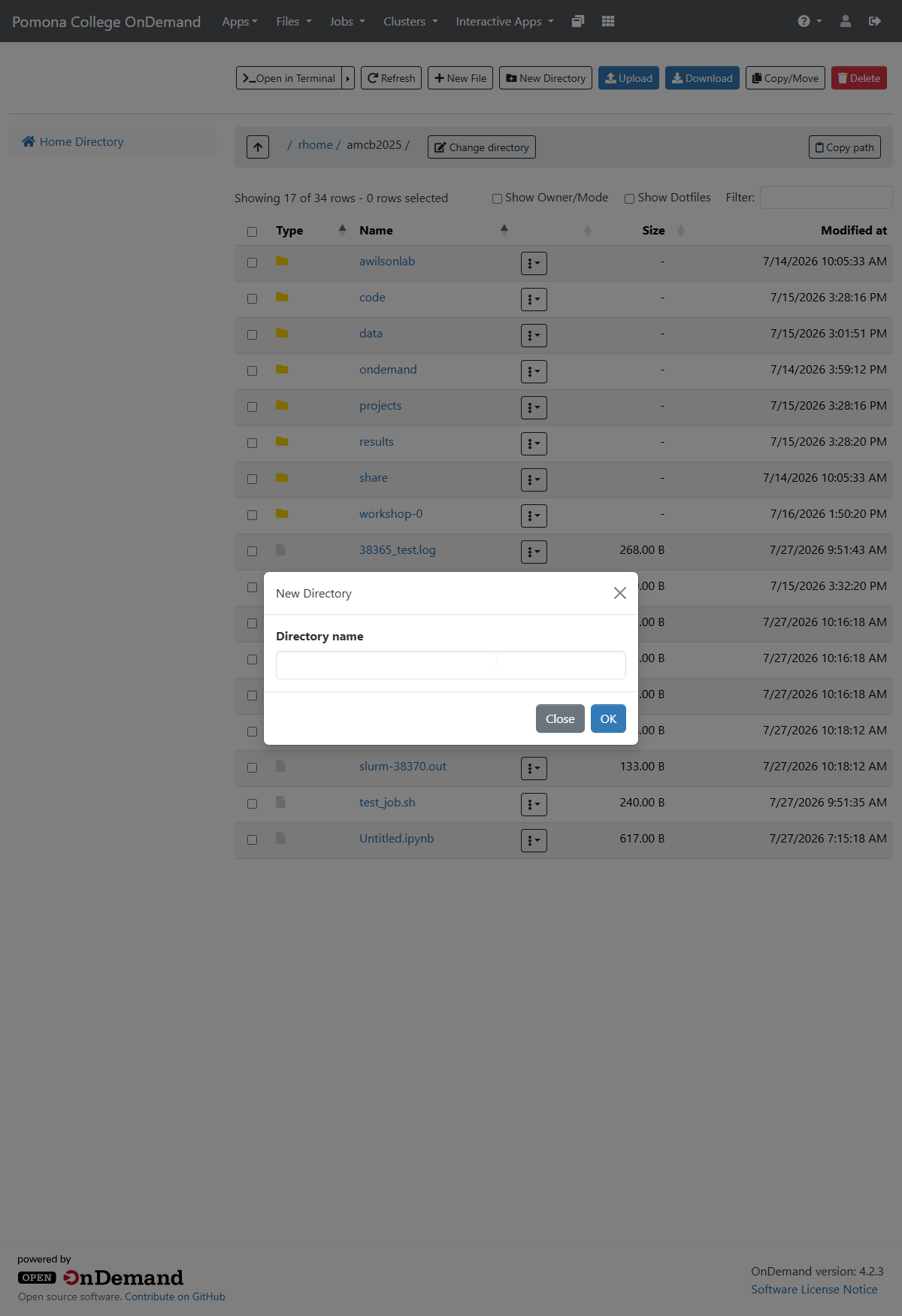
Image 1 of 1: ‘A modal dialog titled New Directory over the OnDemand file manager, containing a single Directory name input field and two buttons, Close and OK.’
The New Directory dialog — type a name and click
OK.
Figure 3
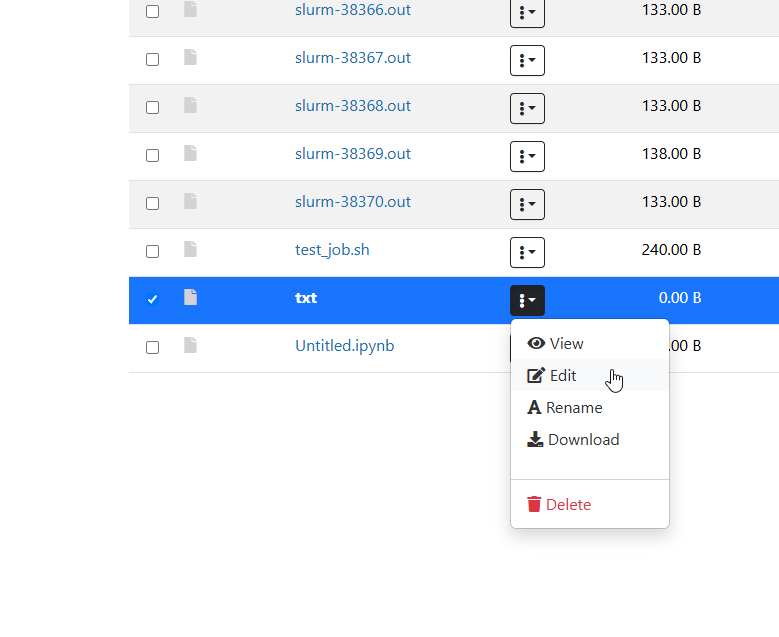
Image 1 of 1: ‘A cropped view of the OnDemand file listing with one file selected and its dropdown menu open, showing five actions: View, Edit, Rename, Download, and a red Delete option.’
Each file’s dropdown menu (⋮) offers View, Edit,
Rename, Download, and Delete.
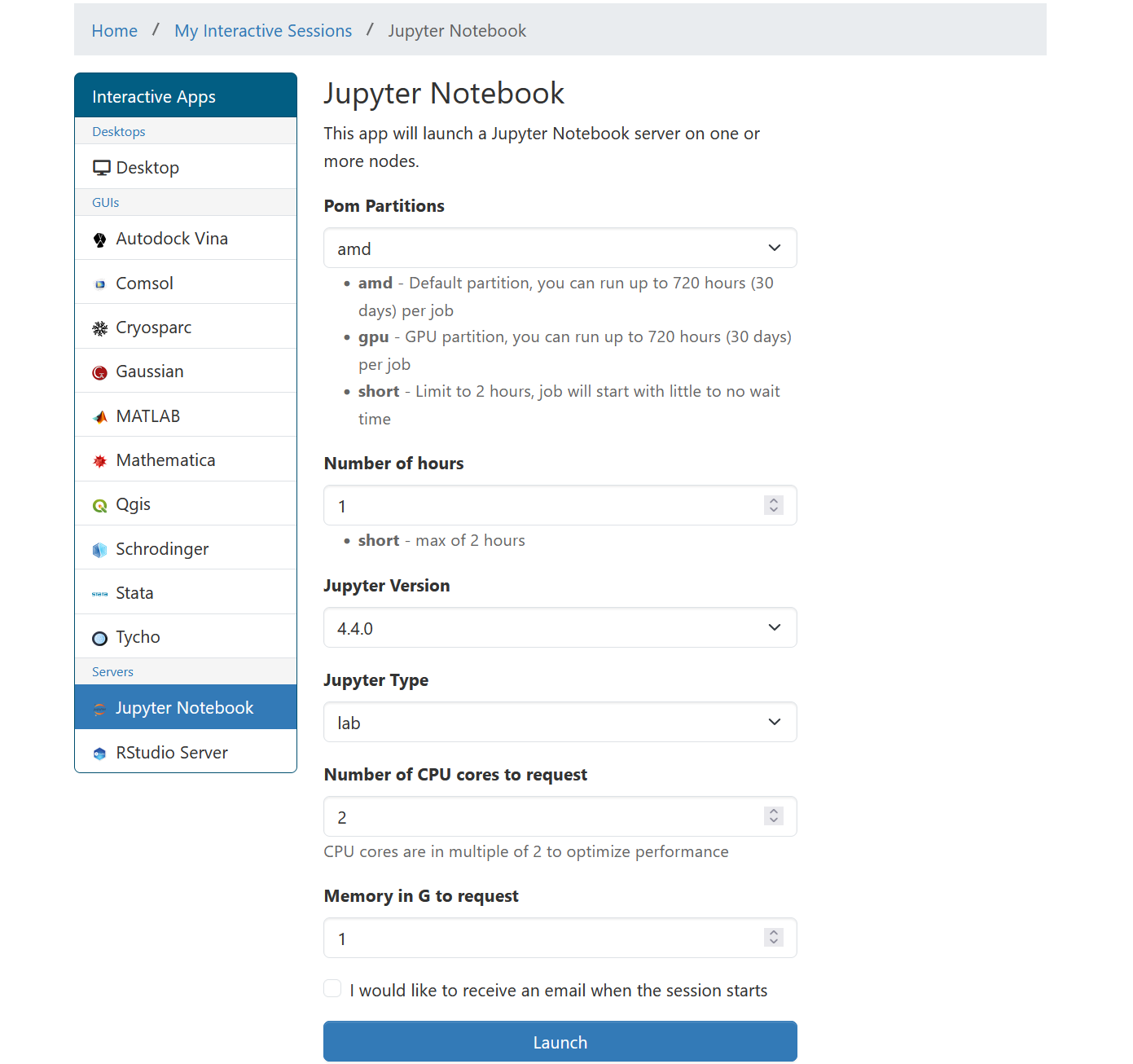
Image 1 of 1: ‘The Jupyter Notebook launch form in OnDemand. Fields include Pom Partitions set to amd, with notes that amd is the default partition allowing up to 720 hours per job, gpu is the GPU partition also allowing 720 hours, and short is limited to 2 hours but starts with little or no wait. Below are number of hours, Jupyter version 4.4.0, Jupyter type lab, number of CPU cores, memory in gigabytes, an email checkbox, and a Launch button.’
The launch form is where you choose a partition
and ask for resources – the same decisions as an sbatch script, as a web
form.
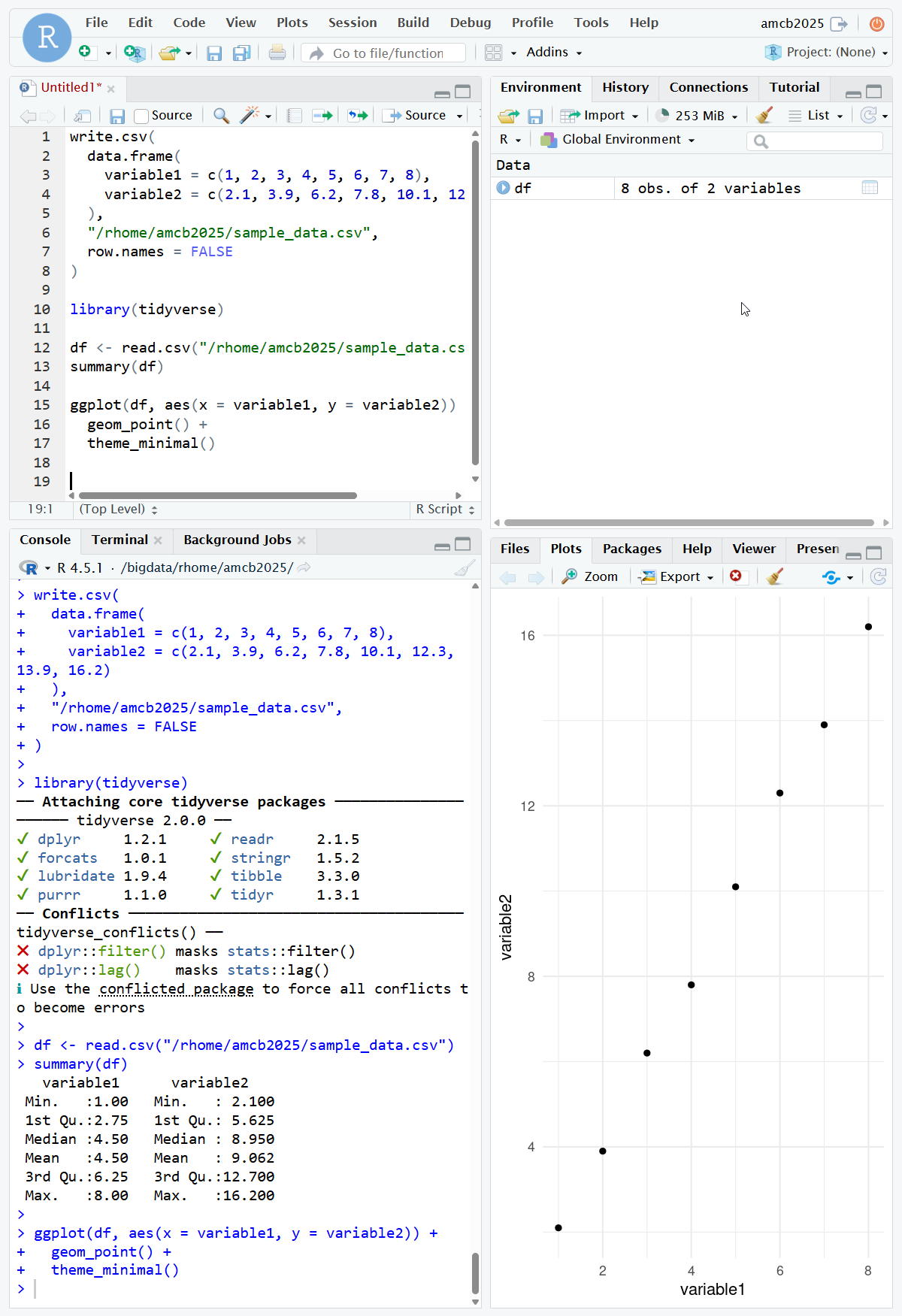
Image 1 of 1: ‘The four-panel RStudio Server interface. The editor and console show R code writing an eight-row sample CSV to the home directory, loading tidyverse, reading the file back, and printing a summary. The Plots pane displays a scatter plot and the Environment pane lists a data frame of 8 observations of 2 variables.’
A working version of the example: write a small
sample CSV first, then read, summarize, and plot it — all four RStudio
panes in action.
Figure 2
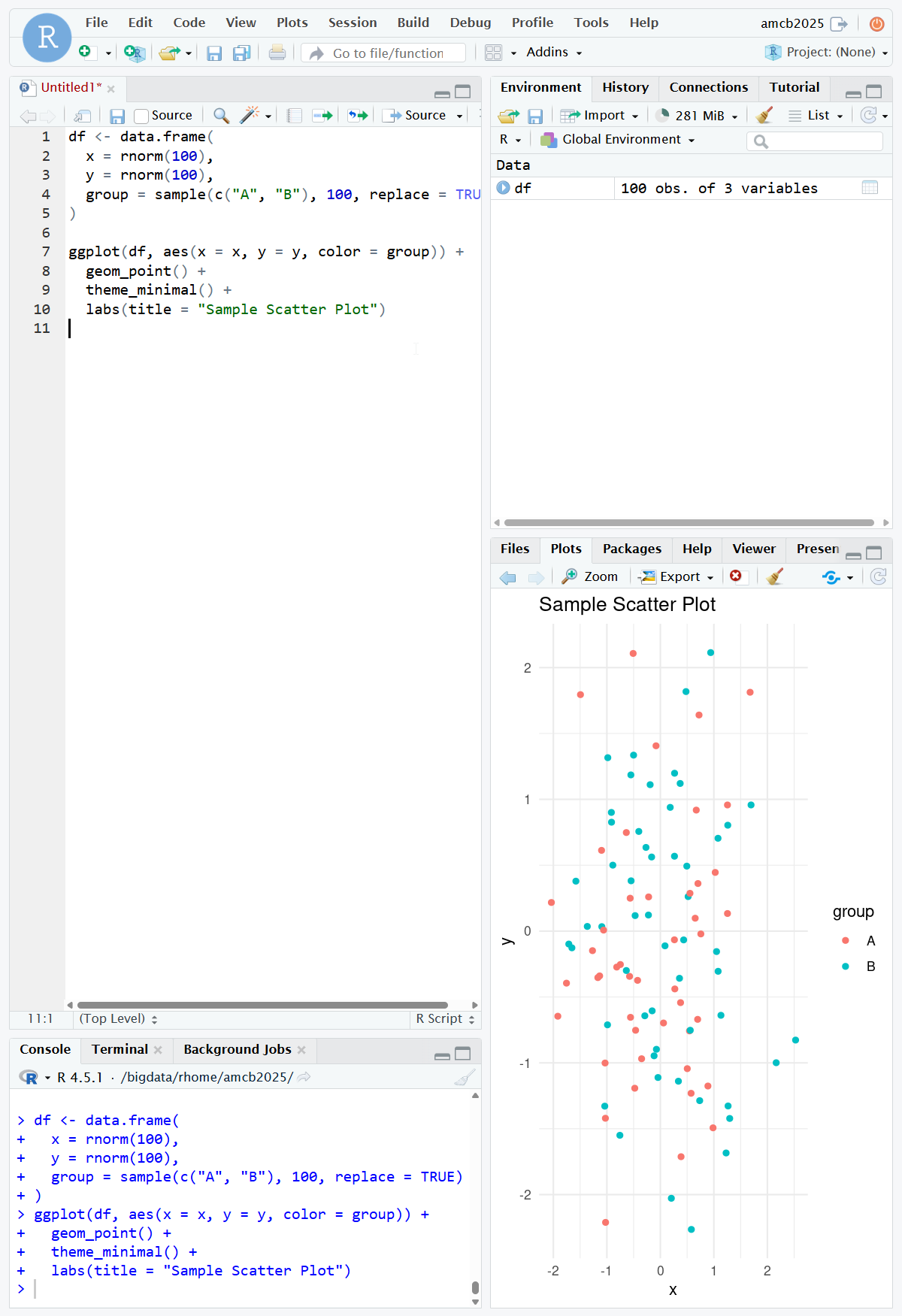
Image 1 of 1: ‘RStudio Server showing the challenge solution. The console echoes code creating a 100-row data frame with x, y, and a two-level group column. The Plots pane displays a chart titled Sample Scatter Plot with points in two colors for groups A and B, and the Environment pane confirms 100 observations of 3 variables.’
The expected challenge result: 100 random points
colored by group, with the data frame in the Environment pane.
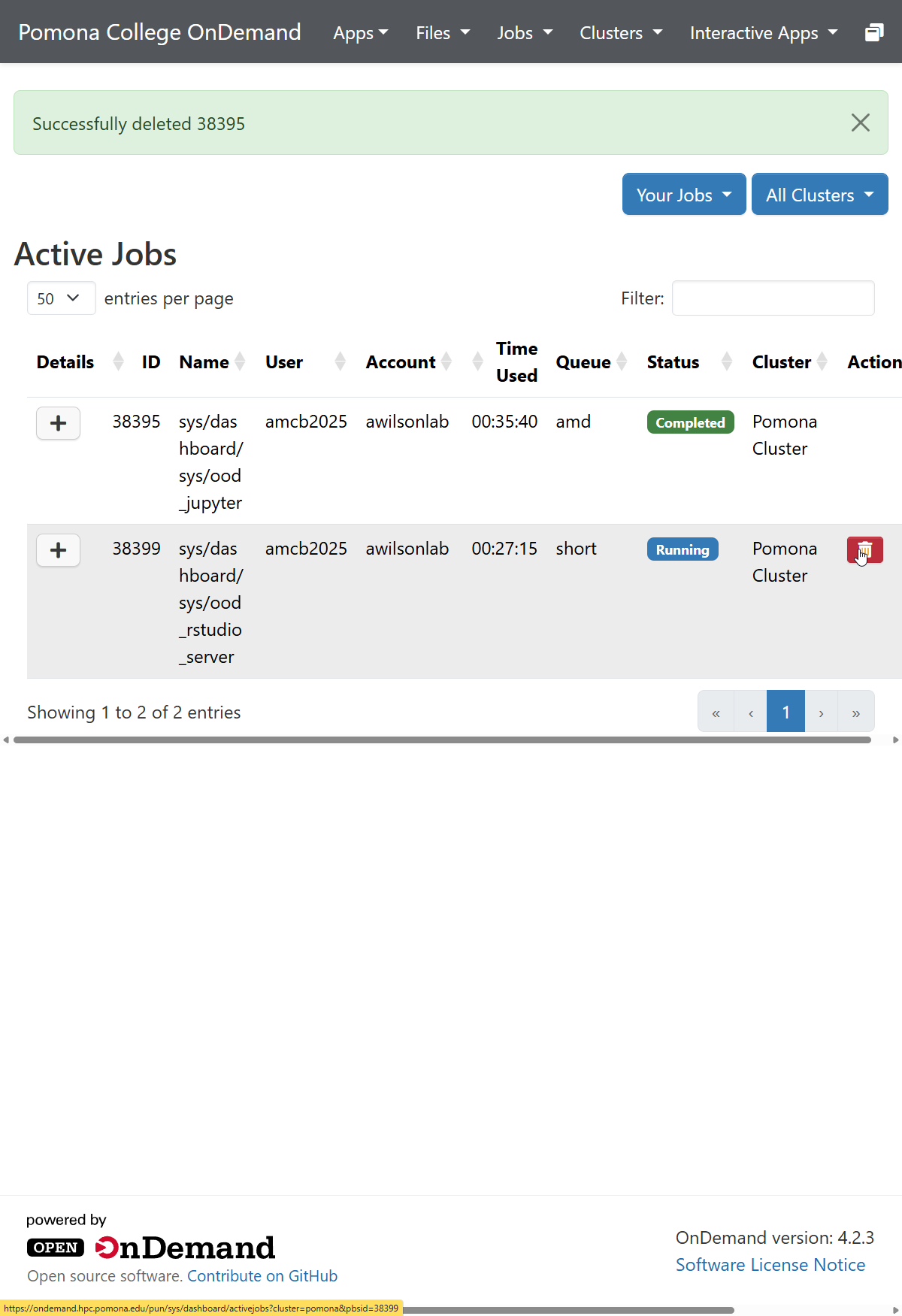
Image 1 of 1: ‘The Pomona College OnDemand Active Jobs page. A green banner reads Successfully deleted 38395. The table lists a completed Jupyter session on the amd queue and a running RStudio Server session on the short queue, and the mouse hovers over a red trash-can button used to cancel the running job.’
The Active Jobs view right after canceling a
session — the trash-can button in the Actions column stops a running
job. Note the status colors: Completed is green, Running is blue.