
Module Collections and Defaults
Last updated on 2026-08-27 | Edit this page
Overview
Questions
- How do I load multiple modules together?
- How do I switch between different versions of the same software?
- How can I save my module configuration and reload it later?
- How do I use modules in batch job scripts?
Objectives
- Load multiple modules for complex workflows
- Use
module swapto switch between versions - Use
module purgeto reset to a clean state - Create and manage personal module collections
- Write module commands in SLURM job scripts
Loading Multiple Modules
Many research workflows require multiple pieces of software:
BASH
$ module load openmpi gaussian miniconda3 ncbi-blast
$ module list
Currently Loaded Modules:
  1) openmpi/4.1.5_ucx-1.14.0    2) gaussian/16c01_avx2    3) miniconda3/py313_26.3.2-2    4) ncbi-blast/2.13.0+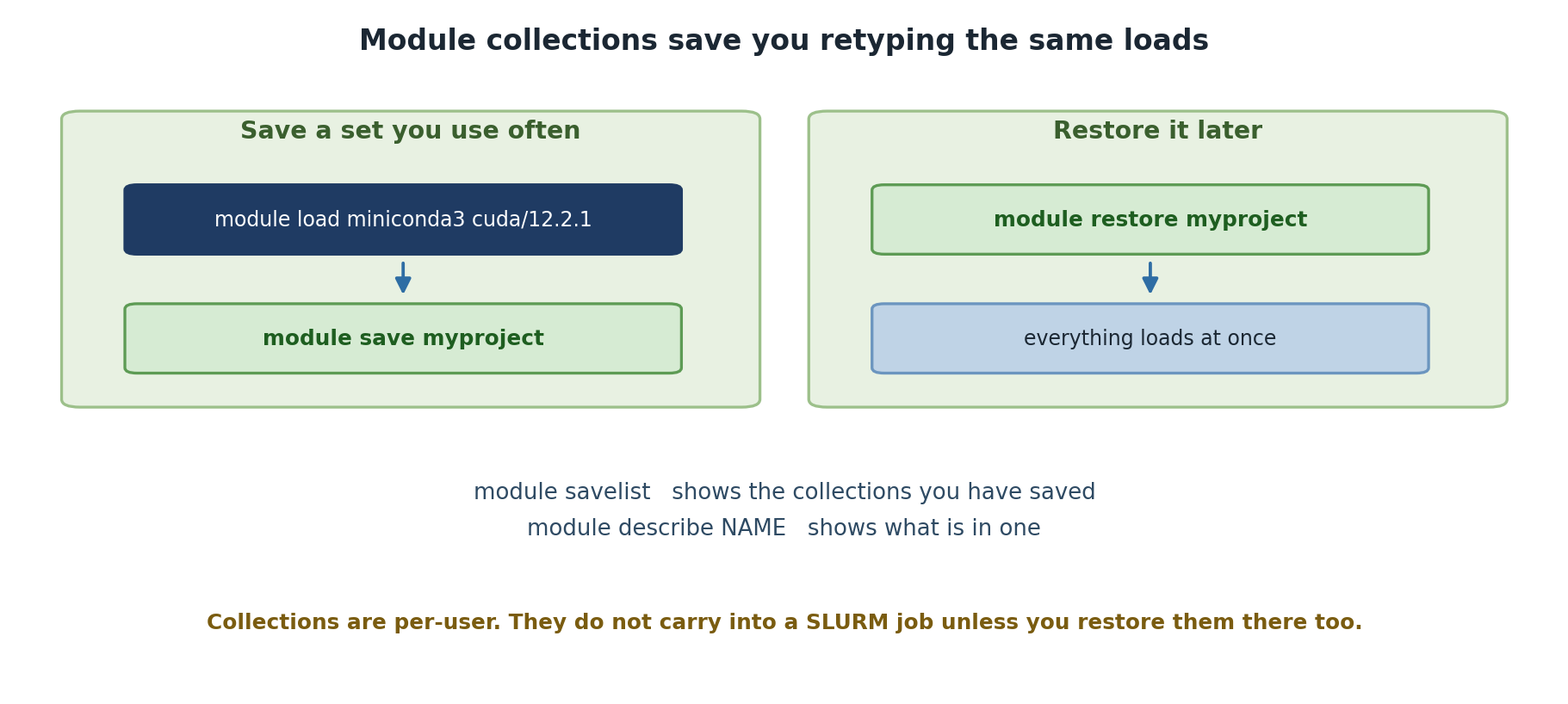
Swapping Module Versions
To switch between software versions, use
module swap:
BASH
$ module load cuda/11.8.0
$ module swap cuda cuda/12.2.1
$ module list
Currently Loaded Modules:
  1) cuda/12.2.1
The swap command unloads the old version and loads the
new one in a single operation, which is cleaner than separate
unload/load commands.
Resetting Everything: module purge
If you load many modules and need to start fresh:
Use module purge to start a fresh shell environment,
avoid conflicts when switching projects, or test if your code really
needs all those modules.
Default Modules at Login
When you first log into Sagehen HPC, certain modules might be
automatically loaded based on system configuration or your
.bashrc file. Use module purge to clear them,
then load only what you need for your current task.
Saving Module Collections
Save Time with Collections
Manually loading the same modules every time gets tedious and error-prone. Module collections let you save a set of modules once and restore them with a single command.
Save your current module configuration as a named collection:
Lmod stores it in ~/.lmod.d/biostats.
Setting a Default Collection
Make a collection load automatically when you log in:
Now every time you SSH to Sagehen, those modules are loaded automatically. To remove the automatic loading:
Using Modules in Job Scripts
Critical for Reproducibility
When you submit a batch job to SLURM, your current module configuration is not automatically passed to the job. Always load modules in your job script.
Example job script
BASH
#!/bin/bash
#SBATCH --job-name=ranalysis
#SBATCH --time=00:30:00
#SBATCH --cpus-per-task=4
#SBATCH --mem=16G

# Load required modules
module load openblas/0.3.25
module load r/4.5.1
module load miniconda3

# Run your analysis
Rscript analysis.R
You can also restore a collection in a job script:
BASH
#!/bin/bash
#SBATCH --job-name=genomics
#SBATCH --time=04:00:00
#SBATCH --cpus-per-task=8
#SBATCH --mem=32G

module restore genomics_pipeline
./run_analysis.sh
Challenge 1: Create and Restore a Collection
- Load at least three different modules (e.g., openblas, miniconda3, r)
- Save them as a collection called “myworkflow”
- Purge all modules
- Restore the collection
- Verify all modules are reloaded
After restore:
Currently Loaded Modules:
  1) openblas/0.3.25    2) miniconda3/py313_26.3.2-2    3) r/4.5.1
The collection saves the exact versions you had loaded and restores them perfectly.
Challenge 2: Write a Job Script with Modules
Create a file called test_job.sh with: 1. SLURM header
requesting 2 CPUs, 4GB RAM, 10 minutes 2. Load the openblas and
miniconda3 modules 3. Print “Modules loaded:” followed by
module list 4. Echo “Job completed”
When submitted with sbatch test_job.sh, it creates a job
that explicitly loads modules before running commands. Check the output
with squeue or look in the log file (slurm-JOBID.out). The
job script explicitly loads modules rather than relying on your login
environment.
- Load multiple modules with
module load module1 module2 module3 - Use
module swapto switch versions cleanly - Use
module purgeto start fresh - Save configurations with
module save <name>and restore withmodule restore <name> - Set
module save defaultto auto-load modules on login - Always load modules in job scripts; don’t rely on your login environment