
Running Models on Sagehen HPC
Last updated on 2026-08-26 | Edit this page
Estimated time: 25 minutes
Overview
Questions
- How do I set up AI tools on Sagehen HPC?
- What modules and environments are needed?
- How do I access GPUs and submit AI jobs?
Objectives
- Load required modules for AI work (anaconda3, CUDA)
- Create conda environments for PyTorch and TensorFlow
- Access GPU resources via Slurm for interactive and batch jobs
- Configure model caching to avoid quota issues
Sagehen HPC Storage for AI Work
| Location | Quota | Use For |
|---|---|---|
/rhome/<myusername> |
100GB | Code, conda environments, notebooks |
/bigdata/lab/<labname> |
1TB shared (BeeGFS) | Large datasets, model checkpoints |
/scratch |
Temporary (deleted when the job ends) | Job I/O, intermediate results |
Download large models to /bigdata or
/scratch – not your home directory.
Loading Modules
BASH
module purge
module load anaconda3          # Python and package management
module load cuda/12.2.1        # NVIDIA CUDA toolkit (current default)
module list                    # Verify loaded modules
There is no separate cuDNN module on Sagehen – the GPU-enabled PyTorch and TensorFlow packages you install with conda bundle their own cuDNN libraries.
Creating a Conda Environment
BASH
module load anaconda3
conda create -n ai-pytorch python=3.11
conda activate ai-pytorch

# Install PyTorch with GPU support
conda install pytorch::pytorch torchvision torchaudio pytorch-cuda=12.1 \
    -c pytorch -c nvidia

# Install common packages
conda install numpy pandas scikit-learn matplotlib jupyter -c conda-forge
For TensorFlow, create a separate environment:
Configure Model Caching
By default, Hugging Face downloads to
~/.cache/huggingface, which fills your home quota quickly.
Redirect it:
Interactive GPU Sessions
Before requesting a GPU, check the gpu partition’s
current state with sinfo -p gpu:

sinfo -p gpu shows which GPU nodes are up.Batch Jobs for Model Training
BASH
#!/bin/bash
#SBATCH --job-name=llama-inference
#SBATCH --partition=gpu
#SBATCH --gres=gpu:1
#SBATCH --mem=80G
#SBATCH --cpus-per-task=16
#SBATCH --time=08:00:00
#SBATCH --output=logs/%j.log

module purge && module load anaconda3 cuda/12.2.1
source activate ai-pytorch
export HF_HOME=/bigdata/lab/<labname>/huggingface_cache

python your_script.py
Submit with sbatch your_script.sh.
Start Small and Scale Up
When first testing an AI workflow, request a smaller GPU (L40S) with less time. Once your script works reliably, scale to larger GPUs or longer time limits. This saves compute hours and reduces queue wait time.
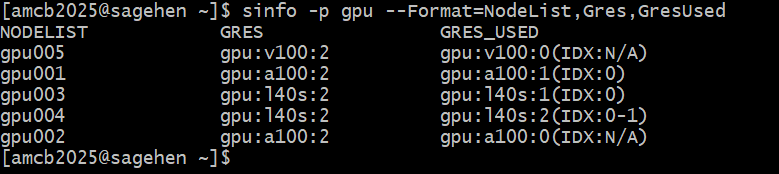
You can see which GPU types exist and how heavily they’re used with
sinfo’s GRES columns:
Common Troubleshooting
- “No module named torch”: Load anaconda3 and activate your conda environment
- “CUDA out of memory”: Use 4-bit quantization, reduce batch size, or request a larger GPU
-
Home quota full from models: Set
HF_HOMEto/bigdata -
GPU not detected: Verify the cuda module is loaded
and your job requested a GPU (
--gres=gpu:1)
Challenge: Write a GPU Setup Script
Write a Slurm script that loads modules, activates a conda
environment, sets HF_HOME, and verifies GPU access by printing
torch.cuda.is_available() and the GPU name.
BASH
#!/bin/bash
#SBATCH --job-name=gpu-test
#SBATCH --partition=gpu
#SBATCH --gres=gpu:1
#SBATCH --mem=32G
#SBATCH --cpus-per-task=4
#SBATCH --time=00:10:00

module purge && module load anaconda3 cuda/12.2.1
conda activate ai-pytorch
export HF_HOME=/bigdata/lab/<labname>/huggingface_cache

python3 -c "
import torch
print(f'GPU available: {torch.cuda.is_available()}')
if torch.cuda.is_available():
    print(f'GPU: {torch.cuda.get_device_name(0)}')
    print(f'Memory: {torch.cuda.get_device_properties(0).total_mem / 1e9:.0f} GB')
"
Submit with sbatch gpu_test.sh and check output in
slurm-*.out.
- Load the anaconda3 and cuda modules before GPU work
- Use conda environments for reproducible, isolated Python setups
- Configure HF_HOME to /bigdata to avoid filling home quota with models
- Use
srunfor interactive GPU testing andsbatchfor batch jobs - Start with smaller GPUs and scale up once your workflow is validated