
GPU Software Setup and Modules
Last updated on 2026-08-27 | Edit this page
Estimated time: 35 minutes
Overview
Questions
- What modules are available for GPU computing?
- How do you install GPU-enabled software?
- What CUDA versions exist?
- How do you manage GPU software environments?
Objectives
- Load appropriate GPU software modules
- Understand CUDA, cuDNN, and GPU libraries
- Install conda environments with GPU support
- Verify GPU software works correctly
Available GPU Modules
Typical modules:
cuda/11.8.0
cuda/12.0.0
cuda/12.2.1 (D)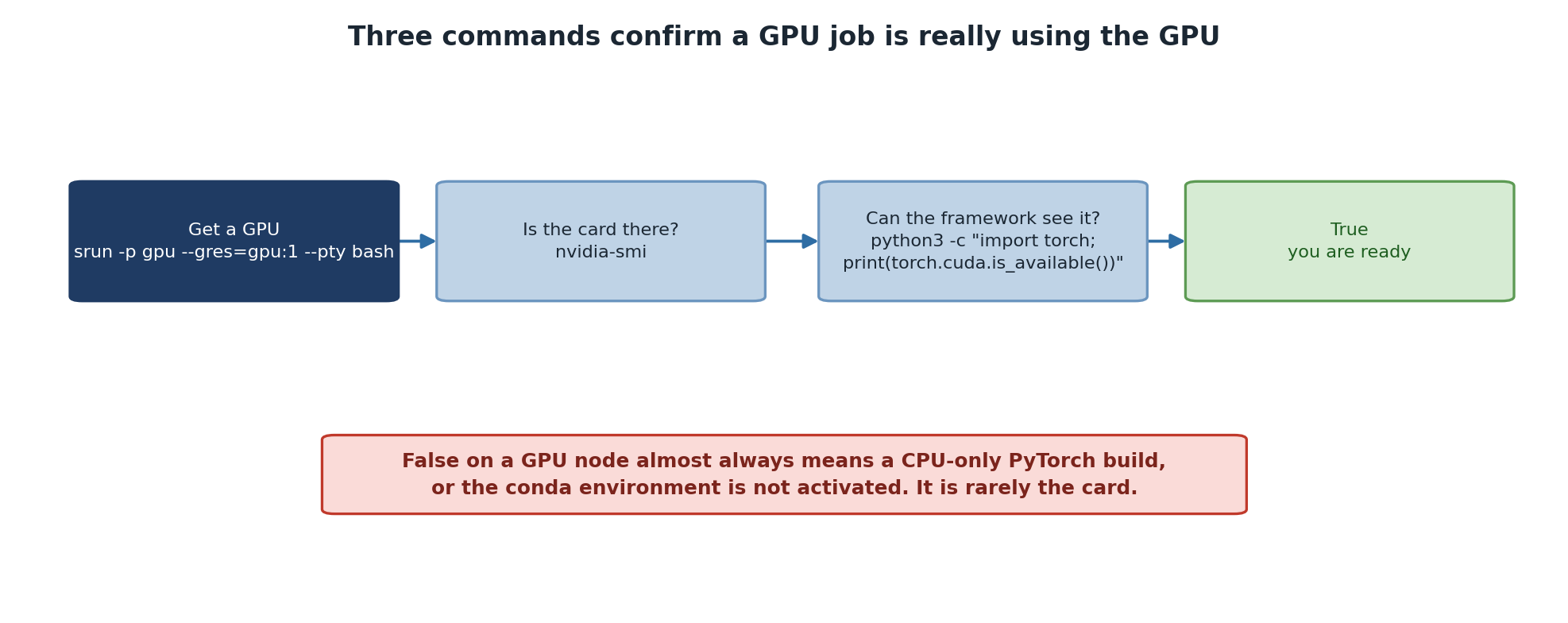
Loading GPU Software
Creating GPU Conda Environment
BASH
# Load conda
module load miniconda3

# Create environment with GPU PyTorch
conda create -n gpu_env pytorch::pytorch pytorch::pytorch-cuda=12.1 -c pytorch -c nvidia

# Activate
conda activate gpu_env

# Verify
python3 -c "import torch; print(torch.cuda.is_available())"Keep Environments Reproducible
When creating GPU environments: 1. Specify exact CUDA version to
match cluster 2. Pin PyTorch/TensorFlow versions 3. Export environment:
conda env export > gpu_env.yml 4. Share with team for
consistent setup
This prevents “works on my machine” issues with GPU code.
Verifying GPU Setup
Test script (test_gpu.py):
PYTHON
import torch
import tensorflow as tf

# PyTorch
print("PyTorch version:", torch.__version__)
print("CUDA available:", torch.cuda.is_available())
if torch.cuda.is_available():
    print("GPU:", torch.cuda.get_device_name(0))
    x = torch.randn(1000, 1000).cuda()
    y = torch.mm(x, x)
    print("PyTorch GPU test: PASSED")

# TensorFlow
print("\nTensorFlow version:", tf.__version__)
gpus = tf.config.list_physical_devices('GPU')
print("GPUs found:", len(gpus))
if gpus:
    print("TensorFlow GPU test: PASSED")
Run on GPU:
Advanced: Custom CUDA Code
If you need custom CUDA:
Troubleshooting GPU Software
“No GPU found”
Check job allocation:
Challenge: Troubleshoot GPU Setup
You encounter the following three error messages while trying to run GPU code on Sagehen. For each one, diagnose what is wrong and explain how to fix it.
Error 1:
RuntimeError: CUDA error: no CUDA-capable device is detectedError 2:
RuntimeError: The NVIDIA driver on your system is too old (found version 11060).
The minimum required CUDA toolkit version is 12.1.
Error 3:
PYTHON
>>> import torch
>>> print(torch.cuda.is_available())
False
>>> print(torch.cuda.device_count())
0
(No error message, but GPU is not visible to PyTorch.)
Error 1: “no CUDA-capable device is detected”
Diagnosis: The job is not running on a GPU node.
This happens when you forget to include --partition=gpu and
--gres=gpu:N in your SLURM submission, or when you run GPU
code on the login node.
Fix: Submit the job with GPU resources:
Never run GPU code directly on the login node.
Error 2: “NVIDIA driver too old”
Diagnosis: The PyTorch build expects a
newer CUDA than the node’s driver supports. Sagehen HPC’s GPU
nodes report CUDA 12.7 in nvidia-smi, so this is rare here
— but it happens if you install a PyTorch built against a CUDA newer
than that. Note the number in nvidia-smi is the
driver’s capability, which is independent of which
cuda/ toolkit module you have loaded.
Fix: Load a compatible CUDA module before running your code:
Ensure the CUDA toolkit version matches what your PyTorch installation requires.
Error 3: GPU not visible to PyTorch
Diagnosis: PyTorch was installed without GPU/CUDA
support (a CPU-only build), or the wrong module/conda environment is
loaded. The CPU-only version of PyTorch will always report
cuda.is_available() = False even on a GPU node.
Fix: Make sure your environment has the GPU-enabled PyTorch build:
Or if using conda, install the CUDA-enabled version:
Verify with:
python3 -c "import torch; print(torch.cuda.is_available())"
- Load GPU modules: pytorch, tensorflow, cuda
- CUDA toolkit handles GPU computation
- Create conda environments for reproducibility
- Verify GPU availability before running jobs
- Test GPU setup with simple benchmark script