
Visualization in Notebooks
Last updated on 2026-08-24 | Edit this page
Estimated time: 25 minutes
Overview
Questions
- How do I create plots and visualizations in Jupyter?
- What types of plots are available with matplotlib?
- How do I create multi-panel figures with subplots?
Objectives
- Create line plots, scatter plots, histograms, and bar charts
- Customize plots with titles, labels, colors, and legends
- Create multi-panel figures using subplots
- Understand how inline plotting works in notebooks
Inline Visualizations
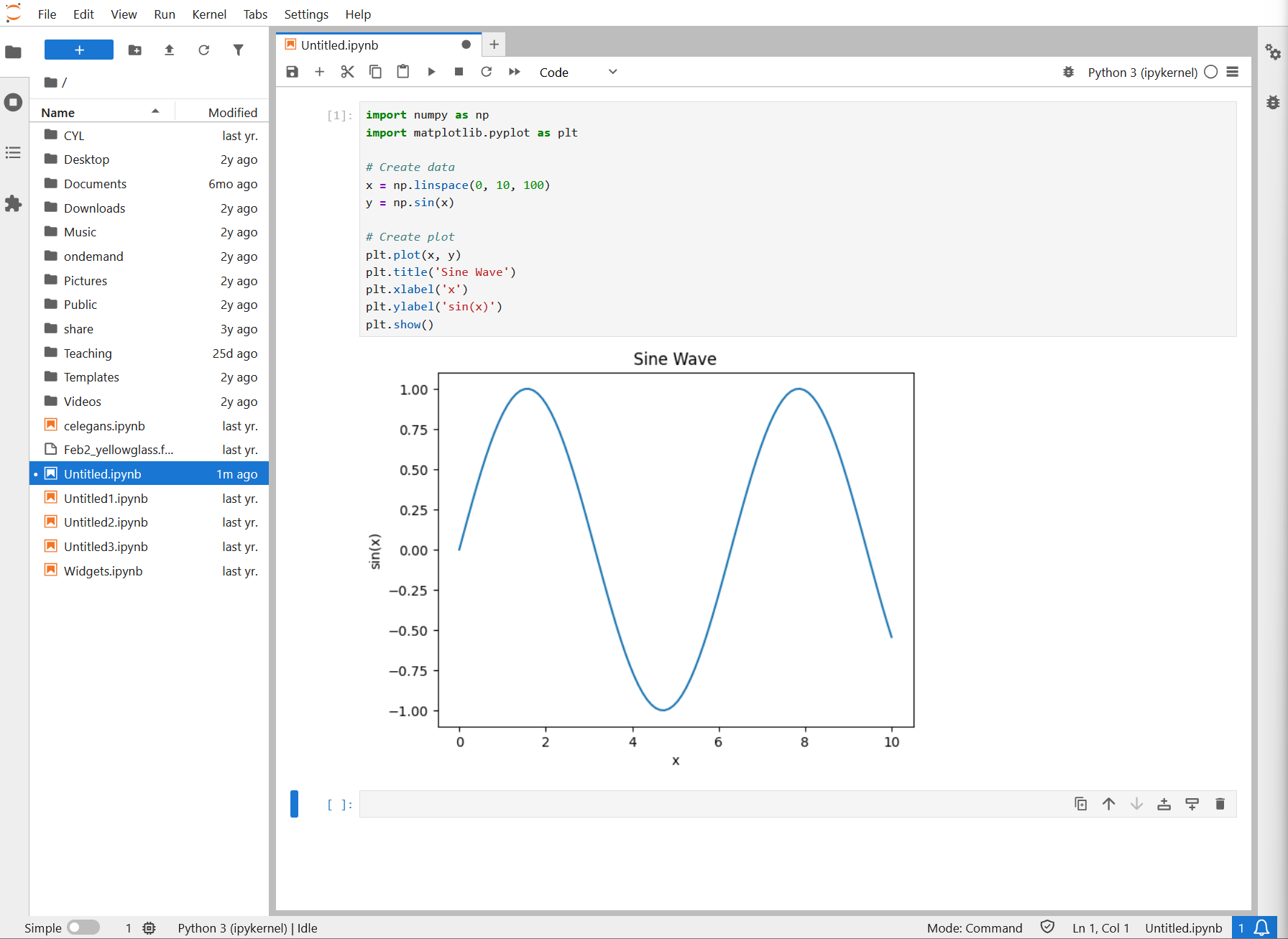
Jupyter excels at inline visualizations. Plots appear right below code cells. Here’s an example of a matplotlib sine wave plot rendered inline in a notebook:
Line Plots
PYTHON
import matplotlib.pyplot as plt
import numpy as np

x = np.linspace(0, 10, 100)
y = np.sin(x)

plt.figure(figsize=(10, 6))  # Width x Height in inches
plt.plot(x, y, label='sin(x)')
plt.plot(x, np.cos(x), label='cos(x)')
plt.xlabel('x')
plt.ylabel('y')
plt.title('Sine and Cosine')
plt.legend()
plt.grid(True)
plt.show()
Scatter Plots
Histograms
Bar Plots
Subplots
Create multi-panel figures for comparing visualizations:
PYTHON
import matplotlib.pyplot as plt
import numpy as np

fig, axes = plt.subplots(2, 2, figsize=(12, 10))

x = np.linspace(0, 10, 100)

axes[0, 0].plot(x, np.sin(x))
axes[0, 0].set_title('Sine')

axes[0, 1].plot(x, np.cos(x))
axes[0, 1].set_title('Cosine')

axes[1, 0].plot(x, x**2)
axes[1, 0].set_title('Quadratic')

axes[1, 1].plot(x, np.exp(-x))
axes[1, 1].set_title('Exponential Decay')

plt.tight_layout()
plt.show()
Challenge 1: Create visualizations
Using the weather data (create it fresh if needed):
PYTHON
import pandas as pd
import numpy as np

np.random.seed(42)
df = pd.DataFrame({
    'date': pd.date_range('2024-01-01', periods=100),
    'temperature': np.random.normal(65, 10, 100),
    'humidity': np.random.normal(60, 15, 100),
    'wind_speed': np.random.exponential(5, 100)
})
Create a figure with 3 subplots side by side: 1. A line plot of temperature over time 2. A scatter plot of temperature vs humidity 3. A histogram of wind speeds
Customize each plot with titles, labels, and colors.
PYTHON
import matplotlib.pyplot as plt

fig, axes = plt.subplots(1, 3, figsize=(15, 4))

# Subplot 1: Line plot of temperature over time
axes[0].plot(df['date'], df['temperature'], color='red', linewidth=2)
axes[0].set_title('Temperature Over Time', fontsize=12, fontweight='bold')
axes[0].set_xlabel('Date')
axes[0].set_ylabel('Temperature (F)')
axes[0].grid(True, alpha=0.3)
axes[0].tick_params(axis='x', rotation=45)

# Subplot 2: Scatter plot of temperature vs humidity
axes[1].scatter(df['temperature'], df['humidity'], alpha=0.6, color='blue', s=50)
axes[1].set_title('Temperature vs Humidity', fontsize=12, fontweight='bold')
axes[1].set_xlabel('Temperature (F)')
axes[1].set_ylabel('Humidity (%)')
axes[1].grid(True, alpha=0.3)

# Subplot 3: Histogram of wind speeds
axes[2].hist(df['wind_speed'], bins=20, color='green', edgecolor='black', alpha=0.7)
axes[2].set_title('Distribution of Wind Speeds', fontsize=12, fontweight='bold')
axes[2].set_xlabel('Wind Speed')
axes[2].set_ylabel('Frequency')
axes[2].grid(True, alpha=0.3, axis='y')

plt.tight_layout()
plt.show()
Key visualization techniques: -
figsize=(15, 4) creates a wide figure suitable for 3
subplots - alpha=0.6 adds transparency so overlapping
points are visible - grid=True adds reference lines for
easier reading - tight_layout() prevents subplot overlap -
Each subplot has descriptive titles and axis labels
- Jupyter displays matplotlib plots inline below code cells
- Line plots, scatter plots, histograms, and bar charts cover most visualization needs
- Use figsize to control plot dimensions and tight_layout() to prevent overlap
- Subplots let you compare multiple visualizations in a single figure
- Always add titles, axis labels, and legends for clarity