
Sharing and Exporting Notebooks
Last updated on 2026-08-24 | Edit this page
Estimated time: 25 minutes
Overview
Questions
- How can I convert notebooks to other formats?
- How do I use version control with notebooks?
- How do I share reproducible research?
Objectives
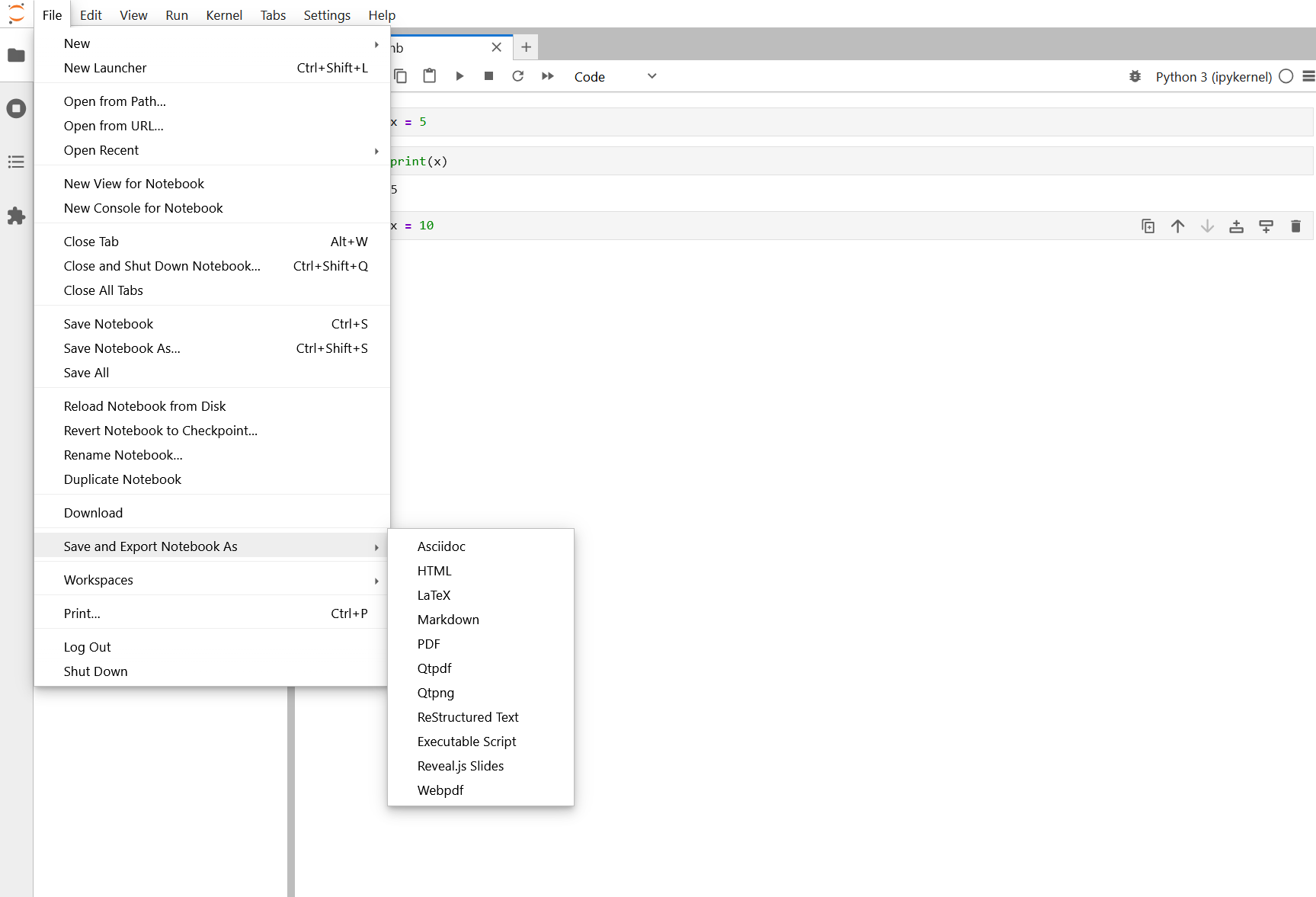
- Convert notebooks to Python scripts, HTML, and PDF
- Use version control (Git) with notebooks effectively
- Create reproducible environment files for sharing
- Publish and share reproducible research
Converting Notebooks to Other Formats
To Python script
Convert notebook to a standalone Python script:
BASH
# In terminal on Sagehen
jupyter nbconvert --to script my_notebook.ipynb

# Creates: my_notebook.py
# All code cells become code
# Markdown cells become comments
Then run the script:
Or submit as a batch job:
Where script.sbatch contains:
To HTML (for sharing)
Create a self-contained HTML file that looks like the notebook:
BASH
jupyter nbconvert --to html my_notebook.ipynb

# Creates: my_notebook.html
# Open in any web browser - no Jupyter needed!
Email the HTML file to colleagues. They can view all code, outputs, and visualizations without having Jupyter installed.
Reproducible Environments
Version Control with Git
Including notebooks in Git
Notebooks are JSON files, so Git can track them, but diffs aren’t pretty. Still include them:
Best practices for Git + Notebooks
Do commit: - Notebook files (yes, the .ipynb files) - environment.yml (reproducibility!) - README.md - Small data files (< 10 MB)
Don’t commit: - Large datasets (use /bigdata or external storage) - Output files (regenerate them) - Checkpoint folders (.ipynb_checkpoints/)
Before committing: 1. Restart kernel 2. Run all cells 3. Clear large outputs: Edit then Clear Outputs of All Cells 4. Save notebook 5. Then commit
Publishing Reproducible Research
Creating a DOI for citation
Use Zenodo to get a Digital Object Identifier (DOI):
- Go to https://zenodo.org/
- Login with GitHub
- Authorize Zenodo to access your repos
- Select your repo to archive
- Get a citable DOI like: https://doi.org/10.5281/zenodo.xxxxx
Challenge 1: Export notebook in multiple formats
In JupyterLab, create a simple notebook with a markdown title and a code cell that creates a plot
Run all cells
-
Export to Python script:
-
Export to HTML:
Open the .py and .html files to see how they look
Python script output shows code cells as Python code and markdown as comments:
PYTHON
# # Data Analysis Report
# This report demonstrates exporting notebooks.

import matplotlib.pyplot as plt
import numpy as np
# ... rest of code
HTML output creates a self-contained file viewable in any browser with formatted markdown, code cells, and embedded plots.
Use cases: - Script (.py): Run analysis on cluster with SLURM - HTML: Email or share with colleagues who don’t have Jupyter - PDF: Submit with research reports or publish
Challenge 2: Export environment file
-
In your terminal (while in the workshop environment):
-
Look at the file:
-
A collaborator can recreate your exact environment:
This is how you ensure reproducibility across machines!
The file contains:
YAML
name: workshop
channels:
  - conda-forge
  - defaults
dependencies:
  - python=3.11.x
  - numpy=1.24.x
  - pandas=2.0.x
  - ...
prefix: /opt/miniconda3/envs/workshop
A colleague can do
conda env create -f workshop_environment.yml and
conda activate workshop to get the exact same environment.
This YAML file is the key to reproducible science.
- Convert notebooks to Python scripts for batch jobs, HTML for sharing, PDF for publication
- Export environment.yml files so others can recreate your exact environment
- Use Git for version control; commit notebooks, environment.yml, and documentation
- Publish on GitHub and use Zenodo for citable DOIs
- Always restart kernel and run all cells before sharing