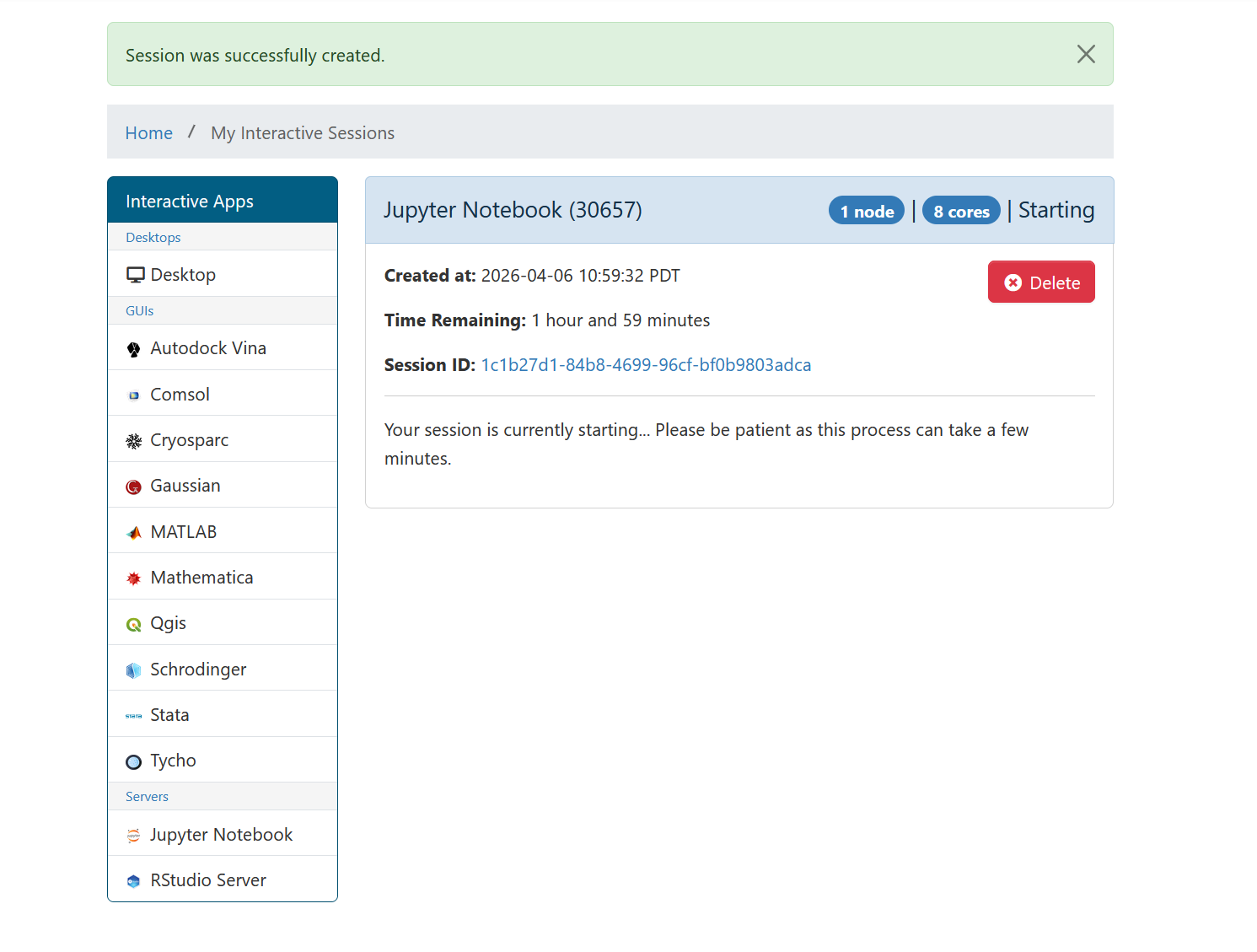
Image 1 of 1: ‘OnDemand session card showing Jupyter Notebook job in Starting state with session details and time remaining’
Session starting with status card showing job
details
Figure 2
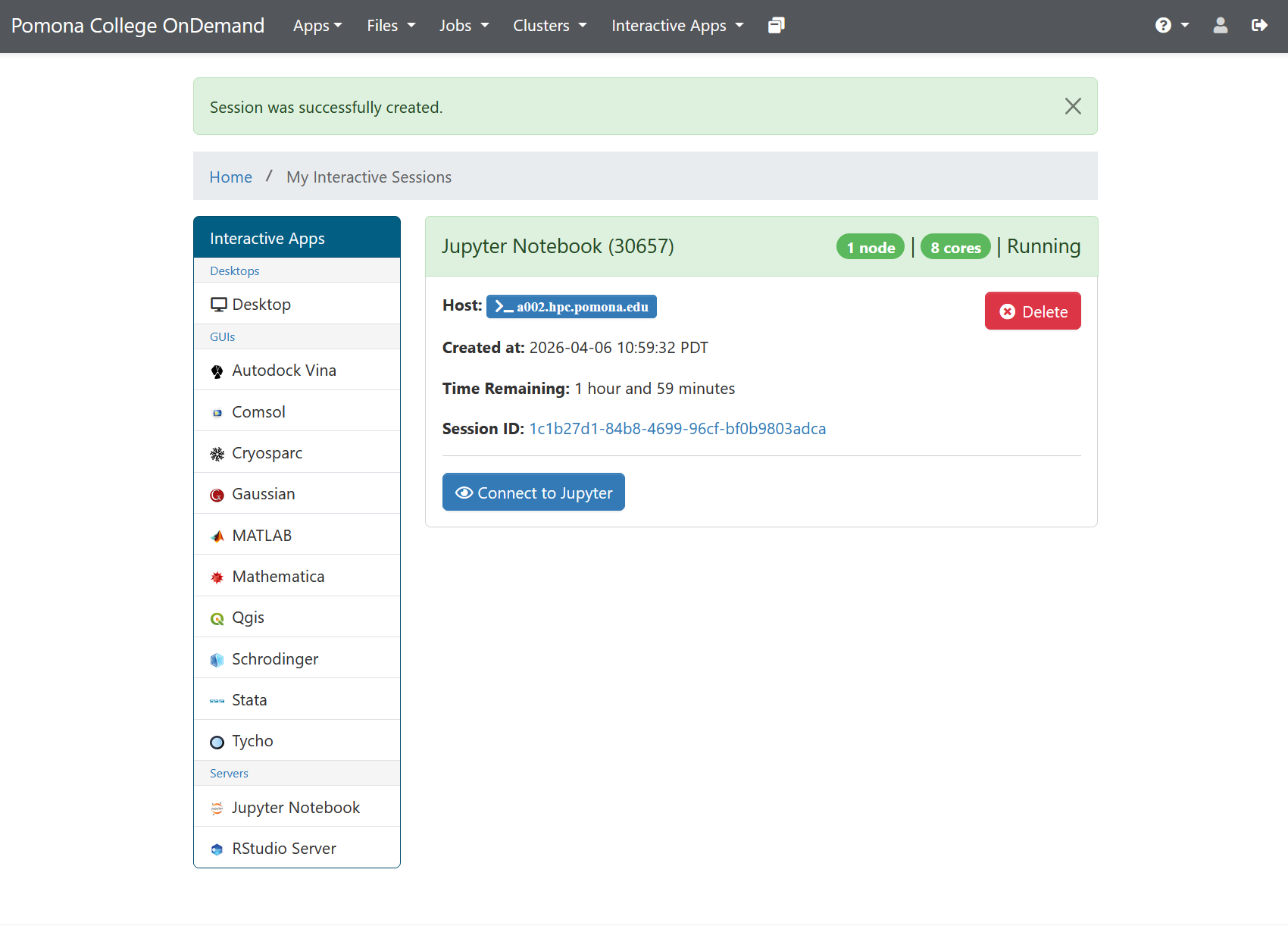
Image 1 of 1: ‘OnDemand session card showing Jupyter Notebook job in Running state with green Connect to Jupyter button’
Session running with Connect to Jupyter
button
Figure 3
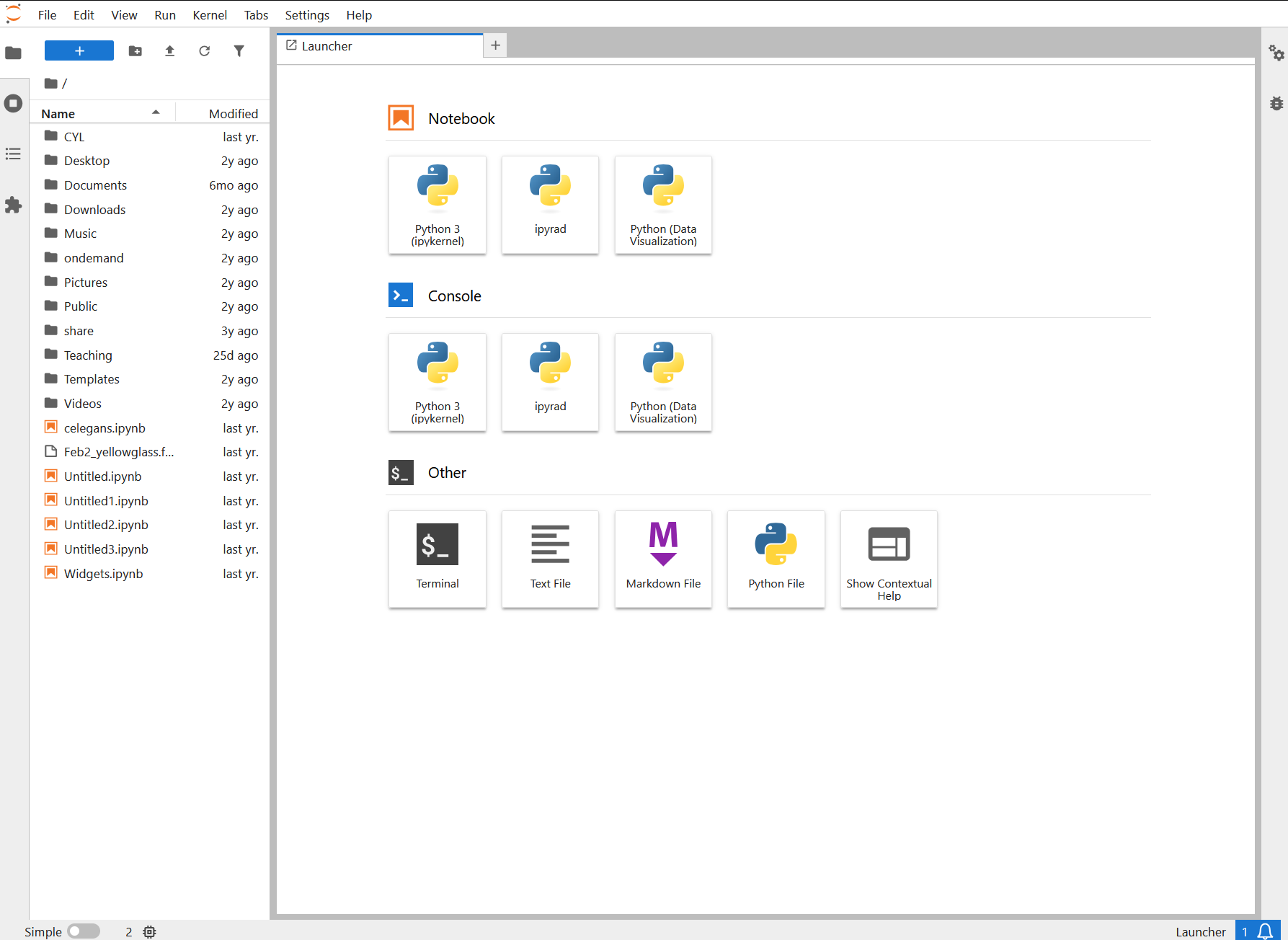
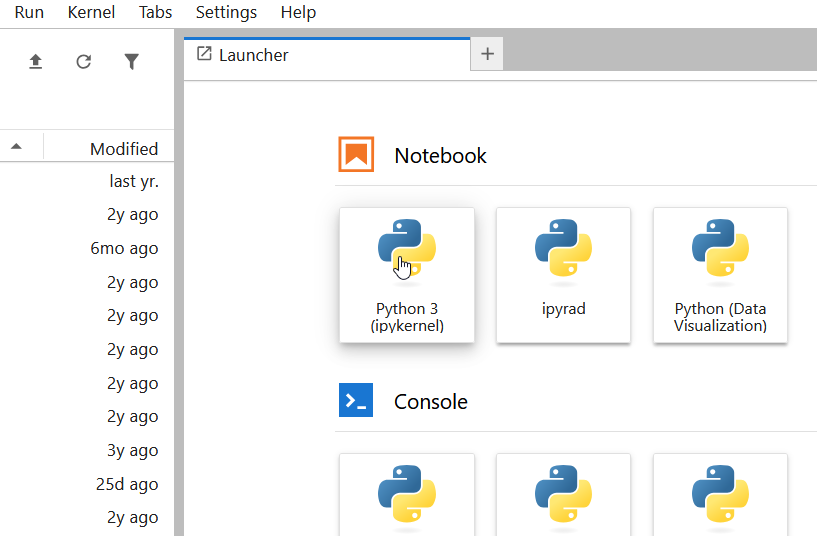
Image 1 of 1: ‘JupyterLab interface showing file browser on the left and Launcher tab with Notebook, Console, and Other sections including Python 3, ipyrad, and Python Data Visualization kernels’
JupyterLab interface showing the Launcher with
notebook, console, and other options
Figure 4
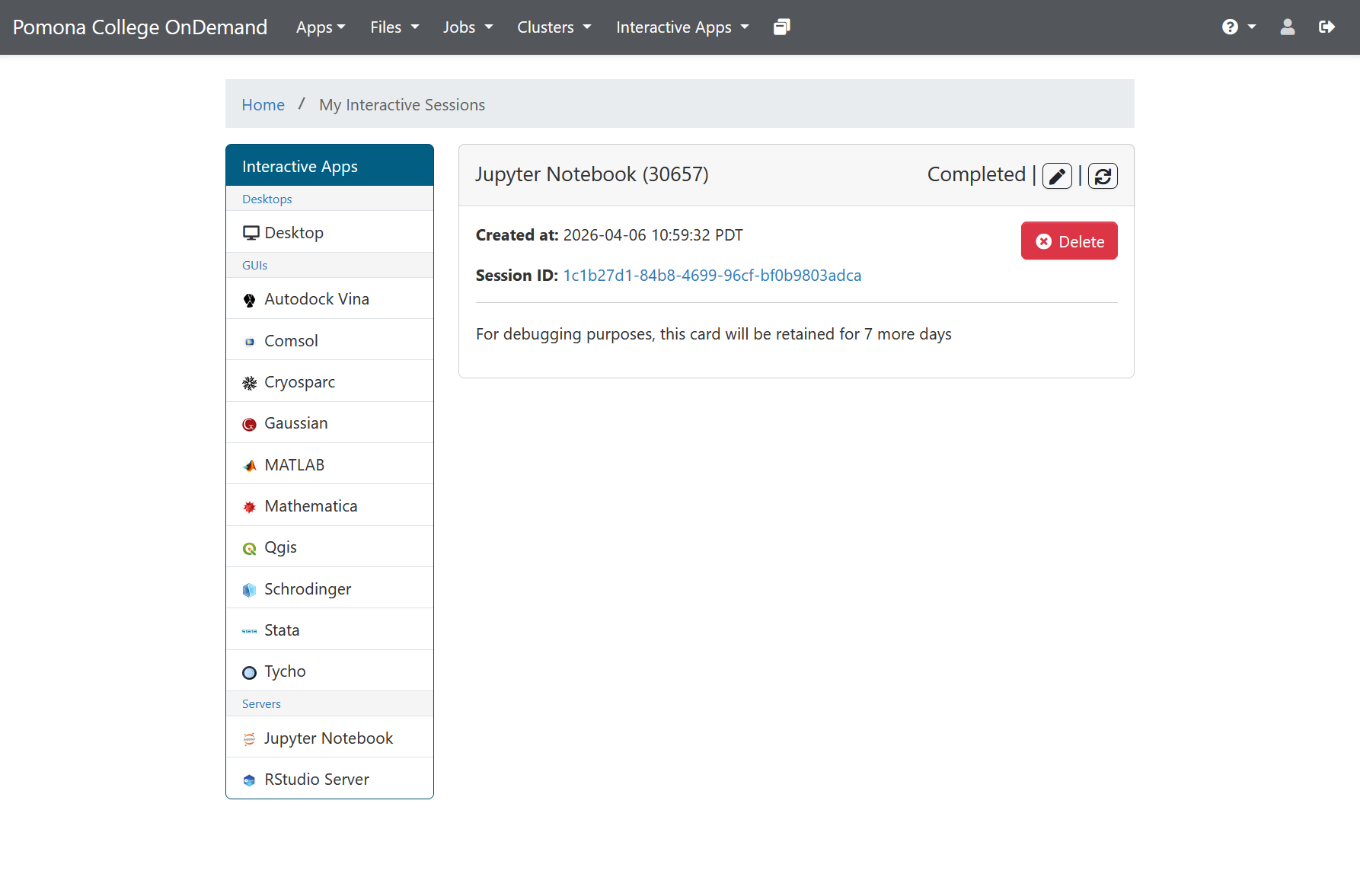
Image 1 of 1: ‘OnDemand session card showing Jupyter Notebook session in Completed state with message that the card will be retained for 7 more days’
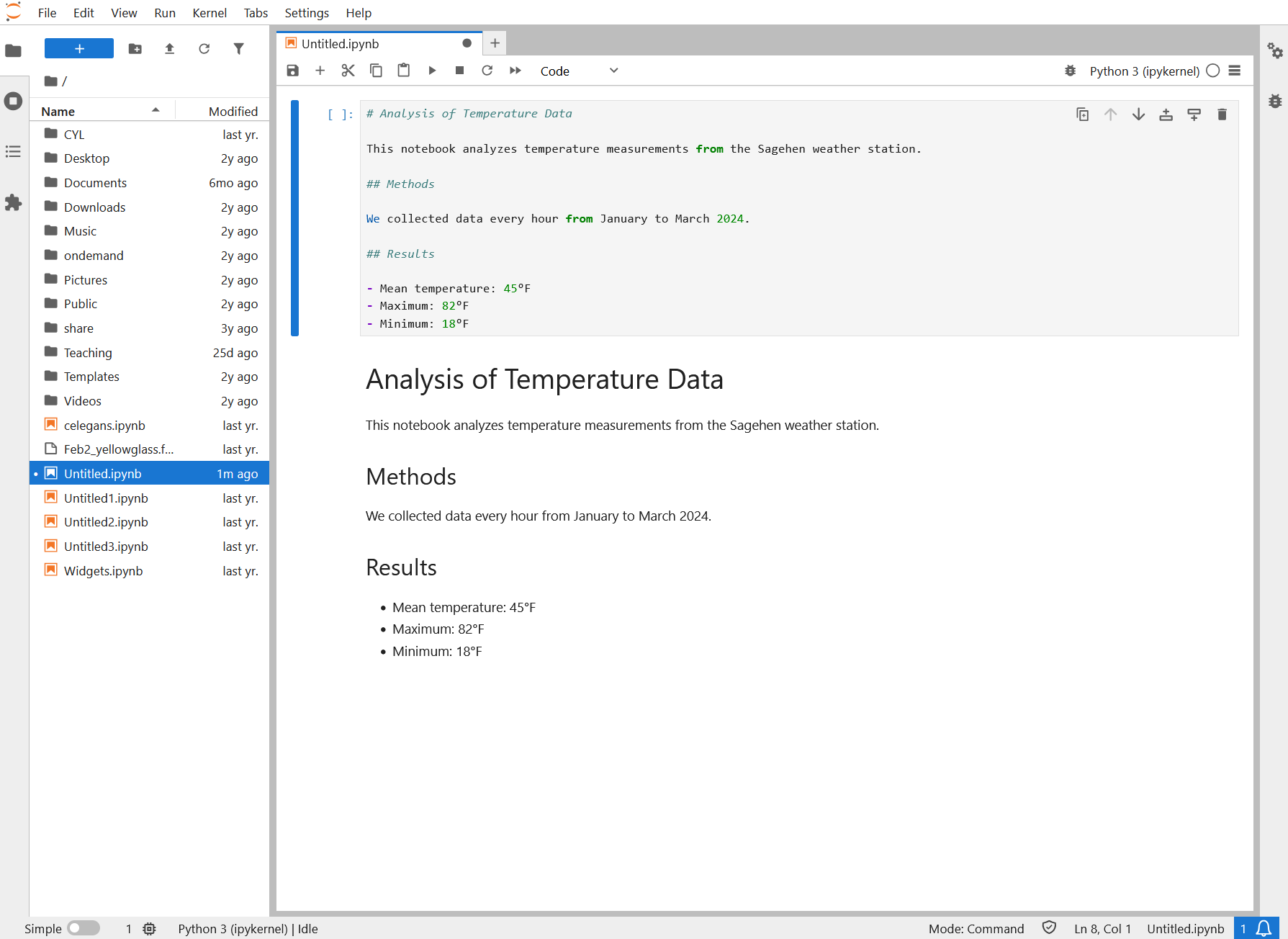
Image 1 of 1: ‘A JupyterLab notebook. The upper cell holds markdown source with a heading, Methods and Results sections and a bullet list. Below it the same cell is shown rendered as formatted text, with Analysis of Temperature Data as a heading, a short paragraph, and bulleted mean, maximum and minimum values.’
A markdown cell before and after running it: the
source on top, the formatted result below.
Figure 2
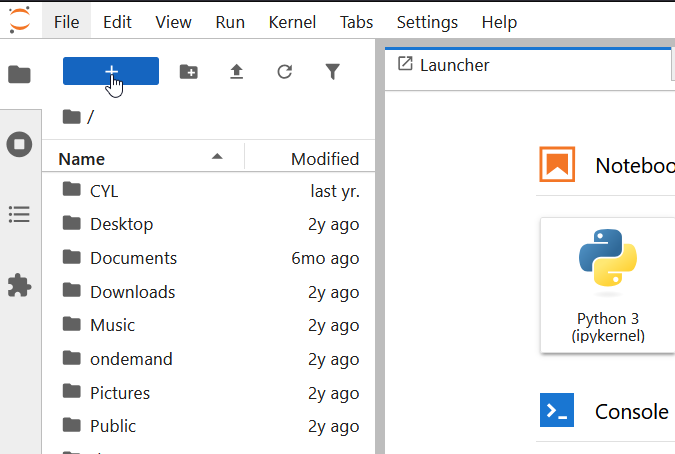
Image 1 of 1: ‘JupyterLab interface with the file browser on the left showing home directory folders and the Launcher on the right with Python 3 ipykernel notebook option’
JupyterLab interface showing file browser and
notebook area
Figure 3
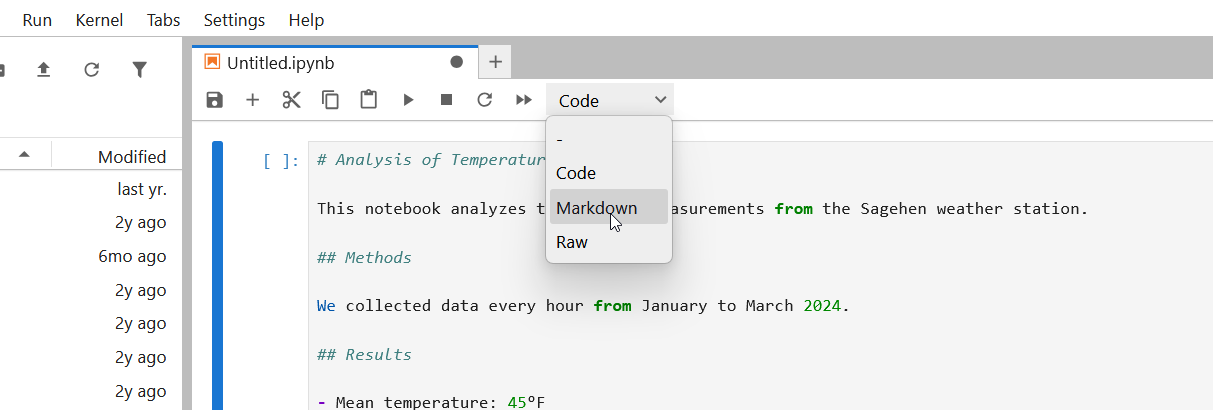
Image 1 of 1: ‘JupyterLab toolbar cell type dropdown menu expanded showing dash, Code, Markdown, and Raw cell type options’
Cell type dropdown showing Code, Markdown, and
Raw options
Figure 4
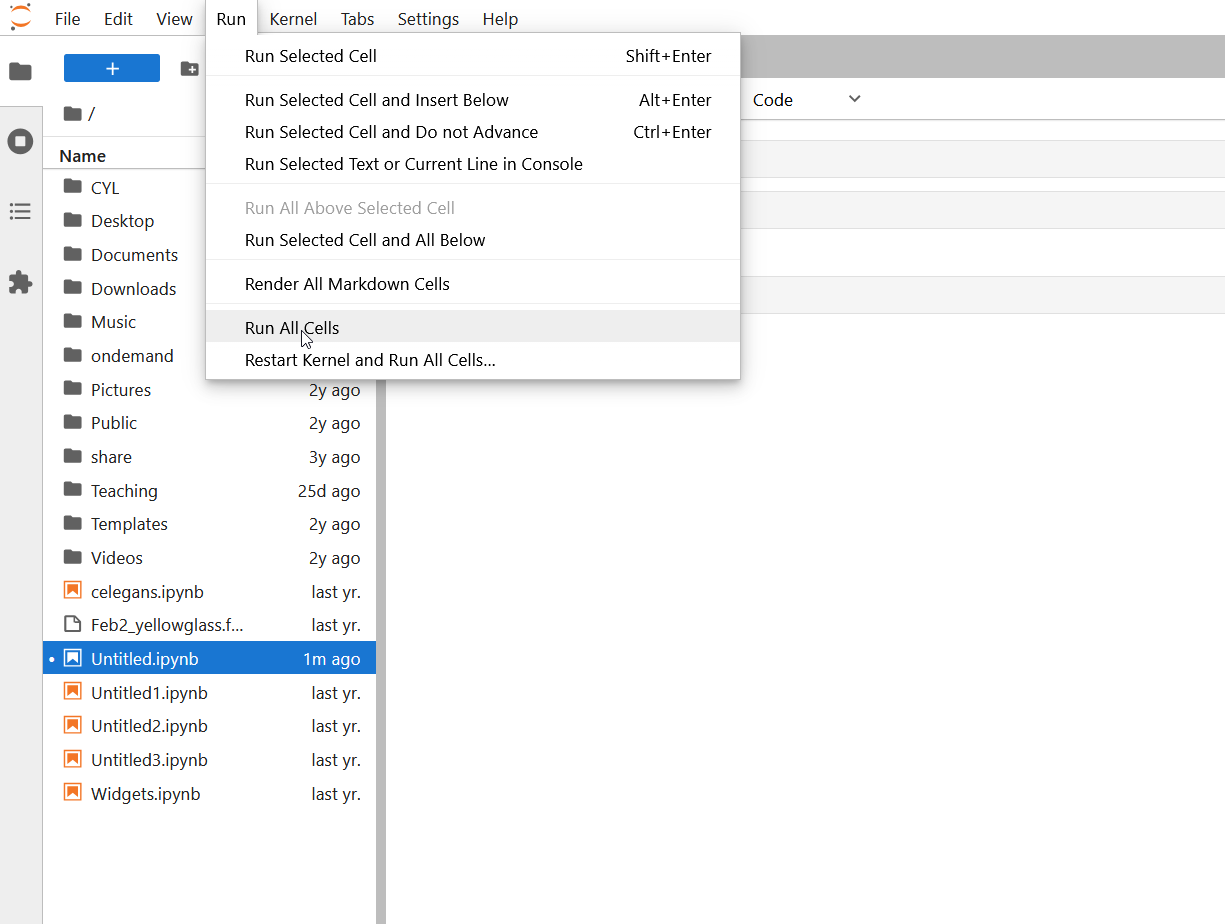
Image 1 of 1: ‘JupyterLab Run menu expanded showing options including Run Selected Cell, Run All Cells, and Restart Kernel and Run All Cells with keyboard shortcuts’
Run menu showing cell execution options and
keyboard shortcuts
Figure 5
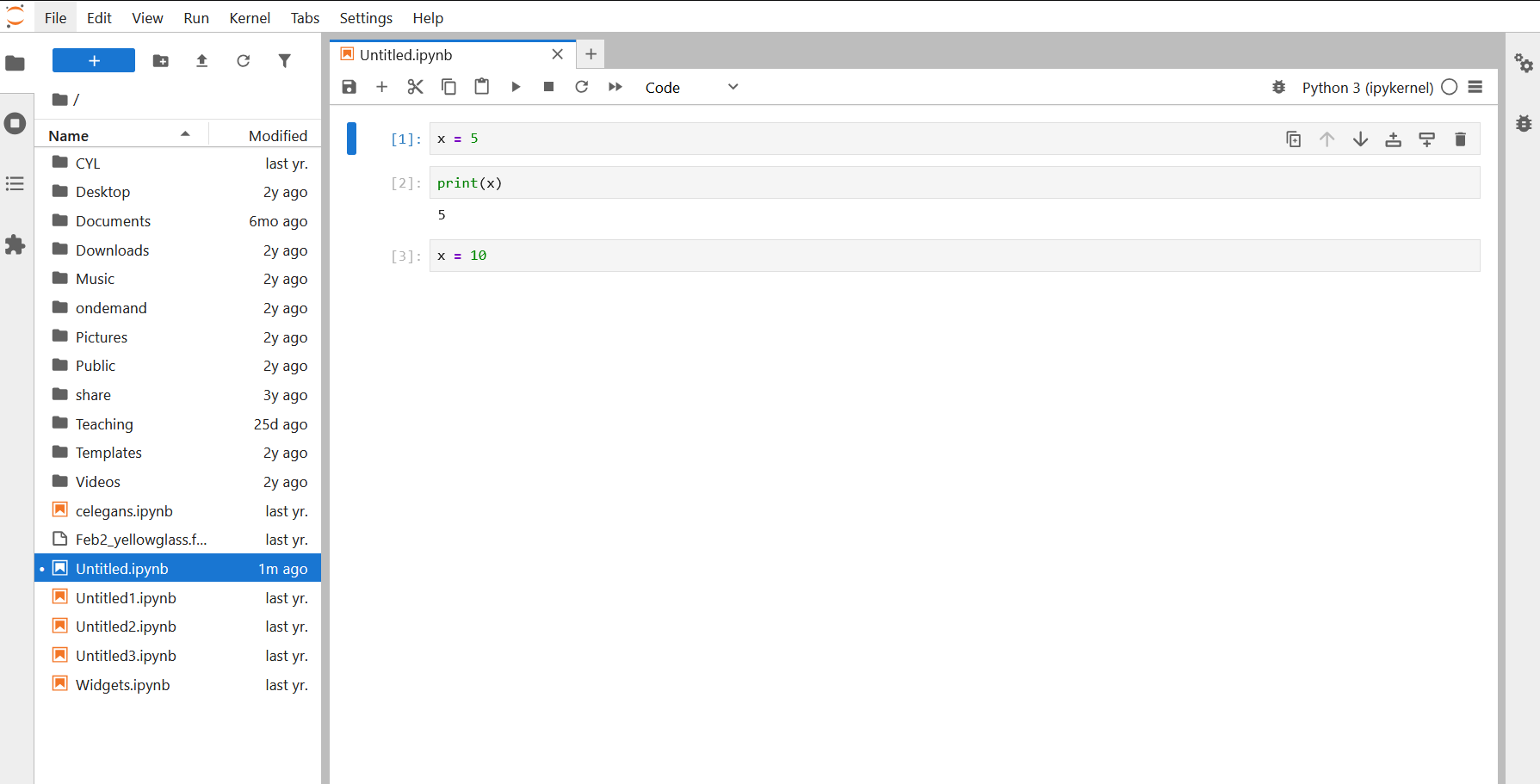
Image 1 of 1: ‘JupyterLab notebook showing three code cells with execution numbers: cell 1 sets x equals 5, cell 2 prints x showing output 5, cell 3 sets x equals 10’
Code cells showing execution numbers In[1],
In[2], In[3] with variable assignments and print output
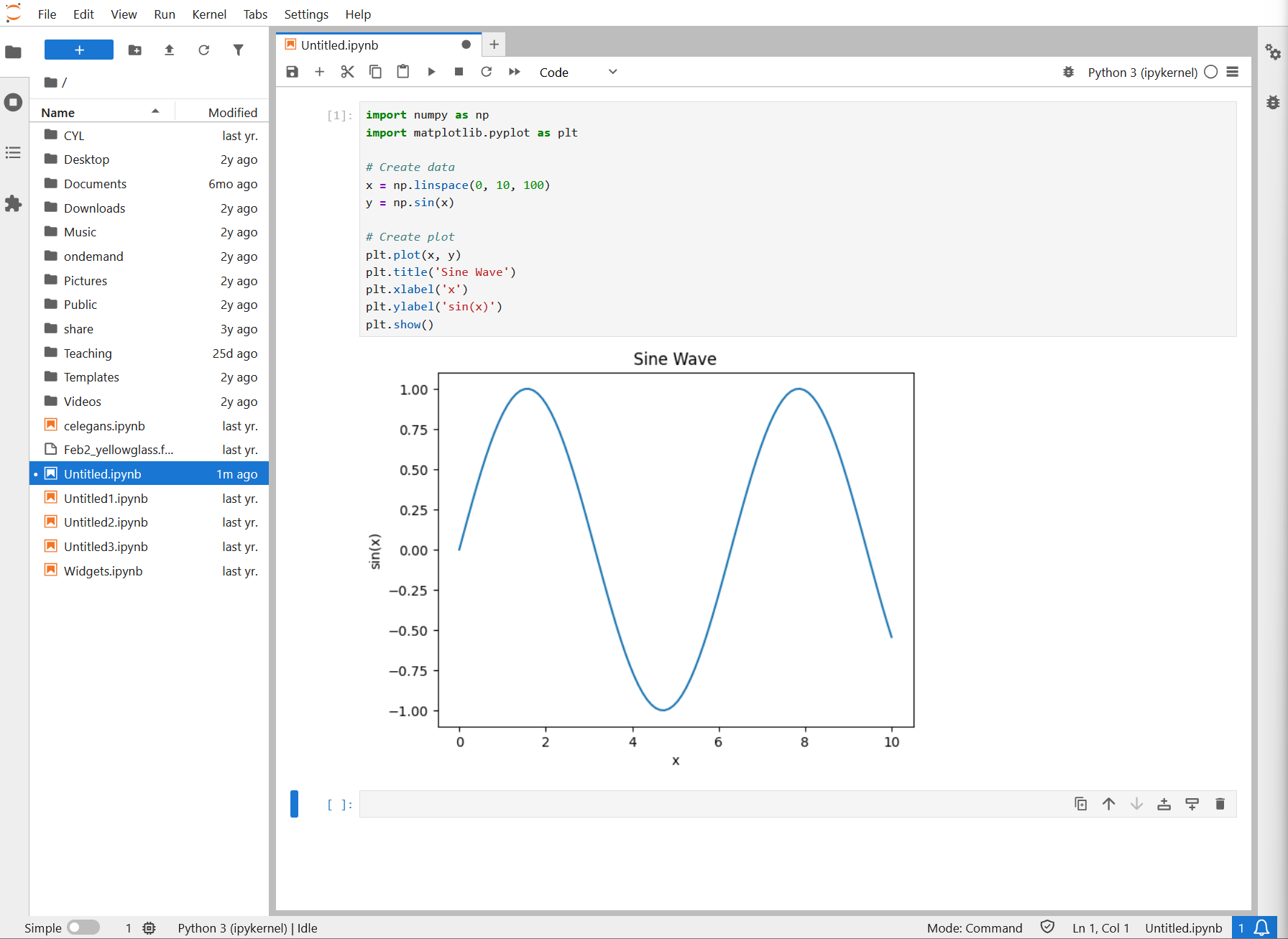
Image 1 of 1: ‘JupyterLab notebook with Python code importing numpy and matplotlib, creating a sine wave plot that displays inline below the code cell’
Notebook showing Python code with matplotlib and
a rendered sine wave plot
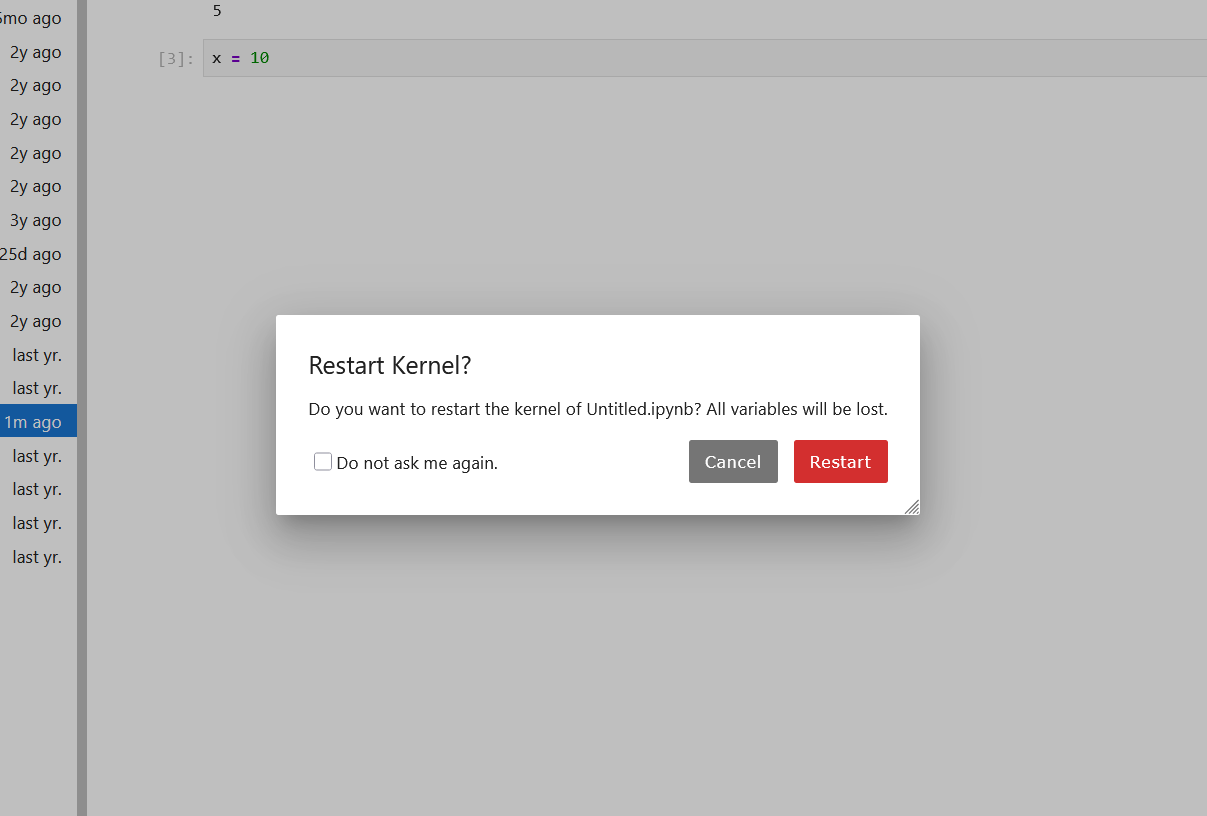
Image 1 of 1: ‘JupyterLab Restart Kernel dialog asking Do you want to restart the kernel of Untitled.ipynb with Cancel and red Restart buttons’
Restart Kernel confirmation dialog
Figure 2
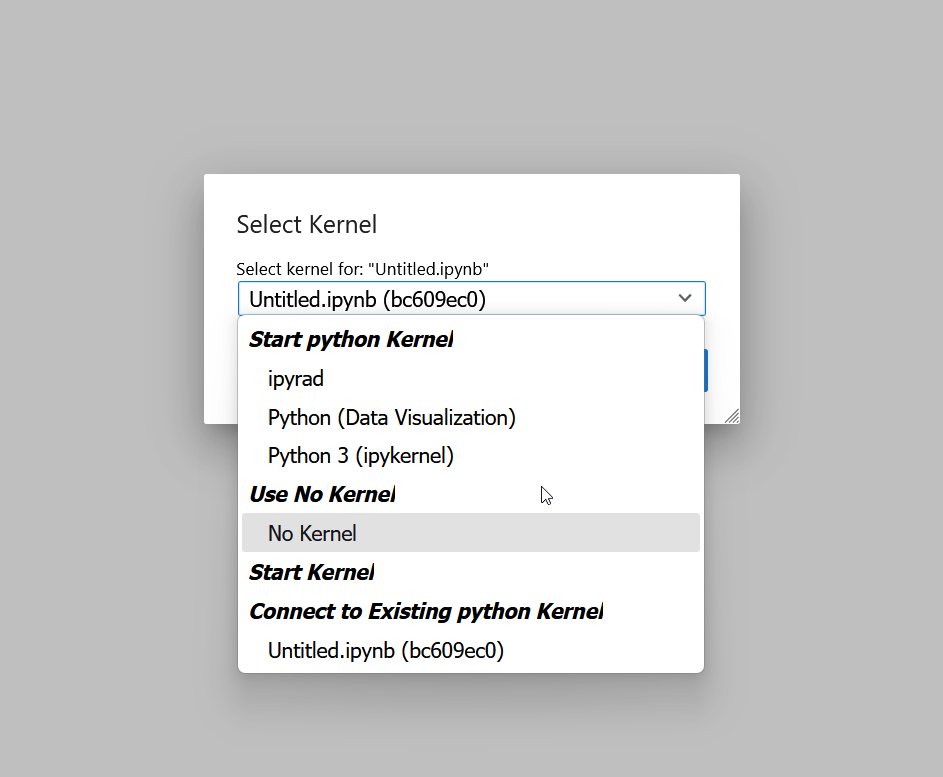
Image 1 of 1: ‘JupyterLab Select Kernel dialog showing available kernels including ipyrad, Python Data Visualization, and Python 3 ipykernel under Start python Kernel section’
Select Kernel dialog showing available Python
kernels
Figure 3
Image 1 of 1: ‘JupyterLab Launcher showing three notebook kernel options: Python 3 ipykernel, ipyrad, and Python Data Visualization’
JupyterLab Launcher showing available notebook
kernels
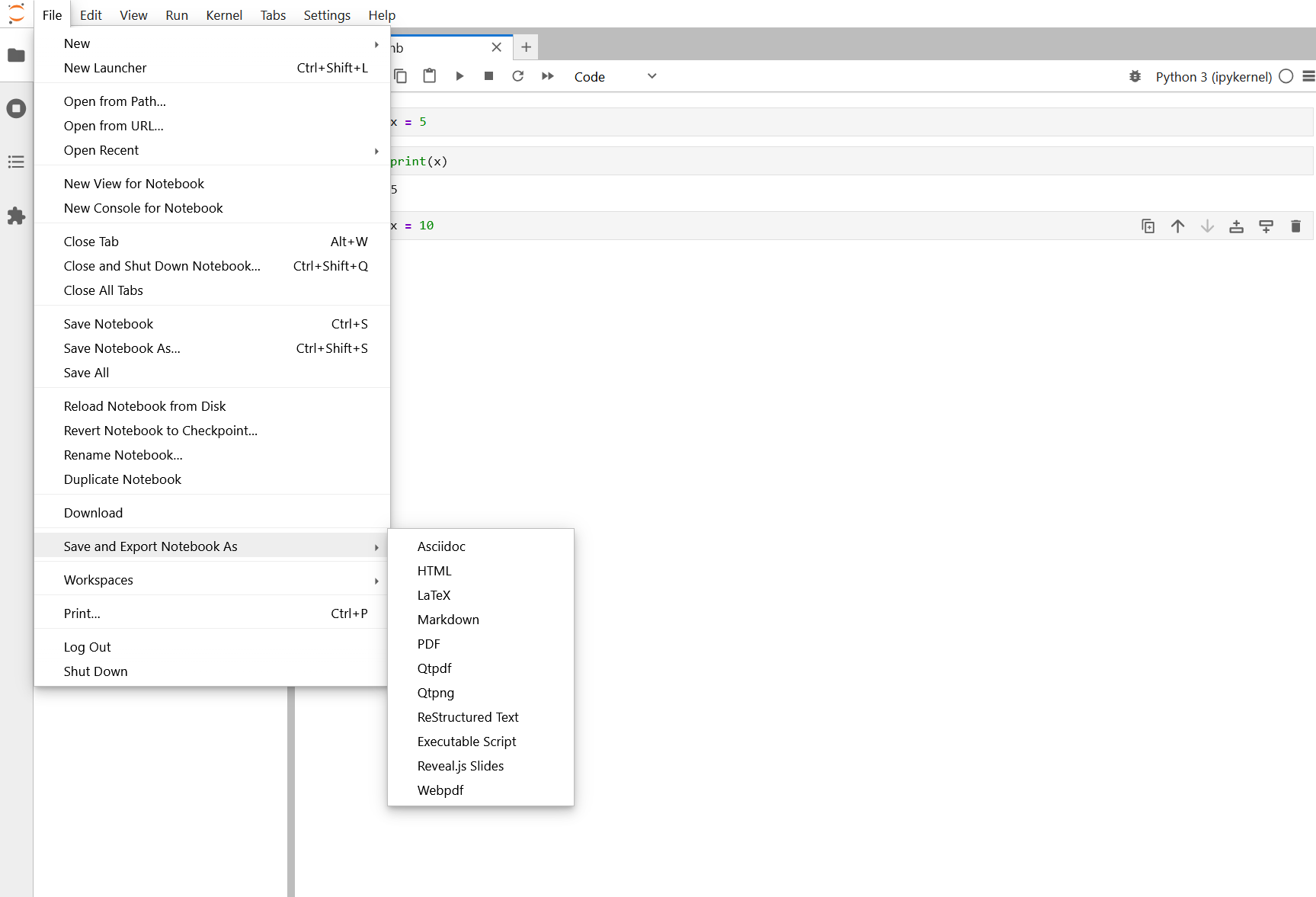
Image 1 of 1: ‘JupyterLab File menu expanded showing Save and Export Notebook As submenu with options including HTML, PDF, Executable Script, and more’
File menu showing Save and Export Notebook As
with format options