
File and Directory Management Techniques
Last updated on 2026-08-24 | Edit this page
Estimated time: 50 minutes
Overview
Questions
- How do I create, copy, and delete files and directories?
- What methods are available for altering the contents of a file?
Objectives
- Create a directory hierarchy that matches a given diagram.
- Populate this structure by either crafting new files or by copying and renaming existing ones.
- Execute operations to erase, duplicate, and move specific files and directories.
Initiating Directory and File Creation
Now that we’ve covered file and directory navigation, our next step is to learn how to create them.
This section is dedicated to the creation and manipulation of files
and directories. Our base will be the
exercise-data/research-notes directory.
Step One: Confirm Your Current Position and View Contents
We should be in the shell-lesson-data directory, located
on the Desktop. Let’s verify our current directory:
OUTPUT
/Users/cecil/Desktop/shell-lesson-dataNext, let’s navigate to exercise-data/writing and
inspect its contents:
OUTPUT
haiku.txt LittleWomen.txtEstablishing a New Directory
Our task is to create a directory named thesis. This is
achieved with the mkdir thesis command, which typically
does not yield any output:
mkdir is short for ‘make directory’. Since
thesis is specified as a relative path (lacking a leading
slash like /some/path/thesis), it will be generated inside
the current directory:
OUTPUT
haiku.txt LittleWomen.txt thesis/Being a new directory, thesis will be empty:
The mkdir command can also create several directories at
once, even nested structures, using a single command. This capability is
enabled through the -p option:
To list all contents within a directory, including those in
subdirectories, we can use the -R option with
ls. Let’s use ls -FR to view the entire
directory layout under project:
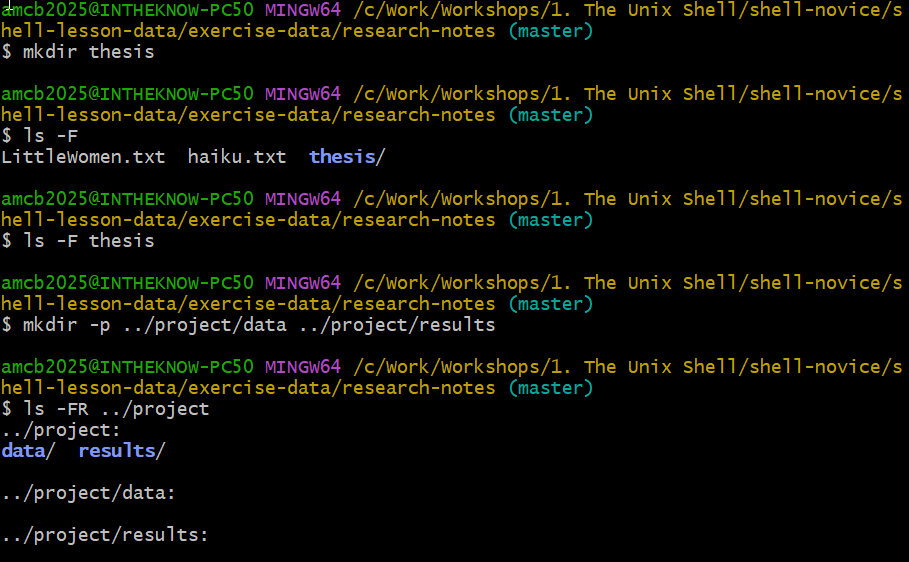
thesis and the nested
project/data and project/results tree,
verified with ls -FR.OUTPUT
../project/:
data/  results/

../project/data:

../project/results:Comparing Shell and Graphical File Management
The process of creating a directory in the shell is functionally the
same as doing it through a graphical file explorer. If you were to open
the same directory in your computer’s file explorer, you would see the
thesis directory there too. Despite their different
interfaces, the shell and graphical file explorer both interact with the
same underlying files and directories.
Effective Naming Conventions for Files and Directories
Selecting clear and simple names for your files and directories can greatly simplify working with the command line. Consider these tips for efficient naming:
- Skip Spaces: Spaces can improve readability but may cause
complications on the command line, where spaces are typically used to
separate arguments. Opt for hyphens (
-) or underscores (_) instead. For example, usegobekli-tepe-excavation/instead ofgobekli tepe excavations/. Experiment by runningmkdir north pacific gyreand observe the outcome withls -F. - Avoid Leading
-: Names that start with-can be misinterpreted as options in many commands. - Stick to Safe Characters: Use letters, numbers, periods
(
.), hyphens (-), and underscores (_) for better compatibility with command line operations. Other symbols can have special meanings and lead to unexpected behavior or even loss of data.
For file or directory names containing spaces or special characters,
enclosing them in double quotes ("") can help prevent
issues.
Learners often accidentally enter text editors like Vim, Emacs, or Nano on the command line and struggle to exit. Restarting the terminal can be bothersome, especially as it means re-navigating to the right directory. To help prevent this, instructors should consider using the same text editor as their learners, which is typically Nano, during workshops.
Generating a Text File
Next, we’ll change our working directory to thesis with
the cd command and proceed to create a file named
draft.txt using the Nano text editor:
Understanding Text Editors and Their Scope
Nano, referred to here as a text editor, is limited to handling plain
text. This means it’s not suitable for managing tables, images, or other
forms of rich media. We’ve chosen Nano for its simplicity in our
examples. Post-workshop, your projects may require more sophisticated
editors. Among Unix users, Emacs, Vim, or graphical editors like Gedit and VScode are popular. For
Windows users, Notepad++
and the built-in notepad (which can be launched from the
command line like nano) are commonly used.
No matter which editor you choose, it’s essential to know its file handling behavior. If initiated from the shell, it typically operates within the current directory. However, if launched from the start menu, it might default to locations like the Desktop or Documents. You can change the default saving location by navigating to a different directory when you first select ‘Save As…’
Now, let’s input some text into our new file.
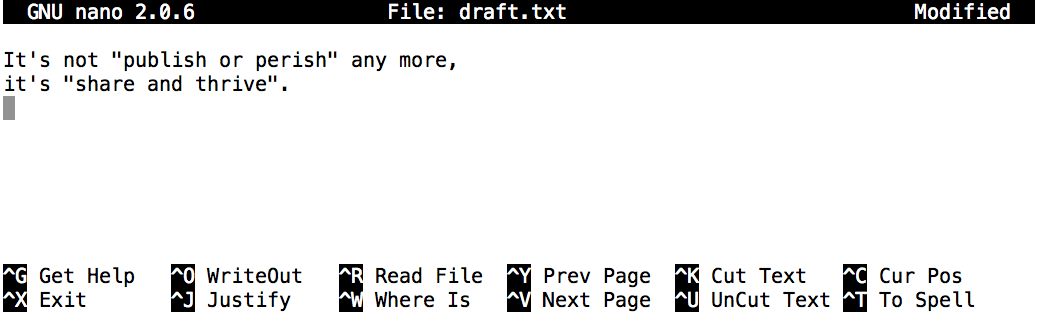
Once the text is entered, save the file by pressing
Ctrl+O (hold the Ctrl key and press
O). You’ll be asked to confirm the file name; press
Return to proceed with the suggested
draft.txt.
To exit Nano and go back to the shell, use Ctrl+X.
Deciphering the Control (Ctrl) Key Usage
The Control key, commonly abbreviated as ‘Ctrl’, is referred to in
several ways in instructional materials, including: -
Control-X - Control+X - Ctrl-X -
Ctrl+X - ^X - C-x
In Nano, commands at the bottom of the screen, like
^G Get Help ^O WriteOut, translate to
Control-G for accessing help and Control-O to
save your file.
Once you exit Nano, using ls will display our newly
created file, draft.txt:
OUTPUT
draft.txtTrying a Different File Creation Approach
As an alternative to Nano, experiment with this command:
- What function does the
touchcommand serve? Can you find the new filemy_file.txtusing your GUI file explorer? - Examine the file using
ls -l. What is the size ofmy_file.txt? - In what scenarios might this method of file creation be advantageous?
- The
touchcommand generates a new file namedmy_file.txtin your current directory, which can be seen both withlsand in your GUI file explorer. - When you inspect with
ls -l, it reveals thatmy_file.txtis empty, having a size of 0 bytes. - Creating files this way is useful when you need empty files that certain applications will later populate with data.
Before we proceed, let’s tidy up by deleting the file we just made:
The Significance of File Extensions
You might have noticed that cecil’s files follow a ‘name.extension’
format. Using .txt in this lesson is a common convention,
not a requirement. Files can be named almost anything, like
mythesis. However, people often use two-part names with a
filename extension to distinguish file types. For
instance, .txt indicates a plain text file,
.pdf is for PDF documents, .cfg for
configuration files, .png for PNG images, and so on.
Remember, this is a convention of immense practical importance. Files are essentially just bytes, and it’s up to us and our software to interpret these bytes correctly - whether they represent text, images, music, etc.
For example, naming a PNG image of a whale as whale.mp3
doesn’t turn it into an audio file. If you try to open such a misnamed
file, your operating system might mistakenly use a music player, leading
to an error or unexpected behavior.
Renaming and Moving Files and Directories
Let’s go back to the
shell-lesson-data/exercise-data/research-notes
directory:
Inside our thesis directory, we have a file named
draft.txt, which isn’t very descriptive. We can rename it
using mv (short for ‘move’):
Here, the first argument is the file we’re renaming, and the second
is the new name. ls confirms the change:
OUTPUT
quotes.txtBe cautious with mv, as it can overwrite files without
warning. Using mv -i (or mv --interactive)
prompts for confirmation before overwriting.
mv can also move entire directories. Let’s move
quotes.txt to the current working directory:
This command moves the file to the current directory
(.). Now, thesis is empty:
OUTPUT
$We can verify the absence of quotes.txt in the
thesis directory and its presence in the current
directory:
ERROR
ls: cannot access 'thesis/quotes.txt': No such file or directoryOUTPUT
quotes.txtUsing ls with specific filenames or directories lists
only those items, showing an error if they don’t exist.
Moving Files to a new folder
After running the following commands, Jamie realizes that she put the
files sucrose.dat and maltose.dat into the
wrong folder. The files should have been placed in the raw
folder.
BASH
$ ls -F
 analyzed/ raw/
$ ls -F analyzed
fructose.dat glucose.dat maltose.dat sucrose.dat
$ cd analyzed
Fill in the blanks to move these files to the raw/
folder (i.e. the one she forgot to put them in)
Duplicating Files and Directories
The cp (copy) command functions similarly to
mv (move), but instead of moving a file, it creates a
duplicate. To verify the action of cp, we can use
ls with two arguments simultaneously. Just like many Unix
commands, ls can handle multiple inputs:
OUTPUT
quotes.txt thesis/quotations.txtFor copying an entire directory along with its contents, use the recursive
-r option. For example, to make a backup of a
directory:
We can confirm the operation by listing the contents of both
thesis and thesis_backup:
OUTPUT
thesis:
quotations.txt

thesis_backup:
quotations.txt
It’s crucial to include the -r flag when copying
directories. Without this flag, you’ll encounter a message indicating
the directory has been skipped due to the absence of
-r.
Correcting a File Name Mistake
Imagine you’ve created a text file in your current directory to list
the statistical tests for your data analysis, but you accidentally named
it statstics.txt.
To correct this spelling error, which command would be appropriate?
cp statstics.txt statistics.txtmv statstics.txt statistics.txtmv statstics.txt .cp statstics.txt .
- No. This command creates a correctly named file, but the file with the misspelled name would still remain and need deletion.
- Yes, this is the correct way to rename the file.
- No, using
.simply specifies the current directory and does not provide a new name; you cannot have two files with the same name. - No, similar to the above, this copies the file to the current directory without changing its name; duplicate names are not permitted.
Understanding File Movement and Copying
Determine the final output of the ls command in the
sequence shown here:
OUTPUT
/Users/jamie/dataOUTPUT
proteins.datBASH
$ mkdir recombined
$ mv proteins.dat recombined/
$ cp recombined/proteins.dat ../proteins-saved.dat
$ ls
Options:
proteins-saved.dat recombinedrecombinedproteins.dat recombinedproteins-saved.dat
We start off in /Users/jamie/data, where we create a new
directory named recombined. Next, the mv
command relocates proteins.dat into
recombined. Then, cp duplicates this file to
one level up from the current directory, resulting in
/Users/jamie/proteins-saved.dat. The key point is
understanding the destination of the copied file, which is determined
relative to the current directory, not the source file’s location. Thus,
in /Users/jamie/data, the only item displayed by
ls will be the recombined folder.
- No, as
proteins-saved.datis in/Users/jamie - Yes
- No,
proteins.datis now in/Users/jamie/data/recombined - No, as
proteins-saved.datis in/Users/jamie
File and Directory Deletion
Back in the shell-lesson-data/exercise-data/writing
directory, let’s clean up by removing the quotes.txt file
we previously created. We’ll use the rm command (short for
‘remove’) for this task:
To verify that the file is deleted, we use ls:
ERROR
ls: cannot access 'quotes.txt': No such file or directoryThe Finality of Deletion in Unix
In the Unix shell environment, there’s no trash bin or recycle bin to salvage deleted files from, which is a feature present in most of its graphical interfaces. When files are deleted in Unix, they are detached from the file system, freeing up their storage space for reuse. Although there are tools designed to locate and restore deleted files, their success is not assured. The disk space once occupied by the deleted files could be reused immediately, making recovery uncertain.
Practicing Caution with rm
What occurs if we run
rm -i thesis_backup/quotations.txt? Why is this cautionary
step important when using rm?
OUTPUT
rm: remove regular file 'thesis_backup/quotations.txt'? y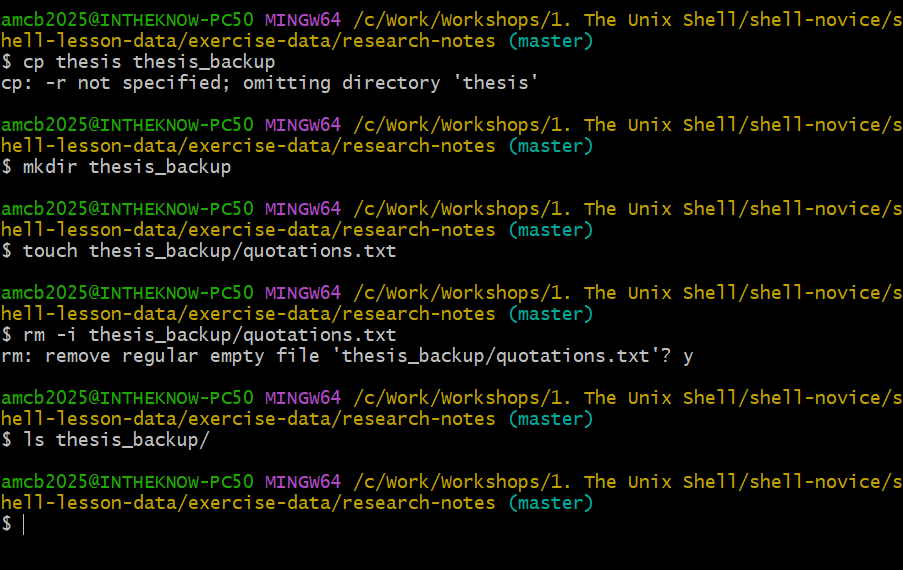
rm -i in action: the shell asks
before deleting, and a final ls confirms the file is
gone.Utilizing the -i option with rm prompts for
confirmation before deleting each file (respond with Y to
confirm deletion, or N to cancel). As the Unix shell lacks a
trash bin, any deleted files are irrevocably lost. The -i
option provides an opportunity to double-check that you’re deleting only
the files you intend to, adding a layer of protection against accidental
data loss.
If we try to remove the thesis directory using
rm thesis, we get an error message:
ERROR
rm: cannot remove `thesis': Is a directoryThis happens because rm by default only works on files,
not directories.
rm can remove a directory and all its contents
if we use the recursive option -r, and it will do so
without any confirmation prompts:
Given that there is no way to retrieve files deleted using the shell,
rm -r should be used with great caution (you might
consider adding the interactive option rm -r -i).
Operations with multiple files and directories
Oftentimes one needs to copy or move several files at once. This can be done by providing a list of individual filenames, or specifying a naming pattern using wildcards. Wildcards are special characters that can be used to represent unknown characters or sets of characters when navigating the Unix file system.
Copy with Multiple Filenames
For this exercise, you can test the commands in the
shell-lesson-data/exercise-data directory.
In the example below, what does cp do when given several
filenames and a directory name?
BASH
$ mkdir backup
$ cp pottery-types/Late-Neolithic-Decor.dat pottery-types/Mid-Neolithic-Vessels.dat backup/
In the example below, what does cp do when given three
or more file names?
OUTPUT
Early-Neolithic-Pottery.dat Late-Neolithic-Decor.dat Mid-Neolithic-Vessels.datIf given more than one file name followed by a directory name
(i.e. the destination directory must be the last argument),
cp copies the files to the named directory.
If given three file names, cp throws an error such as
the one below, because it is expecting a directory name as the last
argument.
ERROR
cp: target 'Early-Neolithic-Pottery.dat' is not a directoryUsing wildcards for accessing multiple files at once
Understanding Wildcards
In shell operations, the * symbol is a
wildcard that represents any sequence of characters,
including no characters at all. For instance, within the
shell-lesson-data/exercise-data/artifact-catalogs
directory, *.txt would match files like
Animal-Figurines-List.txt,
Artifact-Aging-Data.txt, and any other file that ends with
‘.txt’. Specifically, A*-Data.txt matches files starting
with ‘A’ and ending with ‘-Data.txt’, such as
Artifact-Aging-Data.txt.
The ? wildcard stands for any single character.
Therefore, ?illar-Symbols-Analysis.txt could match
Pillar-Symbols-Analysis.txt, while
*illar-Symbols-Analysis.txt would also match the same
file.
Wildcards can be combined to create patterns like
??????-Symbols-Analysis.txt, which matches files like
Pillar-Symbols-Analysis.txt, assuming the filename begins
with any six characters followed by
-Symbols-Analysis.txt.
Before executing a command, the shell expands these wildcards to a
list of filenames that match the given patterns. If a pattern does not
match any existing file, Bash typically reports an error. For example,
trying ls *.pdf in the artifact-catalogs
directory, which only contains .txt files, would result in
an error. It’s crucial to understand that wildcard expansion is handled
by the shell itself, not by individual commands such as wc
or ls.
Matching Specific File Patterns
Given the artifact-catalogs directory, which
ls command(s) would list the following files?
Artifact-Aging-Data.txt Excavation-Finds-Report.txt
Options:
ls *a*a*.txtls *ti*.txtls *a???-F*.txtls Artifact-*.txt
The correct option is 2.
1. matches files with any characters (*)
before and after the sequence a*a, ending in
.txt. This is too broad — it also catches
Pillar-Symbols-Analysis.txt and
Stone-Carvings-Catalogue.txt, which each contain two
lowercase as.
2. is the correct answer. Only
Artifact-Aging-Data.txt and
Excavation-Finds-Report.txt contain the sequence
ti, so the pattern matches exactly the two files listed and
nothing else.
3. targets files starting with any characters, followed
by a, then exactly three characters, -F, and
any characters, ending with .txt. No file in the directory
matches — Excavation-Finds-Report.txt has four characters
(tion) between a and -F — so this
lists nothing.
4. matches files starting with Artifact-
and ending with .txt, which gives
Artifact-Aging-Data.txt only. It misses
Excavation-Finds-Report.txt.
Organizing and Sharing Data
Sam has a directory full of calibration data, datasets, and dataset descriptions:
BASH
.
├── 2015-10-23-calibration.txt
├── 2015-10-23-dataset1.txt
├── 2015-10-23-dataset2.txt
├── 2015-10-23-dataset_overview.txt
├── 2015-10-26-calibration.txt
├── 2015-10-26-dataset1.txt
├── 2015-10-26-dataset2.txt
├── 2015-10-26-dataset_overview.txt
├── 2015-11-23-calibration.txt
├── 2015-11-23-dataset1.txt
├── 2015-11-23-dataset2.txt
├── 2015-11-23-dataset_overview.txt
├── backup
│   ├── calibration
│   └── datasets
└── send_to_bob
    ├── all_datasets_created_on_a_23rd
    └── all_november_files
With another field trip on the horizon, Sam needs to back up her data and send specific datasets to her colleague, Bob. She uses the commands below to accomplish her tasks:
BASH
$ cp *dataset* backup/datasets
$ cp ____calibration____ backup/calibration
$ cp 2015-____-____ send_to_bob/all_november_files/
$ cp ____ send_to_bob/all_datasets_created_on_a_23rd/
Assist Sam by completing the blanks.
The directory structure should ultimately look like this:
BASH
.
├── 2015-10-23-calibration.txt
├── 2015-10-23-dataset1.txt
├── 2015-10-23-dataset2.txt
├── 2015-10-23-dataset_overview.txt
├── 2015-10-26-calibration.txt
├── 2015-10-26-dataset1.txt
├── 2015-10-26-dataset2.txt
├── 2015-10-26-dataset_overview.txt
├── 2015-11-23-calibration.txt
├── 2015-11-23-dataset1.txt
├── 2015-11-23-dataset2.txt
├── 2015-11-23-dataset_overview.txt
├── backup
│   ├── calibration
│   │   ├── 2015-10-23-calibration.txt
│   │   ├── 2015-10-26-calibration.txt
│   │   └── 2015-11-23-calibration.txt
│   └── datasets
│       ├── 2015-10-23-dataset1.txt
│       ├── 2015-10-23-dataset2.txt
│       ├── 2015-10-23-dataset_overview.txt
│       ├── 2015-10-26-dataset1.txt
│       ├── 2015-10-26-dataset2.txt
│       ├── 2015-10-26-dataset_overview.txt
│       ├── 2015-11-23-dataset1.txt
│       ├── 2015-11-23-dataset2.txt
│       └── 2015-11-23-dataset_overview.txt
└── send_to_bob
    ├── all_datasets_created_on_a_23rd
    │   ├── 2015-10-23-dataset1.txt
    │   ├── 2015-10-23-dataset2.txt
    │   ├── 2015-10-23-dataset_overview.txt
    │   ├── 2015-11-23-dataset1.txt
    │   ├── 2015-11-23-dataset2.txt
    │   └── 2015-11-23-dataset_overview.txt
    └── all_november_files
        ├── 2015-11-23-calibration.txt
        ├── 2015-11-23-dataset1.txt
        ├── 2015-11-23-dataset2.txt
└── 2015-11-23-dataset_overview.txtStreamlining File Organization
Jamie notices her project files could use some better organization:
OUTPUT
analyzed/ fructose.dat raw/ sucrose.datThe files fructose.dat and sucrose.dat are
results from her data analysis but are not in the correct directory.
Which command(s) from this lesson should she use to ensure the following
commands yield the respective outputs?
OUTPUT
analyzed/ raw/OUTPUT
fructose.dat sucrose.datTo tidy up her workspace, Jamie must move fructose.dat
and sucrose.dat into the analyzed directory.
By using *.dat, the shell automatically selects all files
ending with .dat in the current directory. The
mv command then relocates these files to the specified
analyzed directory.
Setting Up a New Experiment’s Folder Structure
You’re embarking on a new experiment and wish to replicate the directory structure from a prior experiment to organize new data.
Let’s say the previous experiment’s data is in a folder named
2016-05-18, containing a data folder with
raw and processed subfolders filled with
files. Your aim is to mimic the 2016-05-18 structure within
a new folder named 2016-05-20, aiming for the following
structure:
OUTPUT
2016-05-20/
└── data
    ├── processed
    └── raw
Which command set would successfully create this structure, and what would the other commands result in?
BASH
$ mkdir 2016-05-20
$ mkdir 2016-05-20/data
$ mkdir 2016-05-20/data/processed
$ mkdir 2016-05-20/data/rawBoth the first two command sets and the fourth set of commands fulfill the goal, creating the required directory structure.
- The first set explicitly creates each directory using relative paths, starting from the top-level directory down to its subdirectories.
- The second set accomplishes the task with navigation, creating each part of the structure step by step.
- The third command set will not work as intended because
mkdircannot create a subdirectory (raworprocessed) within a non-existent intermediate directory (data) without additional options. - The fourth set is efficient, using the
-pflag to create necessary parent directories along the specified path, ensuring all intermediate directories are made as needed. - The last set incorrectly places the
rawandprocesseddirectories at the same level asdata, not inside it.
-
cp [old] [new]duplicates a file from one location to another. -
mkdir [path]generates a new folder at the specified path. -
mv [old] [new]relocates or renames a file or folder. -
rm [path]permanently deletes a file from the filesystem. -
*is a wildcard that can represent any number of characters, making*.txtapplicable to all files with a.txtsuffix. -
?is a wildcard for a single character, meaning?.txtmatches files likea.txtbut not longer names likeany.txt. - The Control key’s usage might be noted in several ways, such as
Ctrl-X,Control-X, or^X. - There’s no undo option in the shell; deleted items are irretrievably lost.
- Filenames usually follow a
name.extensionformat, where the extension suggests the file type but doesn’t enforce it. - For various tasks, a text editor more advanced than Nano might be necessary.