Image 1 of 1: ‘Terminal on the Sagehen cluster. The ls command lists directories including code, data, projects, and workshop-0. A second command, ks, returns the error bash: ks: command not found, and the prompt returns.’
On Sagehen HPC: a first ls, then
the error the shell prints for a mistyped command.
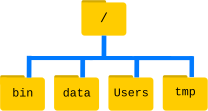
Image 1 of 1: ‘The file system is an inverted tree structure, with a root directory containing subdirectories like bin, data, users, and tmp’
Figure 2
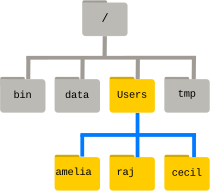
Image 1 of 1: ‘Home directories are sub-directories under "/Users", such as "/Users/amelia", "/Users/raj", or "/Users/cecil"’
Figure 3
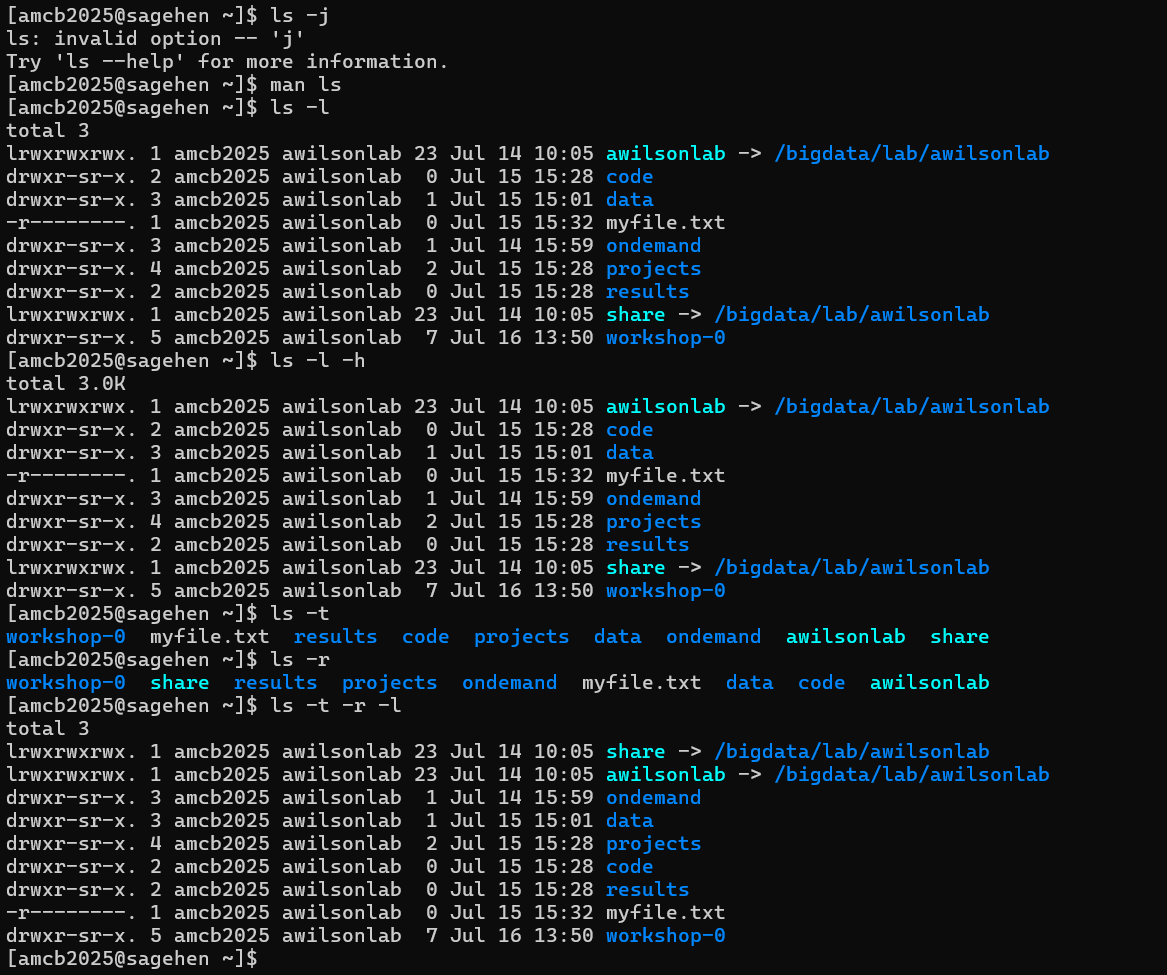
Image 1 of 1: ‘Sagehen terminal session. ls -j fails with invalid option. ls -l and ls -l -h show long-format listings with permissions, owner, group, and symlinks pointing to /bigdata/lab/awilsonlab. ls -t, ls -r, and ls -t -r -l show the same directory sorted by modification time and in reverse.’
Exploring ls options on Sagehen
HPC: an invalid option error, long and human-readable listings, and
time/reverse sorting — note the lab-storage symlinks pointing into
/bigdata/lab/.
Figure 4
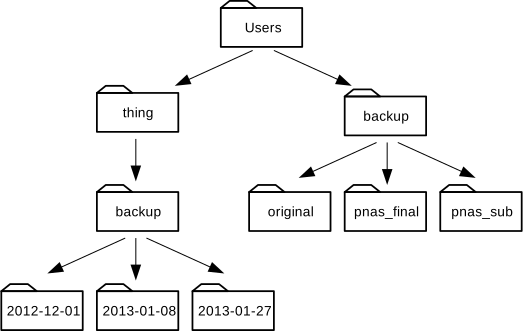
Image 1 of 1: ‘A directory tree under the Users directory. "/Users" contains "backup" and "thing". "/Users/backup" has "original", "pnas_final", and "pnas_sub". "/Users/thing" contains "backup", and "/Users/thing/backup" holds "2012-12-01", "2013-01-08", and "2013-01-27"’
Figure 5
Image 1 of 1: ‘Directory tree under the Users directory. "/Users" includes "backup" and "thing"; "/Users/backup" has "original", "pnas_final", and "pnas_sub"; "/Users/thing" contains "backup"; "/Users/thing/backup" holds "2012-12-01", "2013-01-08", and "2013-01-27"’
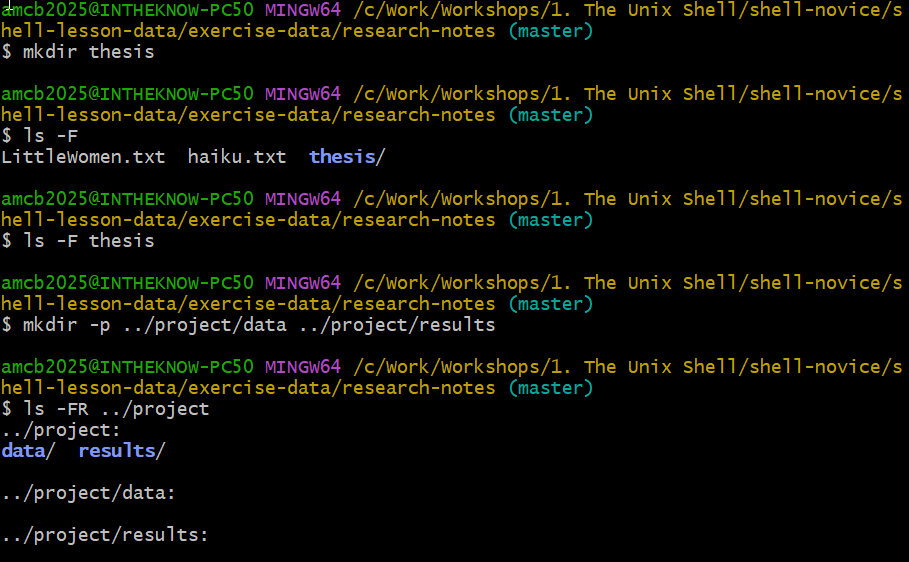
Image 1 of 1: ‘Terminal session inside research-notes. mkdir thesis is followed by ls -F showing LittleWomen.txt, haiku.txt, and thesis. mkdir -p creates project/data and project/results, and ls -FR lists the nested empty directories.’
Creating thesis and the nested
project/data and project/results tree,
verified with ls -FR.
Figure 2
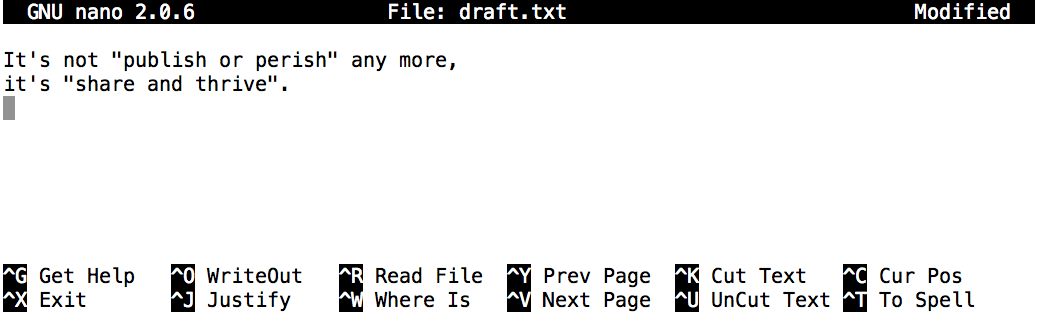
Image 1 of 1: ‘screenshot of nano text editor with the text 'It's not publish or perish any more, it's share and thrive'’
Figure 3
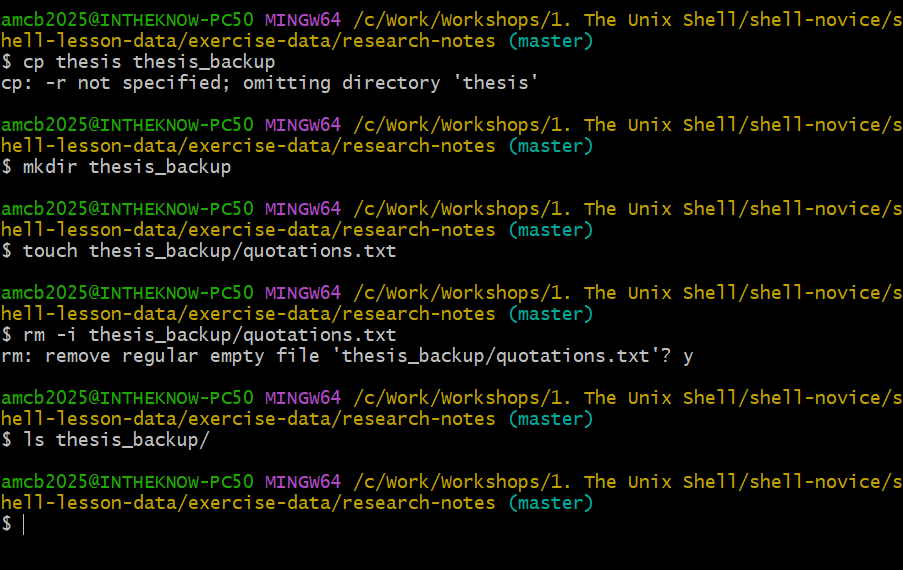
Image 1 of 1: ‘Terminal session where cp without -r fails on a directory, then rm -i prompts remove regular file thesis_backup/quotations.txt before deleting after the user types y. A final ls shows the directory is empty.’
rm -i in action: the shell asks
before deleting, and a final ls confirms the file is
gone.
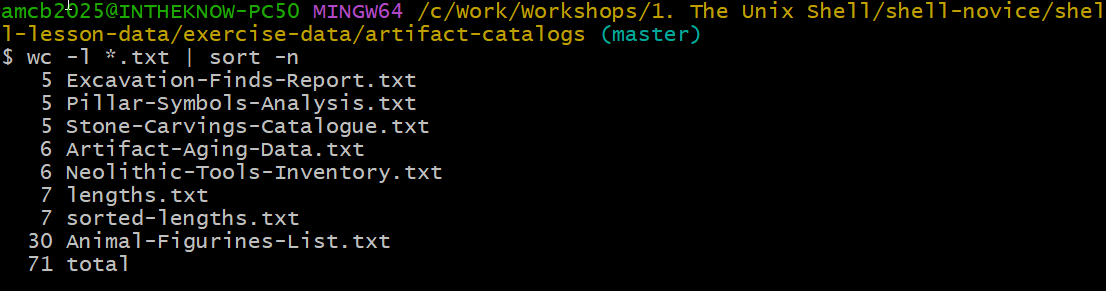
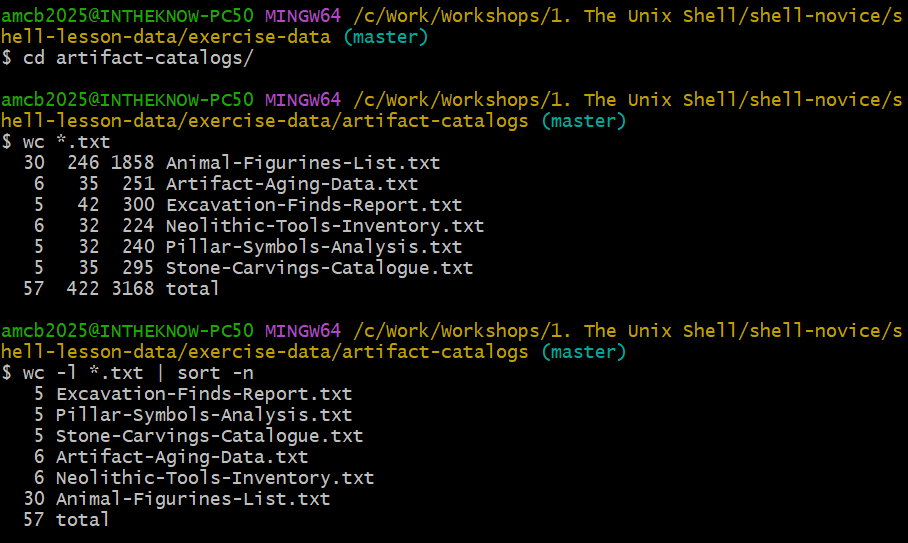
Image 1 of 1: ‘Terminal session in artifact-catalogs. wc *.txt lists line, word, and character counts for six catalog files with a total of 57 lines. The pipeline wc -l *.txt piped to sort -n shows the files ordered by line count with Animal-Figurines-List.txt largest at 30 lines.’
Counting with wc *.txt, then piping
wc -l into sort -n to order the catalog files
by length.
Figure 2
Image 1 of 1: ‘Illustration showing how output is redirected from "wc -l *.txt" to the shell, from "wc -l *.txt > lengths" to a file named "lengths", and how a pipeline from "wc -l *.txt" through "sort -n" to "head -n 1" directs data through multiple commands before outputting to the shell’
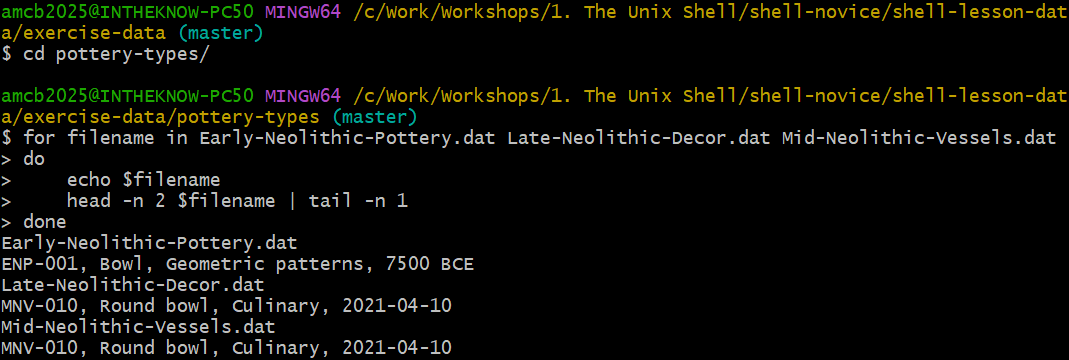
Image 1 of 1: ‘Terminal session in exercise-data/pottery-types. A for loop iterates over three .dat files, echoing each filename and printing the second line of each with head piped to tail.’
The loop live in the pottery-types directory:
each filename echoed, then its second line.
Figure 2
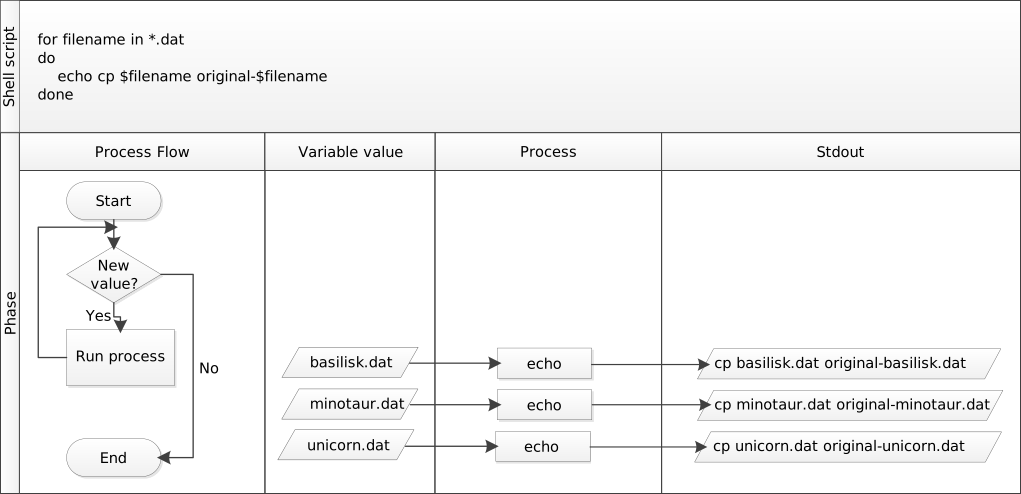
Image 1 of 1: ‘Flow chart explaining the loop execution process, emphasizing the role of `echo` for debugging.’
Image 1 of 1: ‘extract_notes.sh open in nano with its single cut command.’
{alt=‘GNU
nano editing extract_notes.sh, marked Modified. The only content line is
cut -d comma -f 5 dollar 1, with nano’s shortcut bar at the
bottom.’}
Figure 2
Image 1 of 1: ‘Terminal session running wc -l star dot txt piped to sort -n in artifact-catalogs. Eight text files are listed by ascending line count, including lengths.txt and sorted-lengths.txt created in the earlier episode, with a total of 71 lines.’
The manual pipeline the script will automate —
note two files left over from the pipes episode appear in the
count.
Figure 3
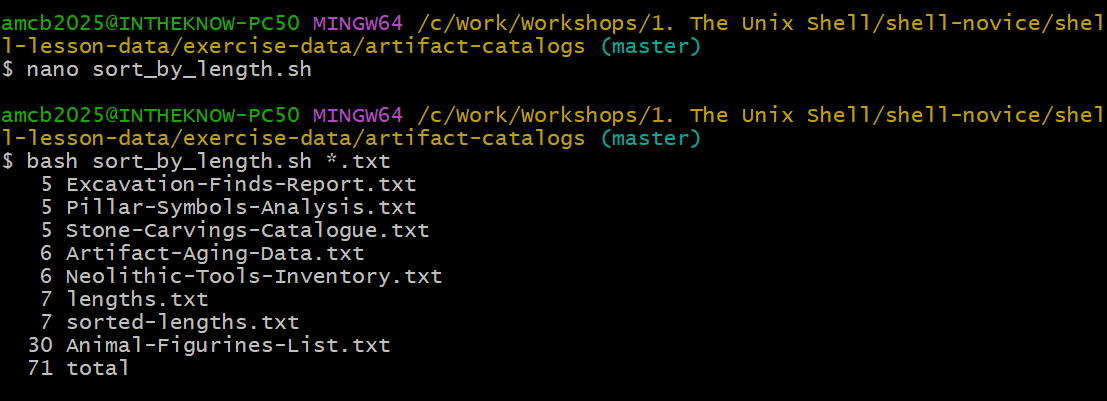
Image 1 of 1: ‘Terminal session where sort_by_length.sh is edited in nano and then run with bash sort_by_length.sh star dot txt, producing the same sorted listing as the manual pipeline, ending with 30 lines for Animal-Figurines-List.txt and 71 total.’
Creating sort_by_length.sh in nano
and running it on all .txt files.
Figure 4
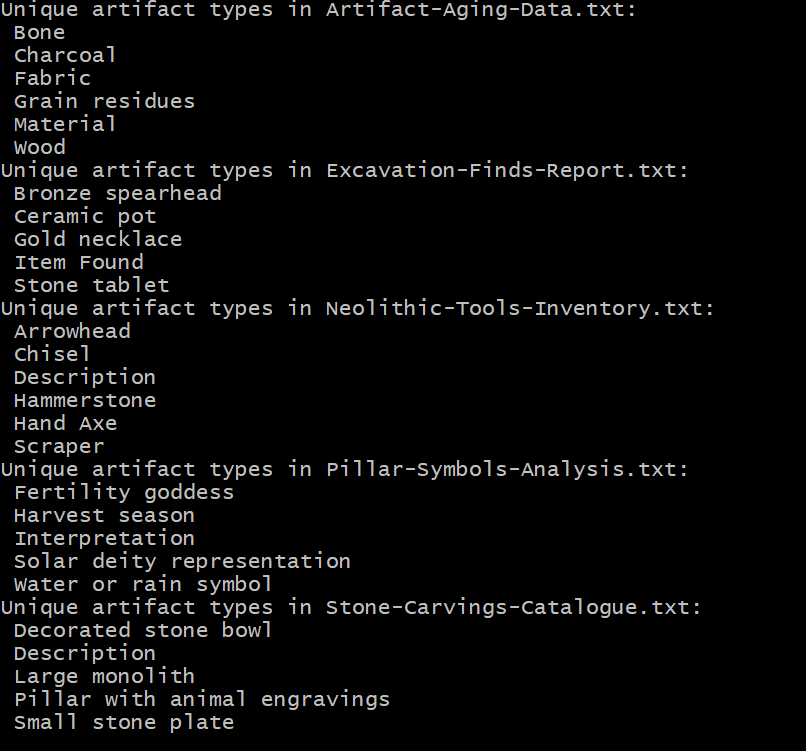
Image 1 of 1: ‘Terminal output with five blocks, each headed Unique artifact types in a catalog filename, listing sorted unique values such as Bone, Charcoal, Bronze spearhead, Arrowhead, and Large monolith. Header words like Material and Description appear among the values because the header row is included.’
Output of unique_artifacts.sh for
five of the catalog files (note the CSV header words appear among the
values).
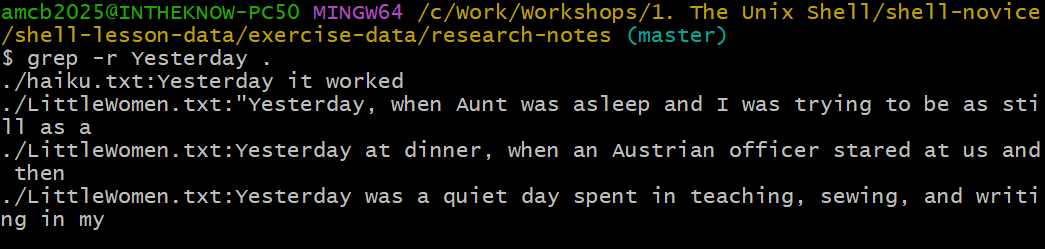
Image 1 of 1: ‘Terminal session running grep -r Yesterday dot in research-notes. The output shows the haiku line Yesterday it worked and three sentences from LittleWomen.txt containing the word Yesterday, each prefixed with the filename.’
grep -r Yesterday . finds matches
in both haiku.txt and LittleWomen.txt — the
real run returns three novel lines.
Figure 2
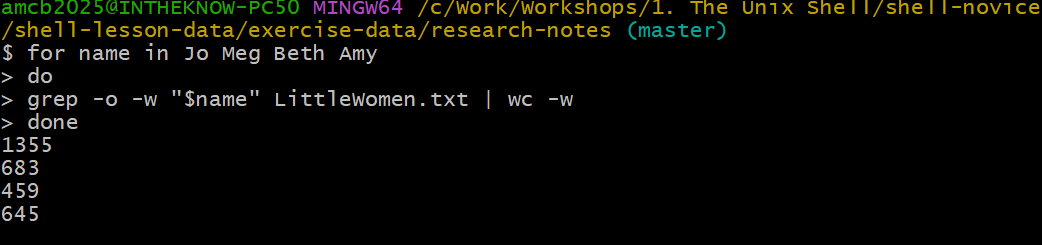
Image 1 of 1: ‘Terminal session with a for loop over the names Jo, Meg, Beth, and Amy piping whole-word grep matches from LittleWomen.txt into a word count. The four output numbers are 1355, 683, 459, and 645, showing Jo is mentioned most often.’
A compact variant of the loop (using
wc -w on grep -o output): 1355, 683, 459, 645
— Jo, Meg, Beth, Amy in order.
Figure 3
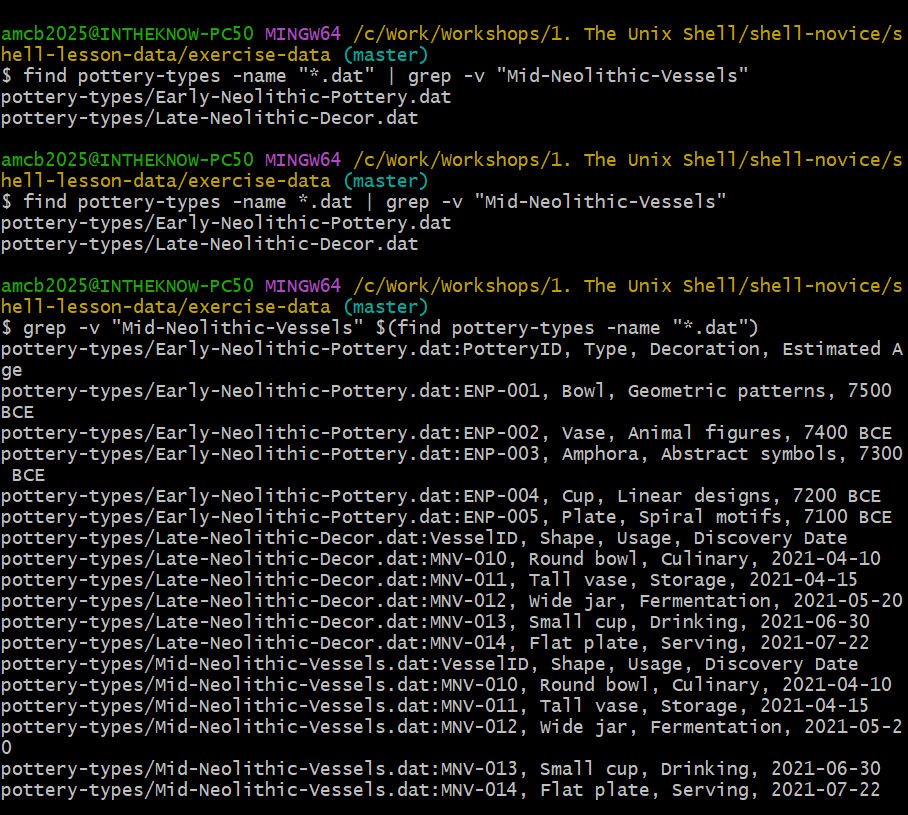
Image 1 of 1: ‘Terminal session running the three options from the filtering challenge. The first two commands each list Early-Neolithic-Pottery.dat and Late-Neolithic-Decor.dat. The third prints every line of the matched files prefixed by filename, showing that Late-Neolithic-Decor.dat and Mid-Neolithic-Vessels.dat contain identical VesselID records.’
All three candidate commands run live: the two
find | grep -v forms filter names; the $()
form greps file contents instead — and reveals two data files are
identical.



 {alt=‘GNU
nano editing extract_notes.sh, marked Modified. The only content line is
cut -d comma -f 5 dollar 1, with nano’s shortcut bar at the
bottom.’}
{alt=‘GNU
nano editing extract_notes.sh, marked Modified. The only content line is
cut -d comma -f 5 dollar 1, with nano’s shortcut bar at the
bottom.’}