
Discovering Content
Last updated on 2026-08-24 | Edit this page
Estimated time: 45 minutes
Overview
Questions
- How can I locate files on my system?
- How can I find specific content within files?
Objectives
- Employ
grepto identify lines in text files that match specified patterns. - Utilize
findto locate files and directories matching given patterns. - Apply the output from one command as the input arguments to another.
- Describe the distinction between ‘text’ and ‘binary’ files and the challenges many tools face with the latter.
Just as “Google” has become synonymous with online searching, Unix users often use “grep” as the verb for text searching within files. The term “grep” originates from ‘global/regular expression/print’, a common command sequence in early Unix text processing. It’s also a command-line utility for pattern matching.
grep is used to search for and display lines in files
that match a given pattern. In our demonstrations, we’ll use a file
containing three haikus from a 1998 Salon magazine competition
(Credit to Bill Torcaso, Howard Korder, and Margaret Segall). We’ll be
working in the research-notes subdirectory of
shell-lesson-data. Navigate there from wherever you
unpacked shell-lesson-data – for example, if it’s on your
Desktop:
OUTPUT
The Tao that is seen
Is not the true Tao, until
You bring fresh toner.

With searching comes loss
and the presence of absence:
"My Thesis" not found.

Yesterday it worked
Today it is not working
Software is like that.
Let’s start by finding lines that include the word ‘not’:
OUTPUT
Is not the true Tao, until
"My Thesis" not found
Today it is not working
Here, not serves as our search pattern. The
grep command scans the file for lines matching this
pattern. The command structure is simple: grep, followed by
the pattern, and then the file name(s).
The default behavior of grep is case-sensitive matching.
Furthermore, the pattern does not need to match a whole word, as we’ll
see in the next example when searching for ‘The’.
OUTPUT
The Tao that is seen
"My Thesis" not found.
To confine matches to lines containing ‘The’ as a separate word, we
can use grep with the -w flag, which matches
whole words only.
As we progress, we’ll explore how grep can be modified
to ignore case (-i) or invert the search, showing lines
without the pattern (-v).
Let’s find occurrences of ‘the’ regardless of case:
OUTPUT
1:The Tao that is seen
2:Is not the true Tao, until
6:and the presence of absence:
And now, to display lines excluding the word ‘the’:
OUTPUT
3:You bring fresh toner.
...
For a recursive search with grep, use the
-r option. Here’s how to recursively search for
‘Yesterday’:
OUTPUT
./LittleWomen.txt:"Yesterday, when Aunt was asleep and I was trying to be as still as a mouse...
./haiku.txt:Yesterday it worked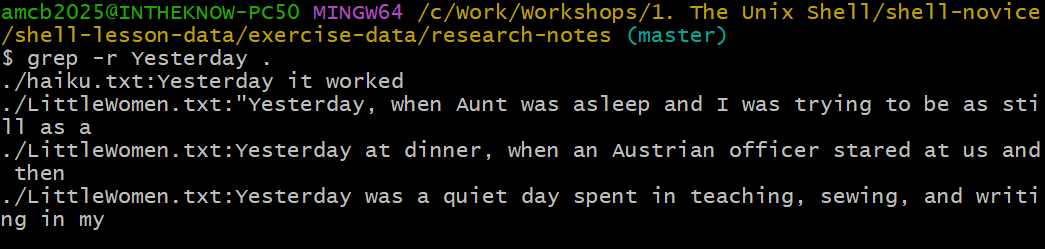
grep -r Yesterday . finds matches
in both haiku.txt and LittleWomen.txt — the
real run returns three novel lines.grep has numerous options. For a comprehensive list,
consult grep’s help:
OUTPUT
Usage: grep [OPTION]... PATTERN [FILE]...
Search for PATTERN in each FILE or standard input.
PATTERN is, by default, a basic regular expression (BRE).
Example: grep -i 'hello world' menu.h main.c

... ... ...Mastering grep
Identify the command that produces the output below:
OUTPUT
and the presence of absence:grep "of" haiku.txtgrep -E "of" haiku.txtgrep -w "of" haiku.txtgrep -i "of" haiku.txt
Option 3 is the correct choice because the -w flag
ensures that only entire words matching ‘of’ are selected. The other
options might also find occurrences of ‘of’ within larger words, but
option 3 specifically targets whole-word matches.
The Power of Wildcards in
grep
The true strength of grep lies not in its options but in
its ability to use wildcards, technically known as regular
expressions. This capability, referred to as ‘re’ in ‘grep’, is
both intricate and potent. For those interested in advanced search
techniques, we recommend our lesson on regular
expressions. As an introduction, you can find lines with an ‘o’ in
the second position like so:
OUTPUT
You bring fresh toner.
Today it is not working
Software is like that.
The -E option is used alongside quotes around the
pattern to prevent shell interpretation (e.g., expansion of a
*). The ^ symbol anchors the search to the
beginning of a line, the . wildcard matches any single
character, similar to ? in shell globbing, and
o specifically matches the letter ‘o’.
Compiling Species Observations
Leah has a directory filled with hundreds of data files, each formatted as shown:
2012-11-05,deer,5
2012-11-05,rabbit,22
2012-11-05,raccoon,7
2012-11-06,rabbit,19
2012-11-06,deer,2
2012-11-06,fox,4
2012-11-07,rabbit,16
2012-11-07,bear,1
She aims to create a shell script that accepts a species as its first
argument and a directory as the second. The script should output a file
named <species>.txt with dates and sighting counts
for the specified species. For instance, given the data above,
rabbit.txt would look like:
2012-11-05,22
2012-11-06,19
2012-11-07,16
Arrange the commands below into a single command to fulfill Leah’s requirement:
Hints: Refer to man grep for recursive text search in
directories and man cut for selecting multiple fields.
Example data in exactly this format is in
shell-lesson-data/exercise-data/animal-observations/. Once
you have assembled your command into a script, test it from inside that
directory with bash count-species.sh rabbit . – you should
get the rabbit.txt shown above.
grep -w $1 -r $2 | cut -d : -f 2 | cut -d , -f 1,3 > $1.txtInterestingly, reversing the two cut commands still
yields a functional solution. Experiment with the order on the command
line and inspect each step’s output to understand why both arrangements
work.
Invoke the script like so:
Analyzing “Little Women”
After finishing Little Women by Louisa May Alcott, you and a
friend debate which of the four sisters (Jo, Meg, Beth, and Amy) was
mentioned most. While your friend believes it was Jo, you’re convinced
Amy took the lead. Fortunately, you have the novel’s full text in
LittleWomen.txt
(shell-lesson-data/exercise-data/research-notes/LittleWomen.txt).
How would you use a for loop to count each sister’s
mentions?
Hints: One approach might combine grep, wc,
and a pipe |, while another could leverage certain
grep options. Often, there are multiple solutions to a
problem, chosen based on correctness, elegance, readability, and
efficiency.
for sis in Jo Meg Beth Amy
do
    echo $sis:
    grep -ow $sis LittleWomen.txt | wc -l
done
Or an alternative method:
for sis in Jo Meg Beth Amy
do
    echo $sis:
    grep -ocw $sis LittleWomen.txt
done
This second approach might not capture every mention, as
grep -c counts lines, not individual occurrences.
Therefore, if a line mentions a name multiple times, it only counts
once.
To include uppercase mentions in chapter titles, such as ‘MEG GOES TO
VANITY FAIR’, add -i for case-insensitivity. However, this
adjustment doesn’t change the outcome regarding which sister is
mentioned most.
While grep is adept at searching for lines within files,
the find command specializes in locating files themselves.
With a multitude of options available, we’ll demonstrate its basic
functionalities using the directory structure of
shell-lesson-data/exercise-data as outlined below.
OUTPUT
.
├── artifact-catalogs/
│   ├── Animal-Figurines-List.txt
│   ├── Artifact-Aging-Data.txt
│   ├── Excavation-Finds-Report.txt
│   ├── Neolithic-Tools-Inventory.txt
│   ├── Pillar-Symbols-Analysis.txt
│   └── Stone-Carvings-Catalogue.txt
├── excavation-sites/
│   └── Gobekli-Tepe-Site-Data.csv
├── pottery-types/
│   ├── Early-Neolithic-Pottery.dat
│   ├── Late-Neolithic-Decor.dat
│   └── Mid-Neolithic-Vessels.dat
├── research-notes/
│   ├── haiku.txt
│   └── LittleWomen.txt
└───site-coordinates.txt
The exercise-data directory houses the
site-coordinates.txt file alongside four subdirectories:
artifact-catalogs, excavation-sites,
pottery-types, and research-notes. Each
contains various files.
To begin, let’s execute find . within the
shell-lesson-data/exercise-data directory.
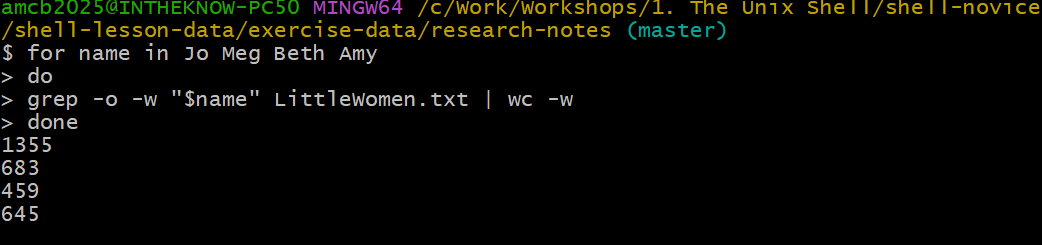
wc -w on grep -o output): 1355, 683, 459, 645
— Jo, Meg, Beth, Amy in order.OUTPUT
.
./artifact-catalogs
./artifact-catalogs/Animal-Figurines-List.txt
./artifact-catalogs/Artifact-Aging-Data.txt
./artifact-catalogs/Excavation-Finds-Report.txt
./artifact-catalogs/Neolithic-Tools-Inventory.txt
./artifact-catalogs/Pillar-Symbols-Analysis.txt
./artifact-catalogs/Stone-Carvings-Catalogue.txt
./excavation-sites
./excavation-sites/Gobekli-Tepe-Site-Data.csv
./pottery-types
./pottery-types/Early-Neolithic-Pottery.dat
./pottery-types/Late-Neolithic-Decor.dat
./pottery-types/Mid-Neolithic-Vessels.dat
./research-notes
./research-notes/haiku.txt
./research-notes/LittleWomen.txt
./site-coordinates.txt
Here, the . signifies the current directory, marking the
starting point of our search. The output lists every file and directory
beneath the current location. While initially overwhelming,
find offers numerous options to refine these results.
First, let’s use -type d to filter for directories. The
command then lists the five directories, including .
itself:
OUTPUT
.
./artifact-catalogs
./excavation-sites
./pottery-types
./research-notes
Switching -type d to -type f changes the
focus to files, listing them all:
OUTPUT
./artifact-catalogs/Animal-Figurines-List.txt
./artifact-catalogs/Artifact-Aging-Data.txt
./artifact-catalogs/Excavation-Finds-Report.txt
./artifact-catalogs/Neolithic-Tools-Inventory.txt
./artifact-catalogs/Pillar-Symbols-Analysis.txt
./artifact-catalogs/Stone-Carvings-Catalogue.txt
./excavation-sites/Gobekli-Tepe-Site-Data.csv
./pottery-types/Early-Neolithic-Pottery.dat
./pottery-types/Late-Neolithic-Decor.dat
./pottery-types/Mid-Neolithic-Vessels.dat
./research-notes/haiku.txt
./research-notes/LittleWomen.txt
./site-coordinates.txt
Attempting a name-based search with:
OUTPUT
./site-coordinates.txtThis command unexpectedly returns only
./site-coordinates.txt because the shell expands the
wildcard * before find executes. To correct
this, we encase *.txt in quotes, preventing shell expansion
and allowing find to receive the intended pattern:
OUTPUT
./artifact-catalogs/Animal-Figurines-List.txt
./artifact-catalogs/Artifact-Aging-Data.txt
./artifact-catalogs/Excavation-Finds-Report.txt
./artifact-catalogs/Neolithic-Tools-Inventory.txt
./artifact-catalogs/Pillar-Symbols-Analysis.txt
./artifact-catalogs/Stone-Carvings-Catalogue.txt
./research-notes/haiku.txt
./research-notes/LittleWomen.txt
./site-coordinates.txtThe Distinction Between Listing and Finding
While ls and find can perform similarly
with the appropriate options, their default behaviors differ:
ls aims to list all accessible items, whereas
find searches for items matching specific criteria,
presenting only those that fit.
The true strength of the command line comes from its ability to link
tools together. We’ve explored this through piping, and now we’ll
examine another method. As demonstrated,
find . -name "*.txt" lists all text files within or beneath
the current directory. How can we couple this with wc -l to
tally the lines across these files?
The most straightforward approach involves encapsulating the
find command within $():
OUTPUT
     30 ./artifact-catalogs/Animal-Figurines-List.txt
      6 ./artifact-catalogs/Artifact-Aging-Data.txt
      5 ./artifact-catalogs/Excavation-Finds-Report.txt
      6 ./artifact-catalogs/Neolithic-Tools-Inventory.txt
      5 ./artifact-catalogs/Pillar-Symbols-Analysis.txt
      5 ./artifact-catalogs/Stone-Carvings-Catalogue.txt
     11 ./research-notes/haiku.txt
  21022 ./research-notes/LittleWomen.txt
      5 ./site-coordinates.txt
  21095 total
The shell first executes what’s inside $(), substituting
the $() expression with that command’s output. Given
find outputs three filenames, the shell generates the
command:
This is precisely what we intended. The shell’s expansion of
$() allows us to use any command as a custom wildcard, much
like how it expands * and ?.
Pairing find and grep is commonplace.
find locates files matching a specific pattern, while
grep searches within those files for lines matching another
pattern. For instance, we can find .txt files containing
“searching”:
OUTPUT
./research-notes/haiku.txt:With searching comes loss
./research-notes/LittleWomen.txt:sitting on the top step, affected to be searching for her book, but wasFiltering Out Specific Data
The -v option in grep reverses the pattern
matching, showing lines that do not match the given pattern.
Which command could be used to list all .dat files in the
pottery-types directory, excluding
Mid-Neolithic-Vessels.dat? Experiment with your options in
the relevant directory.
find pottery-types -name "*.dat" | grep -v "Mid-Neolithic-Vessels"find pottery-types -name *.dat | grep -v "Mid-Neolithic-Vessels"grep -v "Mid-Neolithic-Vessels" $(find pottery-types -name "*.dat")- None of the above.
Option 1 is accurate. Placing the match expression in quotes stops
the shell from expanding it, so it’s correctly passed to the
find command.
Option 2 functions appropriately because the shell attempts to expand
*.dat but, finding no *.dat files in the
current directory, passes the wildcard expression to
find.
Option 3 is not correct as it attempts to exclude lines containing
‘Mid-Neolithic-Vessels’ within the content of the files, rather than
omitting the Mid-Neolithic-Vessels.dat file name from the
listing results.
Handling Binary Files
Our focus has been on text files, but what about data in non-text formats like images or databases?
While a few tools extend grep to manage some binary
formats, a broader strategy involves converting non-text data into text
or extracting textual components for processing. This approach
simplifies straightforward tasks but often renders complex manipulations
infeasible. For example, extracting image dimensions is doable, but
analyzing spreadsheet formulas is another story.
Eventually, recognizing the shell and text processing limits may lead to adopting another programming language. This isn’t a failure of the shell; many contemporary languages incorporate shell-inspired features, reflecting its enduring influence and utility.
The Unix shell’s longevity and productivity are unparalleled, attributable to its design as a powerful programming environment. Its syntax may seem daunting, but its efficiency in automating tasks and facilitating experimentation is unmatched. GUIs offer initial ease of use, but the shell’s capabilities, once mastered, provide unbeatable productivity. As Alfred North Whitehead observed, progress in civilization is marked by our ability to perform complex tasks without conscious thought.
- Searches for all
.datfiles starting from the current directory. - Counts the number of lines in each of these files.
- Sorts the results numerically, displaying the files from least to most number of lines.
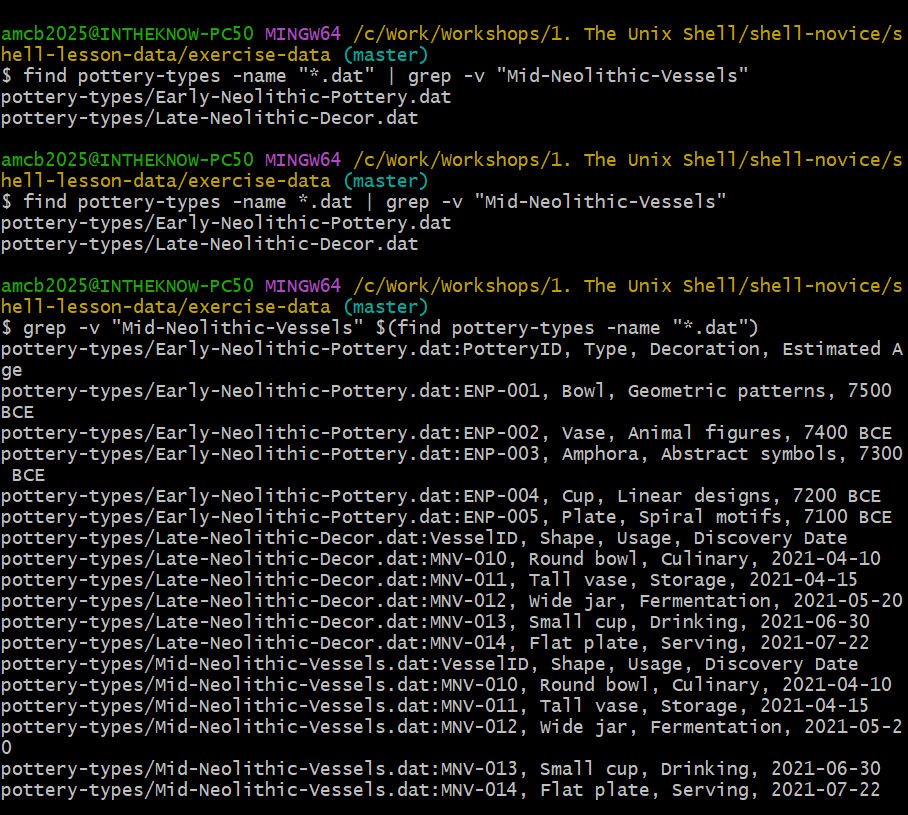
find | grep -v forms filter names; the $()
form greps file contents instead — and reveals two data files are
identical.-
findsearches for files that match specific criteria. -
grepfilters lines within files based on patterns. -
--helpoffers command and program usage information within Bash. -
man [command]provides a command’s manual page. $([command])
replaces itself with the output of the enclosed command.