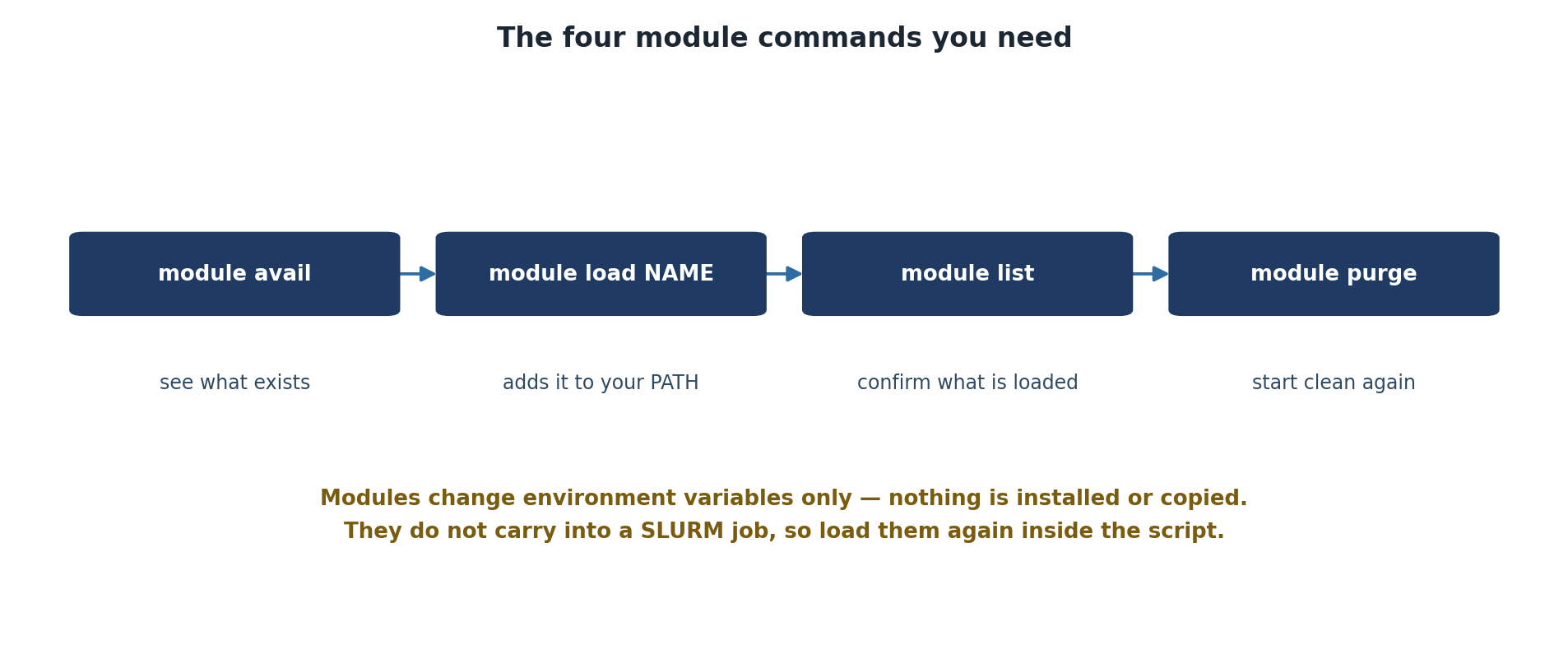
Image 1 of 1: ‘Four module commands in sequence: module avail to see what exists, module load NAME to add it to your PATH, module list to confirm what is loaded, and module purge to start clean again. A note explains that modules change environment variables only, nothing is installed or copied, and that they do not carry into a SLURM job so must be loaded again inside the script.’
Four commands cover almost everything you will
do with modules.
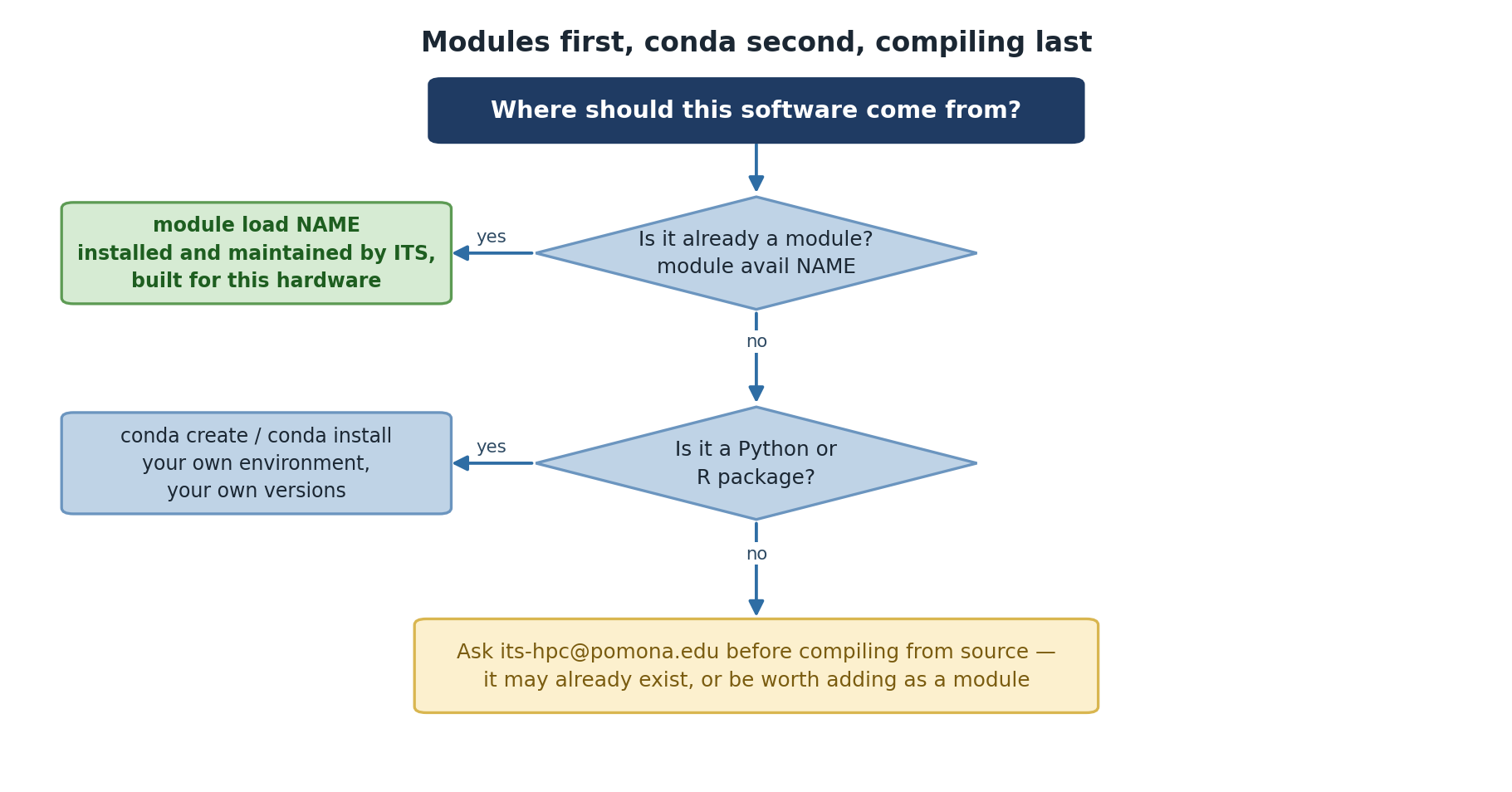
Image 1 of 1: ‘A decision tree asking where software should come from. If module avail NAME finds it, use module load NAME, since it is installed and maintained by ITS and built for this hardware. If not, and it is a Python or R package, create your own conda environment. Otherwise, contact its-hpc@pomona.edu before compiling from source, because it may already exist or be worth adding as a module.’
Check for a module before you reach for conda,
and ask before you compile.
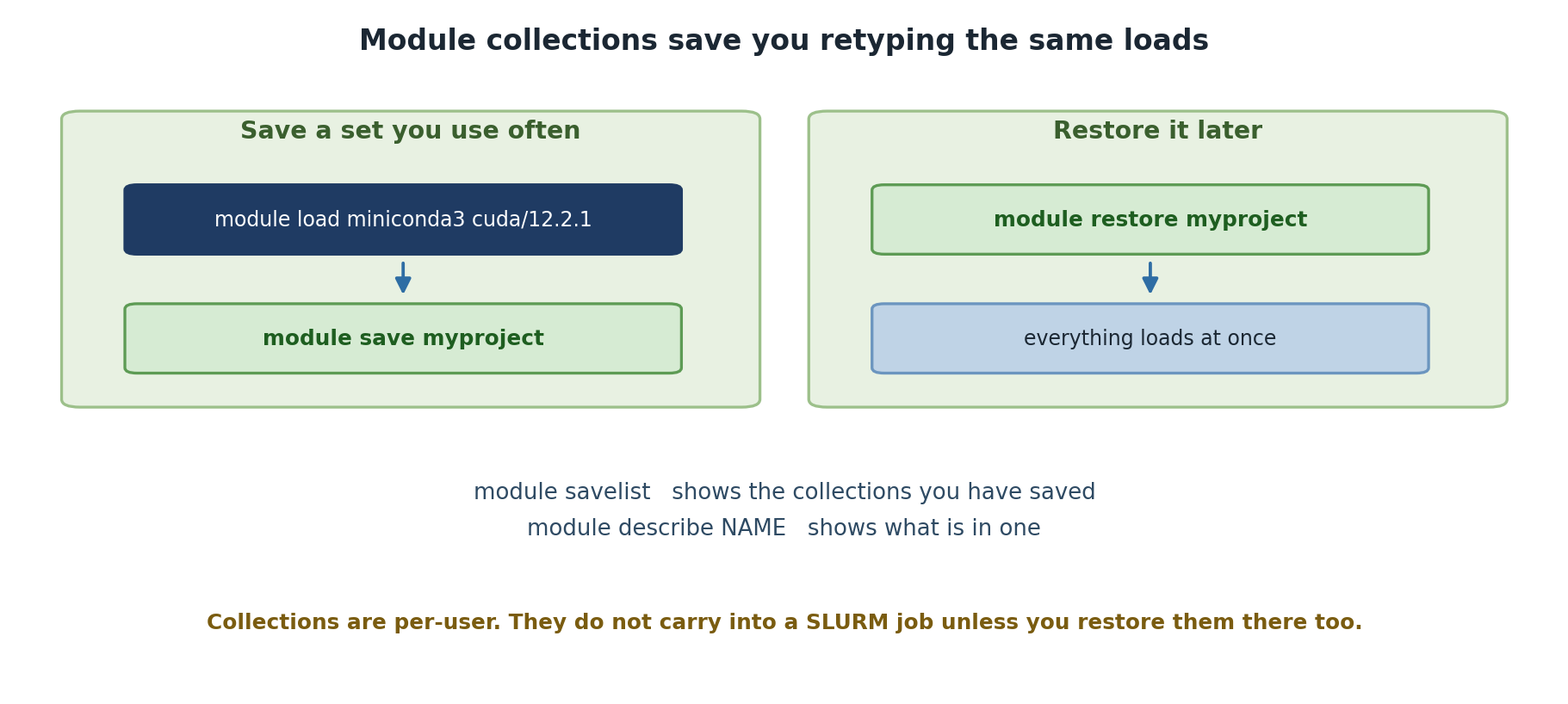
Image 1 of 1: ‘Two panels. On the left, saving a set you use often: load the modules you want, for example miniconda3 and cuda/12.2.1, then run module save myproject. On the right, restoring it later: module restore myproject loads everything at once. Notes mention module savelist and module describe, and warn that collections are per-user and do not carry into a SLURM job unless restored there too.’
Save the set once, restore it in one command
afterwards.
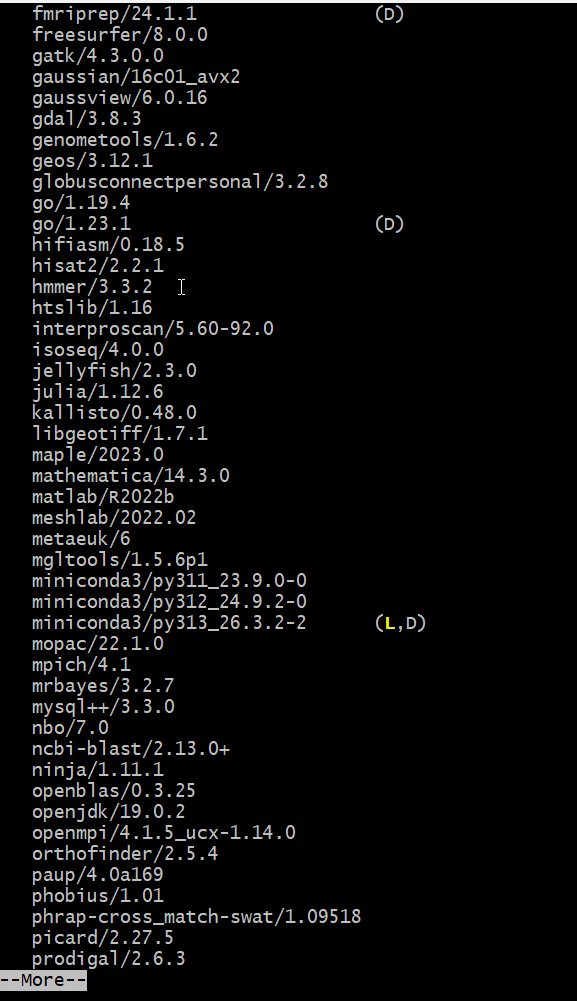
Image 1 of 1: ‘A page of module avail output highlighting three miniconda3 modules: py311, py312, and py313 versions, with the py313 version marked L and D, meaning loaded and default. Surrounding modules include matlab, mathematica, and openmpi.’
The miniconda3 module comes in three versions on
Sagehen HPC; py313_26.3.2-2 is the default (D)
— and often already loaded (L).
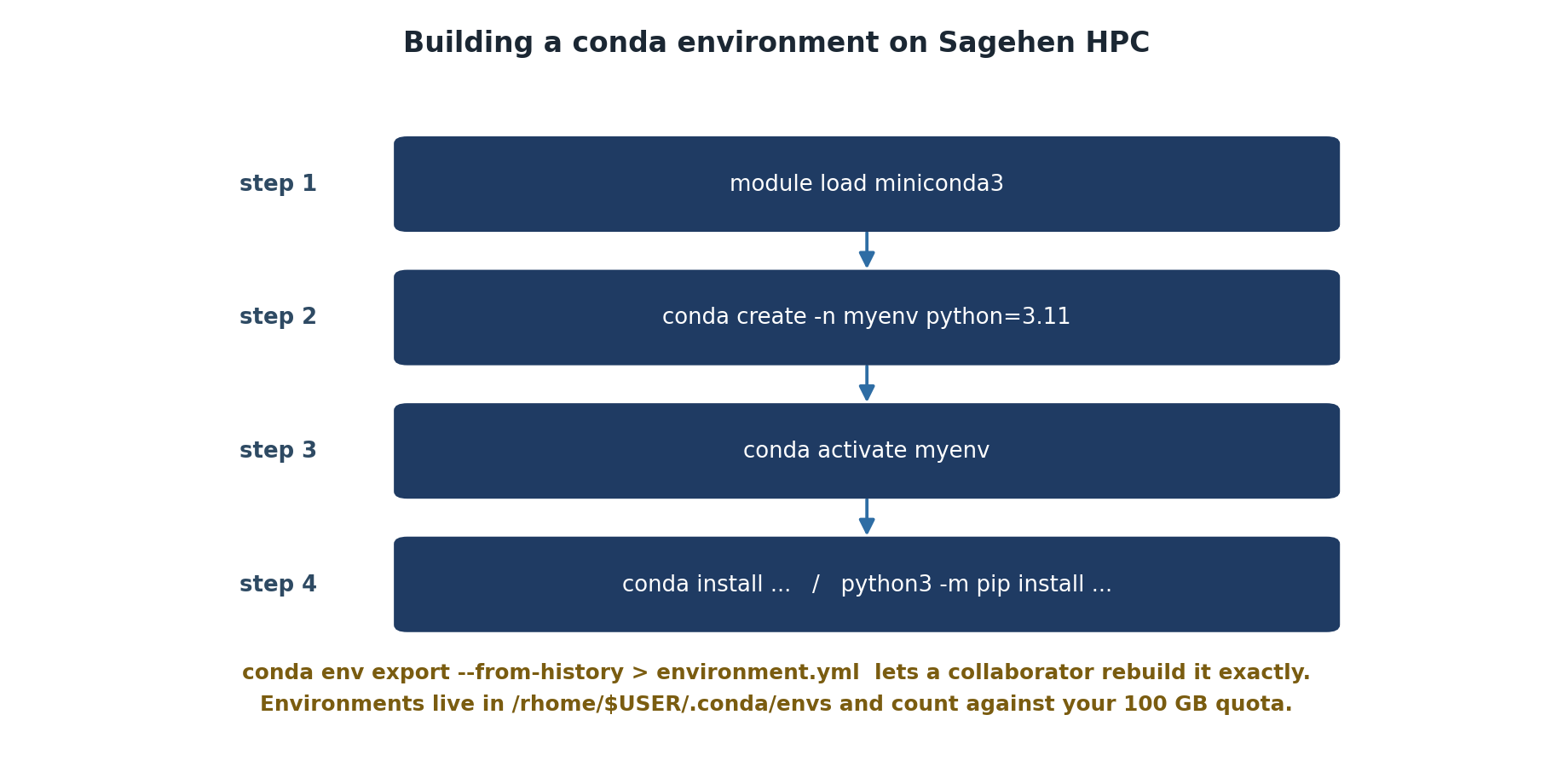
Image 1 of 1: ‘Four steps for building a conda environment: load the miniconda3 module, create the environment with conda create -n myenv python=3.11, activate it with conda activate myenv, then install packages with conda install or python3 -m pip install. A note adds that conda env export --from-history lets a collaborator rebuild it exactly, and that environments live in /rhome/$USER/.conda/envs and count against the 100 GB quota.’
Four steps, in this order — the module first,
then the environment.
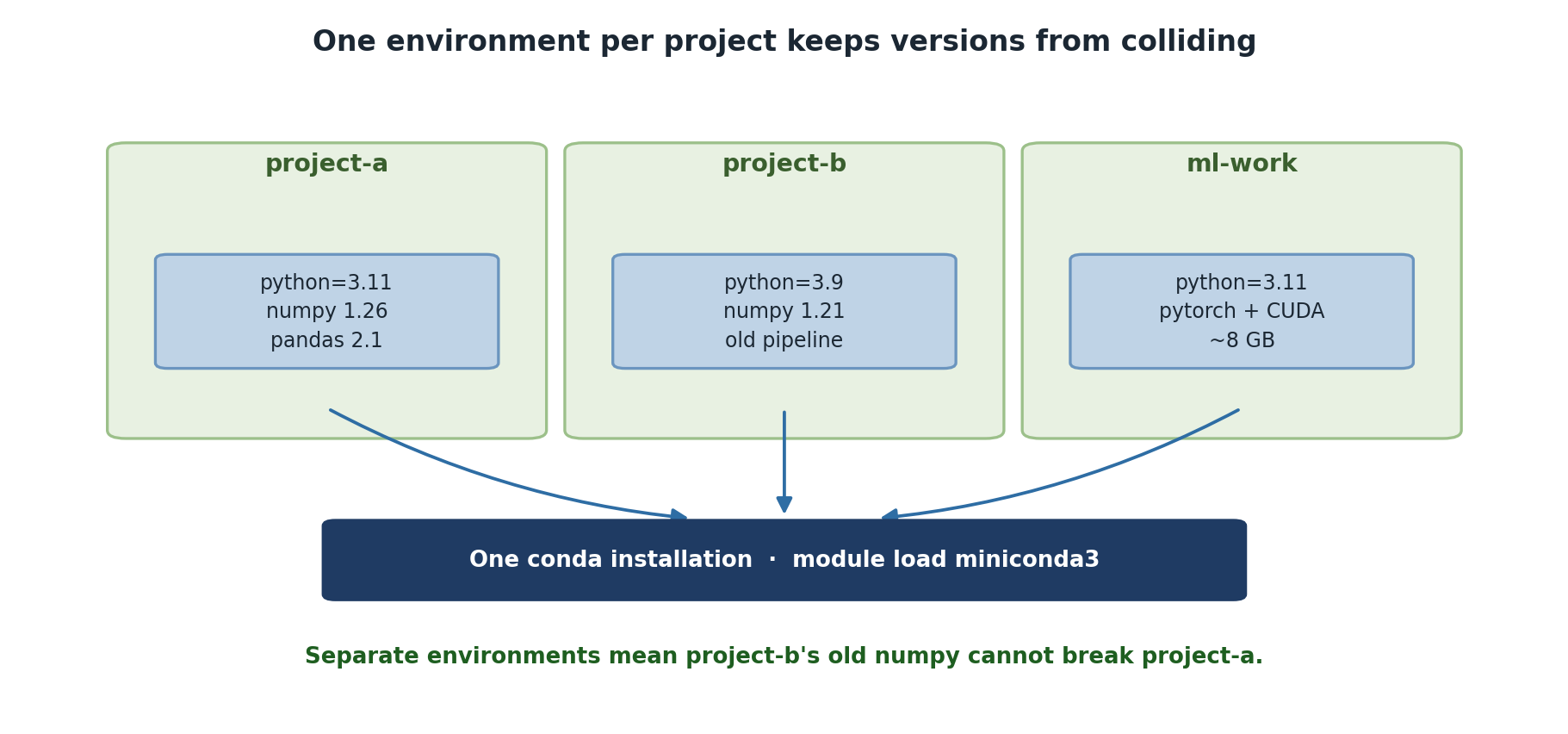
Image 1 of 1: ‘Three separate conda environments shown side by side: project-a with python 3.11, numpy 1.26 and pandas 2.1; project-b with python 3.9, numpy 1.21 and an old pipeline; and ml-work with python 3.11 and PyTorch with CUDA at around 8 GB. All three sit on a single conda installation loaded with module load miniconda3. A note explains that separate environments mean project-b old numpy cannot break project-a.’
One conda installation underneath, one
environment per project on top.