
Why Software Modules?
Last updated on 2026-08-27 | Edit this page
Estimated time: 15 minutes
Overview
Questions
- Why do we need environment modules on shared computing systems?
- What is an environment module and how does it work?
- How does Lmod modify your shell environment?
Objectives
- Understand the problem that environment modules solve
- Learn how Lmod modifies your shell environment
- Understand the difference between loading and installing software
The Problem: Conflicting Software Versions
The Version Conflict Problem
Imagine you’re working on Sagehen HPC with two research groups. One group needs R version 3.6.0 for legacy analysis scripts that haven’t been updated in five years. Another group requires R version 4.2.3 for their latest genomics pipeline. Your colleague needs Gaussian 16 to run quantum chemistry simulations, but you need Gaussian 09 for continuity with your previous research.
Without a way to manage these different versions, installing them all
in the same locations (like /usr/bin or
/usr/lib) creates conflicts: - Programs and libraries
overwrite each other - Running R might load the wrong
version - Dependencies break unpredictably - Users can’t work on
different projects simultaneously
On a shared system with hundreds of users, this would be chaos.
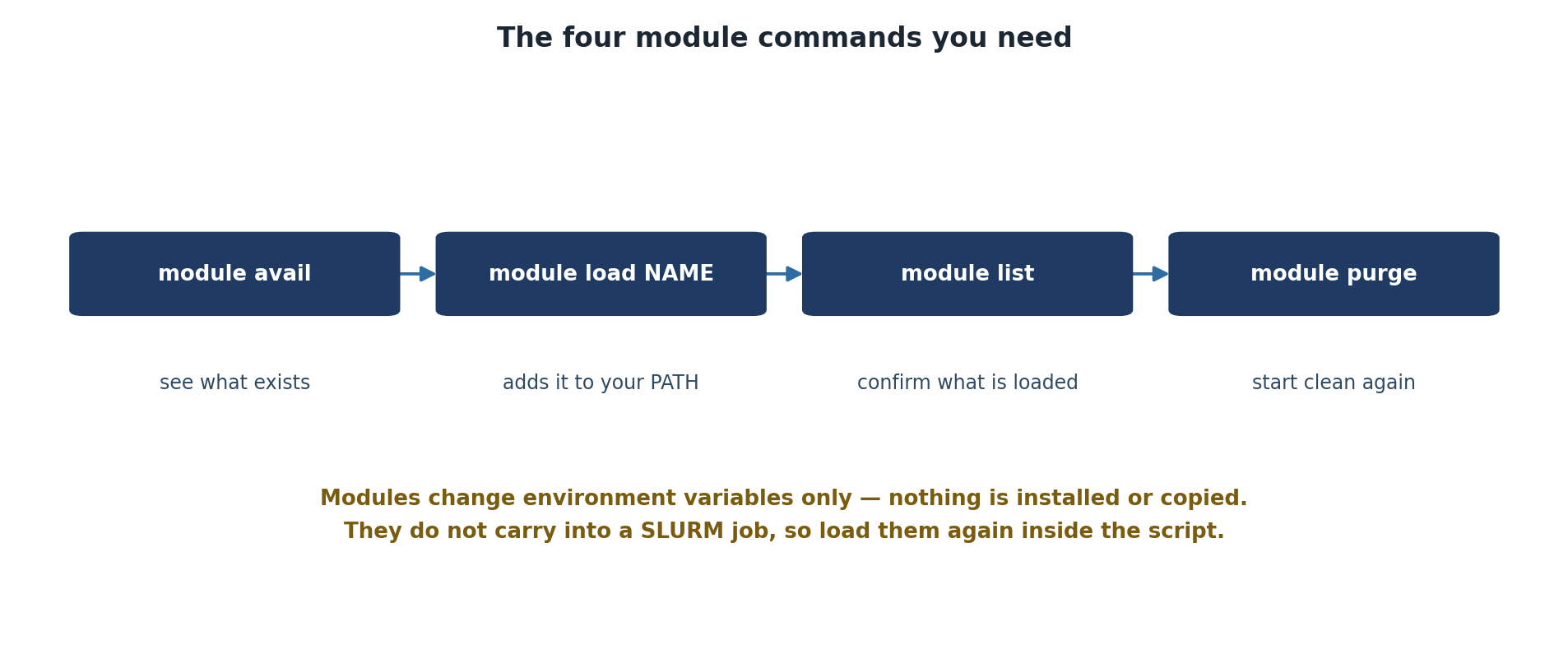
The Solution: Environment Modules
Environment modules (managed by Lmod on Sagehen) solve this problem by dynamically modifying your shell environment. A module is essentially a collection of instructions that:
- Adds software locations to your
PATH(where the system looks for executable programs) - Sets
LD_LIBRARY_PATH(where the system looks for shared libraries) - Sets other environment variables needed by the software
- Possibly loads prerequisite modules
When you load a module, it’s like installing software temporarily in your current shell session without actually changing the filesystem.
How Lmod Modifies Your Environment
Let’s look at a practical example. When you load the R module:
Lmod runs a script that: - Adds the R installation’s bin
directory (e.g. /opt/.../r/4.5.1/bin) to your
PATH - Sets LD_LIBRARY_PATH to include R’s
libraries - Sets R_HOME to the installation directory -
Sets other R-specific variables
Now when you type R at the command line, the shell finds
the R executable in the path that was just added.
If you then load a different version:
Lmod removes the 4.5.1 entries and adds the 4.2.3 entries instead. No files are actually installed or removed; just your shell environment changes.
Module Naming Conventions
Modules follow the pattern software/version:
-
r/4.5.1: R version 4.5.1 -
r/4.2.3: R version 4.2.3 -
r: Same as the default, currentlyr/4.5.1(marked with D) -
miniconda3: The default version of miniconda3 -
miniconda3/py313_26.3.2-2: Specific version -
cuda/12.2.1: NVIDIA CUDA toolkit version 12.2.1
When you run module load r, you get the default. To load
a specific version, be explicit.
Challenge 1: Explore Available Modules
Output will vary, but a typical response shows:
R versions:
- r/4.2.2
- r/4.2.3
- r/4.4.1
- r/4.5.1 (D)

CUDA toolkit versions:
- cuda/11.8.0
- cuda/12.0.0
- cuda/12.2.1 (D)

Modules with defaults:
- miniconda3/py313_26.3.2-2 (D)
- r/4.5.1 (D)
- go/1.23.1 (D)
The important point is that you can see all available options before loading.
- Environment modules solve the problem of multiple software versions on shared systems
- Modules temporarily modify your shell environment (PATH, LD_LIBRARY_PATH, etc.)
- No files are installed or removed; only your environment changes
- Modules follow the naming convention software/version
- Modules with (D) are defaults; specify versions explicitly to get other versions