
Creating Conda Environments
Last updated on 2026-08-27 | Edit this page
Estimated time: 25 minutes
Overview
Questions
- How do I install packages into a conda environment?
- How do I use packages from conda-forge?
- How should I organize my environments?
Objectives
- Install packages with conda install
- Use conda-forge for additional packages
- List installed packages and check versions
- Organize environments by project
Installing Packages
Basic installation with conda
Activate your environment and install scientific packages:
Conda resolves all dependencies automatically and asks for confirmation:
Solving environment: done

The following packages will be installed:
  numpy        scipy        matplotlib    ... (and dependencies)

Proceed? [y/N] y
Checking installed packages
List what’s in your environment:
Output shows all packages and versions:
# packages in environment at /rhome/<myusername>/.conda/envs/myproject:
#
# Name                    Version                   Build  Channel
numpy                      1.24.3                   pypi_0    pypi
scipy                      1.10.1                   pypi_0    pypi
matplotlib                 3.7.1                   pypi_0    pypi
python                      3.11.8              hdb9e83b_0    defaults
...
Organizing Your Environments
One Environment Per Project
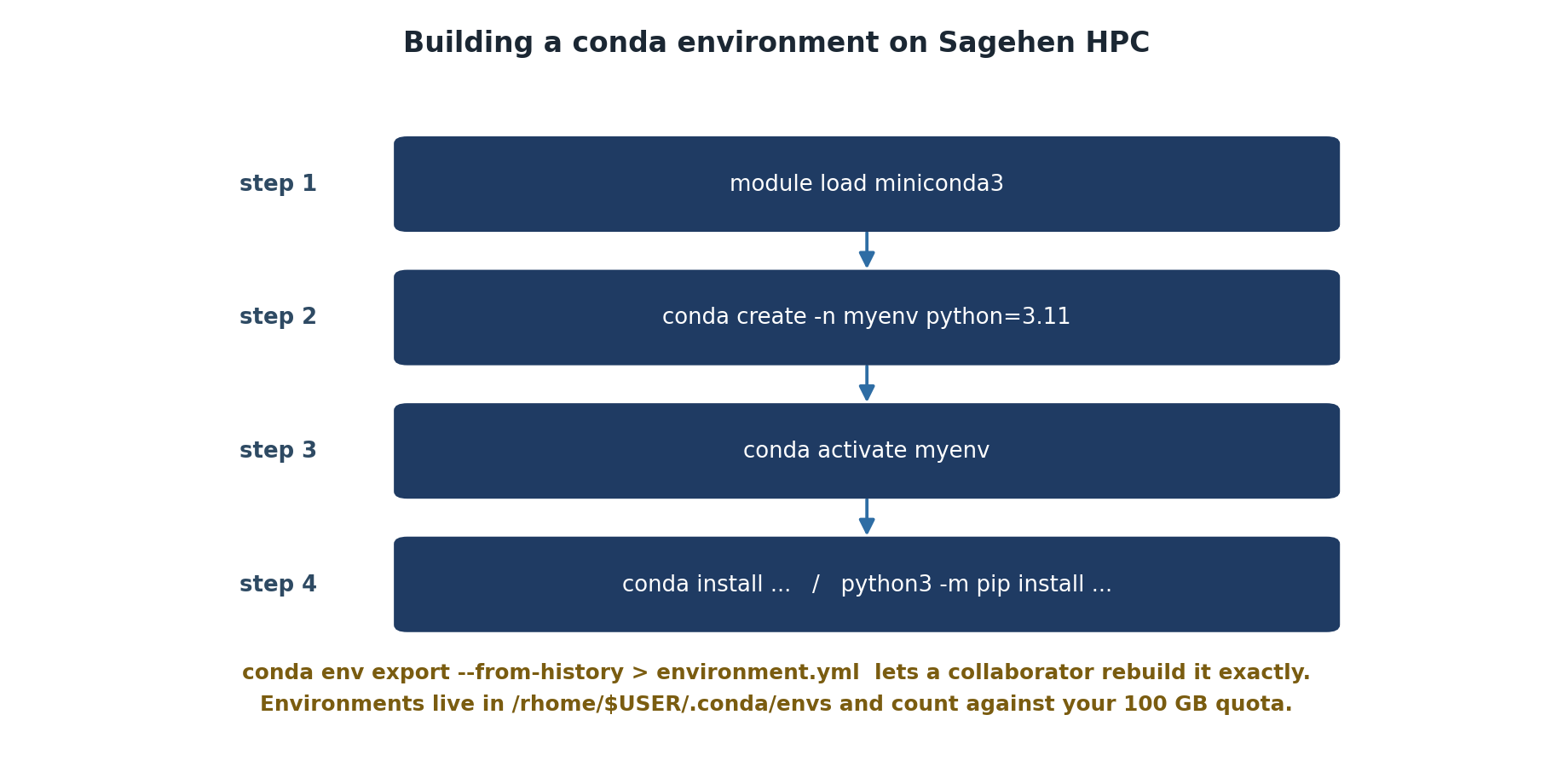
Create separate conda environments for different projects. This prevents dependencies from one project breaking another and makes it easy to share environments with collaborators. Each environment should be self-contained and reproducible.
Using Conda Environments in Job Scripts
Practical Example: Research Project Setup
BASH
# Create environment for bioinformatics work
$ conda create -n bioinfo python=3.10
$ conda activate bioinfo
(bioinfo) $ conda install biopython pandas matplotlib seaborn
(bioinfo) $ conda install -c conda-forge samtools bcftools
Job script using this environment
BASH
#!/bin/bash
#SBATCH --job-name=bioinfo_pipeline
#SBATCH --time=04:00:00
#SBATCH --cpus-per-task=8
#SBATCH --mem=32G
#SBATCH --array=1-10

module load miniconda3
conda activate bioinfo

python pipeline.py --sample sample_$SLURM_ARRAY_TASK_ID
Challenge 1: Install Packages and List
- Activate the data_sci environment from the previous episode (or create a new one)
- Install numpy, scipy, and pandas
- List the installed packages
- Check the version of numpy
After installation, conda list shows:
numpy        1.24.x
scipy        1.10.x
pandas       2.0.x
(and dependencies)
The python -c command prints the exact numpy version.
All packages are isolated inside the data_sci environment and won’t
affect other environments.
- Install packages with
conda install package1 package2 - Use
conda listto see what’s installed and check versions - Use
-c conda-forgefor packages on the conda-forge channel - Create one environment per project to prevent dependency conflicts
- Always load miniconda3 and activate your environment in job scripts