
Introduction to Conda
Last updated on 2026-08-27 | Edit this page
Estimated time: 25 minutes
Overview
Questions
- Why do I need Conda when I already have modules?
- How do I create an isolated Python environment?
- How do I activate and deactivate environments?
Objectives
- Understand the difference between modules and conda environments
- Create and activate conda environments
- Verify which Python is being used
- Deactivate environments when done
Modules vs. Conda: When to Use Each
Modules load pre-installed software managed by system administrators: - Good for: Large applications, compiled binaries, cluster-wide tools - Examples: R, GAMESS, Gaussian, GCC
Conda manages Python/R packages in isolated environments: - Good for: Python libraries, package dependencies, project-specific stacks - Examples: numpy, scipy, matplotlib, scikit-learn, TensorFlow
Most workflows use both: modules for system software, conda for language-specific packages.
Your First Conda Environment
Step 1: Load Miniconda
Miniconda is a minimal conda distribution available as a module:
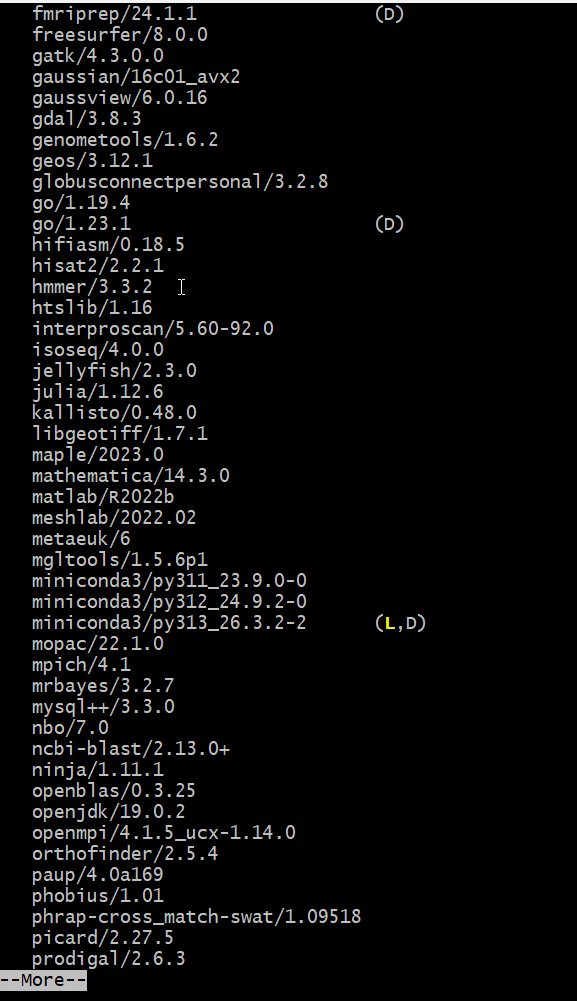
py313_26.3.2-2 is the default (D)
— and often already loaded (L).Step 2: Create an environment
Create a new conda environment for a specific project:
This creates an environment called “myproject” with Python 3.11. Conda asks for confirmation:
The following packages will be installed:
  ...

Proceed? [y/N] y
Press y to proceed.
Step 3: Activate the environment
Notice the prompt changes to show (myproject). You’re
now inside the environment.
Listing Environments
See all conda environments on your account:
BASH
$ conda env list
# conda environments:
#
base                  /opt/.../miniconda3/py313_26.3.2-2
myproject             /rhome/<myusername>/.conda/envs/myproject
analysis_2024         /rhome/<myusername>/.conda/envs/analysis_2024
The base environment is miniconda3 itself; other
environments are yours.
WARNING: Never Install into Base
DO NOT run conda install in the base
environment without specifying -n envname.
Instead, always create a named environment:
On shared clusters, installing in base can consume your disk quota and interfere with other users’ work.
Challenge 1: Create and Activate an Environment
- Load miniconda3
- Create an environment called “data_sci” with Python 3.10
- Activate it
- Check which Python is being used
- Deactivate
After activation:
which python outputs: /rhome/<myusername>/.conda/envs/data_sci/bin/python
python --version outputs: Python 3.10.X
After deactivation, which python points to system Python
or shows not found. The key point: conda activation changes your PATH to
prioritize the environment’s Python.
- Modules load system software; conda manages Python packages in isolated environments
- Create environments with
conda create -n name python=version - Use
conda activateto enter an environment;conda deactivateto exit - Most workflows use both modules and conda together
- Never install into the base environment on shared systems