
Multi-File Editing
Last updated on 2026-08-24 | Edit this page
Overview
Questions
- How do I work with multiple files at once?
- How do I search and replace across my project?
Objectives
- Use tabs and split editor for side-by-side editing
- Search and replace within a file and across all files
- Compare two files side-by-side with diff view
- Manage project folder structure from VS Code
Working with Tabs
Each open file appears as a tab at the top of the editor:
| script.py | data.csv | README.md |- Click a tab to switch files
- Click the X on a tab to close it
- Use Ctrl+Tab to cycle through open files
Split Editor View
For side-by-side editing, press Ctrl+\ (Windows/Linux) or Cmd+\ (Mac):
|  script.py  |        |  analysis.py  |
─────────────────────────────────────────
# script.py content   # analysis.py content
You can have up to four splits. Drag tabs between splits to rearrange.
Searching and Replacing
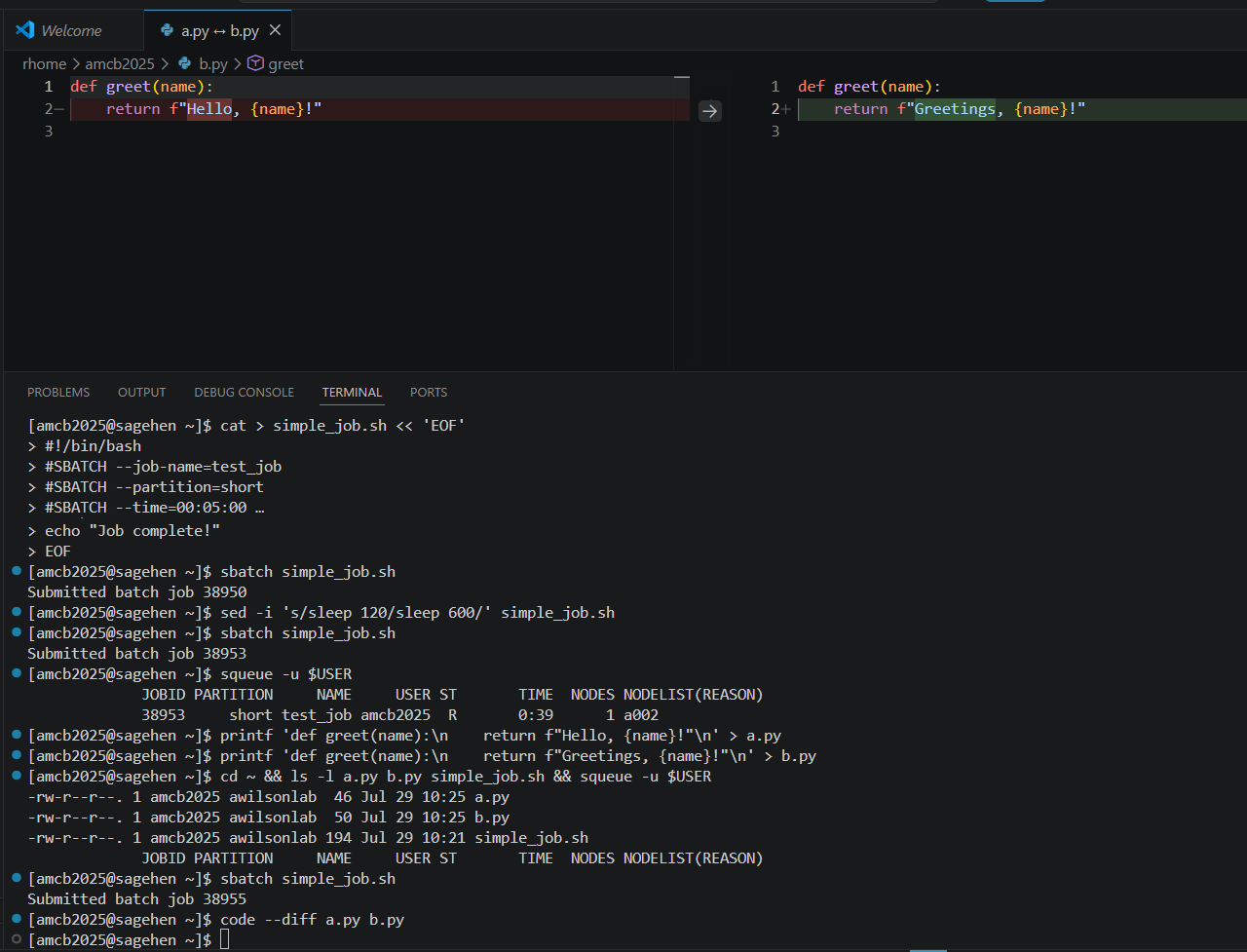
Comparing Files
- Open both files
- Right-click one file tab > Compare with…
- Select the other file
Differences display side-by-side: green for added lines, red for removed, and orange for modified lines.
File Management
From the Explorer sidebar you can:
- Create folders: Right-click > New Folder
- Rename: Right-click > Rename
- Delete: Right-click > Delete (permanent on the remote system)
- Move: Drag files between folders
Keyboard Shortcuts Reference
| Action | Windows/Linux | Mac |
|---|---|---|
| Quick Open | Ctrl+P | Cmd+P |
| Find in file | Ctrl+F | Cmd+F |
| Find/Replace in file | Ctrl+H | Cmd+H |
| Find in all files | Ctrl+Shift+F | Cmd+Shift+F |
| Split editor | Ctrl+\ | Cmd+\ |
| Close file | Ctrl+W | Cmd+W |
| Go to line | Ctrl+G | Ctrl+G |
Challenge: Side-by-Side Editing and Search
After splitting, two editor panes appear side by side. Both files have Python syntax highlighting. Using Ctrl+Shift+H opens the sidebar search-and-replace which operates across all files in the workspace. After “Replace All,” every instance of “Hello” changes to “Greetings”. Use Ctrl+Z in each file to undo – each file tracks its own undo history independently.
- Open files appear as tabs; use Ctrl+Tab to switch between them
- Split editor (Ctrl+\) enables side-by-side editing of two or more files
- Ctrl+F searches the current file; Ctrl+Shift+F searches across all files
- Compare files with right-click > Compare to see color-coded differences
- Manage folders and files directly from the Explorer sidebar