
Connecting to Sagehen HPC
Last updated on 2026-08-27 | Edit this page
Overview
Questions
- How do I connect to Sagehen using VS Code Remote-SSH?
- How do I handle DUO authentication in VS Code?
- What should I do if I get disconnected?
Objectives
- Connect to Sagehen HPC cluster using Remote-SSH
- Authenticate with DUO MFA through VS Code
- Open a remote folder and browse files
- Handle disconnections and reconnect
Your First Connection
Step 1: Open the Remote Explorer
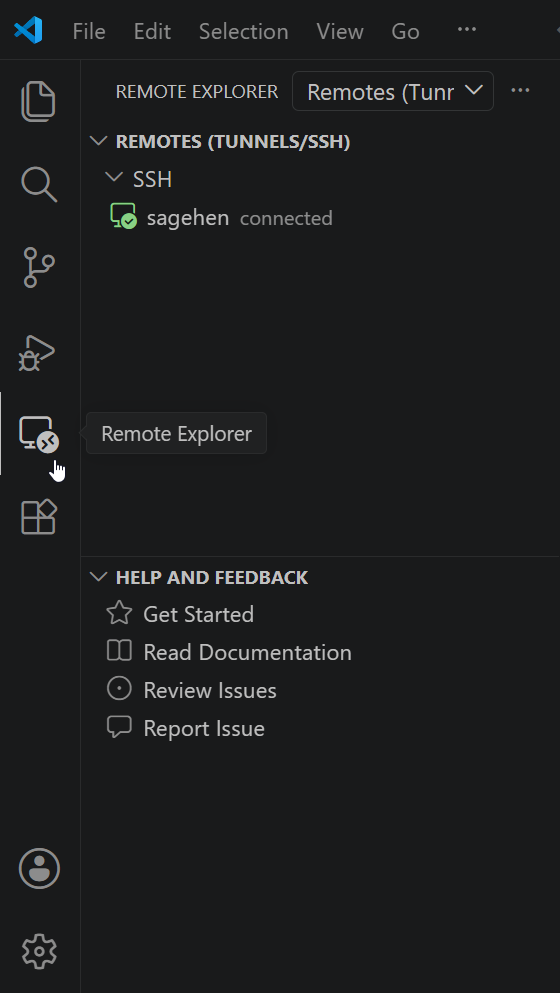
The Remote Explorer sidebar with the
sagehen host from your SSH config, shown here already
connected.Click the Remote Explorer icon in the left sidebar.
You should see “sagehen” listed from your ~/.ssh/config. If
not, click the “+” icon to add a new SSH target and enter
sagehen.hpc.pomona.edu.
Step 2: Connect
- Hover over “sagehen” in the Remote Explorer
- Click the connect icon (arrow pointing to a folder)
- A new VS Code window opens
- Select Linux when prompted for platform
- Click Yes, I trust the authors if a trust dialog appears
Step 3: DUO Authentication
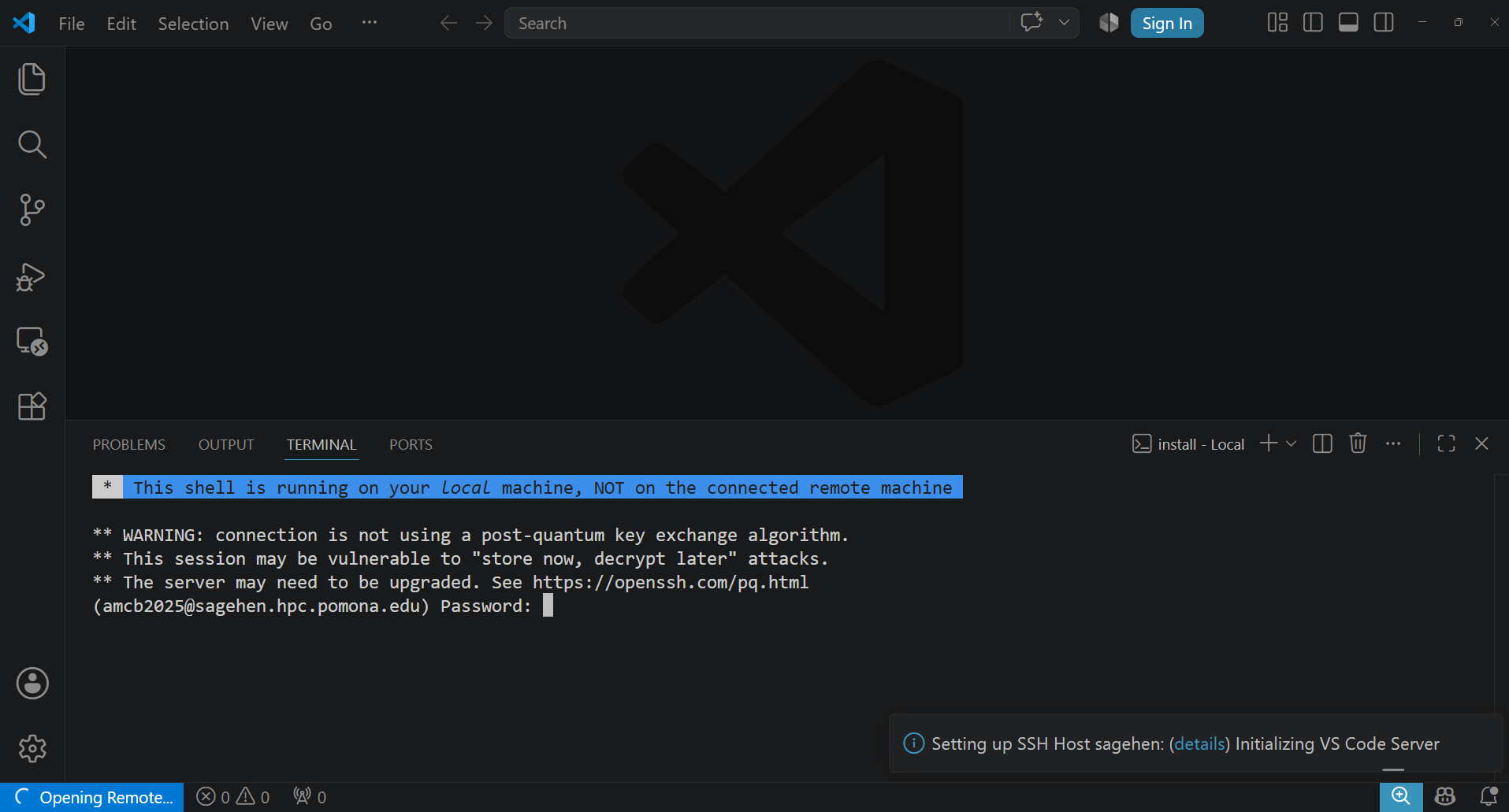
Mid-connection: the login terminal asks for your
Pomona password while VS Code Server is set up on Sagehen. The OpenSSH
“post-quantum key exchange” warning above the prompt is expected — it’s
informational, not an error.
Completing DUO Authentication in VS Code
A terminal window appears at the bottom of VS Code:
- Enter your Pomona password at the password prompt
- At the DUO prompt, type a 6-digit code from your DUO app, or type “call”
- Complete the authentication
After success, the terminal closes and VS Code shows “SSH: sagehen” in the bottom-left status bar.
Opening Your Remote Folder
- Click File > Open Folder (or Ctrl+K Ctrl+O / Cmd+K Cmd+O)
- Navigate to
/rhome/<myusername>(your home directory) - Click Open
The Explorer sidebar now shows your remote files on Sagehen.
Connection States and Reconnection
| State | Indicator | Action |
|---|---|---|
| Connected | Green “SSH: sagehen” | Working normally |
| Connecting | Blue/spinning | Wait 5-10 seconds |
| Reconnecting | Blue | VS Code auto-reconnects (~5 min) |
| Offline | Red/disconnected | Fix network, click Reconnect |
If automatic reconnection fails:
- Click the SSH status button (bottom-left)
- Select “Close Remote Connection”
- Wait a few seconds, then reconnect from Remote Explorer
For extended disconnections, close VS Code entirely, reopen, and reconnect through Remote Explorer. You will need to re-authenticate with DUO.
Disconnecting When Done
- Click the “SSH: sagehen” button (bottom-left)
- Select “Close Remote Connection”
Your files on Sagehen remain unchanged.
Challenge: Connect, Explore, and Reconnect
- Connect to Sagehen from Remote Explorer
- Open your home folder (
/rhome/<myusername>) - Browse some folders in the Explorer sidebar
- Disconnect (SSH button > Close Remote Connection)
- Reconnect and verify “SSH: sagehen” reappears
Success indicators:
- Bottom-left shows green “SSH: sagehen” button
- Explorer sidebar shows your home directory contents
(
.bashrc, project folders) - Opening a terminal (Ctrl+`) shows
[<myusername>@sagehen-login-1 ~]$ - After reconnecting, the green indicator returns (faster than first connection since VS Code Server is already installed)
If no DUO prompt appears, verify
remote.SSH.showLoginTerminal is enabled.
- Use Remote Explorer to connect to Sagehen and select Linux as the platform
-
remote.SSH.showLoginTerminalmust be enabled for DUO prompts to appear - After connecting, open
/rhome/<myusername>to browse your remote files - VS Code automatically attempts reconnection after network interruptions
- Disconnect via the SSH status button when finished