
Connecting to Sagehen HPC
Last updated on 2026-08-27 | Edit this page
Estimated time: 20 minutes
Overview
Questions
- How do I connect to Sagehen using VS Code Remote-SSH?
- How do I handle DUO authentication in VS Code?
- What should I do if I get disconnected?
Objectives
- Connect to Sagehen HPC cluster using Remote-SSH
- Authenticate with DUO MFA through VS Code
- Open a remote folder and browse files
- Handle disconnections and reconnect
Your First Connection
Step 1: Open the Remote Explorer
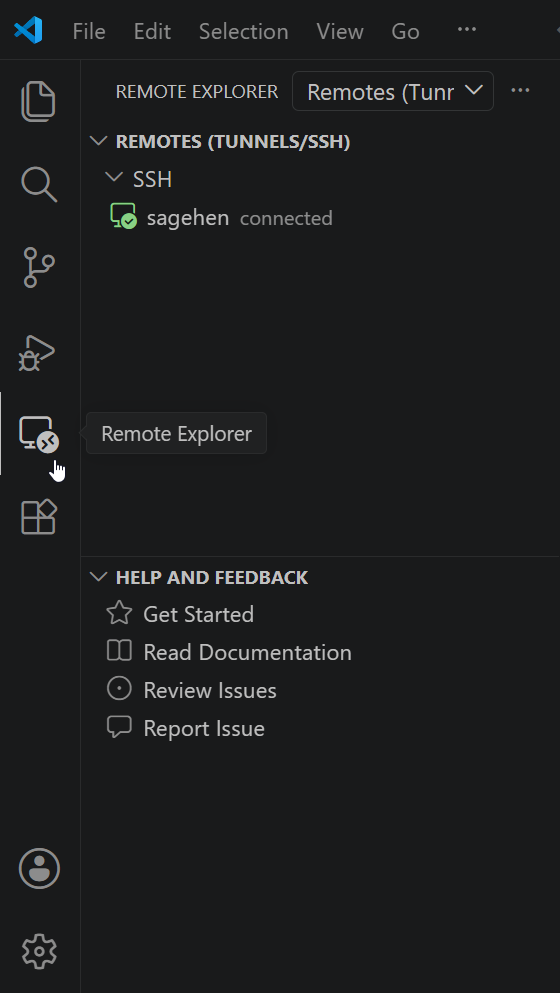
sagehen host from your SSH config, shown here already
connected.Click the Remote Explorer icon in the left sidebar.
You should see “sagehen” listed from your ~/.ssh/config. If
not, click the “+” icon to add a new SSH target and enter
sagehen.hpc.pomona.edu.
Step 2: Connect
- Hover over “sagehen” in the Remote Explorer
- Click the connect icon (arrow pointing to a folder)
- A new VS Code window opens
- Select Linux when prompted for platform
- Click Yes, I trust the authors if a trust dialog appears
Step 3: DUO Authentication
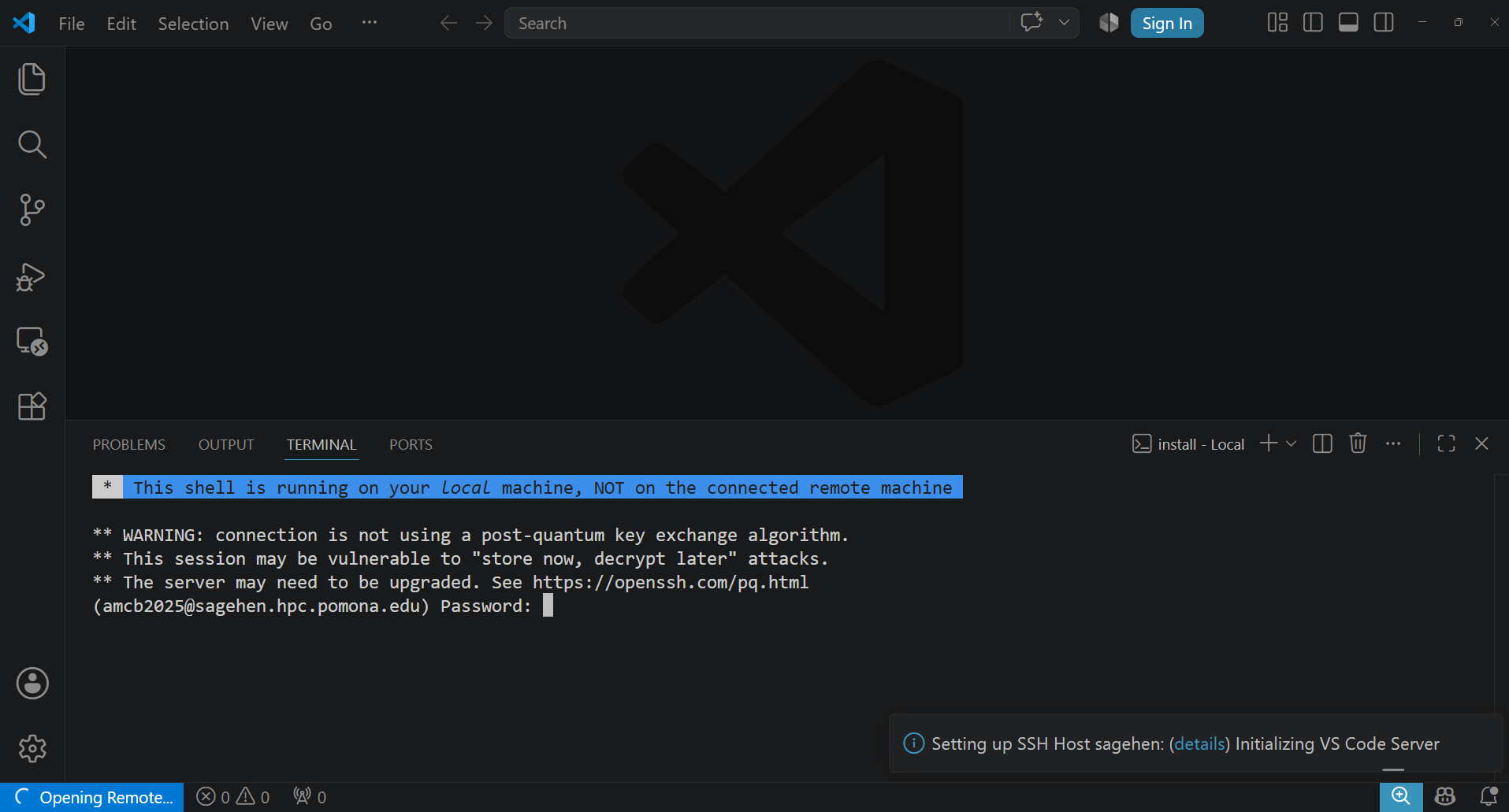
Completing DUO Authentication in VS Code
A terminal window appears at the bottom of VS Code:
- Enter your Pomona password at the password prompt
- At the DUO prompt, type a 6-digit code from your DUO app, or type “call”
- Complete the authentication
After success, the terminal closes and VS Code shows “SSH: sagehen” in the bottom-left status bar.
Opening Your Remote Folder
- Click File > Open Folder (or Ctrl+K Ctrl+O / Cmd+K Cmd+O)
- Navigate to
/rhome/<myusername>(your home directory) - Click Open
The Explorer sidebar now shows your remote files on Sagehen.
Connection States and Reconnection
| State | Indicator | Action |
|---|---|---|
| Connected | Green “SSH: sagehen” | Working normally |
| Connecting | Blue/spinning | Wait 5-10 seconds |
| Reconnecting | Blue | VS Code auto-reconnects (~5 min) |
| Offline | Red/disconnected | Fix network, click Reconnect |
If automatic reconnection fails:
- Click the SSH status button (bottom-left)
- Select “Close Remote Connection”
- Wait a few seconds, then reconnect from Remote Explorer
For extended disconnections, close VS Code entirely, reopen, and reconnect through Remote Explorer. You will need to re-authenticate with DUO.
Disconnecting When Done
- Click the “SSH: sagehen” button (bottom-left)
- Select “Close Remote Connection”
Your files on Sagehen remain unchanged.
Challenge: Connect, Explore, and Reconnect
- Connect to Sagehen from Remote Explorer
- Open your home folder (
/rhome/<myusername>) - Browse some folders in the Explorer sidebar
- Disconnect (SSH button > Close Remote Connection)
- Reconnect and verify “SSH: sagehen” reappears
Success indicators:
- Bottom-left shows green “SSH: sagehen” button
- Explorer sidebar shows your home directory contents
(
.bashrc, project folders) - Opening a terminal (Ctrl+`) shows
[<myusername>@sagehen-login-1 ~]$ - After reconnecting, the green indicator returns (faster than first connection since VS Code Server is already installed)
If no DUO prompt appears, verify
remote.SSH.showLoginTerminal is enabled.
- Use Remote Explorer to connect to Sagehen and select Linux as the platform
-
remote.SSH.showLoginTerminalmust be enabled for DUO prompts to appear - After connecting, open
/rhome/<myusername>to browse your remote files - VS Code automatically attempts reconnection after network interruptions
- Disconnect via the SSH status button when finished