
Why VS Code Remote?
Last updated on 2026-08-27 | Edit this page
Estimated time: 15 minutes
Overview
Questions
- What is VS Code Remote-SSH and why would I use it?
- How does it compare to other tools for editing remote files?
Objectives
- Understand the benefits of using VS Code for remote HPC work
- Compare VS Code with traditional command-line alternatives
- Identify scenarios where VS Code is the best tool for the job
What is VS Code Remote-SSH?
Visual Studio Code (VS Code) is a lightweight, modern code editor developed by Microsoft. It is free, open-source, and available on Windows, Mac, and Linux.
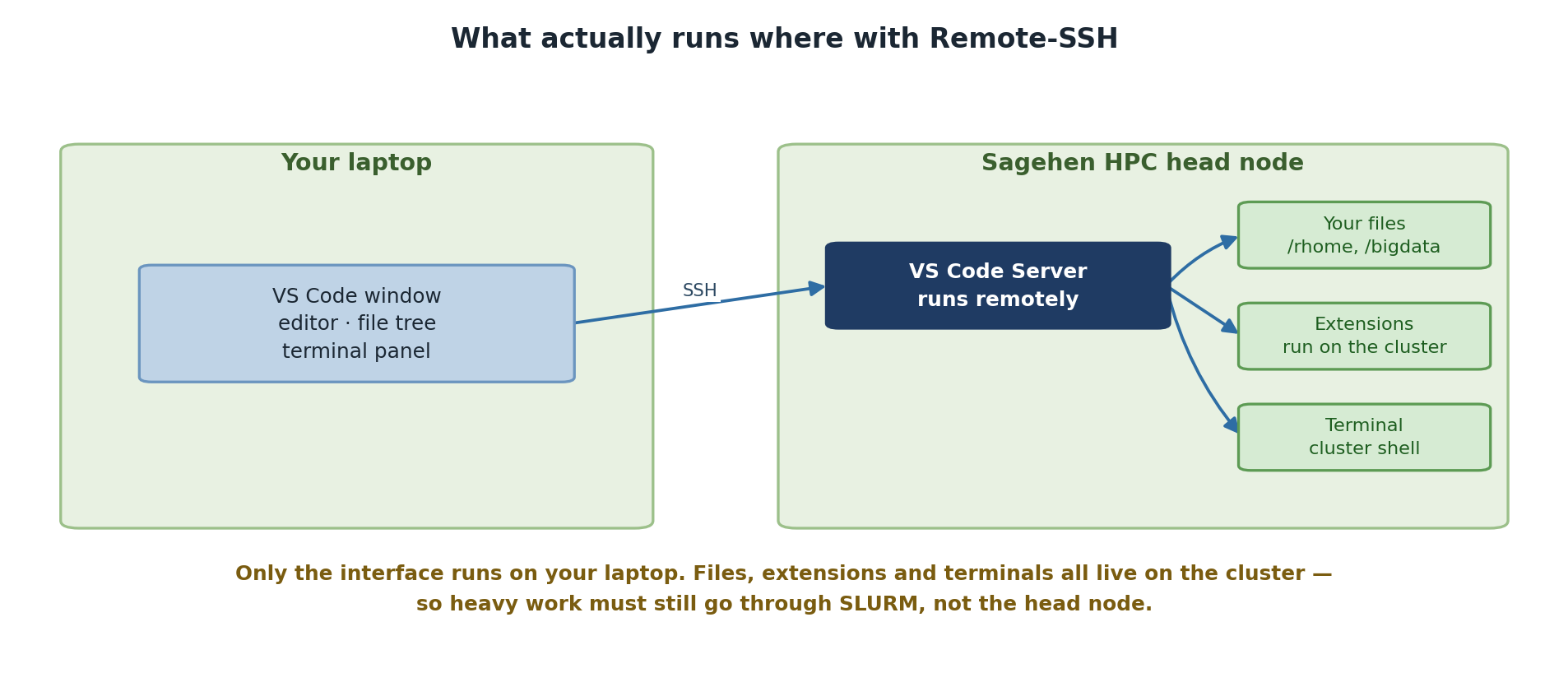
Remote-SSH is an official Microsoft extension for VS Code that allows you to connect to remote systems (like the Sagehen HPC cluster) and edit files as if they were on your local machine. VS Code runs a server component on the remote system while your local VS Code interface connects to it, giving you full IDE features while working on the cluster.
Key insight: You are not editing files over SSH through a terminal emulator; VS Code creates a true two-way connection with full IDE capabilities.
Comparison with Other Tools
Command-Line Editors vs Modern IDE
nano, vim, emacs
pros: Lightweight, fast, work in any SSH terminal, no
additional software needed.
Cons: Steep learning curve (especially vim), limited visual feedback, no integrated file browser, difficult to manage large projects, no built-in debugging or linting.
When to use: Quick edits to small files, slow connections, or very resource-constrained remote systems.
MobaXterm offers an integrated SSH client and SFTP browser on Windows, but is not a true IDE. OnDemand (Pomona’s web interface at https://ondemand.hpc.pomona.edu) is browser-based and good for job monitoring and launching interactive applications, but has limited code editing.
The VS Code Remote-SSH Workflow
Your Laptop (Local Machine)          Sagehen Cluster (Remote)
┌──────────────────────────┐        ┌──────────────────────┐
│   VS Code UI             │◄──────►│  VS Code Server      │
│   (Editor, Sidebar, etc.)│  SSH   │  (Files, Extensions) │
└──────────────────────────┘        └──────────────────────┘
         (Your view)                   (Where code runs)
When you open a folder on Sagehen HPC:
- VS Code’s user interface runs on your laptop
- VS Code Server runs on the Sagehen HPC cluster (very lightweight)
- File editing happens locally with VS Code’s full features
- Extensions run on the remote system where they access your files
- The integrated terminal connects directly to the Sagehen login node
Why Pomona Recommends VS Code for HPC
Pomona’s Recommended Tool for HPC Development
Pomona College ITS recommends VS Code Remote-SSH because:
- Consistent environment: Same editor whether working locally or remotely
- Accessibility: Intuitive GUI reduces learning curve vs vim/emacs
- Productivity: Integrated terminal, file browser, debugging, multi-file editing and search
- Extensibility: Python, R, Jupyter extensions enhance HPC workflows
- No licensing costs: Free for everyone
- Cross-platform: Works on Windows, Mac, and Linux
Challenge: Evaluate Your Current Workflow
Think about your current method for editing files on Sagehen:
- What editor or tool do you currently use?
- What aspects of your current workflow frustrate you?
- What features would improve your productivity?
Discuss your answers with a neighbor or the instructor.
Common answers from HPC users:
-
Current tools: Most use
nanoorvimover SSH, or MobaXterm on Windows. - Frustrations: No syntax highlighting, hard to manage multiple files, no integrated file browser, losing work on disconnection.
- Desired features: Auto-complete, side-by-side editing, integrated terminal, easy file upload/download.
VS Code Remote-SSH addresses all of these.
- VS Code Remote-SSH provides a full IDE experience for remote HPC development
- It combines VS Code’s features with direct access to your cluster files
- VS Code is recommended for serious code development; command-line editors are better for quick edits
- The Remote-SSH extension creates a seamless local-to-remote development workflow