
Extensions for HPC
Last updated on 2026-08-27 | Edit this page
Overview
Questions
- What extensions enhance my HPC workflow in VS Code?
- How do I install extensions on the remote cluster?
- What is the difference between local and remote extensions?
Objectives
- Understand local vs. remote extensions
- Install recommended extensions for Python, R, and Jupyter
- Configure language-specific extension settings
- Manage extensions across local and remote environments
Local vs. Remote Extensions
Extension Architecture: Where Code Runs Matters
When connected via Remote-SSH, extensions run in two places:
- Local extensions (your laptop): Themes, colors, UI enhancements
- Remote extensions (Sagehen HPC cluster): Code analysis, linting, debugging, language tools
When you install an extension, VS Code tells you which type it is. Language extensions (Python, R, Jupyter) should be installed on the remote side.
Recommended Extensions
Python (Essential for HPC)
Provides syntax highlighting, IntelliSense, linting, debugging, and Jupyter notebook support.
- Click Extensions icon (Ctrl+Shift+X)
- Search “Python” – find Python by Microsoft
- Click Install
- When prompted “Install in SSH: sagehen?” click Yes
R (For statistical computing)
Search “R” by REditorSupport. Install in SSH: sagehen. Provides R syntax highlighting, function documentation, and R console integration.
Jupyter (For notebooks)
Search “Jupyter” by Microsoft. Install in SSH: sagehen. Create
.ipynb files and run notebook cells directly on Sagehen
HPC’s compute resources.
Essential Extensions Summary
| Extension | Install Location | Purpose |
|---|---|---|
| Python | Remote (SSH: sagehen) | Code analysis and debugging |
| R | Remote | R development |
| Jupyter | Remote | Interactive notebooks |
| GitLens | Local or both | Version control |
| Markdown Preview | Local | Documentation preview |
Extension Configuration
Some extensions benefit from configuration in Settings (Ctrl+,):
Managing Extensions
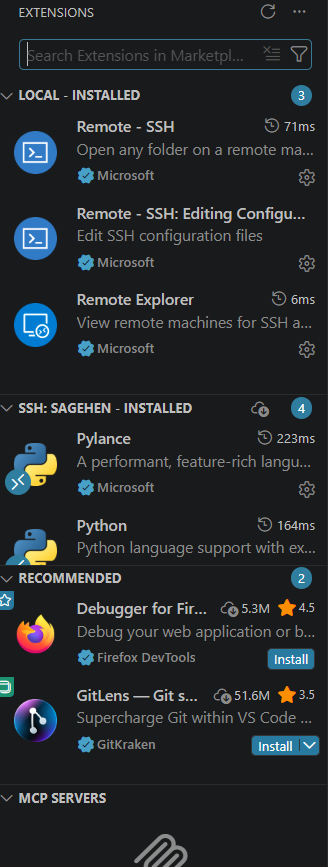
- View installed extensions: Extensions sidebar shows Local and Remote - SSH: sagehen sections
- Extensions installed remotely stay on Sagehen even when disconnected
- Disable problematic extensions: find them in Extensions, click Disable
- Too many extensions can slow VS Code; keep 5-10 active
Challenge: Install Python and Test IntelliSense
- Install the Python extension on the remote cluster
- Create
test_intellisense.py - Type
importand verify module suggestions appear - Type
math.and see available functions - Hover over
math.sqrtto see its documentation
After typing import, a dropdown lists available modules
(math, os, sys). After
math., functions like sqrt, pi,
ceil appear. Hovering shows the docstring and signature. If
no suggestions appear, press Ctrl+Space to trigger manually, or check
the status bar for a Python version indicator – the extension may still
be loading. Reload with Ctrl+Shift+P > “Reload Window” if needed.
- Remote extensions run on Sagehen for language support; local extensions handle UI
- Install Python, R, and Jupyter on the remote side for full language features
- Extensions persist on Sagehen between sessions
- Keep 5-10 extensions active to maintain VS Code performance