
Daily Mount and Unmount Workflow
Last updated on 2026-08-27 | Edit this page
Estimated time: 25 minutes
Overview
Questions
- How do you mount and unmount gocryptfs directories?
- What is the daily workflow for encrypted data?
- Why must plain directories be empty before mounting?
- What are the security implications of mounted directories?
- How do you handle “device busy” errors?
Objectives
- Build a daily workflow habit: mount at start, unmount at end
- Understand the anatomy of the mount command and each argument
- Verify mounts using three different verification methods
- Know security implications of who can access mounted data
- Handle “device busy” errors and stale mounts using lsof and fusermount
- Understand that mounts do NOT survive node reboots or job completion
Daily Workflow
Mount From a Compute Session, Onto /scratch
Two hard rules on Sagehen HPC: the plain directory (mountpoint) must
be on node-local /scratch/$USER/ — FUSE refuses to mount
onto /bigdata (BeeGFS is a network filesystem) — and
mounting happens inside a compute session
(srun --pty bash for interactive work, or within an
sbatch script), never on the login node. Since
/scratch is cleaned between jobs, start each session with
mkdir -p /scratch/$USER/your_plain.
Mounting and unmounting is part of your daily work habit, not a one-time setup:
Start of work session: Log in → Mount directories → Work normally → Applications access files transparently
End of work session: Close applications → Unmount directories → Encrypted data becomes inaccessible
Key principle: Mounted = accessible but protected by FUSE permissions (700); Unmounted = physically encrypted on disk
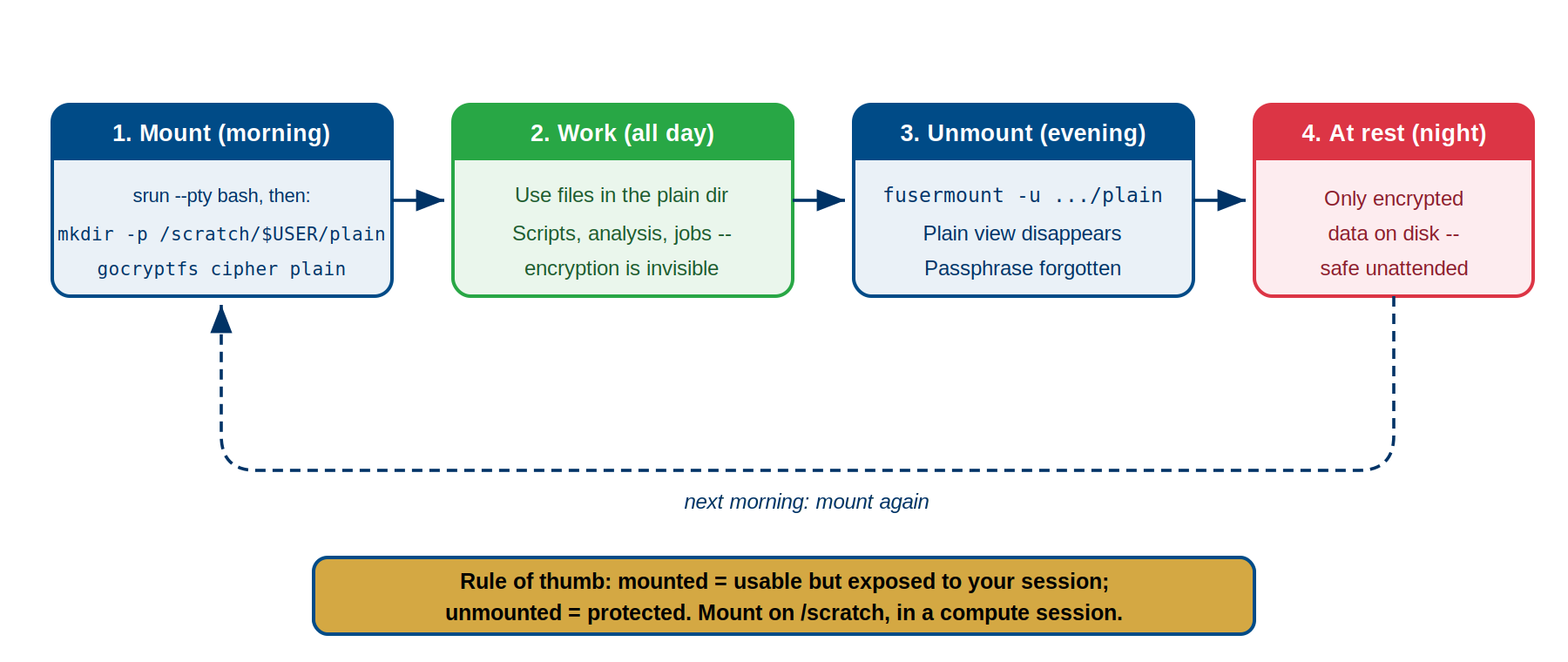
Security: Mounted vs. Unmounted
- At rest (unmounted): Files encrypted on disk. Without the password, data is unreadable.
- In use (mounted): Files decrypted in RAM/cache. Only you and root can access due to FUSE permissions (700).
Best practice: Unmount when away from your desk to protect against local disk access attacks.
Mount Command Anatomy
Basic syntax:
cipher_directory: Permanent encrypted storage with gocryptfs.conf and gocryptfs.diriv
plain_directory: Mount point where decrypted files appear (must be empty and owned by you)
Example:
BASH
$ gocryptfs /bigdata/lab/<labname>/project_cipher /scratch/$USER/project_plain
Password: [enter your password]
Filesystem mounted successfully.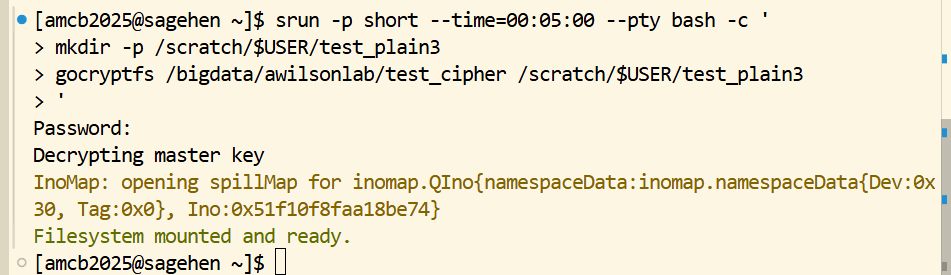
Note the order: the srun session comes first, then
mkdir -p on /scratch, then the mount. Running
gocryptfs before you have a compute session, or against a
mountpoint on /bigdata, is the most common way this
fails.
Permission Requirements
Correct Directory Structure
BASH
/bigdata/lab/<labname>/
  └── project_cipher/          # encrypted data: persistent, backed up (BeeGFS)

/scratch/$USER/                # node-local, inside your compute session
  └── project_plain/           # empty mountpoint -- recreate each session
The plain directory must never be nested inside the cipher directory,
and it cannot live anywhere under /bigdata.
Verifying Successful Mount
After mounting, use these methods:
Verification Idiom: mountpoint -q
for Scripts
For verification logic in scripts, prefer
mountpoint -q $MOUNT_POINT (exact, no false positives). Use
mount | grep only for interactive inspection.
Method 1 (script-safe): mountpoint -q
Method 2 (human inspection): mount | grep gocryptfs
**Method 3: df /scratch/\(USER/project_plain** ```bash Filesystem 1K-blocks Used Available Mounted on gocryptfs 1048576000 51200 ... /scratch/\)USER/project_plain
**Method 4: ls -la /scratch/$USER/project_plain/**
Shows files with original names if mounted; empty if not.

## Security: Who Can Access Mounted Data

- **You (owner)**: Always can access
- **root**: Always can access (Linux superuser privilege)
- **Group/others**: Cannot access (directory has 700 permissions)

### The allow_other Option: Use with Caution

```bash
gocryptfs -o allow_other /bigdata/lab/<labname>/project_cipher /scratch/$USER/project_plainWARNING: Only use for PUBLIC or PROPRIETARY data with explicit permission. Do NOT use for RESTRICTED data—it defeats security classifications and may violate FERPA/HIPAA.
Unmounting
Basic Unmount
What unmounting does:
- Closes all file handles
- Flushes caches to disk
- Stops FUSE daemon
- Plain directory becomes empty again
- Files remain encrypted on disk
When to Unmount
- Before leaving your desk
- Before logging out
- Before rebooting
- When not actively using encrypted files
Handling “Device Busy” Errors
A process still has the directory open. Find and close it:
BASH
# Find open files
$ lsof /scratch/$USER/project_plain/
COMMAND    PID USER
python3    1234 username ...

# Kill the process
kill 1234
sleep 2

# Try unmount again
fusermount -u /scratch/$USER/project_plain
Last resort: lazy unmount (use only if processes won’t respond)
Mount Persistence: Critical Facts
Mounts do NOT survive reboots or job completion.
Challenges
Challenge: Mount/Unmount Verification Drill
Build muscle memory for the daily workflow.
Setup: Create test directories
BASH
mkdir -p /bigdata/lab/<labname>/drill_cipher /scratch/$USER/drill_plain
gocryptfs -init /bigdata/lab/<labname>/drill_cipher
# Create passwordExercise:
-
Mount and verify using multiple methods:
mountpoint -q(script-safe),mount | grep(human inspection),df,ls -
Create a test file:
echo "Test 1" > /scratch/$USER/drill_plain/file1.txt -
Check encrypted version:
ls /bigdata/lab/<labname>/drill_cipher/— should show encrypted filename -
Unmount and verify:
fusermount -u, thenlsshould show empty directory - Remount and verify file persists: File should still be there
- Test wrong password: Try mounting with wrong password—should fail with “master key is corrupted”
- Clean up: Unmount with correct password
Success criteria: - Mount verified all three ways - Files visible when mounted, hidden when unmounted - Wrong password rejected - Files persist across mount/unmount cycles - You can mount/unmount without errors
Expected outcomes:
- First mount successful, file created and visible
- Encrypted filename appears in cipher directory
- Unmount removes file from view; empty directory shown
- Remount shows file still present with correct content
- Wrong password triggers “master key is corrupted” error and mount fails
- Correct password allows mount and file access
Common issues: - “Plain directory not empty”: Clean
with rm -rf * and rm -rf .* - “Permission
denied”: Check ownership with ls -ld, use
chown to fix - “Device busy” on unmount: Use
lsof to find process, kill it, retry - Files
not visible when mounted: Verify with ls -la, permissions
should be readable
- Daily workflow: Mount at start, unmount at end—build this habit
- Plain directory must be empty, owned by you, and NOT inside cipher directory
- Verify mounts:
mountpoint -qfor scripts,mount | grep gocryptfsfor human inspection, plusdfandls - Mounted = accessible but protected by FUSE permissions; Unmounted = encrypted on disk
- Never use allow_other on RESTRICTED data
- Handle “device busy” with lsof to find processes, then kill and retry
- Mounts do NOT survive reboots or job completion—this is a security feature
- Always unmount before leaving your desk or logging out
- Lazy unmount (fusermount -uz) is last resort when processes won’t close
- Work transparently in plain directories; encryption happens automatically