
Setting Up Your ML Environment
Last updated on 2026-08-27 | Edit this page
Estimated time: 35 minutes
Overview
Questions
- How do you load ML modules on Sagehen HPC?
- What pre-built modules are available for PyTorch and TensorFlow?
- How do you verify GPU access is working?
- When should you reuse a shared conda environment vs. build your own?
Objectives
- Load modules and prepare Sagehen for ML work
- Activate a working PyTorch or TensorFlow conda environment
- Verify CUDA and GPU availability
- Decide when to reuse an existing environment and when to build your own
Why Environment Setup Is the First Real Hurdle
Before any model trains, you have to get a Python interpreter, the
right framework, the right CUDA libraries, and the right cuDNN version
all agreeing with each other. On a personal laptop this is annoying. On
a shared HPC cluster, where you cannot just pip install
system-wide and where the GPU driver is fixed by ITS, it is the single
most common failure point for new users.
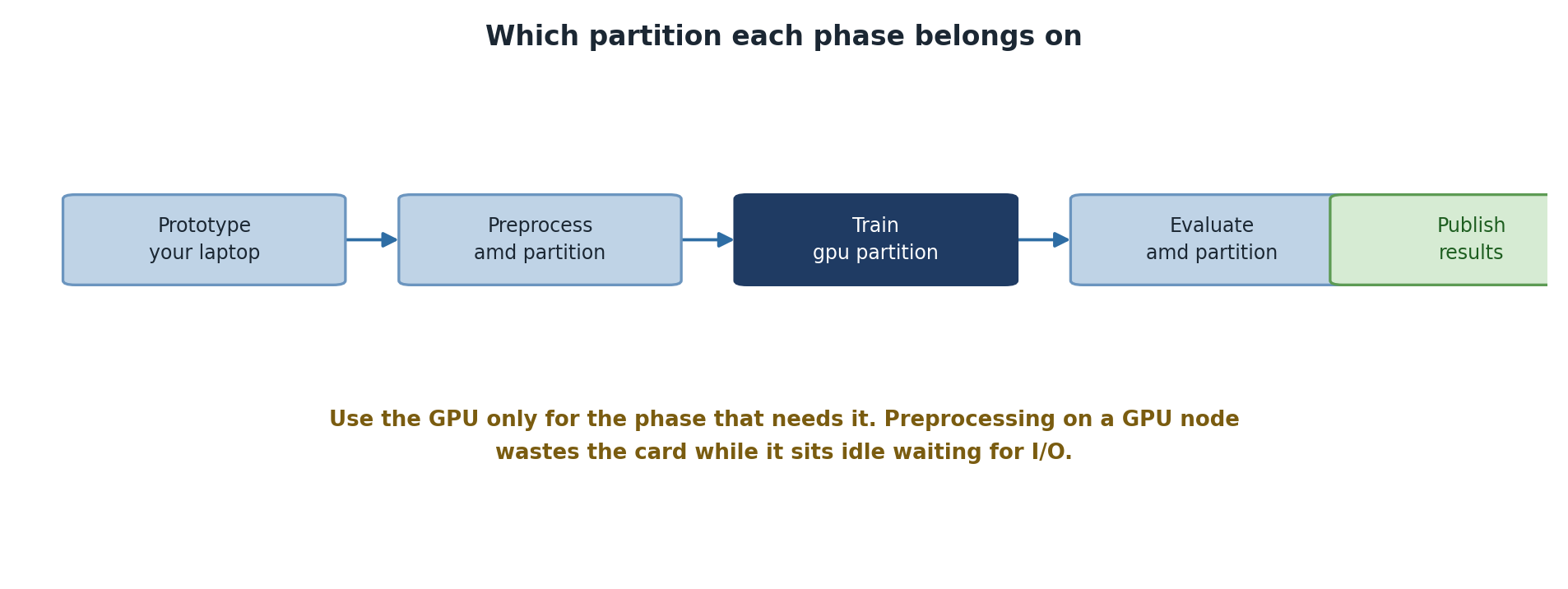
Sagehen has no pytorch or tensorflow module
— Lmod provides the supporting pieces (miniconda3,
cuda), and the framework itself always comes from a conda
environment. So the real choice is between reusing an environment
someone in your lab already built and building your own. Start by
reusing one to confirm the GPU path works end to end, then build your
own once you need specific versions or extra packages.
Understanding Sagehen HPC’s Module System
Sagehen uses Lmod (a module system) to manage software versions.
Modules provide pre-configured environments without cluttering your
shell. Each module sets PATH, LD_LIBRARY_PATH,
and other environment variables for one specific tool, and
module unload cleanly reverses those changes.
View Available Modules
BASH
# List all available modules
module avail

# List modules containing "python" or "cuda"
module avail python
module avail cuda

# Get detailed info about a module
module show cuda/12.2.1
module show is underused. It tells you exactly which
CUDA version a framework module loads, which PATH entries
it adds, and which other modules it depends on. Reading this once for
cuda/12.2.1 makes the whole “why doesn’t my framework see
the GPU” debugging conversation 10 times faster.
Loading Modules
Verify the actual Lmod tree with module spider cuda for
the versions currently available on Sagehen.
BASH
# Load a single module
module load miniconda3

# Load multiple modules
module load miniconda3 cuda/12.2.1

# Check what's loaded
module list

# Remove a module
module unload cuda/12.2.1

# Clear all modules
module purgeModule loading inside SLURM scripts
Modules loaded in your interactive shell do not carry into a SLURM job. You must explicitly load them inside the batch script:
BASH
#!/bin/bash
#SBATCH --partition=gpu
#SBATCH --gres=gpu:1

module purge
module load miniconda3 cuda/12.2.1
conda activate pytorch_env   # created in the next episode

python train.py
Including module purge first is a habit worth forming:
it ensures the script starts from a known clean state and is not
affected by whatever happened to be loaded in the submitting shell.
Quick Start: Getting a Framework Running
Neither framework ships as a module, so both come from conda. The
fastest start is to activate an environment that already exists — the
commands below assume pytorch_env and tf_env
have been created as described in the next episode.
Option 1: PyTorch
BASH
# PyTorch comes from a conda environment -- there is no pytorch module.
# The cuda module supplies the GPU toolkit; conda's pytorch bundles cuDNN.
module load miniconda3 cuda/12.2.1
conda activate pytorch_env

# Test it works
python3 << 'EOF'
import torch
print(f"PyTorch version: {torch.__version__}")
print(f"CUDA available: {torch.cuda.is_available()}")
print(f"CUDA version: {torch.version.cuda}")
print(f"Number of GPUs: {torch.cuda.device_count()}")

if torch.cuda.is_available():
    print(f"GPU Name: {torch.cuda.get_device_name(0)}")
EOFVerifying Your Environment
After loading modules, test all components:
PYTHON
import torch

print(f"PyTorch Version: {torch.__version__}")
print(f"CUDA Available: {torch.cuda.is_available()}")
print(f"CUDA Version: {torch.version.cuda}")

gpu_count = torch.cuda.device_count()
print(f"Number of GPUs: {gpu_count}")

if gpu_count > 0:
    for i in range(gpu_count):
        props = torch.cuda.get_device_properties(i)
        print(f"GPU {i}: {props.name}, Memory: {props.total_memory / 1e9:.1f} GB")

# Quick computation test
if torch.cuda.is_available():
    x = torch.randn(1000, 1000, device='cuda')
    y = torch.randn(1000, 1000, device='cuda')
    z = torch.matmul(x, y)
    print(f"GPU computation test: PASSED (result shape: {z.shape})")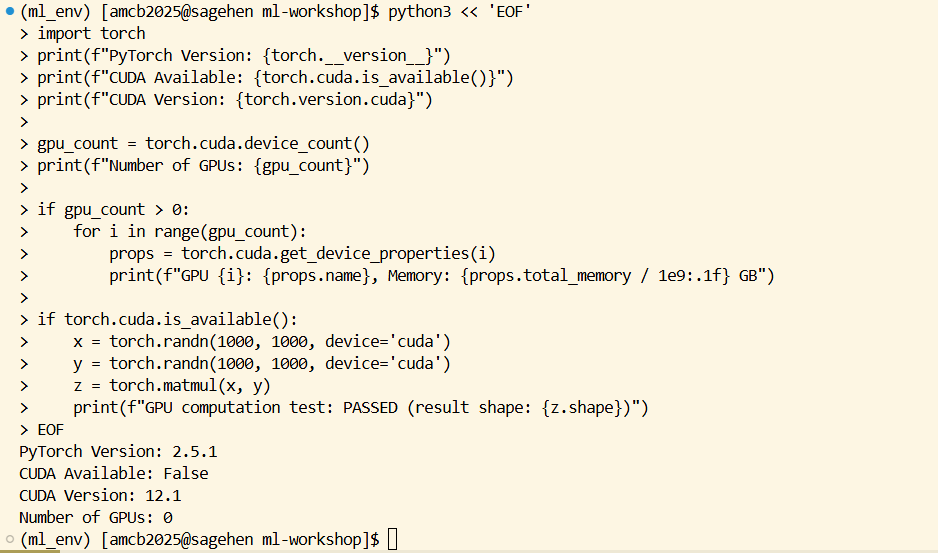
ml_env environment.The GPU name in the output tells you which Sagehen GPU you got.
Sagehen has a heterogeneous GPU pool of 10 GPUs total (confirmed May
2026): 4× A100 80 GB, 4× L40S 48 GB, and 2× RTX PRO 6000 96 GB. Without
a --gres constraint, SLURM hands you whatever is free
first.
When to Reuse an Environment vs. Build Your Own
Decision rubric
Reuse an existing environment when:
- You are getting started and just want something working today.
- Your lab already maintains one with the versions your project needs.
- You do not need packages beyond what it already contains.
Roll your own conda environment when:
- You need a specific framework version the shared environment does not have.
- Your project has many extra dependencies (transformers, scikit-learn, custom packages).
- You need to share an environment file with collaborators for reproducibility.
- You need to mix two frameworks (e.g., PyTorch + TensorFlow + JAX).
Most serious research projects end up with their own environment. A shared one is best as a quick-start tool and as a fallback when your own is broken.
Where Conda Lives on Sagehen HPC
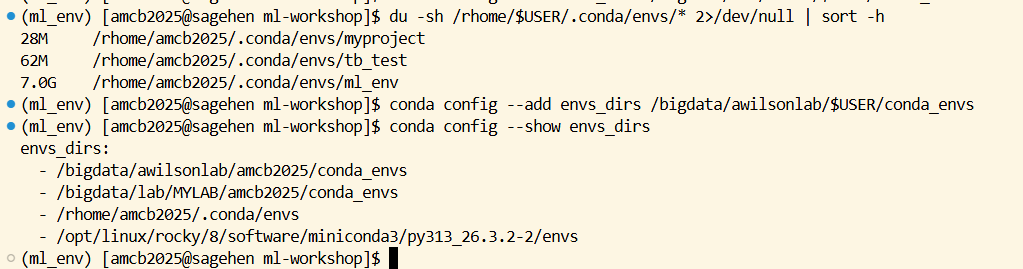
When you run conda create -n myenv ..., the environment
is stored under /rhome/$USER/.conda/envs/myenv. Each
environment with a deep learning framework can easily reach 5 to 10 GB.
Your /rhome quota is 100 GB. Three or four large ML
environments will fill it.
To check your usage:
If you are bumping into the quota, two options: prune unused
environments with conda env remove -n old_env, or
reconfigure conda to store environments under your lab’s
/bigdata allocation:
/bigdata.Challenge
Challenge: Verify Your GPU Setup
Activate a PyTorch environment on a GPU node, then write and run a script that: 1. Prints the PyTorch version 2. Checks how many GPUs are available 3. Identifies the GPU type (A100, L40S, or RTX PRO 6000) 4. Runs a small matrix multiplication on GPU and verifies the result
BASH
srun --partition=gpu --gres=gpu:1 --time=00:10:00 --pty bash

module purge
module load miniconda3
conda activate pytorch_env

python3 << 'EOF'
import torch
print(f"PyTorch: {torch.__version__}")
print(f"GPUs: {torch.cuda.device_count()}")
if torch.cuda.is_available():
    name = torch.cuda.get_device_name(0)
    mem = torch.cuda.get_device_properties(0).total_memory / 1e9
    print(f"Got: {name} with {mem:.0f} GB")
    x = torch.randn(100, 100, device='cuda')
    y = torch.matmul(x, x)
    print(f"GPU test PASSED: result shape {y.shape}")
EOF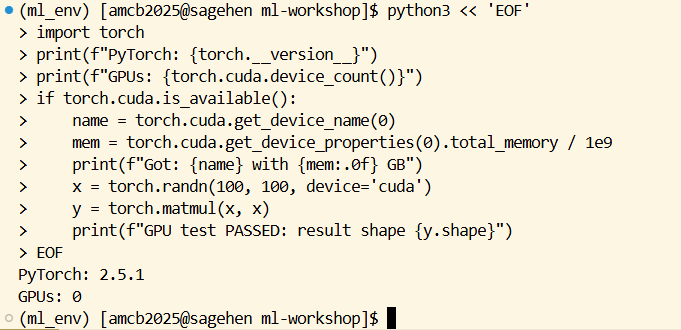
The interactive srun is important: you must be on a GPU
node, not the login node, to see a GPU. The name output
reveals which of the three Sagehen GPU types you got.
Challenge
Challenge: When the System Module Won’t Do
A research collaborator sends you their codebase, which requires
torch==2.3.1 and transformers==4.38. Your
lab’s shared environment has an older PyTorch. Sketch the steps you
would take to set up a working environment without breaking anyone
else’s.
- Load the conda module:
module load miniconda3. - Create an environment with the exact versions:
conda create -n collab_proj python=3.11 pytorch=2.3.1 pytorch-cuda=12.1 -c pytorch -c nvidia -y. - Activate and install transformers:
conda activate collab_proj; pip install transformers==4.38. - Verify the GPU works: load the env in an interactive
srun --gres=gpu:1session and run the verification script above. - Export for reproducibility:
conda env export > environment.ymland commit to the project repo.
This isolates the collaborator’s exact stack in your own environment without touching the shared one other users depend on.
-
module load miniconda3, thenconda activatean existing environment, is the quickest way to start -
module show NAMEreveals what a module actually does (CUDA version, dependencies) - Always re-load modules inside SLURM scripts; the login-node environment does not transfer
- Sagehen’s GPU driver reports CUDA 12.7; the newest CUDA
toolkit module is
cuda/12.2.1. They are different things and do not need to match - Always test GPU access with small verification scripts before large jobs
- Roll your own conda environment when you need pinned versions or extra packages
- Conda environments can be moved to /bigdata if /rhome quota gets tight