
Loading ML Frameworks
Last updated on 2026-08-27 | Edit this page
Estimated time: 35 minutes
Overview
Questions
- How do you create custom conda environments for ML?
- How do you create reproducible environments for team collaboration?
- What are common environment setup mistakes and how do you fix them?
- How do you keep environments small enough to fit your /rhome quota?
Objectives
- Create and activate conda environments with GPU support
- Install PyTorch and TensorFlow with the correct CUDA version
- Export environments for reproducibility
- Troubleshoot the four most common environment problems
- Manage environment storage to stay within quota
Why Custom Environments Eventually Become Necessary
For rigorous environment management see Workshop 21 (Reproducible Research Pipelines).
Sagehen HPC has no pre-built pytorch or
tensorflow module, so a conda environment is not an
optional upgrade — it is the only way to get either framework running.
Conda environments also give you full control: pin every version,
install anything from PyPI or conda-forge, and export the result for
reproducibility.
The downside is disk space and complexity. Each ML environment can be
5 to 10 GB after pytorch-cuda and a few extras. Three or
four large environments will eat your /rhome quota. The patterns below
keep environments small, reproducible, and fast to recreate.
Creating Custom Conda Environments
For projects requiring specific package versions or combinations:
Step 2: Create Environment
BASH
# PyTorch with GPU support (recommended)
conda create -n pytorch_env python=3.11 \
  pytorch torchvision torchaudio \
  pytorch-cuda=12.1 \
  mkl==2021.4.0 pip \
  -c pytorch -c nvidia -y

# Or both frameworks together
conda create -n ml_both python=3.11 \
  pytorch torchvision torchaudio pytorch-cuda=12.1 \
  mkl==2021.4.0 pip pandas scikit-learn \
  -c pytorch -c nvidia -y
Three parts of that command are easy to leave out, and each causes a failure that is hard to diagnose later:
-
python=3.11pins the interpreter. Without it, conda resolves whatever version it prefers and you can end up with an environment whose Python does not match the packages installed into it. -
mkl==2021.4.0pins Intel’s Math Kernel Library to a known-good version. MKL 2024.1 and later dropped a symbol PyTorch’s binary expects, soimport torchfails withImportError: ... libtorch_cpu.so: undefined symbol: iJIT_NotifyEvent. Confirmed on Sagehen — 2021.4.0 is the version verified working. -
pipinstalls pip into the environment. Without it, a laterpython3 -m pip installfails withNo module named pip.
TensorFlow is best installed with pip inside an existing environment rather than through conda — TensorFlow’s own documentation advises against the conda route:
The channel order matters. Channels are searched in priority order;
-c pytorch -c nvidia puts the official PyTorch channel
first, ensuring you get the correctly-built CUDA-enabled wheels rather
than a CPU-only version that happens to share the same name on
conda-forge.
Step 3: Activate and Install Additional Packages
BASH
conda activate pytorch_env
conda install jupyter matplotlib seaborn -y
python3 -m pip install wandb tensorboard
Use python3 -m pip, never a bare pip. A
bare pip can resolve to the one belonging to the loaded
miniconda3 module rather than the one inside your
environment, silently installing packages into the wrong Python — the
import then fails with ModuleNotFoundError even though the
install reported success. If you are unsure which you are getting, check
with which python3 and which pip; both should
point inside your environment directory.
Mixing conda and pip safely
Conda and pip both install packages, but they manage dependencies differently. Mixing them can break things in subtle ways:
The safe pattern is conda first (for the framework and its CUDA dependencies), then pip last (for everything else). Doing it the other way around can cause conda to overwrite pip-installed packages on the next conda install.
If you must use pip for a specific package version that conda doesn’t
have, use it inside an already-active conda environment, and avoid
running any further conda install after that.
Creating Reproducible Environments
Export Environment
BASH
conda activate pytorch_env
conda env export > pytorch_env.yml

# Or, export only top-level packages (smaller, more portable)
conda env export --from-history > pytorch_env_minimal.yml
The full conda env export lists every package, including
platform-specific transitive dependencies. The
--from-history version is much smaller and lists only what
you explicitly installed; conda fills in the dependencies on recreation.
Use the minimal form for sharing across machines and the full form for
exact reproduction.
Recreate Environment
If the environment file is the full export and you are on a different OS, recreation may fail because of OS-specific dependencies. The minimal form is more robust.
Challenge
Challenge: Set Up a Team Environment
Create a conda environment with PyTorch (GPU support), pandas, scikit-learn, matplotlib, and Jupyter. Then export it for teammates to use.
BASH
module load miniconda3

conda create -n research_ml \
  pytorch torchvision pytorch-cuda=12.1 \
  pandas scikit-learn matplotlib jupyter \
  -c pytorch -c nvidia -y

conda activate research_ml
conda env export --from-history > research_ml.yml

# Teammates install with:
# conda env create -f research_ml.yml
The --from-history flag produces a portable file that
records what you actually asked for, not the OS-specific dependency
tree.
Troubleshooting Environment Problems
Problem 1: “ModuleNotFoundError: No module named torch”
BASH
# Make sure conda environment is activated
conda activate pytorch_env

# Check Python version matches environment
which python3
If which python3 shows /usr/bin/python3,
conda is not activated. The fix is
conda activate pytorch_env. If that fails, you forgot
module load miniconda3.
Problem 2: “torch.cuda.is_available() returns False”
BASH
# Check if GPU is detected
nvidia-smi

# Check if PyTorch can see GPU
python3 -c "import torch; print(torch.cuda.is_available())"

# If False, reinstall with correct CUDA version
conda install pytorch pytorch-cuda=12.1 -c pytorch -c nvidia -y
The most common cause is installing the CPU-only PyTorch by accident.
Look for pytorch-cpu or cpuonly in
conda list; if either is present, that is the problem.
Reinstall with pytorch-cuda=12.1 to force the GPU
build.
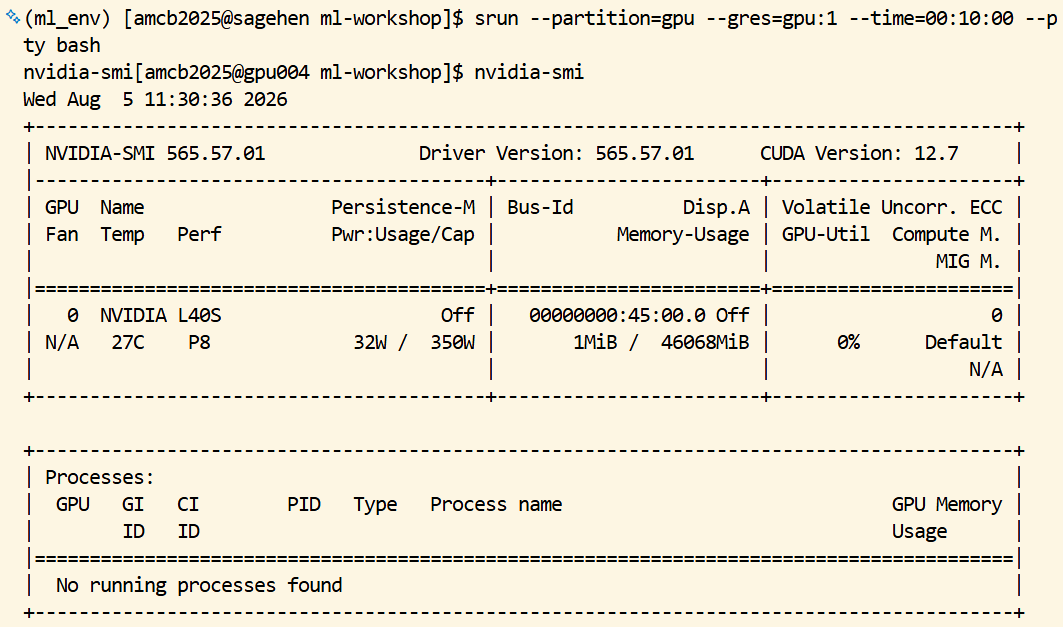
The second most common cause is running on the login node. The login
node has no GPU. Get an interactive GPU session first:
srun --partition=gpu --gres=gpu:1 --time=00:30:00 --pty bash.
nvidia-smi.Problem 3: “CUDA/cuDNN version mismatch”
BASH
# Driver's CUDA capability -- on Sagehen's GPU nodes this reports 12.7
nvidia-smi

# What PyTorch was actually built against
python3 -c "import torch; print(torch.version.cuda)"

# If mismatch, specify correct version
conda install pytorch pytorch-cuda=12.1 -c pytorch -c nvidia -y
The PyTorch CUDA toolkit must be less than or equal to the system
CUDA driver version. nvidia-smi reports the driver
capability; torch.version.cuda reports what PyTorch was
built against. As long as PyTorch’s CUDA is <= the
driver’s, things work.
Three Different “CUDA Versions” — Don’t Confuse Them
This trips people up constantly, because all three are called “CUDA”:
| What | Where you see it | On Sagehen |
|---|---|---|
| Driver capability |
nvidia-smi, top right |
12.7 |
| Toolkit module | module avail cuda |
11.8.0, 12.0.0, 12.2.1 (default) |
| What PyTorch was built against | torch.version.cuda |
whatever pytorch-cuda= you installed |
The rule is only ever: PyTorch’s CUDA ≤ the driver’s
CUDA. pytorch-cuda=12.1 is fine against a 12.7
driver, and it does not need to match the toolkit module number at all —
conda ships its own CUDA runtime inside the environment.
So a “CUDA version mismatch” almost never means “these numbers differ”. It means PyTorch was built for a newer CUDA than the driver supports.
Problem 4: “/rhome quota exceeded”
BASH
# Check usage
du -sh /rhome/$USER/.conda/envs/* | sort -h

# Remove unused environments
conda env remove -n old_env_name
conda clean -a   # remove caches
Caches alone can be a few GB. conda clean -a is safe to
run periodically.
Environment Best Practices 1. One
environment per project: avoid dependency conflicts and version
drift. 2. Pin top-level versions explicitly:
pytorch=2.1 is more reproducible than pytorch.
3. Document requirements in the repo: keep
environment.yml with the code. 4. Watch the
quota: /rhome is 100 GB and conda environments add
up. 5. Move large environments to /bigdata:
conda config --add envs_dirs /bigdata/lab/<labname>/$USER/conda_envs
redirects future installs.
Challenge
Challenge: Diagnose a Failing Environment
A teammate has a script that uses
from torch.utils.tensorboard import SummaryWriter. They
ran:
and got
ModuleNotFoundError: No module named 'tensorboard'. The
conda environment was created from the same research_ml.yml
you exported. List two likely causes and the diagnostic command for
each.
Cause 1: tensorboard was installed via pip in your original
environment, but conda env export --from-history does not
capture pip-installed packages. Diagnostic:
cat research_ml.yml and look for a pip:
section. If absent, that is the issue. Fix: add a pip:
block listing tensorboard, or re-export with regular
conda env export (which captures pip).
Cause 2: the teammate created the environment but did not install
tensorboard. Diagnostic:
conda list -n research_ml | grep tensor. If only torch is
there, install with pip install tensorboard.
- Load miniconda3, then create environments with
conda create - Use
pytorch-cuda=12.1when installing PyTorch for Sagehen’s CUDA version - Channel order in
conda creatematters; put-c pytorch -c nvidiafirst - Mix conda and pip safely: conda first for frameworks, pip last for extras
- Export environments with
--from-historyfor portability, full export for exact reproduction - Common errors (missing CUDA, wrong versions, missing packages) are usually environment setup issues
- Watch /rhome quota; redirect conda to /bigdata if needed
- Store environment files in git repos for team consistency