
Navigating the Filesystem
Last updated on 2026-08-27 | Edit this page
Overview
Questions
- How is the Sagehen HPC filesystem organized?
- What are the different storage spaces and what are they for?
- How do I check my storage quota?
Objectives
- Understand the different storage locations on Sagehen
- Distinguish between persistent and temporary storage
- Check storage quotas and usage
- Navigate the filesystem using fundamental Linux commands
Sagehen HPC’s Storage Architecture
Sagehen uses a BeeGFS parallel filesystem connected via 100 Gb Infiniband. It has multiple storage systems, each designed for specific purposes.
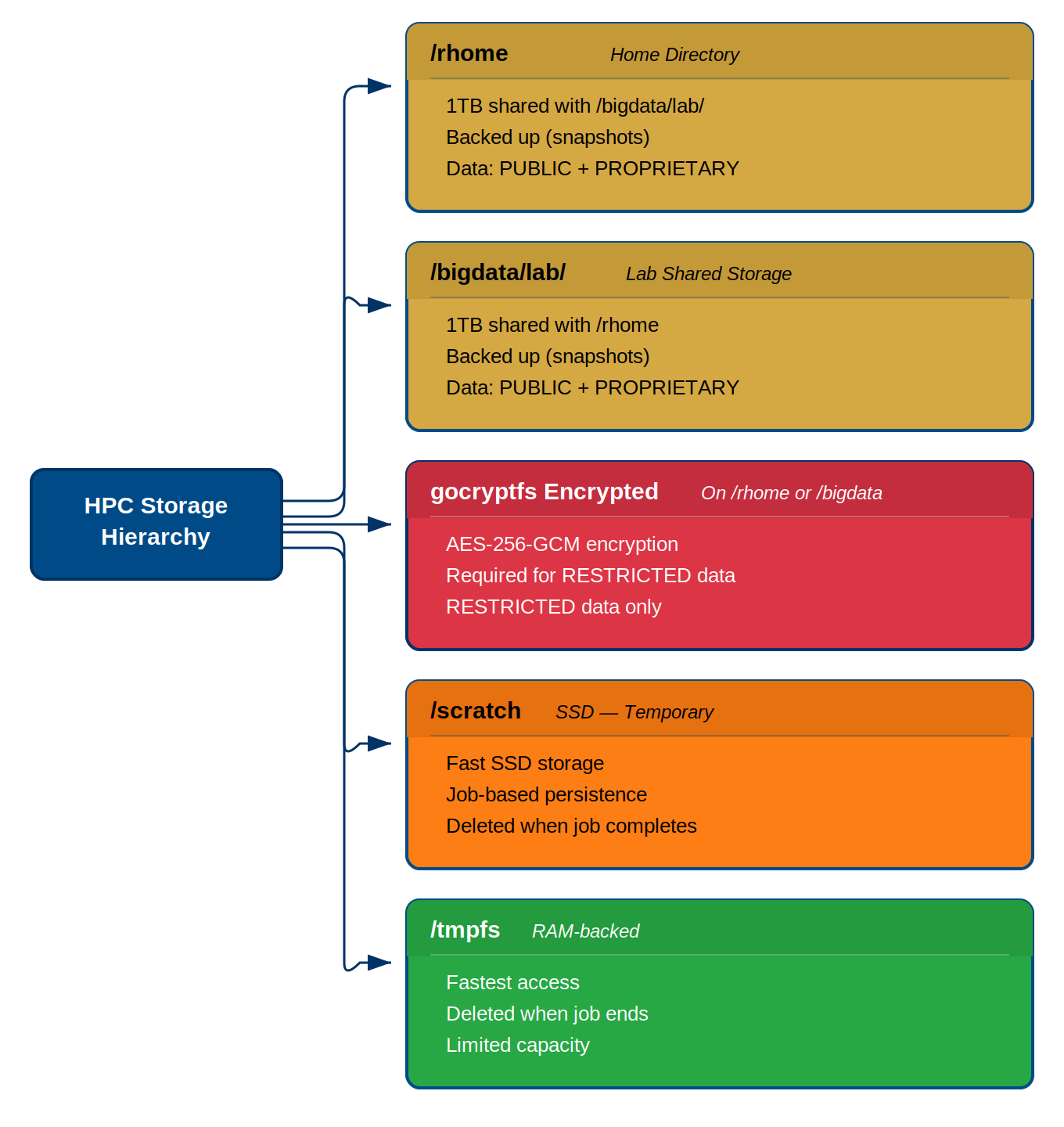
Sagehen HPC’s storage hierarchy: persistent gold
tiers at the top, encrypted storage for RESTRICTED data in the middle,
and fast temporary tiers at the bottom.
Storage Location Overview
| Location | Quota | Backup | Persistence | Speed | Use Case |
|---|---|---|---|---|---|
/rhome/<myusername> |
~100 GB | Daily | Persistent | Medium | Code, config, small results |
/bigdata/lab/<labname> |
1 TB/lab | Daily | Persistent | Medium | Lab datasets, shared files |
/scratch/... |
None | No | Temporary | Fast (SSD) | Large intermediate files |
/tmpfs |
~1 GB/job | No | Temporary | Fastest (RAM) | Ultra-fast I/O during jobs |
Note: /rhome and /bigdata share a combined
1 TB lab quota.
Your Home Directory: /rhome/<myusername>
This is your personal space on Sagehen.
- Size: Approximately 100 GB
- Backup: Yes, daily backups
- When to use: Source code, configuration files, small result files
- When NOT to use: Large datasets, temporary files from jobs
Lab Storage: /bigdata/lab/<labname>
If you’re part of a research lab, you may have access to shared lab storage.
- Size: 1 TB per lab group (shared among all lab members)
- Backup: Yes, daily backups
- When to use: Large datasets, results shared with collaborators
If you don’t see your lab listed, contact its-hpc@pomona.edu.
Essential Navigation Commands
Checking Your Storage Usage
BeeGFS Quota Check
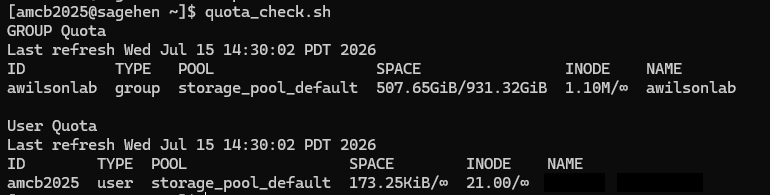
If you’re approaching your quota, consider:
- Compressing old results:
tar czf archive.tar.gz data/ - Removing unnecessary files
- Moving data to lab storage:
mv results /bigdata/lab/<labname>/ - Contacting its-hpc@pomona.edu for additional storage
Challenge 1: Explore Sagehen HPC’s Storage
Connect to Sagehen and explore the filesystem.
Steps:
- Check your home directory:
cd ~ && pwd - List its contents:
ls -lah - Check for lab storage:
ls /bigdata/lab - Run the quota check:
quota_check.sh
Questions:
- What is the full path to your home directory?
- Do you have access to lab storage?
- How much of your quota is used?
- Your home directory should be
/rhome/<myusername> - Lab storage appears under
/bigdata/lab/if your lab has been set up -
quota_check.shshows your current usage vs. your quota limit
If you’re using close to 100 GB, consider cleaning up old files. Contact its-hpc@pomona.edu if you need more space.
- Sagehen uses BeeGFS over 100 Gb Infiniband for its parallel filesystem
- Your home directory
/rhome/<myusername>is persistent and backed up (~100 GB) - Lab storage
/bigdata/lab/<labname>provides 1 TB shared among lab members - Scratch (
/scratch) is SSD-based and deleted when your job completes - RAM disk (
/tmpfs) is the fastest but most ephemeral storage - Use
quota_check.shto check your storage usage (notdu) - Essential navigation:
pwd,ls,cd,cd ~,cd ..