
Next Steps and Resources
Last updated on 2026-08-27 | Edit this page
Overview
Questions
- What other workshops are available?
- Where do I go for help?
- How do I handle more complex job patterns?
Objectives
- Know where to find additional HPC training resources
- Understand common next-step workflows beyond basic job submission
- Know how to get help from the HPC team
Beyond Your First Job
Now that you can connect, navigate files, load modules, and submit jobs, here are common next steps:
Interactive Jobs for Development
Use srun for interactive sessions on compute nodes:
This gives you a bash shell on a compute node where you can test code interactively without running on the head node.
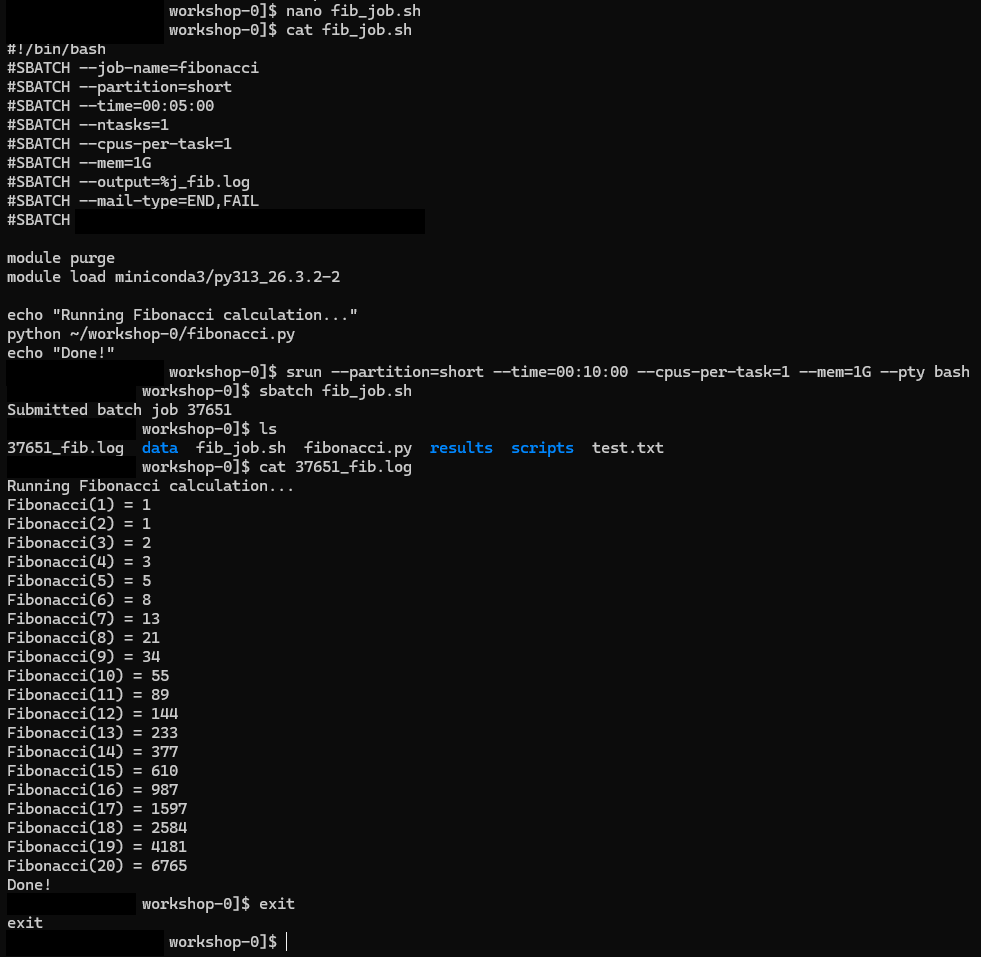
sagehen to compute node
a001 after srun --pty bash.Email Notifications
Get notified when your job finishes:
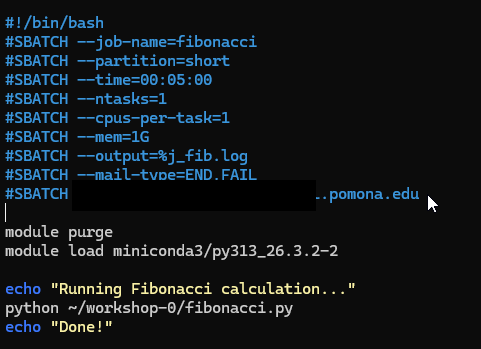

Additional Workshop Topics
The Pomona College HPC Workshop Series covers many advanced topics:
- SLURM Job Scheduling: Advanced batch scripting, job arrays, dependencies, GPU workflows
- Data Transfer and Management: Moving data to/from Sagehen HPC with scp, rsync, Globus
- Security and Access: SSH keys, data classification, encrypted storage
- OnDemand Portal: Graphical access, Jupyter, RStudio on the cluster
- Domain-Specific Workshops: R, Python, bioinformatics, and more
Getting Help
HPC Support
- Email: its-hpc@pomona.edu
-
Include in your email:
- Your username
- Job ID (if applicable)
- Error messages or output
- What you expected vs. what happened
Common Self-Help Commands
BASH
# Check cluster status
sinfo

# Check your running/pending jobs
squeue -u $USER

# Check completed job details
sacct -j JOBID --format=JobID,JobName,State,Elapsed,MaxRSS

# Check your storage quota
quota_check.sh

# See what modules are loaded
module listQuick Reference Card
| Task | Command |
|---|---|
| Connect | ssh <myusername>@sagehen.hpc.pomona.edu |
| Submit job | sbatch script.sh |
| Check jobs | squeue -u $USER |
| Job history | sacct -u $USER |
| Cancel job | scancel JOBID |
| Cluster status | sinfo |
| Load software | module load package |
| Reset modules | module purge |
| Check quota | quota_check.sh |
| OnDemand | https://ondemand.hpc.pomona.edu |
Challenge 1: Plan Your First Real Project
Think about a research computation you want to run on Sagehen. Write down a plan covering:
- What software/modules do you need?
- How much memory and how many cores?
- How long will it take?
- Which partition should you use?
- What input data do you need to upload?
- Where should output be saved?
Draft a skeleton batch script for this project (just the SBATCH headers and module loads; the actual command can be a placeholder).
A good plan should include:
BASH
#!/bin/bash
#SBATCH --job-name=my_research
#SBATCH --partition=amd          # or `gpu` for GPU jobs, `short` for quick tests
#SBATCH --time=08:00:00          # realistic estimate
#SBATCH --cpus-per-task=16       # based on your code's parallelism
#SBATCH --mem=64G                # based on data size
#SBATCH --output=%j_output.log

module purge
module load miniconda3/py313_26.3.2-2   # or whatever you need (check module avail)

# Your research command here
python my_analysis.py --input /bigdata/lab/<labname>/data --output ~/results/
Key considerations: - Start with a short test on the
short partition (small --time, e.g., 10–30
minutes) before launching production work on amd or
gpu - Scale up resources once you know what your code needs
- Save important output to /rhome or /bigdata,
not /scratch
- Use
srun --pty bashfor interactive compute sessions instead of running on the head node - Email notifications keep you informed about job completion and failures
- Customize
~/.bashrcfor a more productive login environment - Additional workshops cover SLURM advanced features, data transfer, security, and more
- Contact its-hpc@pomona.edu for help; include your username, job ID, and error messages
- Use
quota_check.sh(notdu) to check BeeGFS storage usage