
Files and Directories
Last updated on 2026-08-27 | Edit this page
Estimated time: 25 minutes
Overview
Questions
- How do I create, copy, move, and delete files?
- How should I organize my work on Sagehen HPC?
- What are file permissions and how do I change them?
Objectives
- Create and manage files and directories on Sagehen
- Organize research work with a logical directory structure
- Understand file permissions and access controls
- Share files securely with collaborators
Creating and Removing Files and Directories
BASH
# Create a directory
mkdir mydir

# Create nested directories
mkdir -p data/raw/input

# Create an empty file
touch myfile.txt

# Remove an empty directory
rmdir mydir

# Remove a file (be careful!)
rm myfile.txt

# Remove a directory and everything in it (DANGEROUS!)
rm -rf mydirNever Use rm -rf Casually!
The command rm -rf directory recursively deletes
everything permanently; there is no trash or undo. Always list files
first to confirm:
BASH
# List files FIRST to confirm what you're deleting
ls -la mydir
# Then delete
rm -rf mydir
# Or use interactive mode (walks the tree and asks about every single file before deleting, reply y or n (yes or not))
rm -ri mydir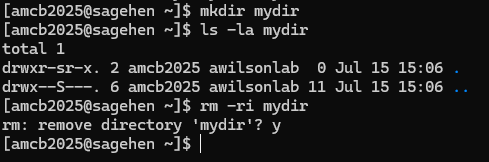 {alt=‘A
short terminal transcript on Sagehen. mkdir creates a directory named
mydir, ls -la shows it is empty, and rm -ri prompts remove directory
’mydir’? before deleting it after the user types y.’}
{alt=‘A
short terminal transcript on Sagehen. mkdir creates a directory named
mydir, ls -la shows it is empty, and rm -ri prompts remove directory
’mydir’? before deleting it after the user types y.’}
Working with Files
BASH
# View file contents
cat myfile.txt

# View beginning of file (first 10 lines)
head myfile.txt

# View end of file (last 10 lines)
tail myfile.txt

# Search for text in a file
grep "pattern" myfile.txt

# Count lines in a file
wc -l myfile.txt

# Search for files by name
find . -name "*.txt"

# Find recently modified files
find . -mtime -7
Organizing Your Work
Recommended Directory Structure
Create a logical organization in your home directory:
BASH
cd ~
mkdir -p projects/project1
mkdir -p projects/project2
mkdir -p code
mkdir -p data
mkdir -p results
Example project structure:
/rhome/<myusername>/
├── projects/
│   ├── research-1/
│   │   ├── code/
│   │   ├── data/
│   │   └── results/
│   └── research-2/
├── code/
├── scripts/
└── workshop-0/
File Permissions
Every file and directory has permissions controlling who can read, write, and execute it.
Understanding Permission Output
Output example:
-rw-r--r-- 1 username groupname 1024 Mar 31 10:30 myfile.txt-
-= regular file (d= directory) -
rw-= owner can read and write -
r--= group can only read -
r--= others can only read
Changing Permissions
BASH
# Make a file executable
chmod +x script.sh

# Make a file read-only
chmod -w myfile.txt

# Allow group to write
chmod g+w myfile.txt

# Common numeric patterns
chmod 644 myfile.txt  # rw-r--r--
chmod 755 script.sh   # rwxr-xr-x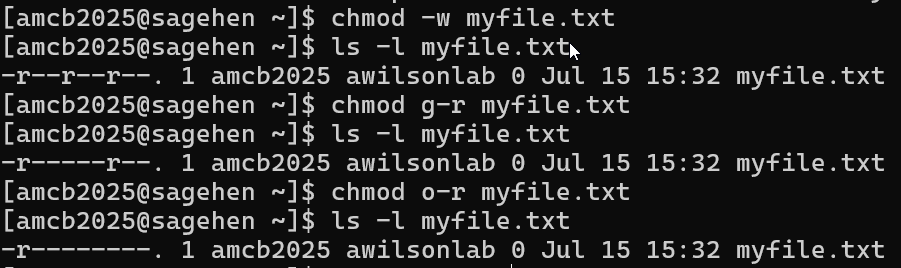
ls -l.Challenge 1: Create a Project Structure
Create a directory structure for this workshop and practice file operations.
Steps:
-
Create directories:
Navigate into the directory:
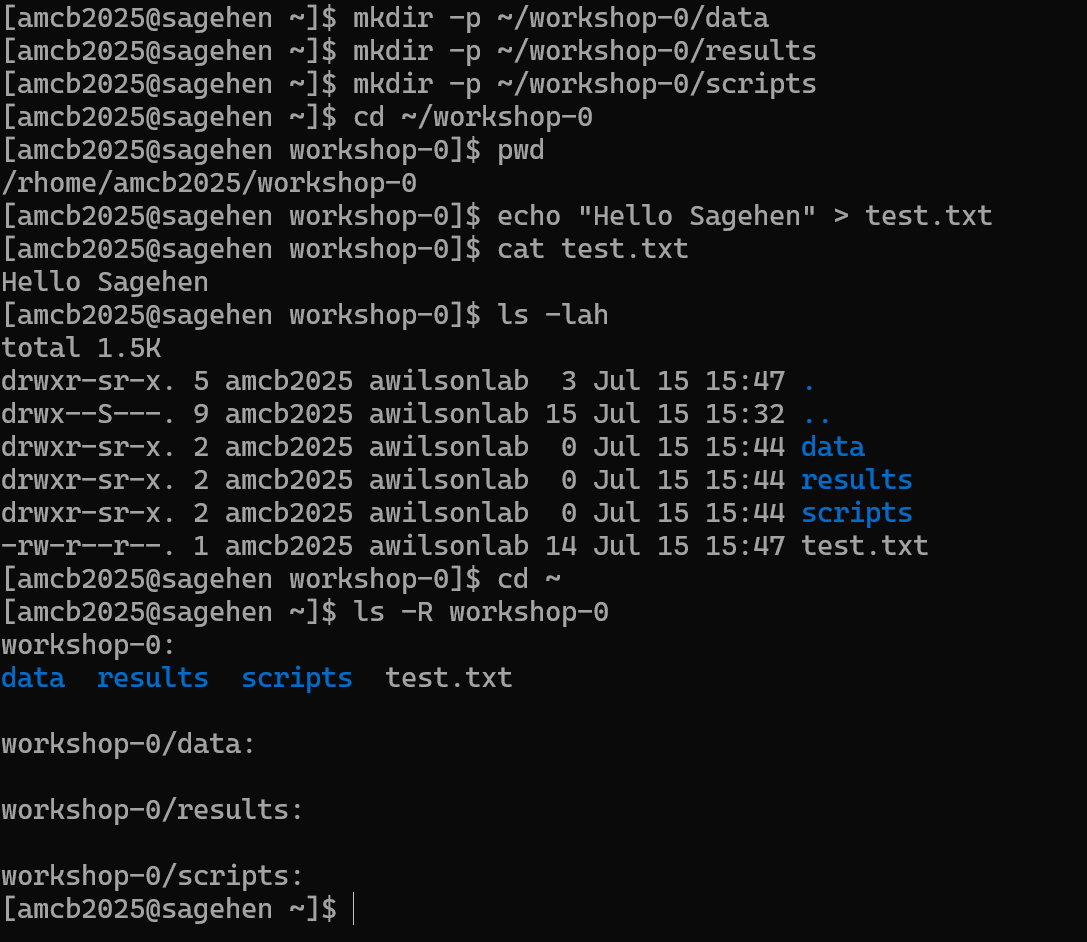
cd ~/workshop-0Check your location:
pwdCreate a test file:
echo "Hello Sagehen" > test.txtView it:
cat test.txtList everything:
ls -lahReturn home:
cd ~List recursively:
ls -R workshop-0
Questions:
- What path does
pwdshow when in workshop-0? - How many directories did you create?
pwd should show
/rhome/<myusername>/workshop-0.
You created 4 directories total: workshop-0 (main) plus
data, results, scripts
(subdirectories).
The command ls -R workshop-0 shows the entire tree,
including the test.txt file you created.
- Use
mkdir -pto create nested directories in one command - Be extremely careful with
rm -rf; always list contents first - Organize work into logical directories: projects, code, data, results
- File permissions control read, write, and execute access for owner, group, and others
- Use
chmodto change permissions; share files via/bigdataor by adjusting group permissions