
Understanding Nodes and Partitions
Last updated on 2026-08-27 | Edit this page
Estimated time: 25 minutes
Overview
Questions
- What are nodes and cores?
- How does SLURM allocate resources?
- How do I choose the right partition for my job?
- What are the resource limits?
Objectives
- Distinguish between CPU cores, sockets, and nodes
- Understand how SLURM allocates nodes to jobs
- Match job requirements to the appropriate partition
- Know resource limits and how to request increases
Nodes and Cores: The Hierarchy
Understanding the Terminology
- Node: A complete computer with its own memory, storage, and processors
- Socket: A physical CPU processor installed in a node
- Core: An individual processing unit within a socket (128 per node on Sagehen HPC)
- Thread: A logical processing unit (some CPUs support hyperthreading)
Sagehen (the cluster)
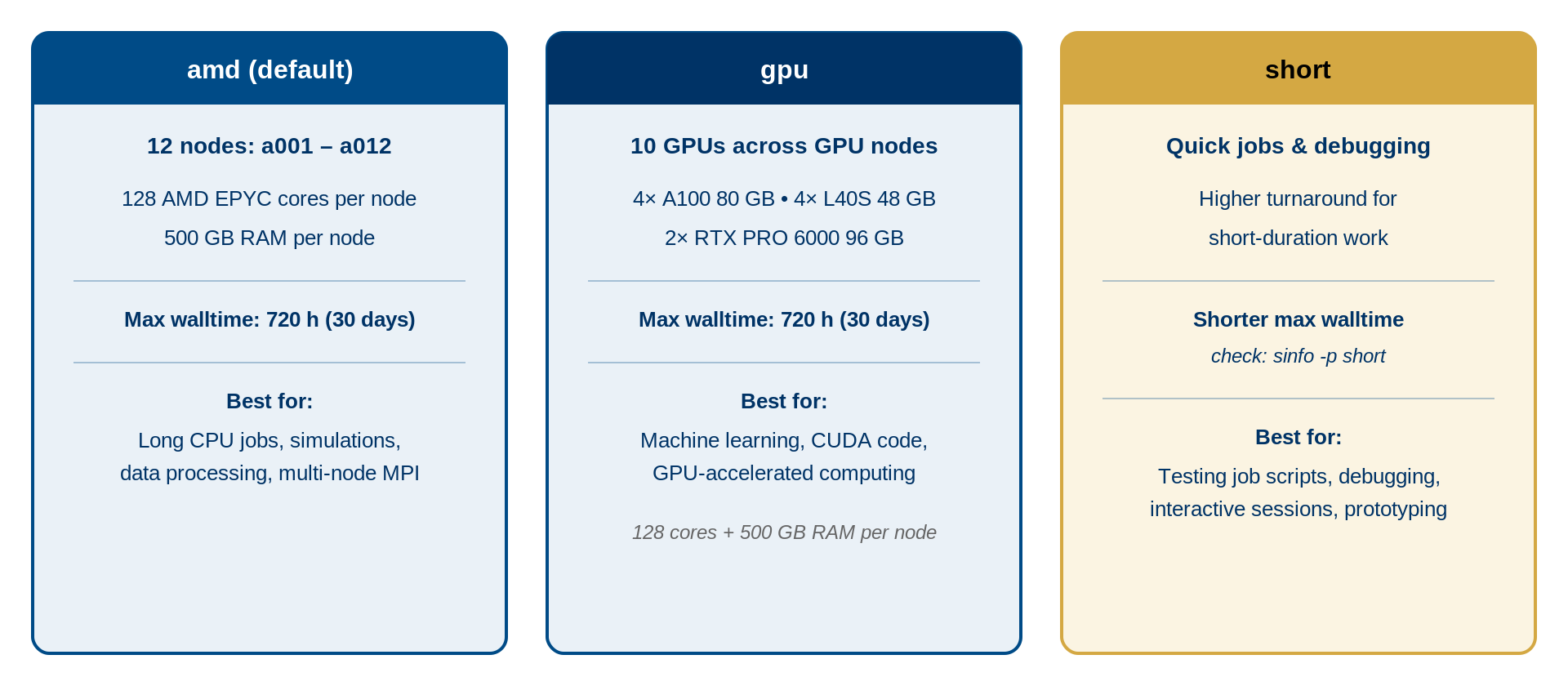
├── amd partition (12 nodes)
│   └── Each: 128 cores, 500 GB RAM
├── gpu partition (multiple nodes)
│   └── Each: 128 cores, 500 GB RAM + NVIDIA GPUs
└── short partition (quick / test / debug jobs)
    └── Shorter walltime limit; check `sinfo -p short`
How SLURM Allocates Resources
When you submit a job, SLURM:
- Finds available nodes matching your partition and resource request
- Selects the best fit (minimizing wasted resources)
- Allocates entire cores to your job (no fractional cores)
- Locks the resources until your job completes
Example Allocations
32-core job: SLURM allocates 32 cores on one node; the remaining 96 cores on that node are available for other jobs.
256-core job (2 nodes): SLURM allocates 128 cores on node 1 and 128 cores on node 2. Your job uses both nodes together.
1-GPU job: SLURM allocates 1 GPU plus associated CPU cores on a GPU node.
The Cost of Wasting Resources
Be as accurate as possible in your resource requests:
- Job requests 64 cores, uses 32 -> 32 cores wasted per hour
- Job requests 500 GB RAM, uses 50 GB -> 450 GB wasted
- Job requests 2 days, finishes in 2 hours -> 46 hours of node time wasted
Over-requesting hurts other users waiting in the queue.
Choosing the Right Partition
Decision Tree
- Is your job GPU-accelerated? -> Use the gpu partition
-
Quick test, debug, or short prototype run? ->
Use the short partition (shorter walltime limit, check
sinfo -p short) - Everything else (production CPU jobs) -> Use the amd partition
Resource Limits
| Resource | Limit |
|---|---|
| CPU cores per job | Up to 128 (one full node) |
| Memory per job | Up to 500 GB (node maximum) |
| GPUs per job | Per-account limits apply |
| Jobs in queue | Per-account limits apply |
| Max job time (amd/gpu) | 720 hours (30 days) |
| Max job time (short) | Shorter than amd/gpu — check sinfo -p short
|
Exceeding Limits
If you need more resources for a specific project:
- Email its-hpc@pomona.edu with your research description, resource needs, and justification
- Limits may be temporarily increased for special projects
Examining Hardware Details
BASH
# See CPU count and details
lscpu

# See memory
free -h

# See GPU devices (on GPU nodes only)
nvidia-smi
Challenge 1: Matching Jobs to Partitions
For each scenario, decide which partition is best and explain why:
- You’re training a deep learning model that uses CUDA and takes 3 days
- You’re debugging a Python script that takes 5 minutes
- You’re running a statistical analysis on genetic data (64 cores, 8 hours)
- You’re running an MPI simulation requiring 256 cores across multiple nodes
gpu partition – Deep learning needs GPU acceleration. 3 days fits within the 30-day limit.
short partition – Quick debugging (5 minutes) is the canonical use case for the
shortpartition. Use--partition=shortwith a small--time(e.g.,--time=00:10:00).amd partition – Standard compute job. Doesn’t need GPU. 64 cores fit on one node.
amd partition – Multi-node simulation. 256 cores = 2 nodes (128+128). Doesn’t need GPU.
- Each Sagehen node has 128 cores and 500 GB RAM; SLURM allocates whole cores
- SLURM finds the best-fit nodes for your resource request automatically
- Use
gpufor GPU-accelerated work,shortfor quick test / debug jobs (shorter walltime), andamdfor general CPU production work - Request only the resources you need to avoid wasting shared capacity
- Contact its-hpc@pomona.edu if you need limits increased for a project