
Running Your First Job
Last updated on 2026-08-27 | Edit this page
Estimated time: 40 minutes
Overview
Questions
- What is a batch script?
- How do I submit a job to Sagehen HPC?
- How do I monitor my job and retrieve output?
Objectives
- Understand the difference between interactive and batch jobs
- Write a simple SLURM batch script
- Submit jobs with
sbatchand monitor withsqueueandsacct - Retrieve and interpret job output
- Troubleshoot common job submission issues
Batch Jobs vs. Interactive Jobs
Anatomy of a SLURM Batch Script
The script below is an illustration to read, not to run – we’ll walk through what each line means. You’ll write and submit your own working script in the challenge at the end of this episode.
BASH
#!/bin/bash
#SBATCH --job-name=hello_hpc
#SBATCH --partition=short
#SBATCH --time=00:10:00
#SBATCH --ntasks=1
#SBATCH --cpus-per-task=1
#SBATCH --mem=1G
#SBATCH --output=%j_output.log

module purge
module load miniconda3/py313_26.3.2-2

echo "Host: $(hostname)"
echo "Job ID: $SLURM_JOB_ID"
echo "Start time: $(date)"

python -c "print('Hello from Sagehen!')"

echo "End time: $(date)"
This first-job example uses the short partition because
it’s a quick test. For production jobs longer than the
short walltime limit, use --partition=amd.
Key SBATCH Directives
| Directive | Purpose | Example |
|---|---|---|
--job-name |
Human-readable name | hello_hpc |
--partition |
Which partition |
amd, gpu, short
|
--time |
Maximum runtime |
HH:MM:SS or D-HH:MM:SS
|
--ntasks |
Number of tasks |
1 (usually) |
--cpus-per-task |
Cores per task |
1 to 128
|
--mem |
Memory per job |
1G, 100G, 500M
|
--output |
Output file (%j = job ID) |
%j_output.log |
--gres |
GPU request |
gpu:1, gpu:2
|
Submitting and Monitoring

Submit with sbatch
After submission, SLURM queues the job, allocates resources when available, runs your script, and writes output to the specified file. You can log out while it runs.
Common Resource Patterns
BASH
# Quick test (2 minutes, short partition)
#SBATCH --partition=short
#SBATCH --time=00:02:00
#SBATCH --cpus-per-task=1
#SBATCH --mem=500M

# Standard CPU job (8 hours)
#SBATCH --partition=amd
#SBATCH --time=08:00:00
#SBATCH --cpus-per-task=32
#SBATCH --mem=100G

# GPU job (deep learning)
#SBATCH --partition=gpu
#SBATCH --time=72:00:00
#SBATCH --cpus-per-task=16
#SBATCH --mem=100G
#SBATCH --gres=gpu:2
Troubleshooting
Job Won’t Start (Status: PD)
- Wait longer (resources might be occupied)
- Reduce resource requests
- Lower your
--timerequest so the scheduler can back-fill your job sooner - Check cluster status:
sinfo
Job Terminated Unexpectedly
BASH
sacct -j 12345
# TIMEOUT = increase --time
# OUT_OF_MEMORY = increase --mem
# FAILED = check output for script errorsBest Practices for Job Scripts
- Always use
module purgeat the start - Be specific with resource requests (don’t over-request)
- Add comments explaining what your job does
- Include echo statements so you can see what happened
- Test on the
shortpartition before launching long production runs onamdorgpu
Challenge 1: Submit Your First Job
Create and submit a batch job that runs a Python computation.
Steps:
-
Move into your workshop directory (job output lands in the directory you submit from):
-
Create the Python script:
-
Create the batch script:
BASH
cat > ~/workshop-0/fib_job.sh << 'EOF'
#!/bin/bash
#SBATCH --job-name=fibonacci
#SBATCH --partition=short
#SBATCH --time=00:05:00
#SBATCH --ntasks=1
#SBATCH --cpus-per-task=1
#SBATCH --mem=1G
#SBATCH --output=%j_fib.log

module purge
module load miniconda3/py313_26.3.2-2

echo "Running Fibonacci calculation..."
python ~/workshop-0/fibonacci.py
echo "Done!"
EOF
Submit:
sbatch fib_job.shMonitor:
squeue -u $USERView output:
cat ~/workshop-0/*_fib.log
Question: What is Fibonacci(20)?
Fibonacci(20) = 6765
The job should complete in seconds. Check with
sacct -j JOBID and view the log file to confirm all
Fibonacci numbers were printed.
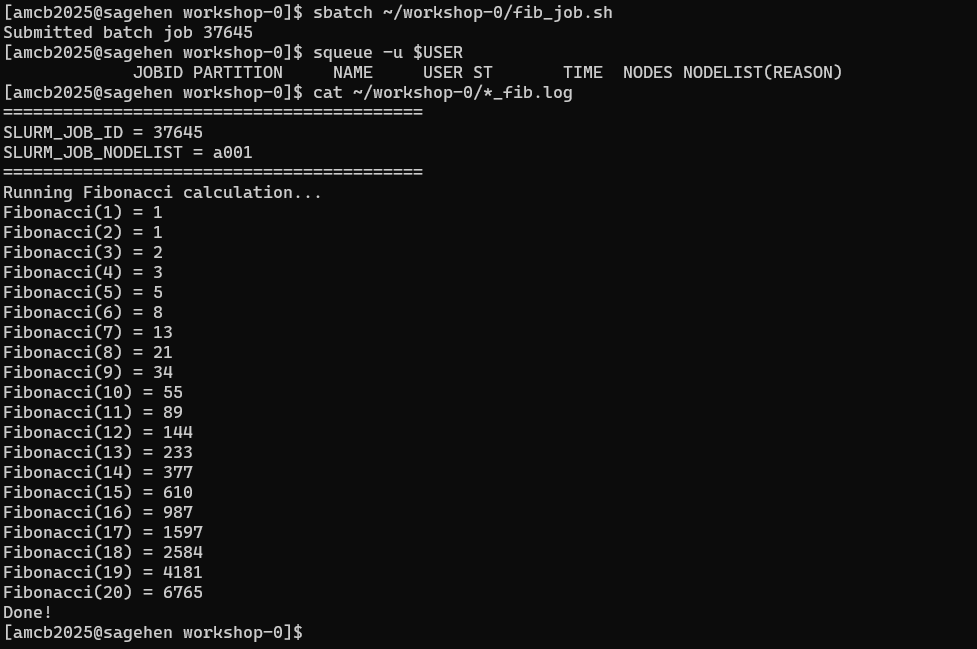
squeue is already empty by the time
you check.- Batch jobs are scripts submitted with
sbatch; they run when resources are available - Every batch script needs
#!/bin/bashand SBATCH directives for resources - Key directives: –partition, –time, –cpus-per-task, –mem, –output
- Monitor jobs with
squeue -u $USER(running) orsacct(history) - Always use
module purgein job scripts for reproducibility - Test on the
shortpartition before submitting long production jobs toamdorgpu - Common failures: TIMEOUT (increase –time), OUT_OF_MEMORY (increase –mem)