Image 1 of 1: ‘Diagram of the Sagehen HPC cluster. Researchers connect via SSH or the OnDemand web portal to the head node, sagehen.hpc.pomona.edu, which is for login and job submission only. Jobs are dispatched via sbatch or srun to the amd partition of 12 compute nodes with 128 AMD EPYC cores and 500 GB RAM each, or to the gpu partition with 10 GPUs total. A short partition serves quick tests and debugging. All nodes connect over 100 Gb InfiniBand to shared BeeGFS storage: /rhome, /bigdata, and /scratch.’
Sagehen HPC’s architecture: researchers connect
through the head node, which dispatches jobs to the compute and GPU
partitions, all sharing BeeGFS storage over 100 Gb InfiniBand.
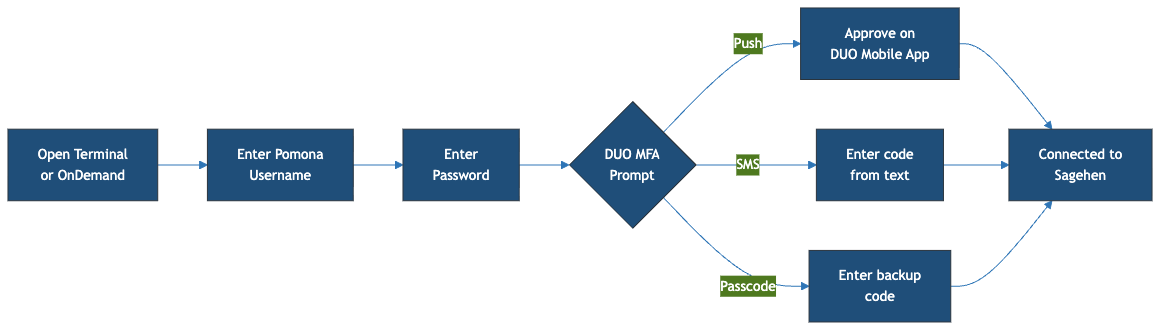
Image 1 of 1: ‘Flow diagram of connecting to Sagehen. Open Terminal or OnDemand, enter Pomona username, enter password, then the DUO MFA prompt offers three paths: Push approves on the Duo Mobile app, SMS enters a code from a text message, and Passcode enters a backup code. All three paths lead to Connected to Sagehen.’
The login flow from opening a terminal to a
successful connection, with the three DUO options.
Figure 2
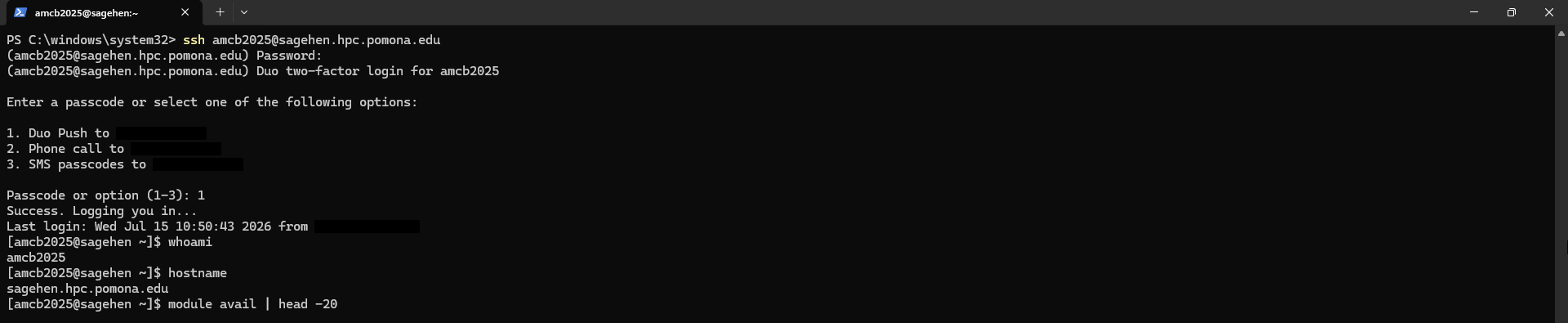
Image 1 of 1: ‘A PowerShell window running ssh to sagehen.hpc.pomona.edu. After the password prompt, a Duo two-factor menu offers Duo Push, a phone call, or SMS passcodes; option 1 is chosen and login succeeds. The commands whoami and hostname then return the username and sagehen.hpc.pomona.edu.’
A real login from Windows PowerShell: password
prompt, the DUO menu, then verification with whoami and
hostname.
Figure 3
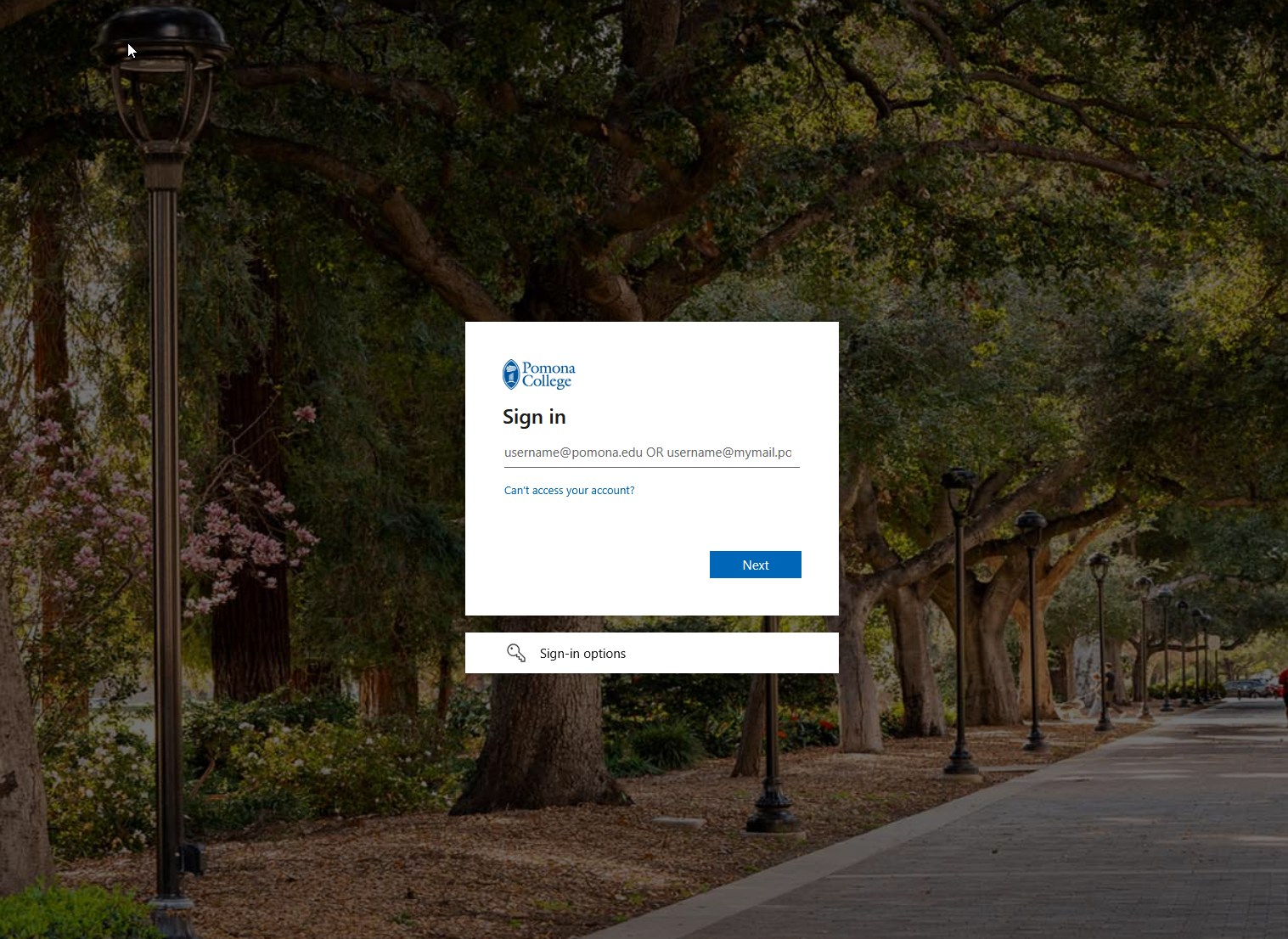
Image 1 of 1: ‘Pomona College single sign-on page with a Sign in box prompting for username at pomona.edu, a Next button, and a campus pathway with trees in the background.’
The OnDemand sign-in page. Use your full @pomona.edu address here.
Figure 4
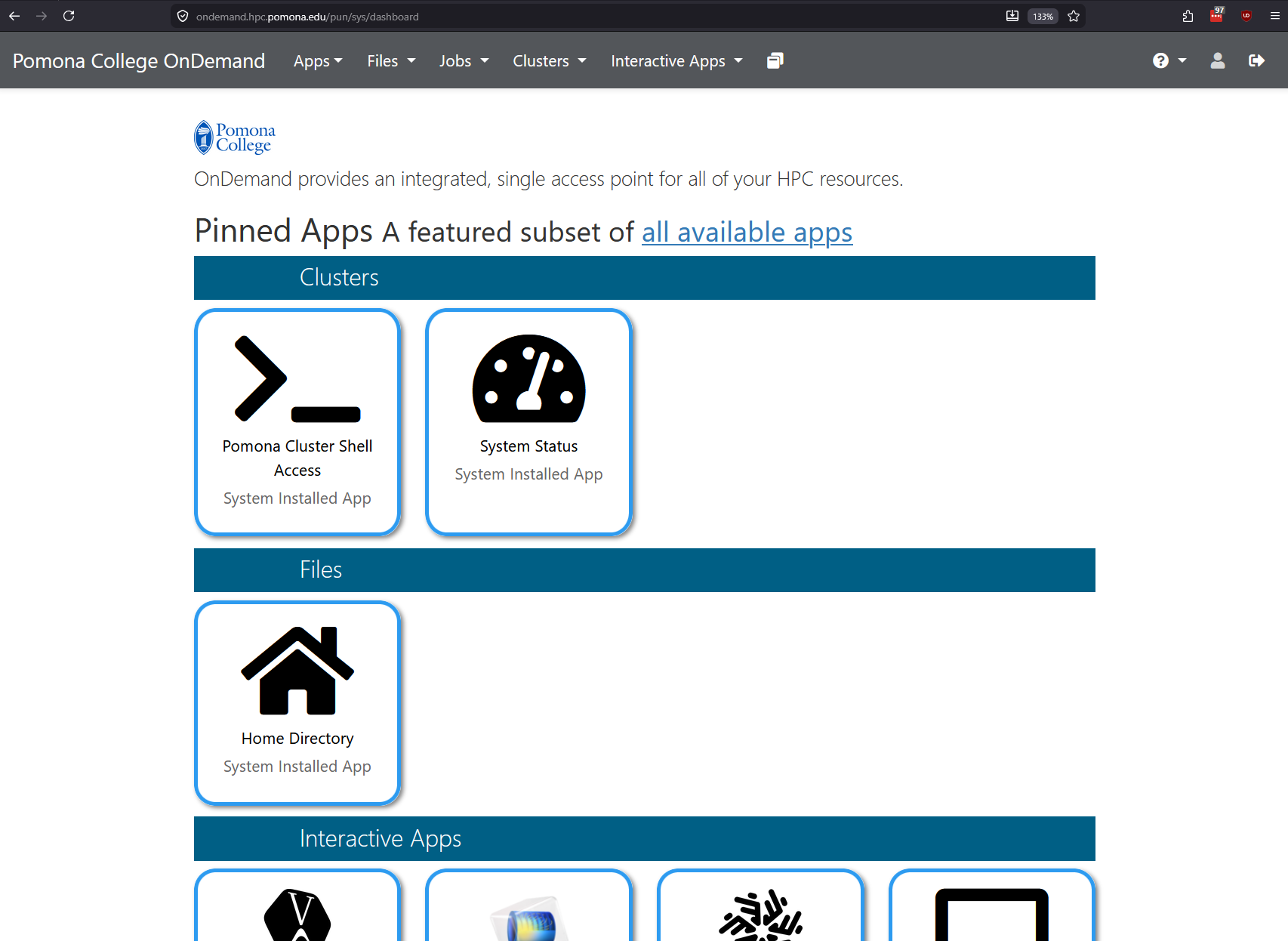
Image 1 of 1: ‘Pomona College OnDemand dashboard showing pinned apps organized into Clusters with Pomona Cluster Shell Access and System Status, Files with Home Directory, and a row of Interactive Apps, beneath menus for Apps, Files, Jobs, Clusters, and Interactive Apps.’
The OnDemand dashboard with pinned apps for
shell access, system status, file browsing, and interactive apps.
Figure 5
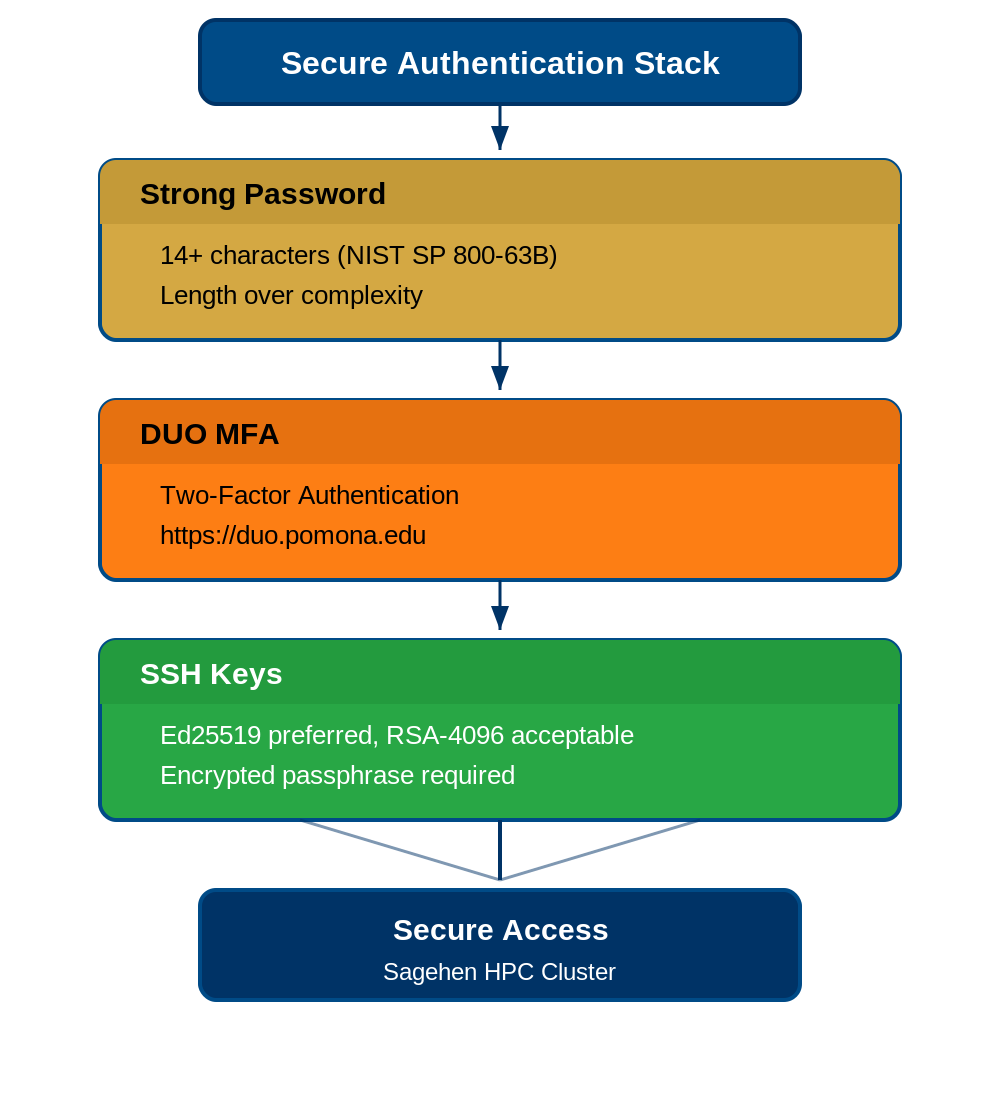
Image 1 of 1: ‘Diagram of the secure authentication stack. Three stacked layers: Strong Password with 14 or more characters per NIST SP 800-63B and length over complexity; DUO MFA two-factor authentication at duo.pomona.edu; and SSH Keys with Ed25519 preferred, RSA-4096 acceptable, and an encrypted passphrase required. The layers converge to Secure Access to the Sagehen HPC cluster.’
The three layers that protect your Sagehen HPC
account: a strong password, DUO MFA, and SSH keys.
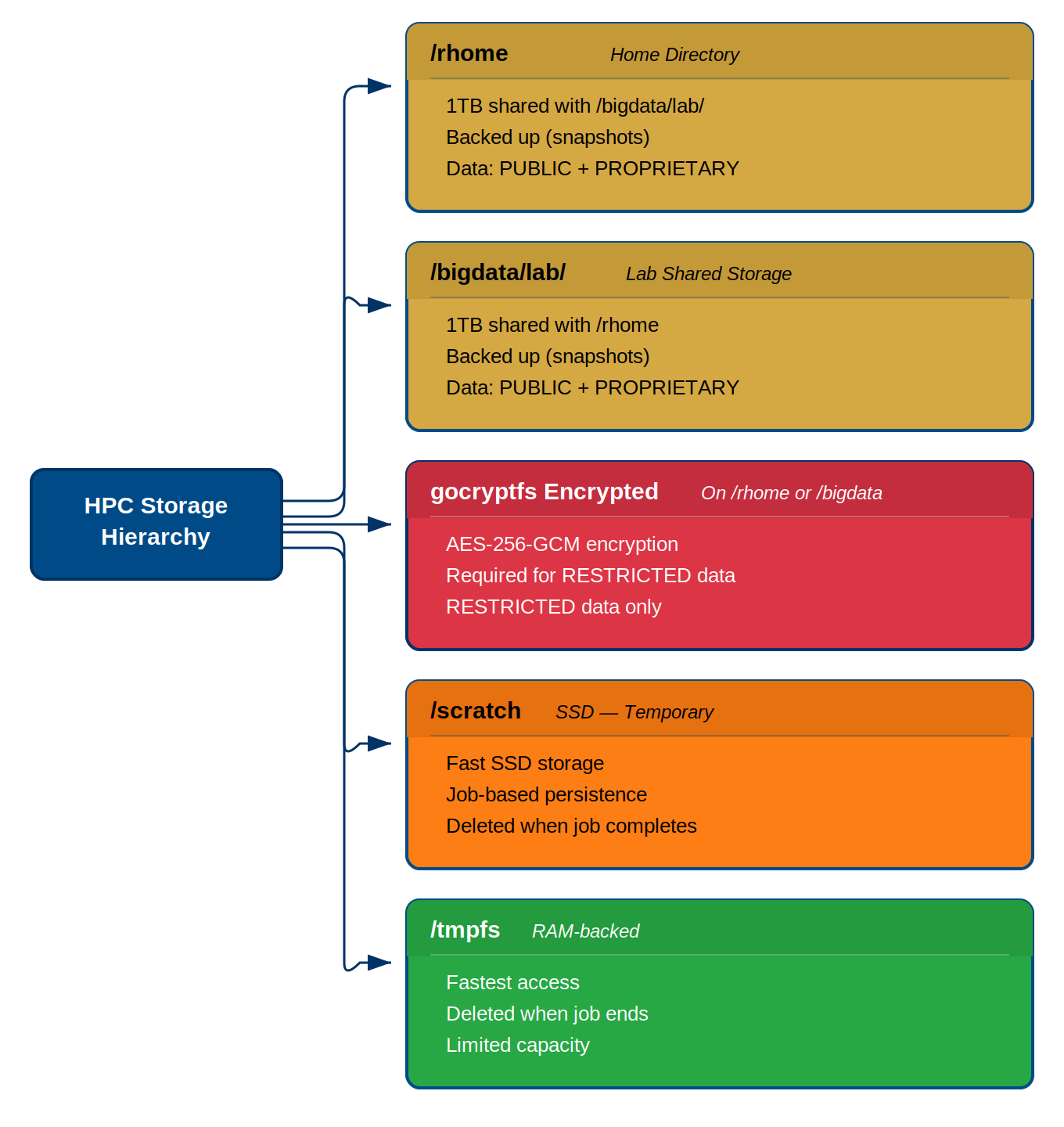
Image 1 of 1: ‘Diagram of the HPC storage hierarchy with five storage types. /rhome home directory and /bigdata/lab lab shared storage share a 1 TB quota, are backed up, and hold PUBLIC and PROPRIETARY data. gocryptfs encrypted storage on /rhome or /bigdata uses AES-256-GCM encryption and is required for RESTRICTED data. /scratch is fast temporary SSD storage deleted when the job completes. /tmpfs is RAM-backed, fastest, deleted when the job ends, and limited in capacity.’
Sagehen HPC’s storage hierarchy: persistent gold
tiers at the top, encrypted storage for RESTRICTED data in the middle,
and fast temporary tiers at the bottom.
Figure 2
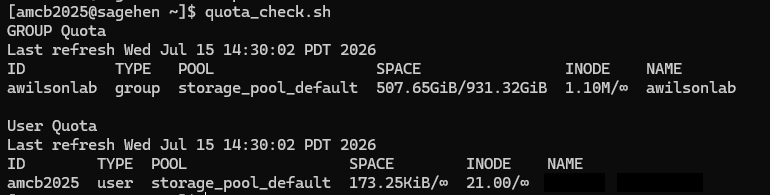
Image 1 of 1: ‘Terminal output of quota_check.sh with two tables. The GROUP Quota table shows a lab group using about 508 GiB of a 931 GiB storage pool with 1.1 million inodes. The User Quota table shows an individual user with a small amount used and no hard per-user limit shown. Both tables include a refresh timestamp.’
Output of quota_check.sh: the lab’s
shared pool usage on top, your per-user usage below.
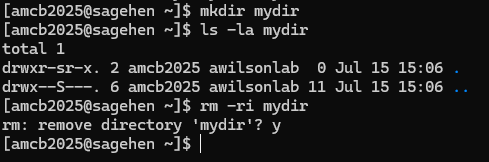
Image 1 of 1: ‘Interactive deletion in practice: rm -ri asks before removing the directory.’
{alt=‘A
short terminal transcript on Sagehen. mkdir creates a directory named
mydir, ls -la shows it is empty, and rm -ri prompts remove directory
’mydir’? before deleting it after the user types y.’}
Figure 2
Image 1 of 1: ‘Terminal transcript in which chmod minus w makes a file read-only, chmod g minus r removes group read, and chmod o minus r removes other read. After each command, ls -l shows the permission string shrinking from r--r--r-- down to owner-only.’
Tightening permissions step by step and checking
each change with ls -l.
Figure 3
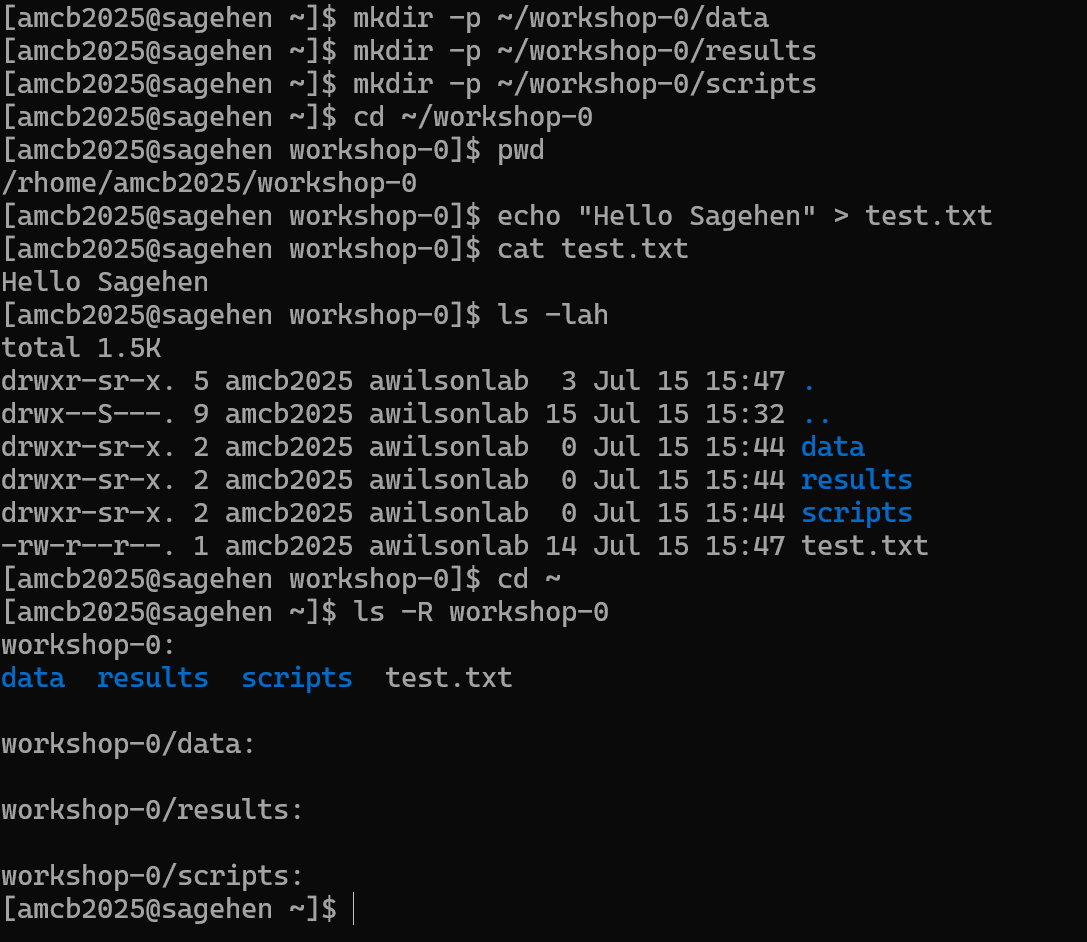
Image 1 of 1: ‘A terminal transcript creating the data, results, and scripts directories under workshop-0 with mkdir -p, with pwd printing the home workshop-0 path. A test.txt containing Hello Sagehen HPC is created and displayed, ls -lah lists the contents, and ls -R shows the recursive tree.’
What Challenge 1 looks like when it works: the
workshop-0 tree with its three subdirectories and test file.
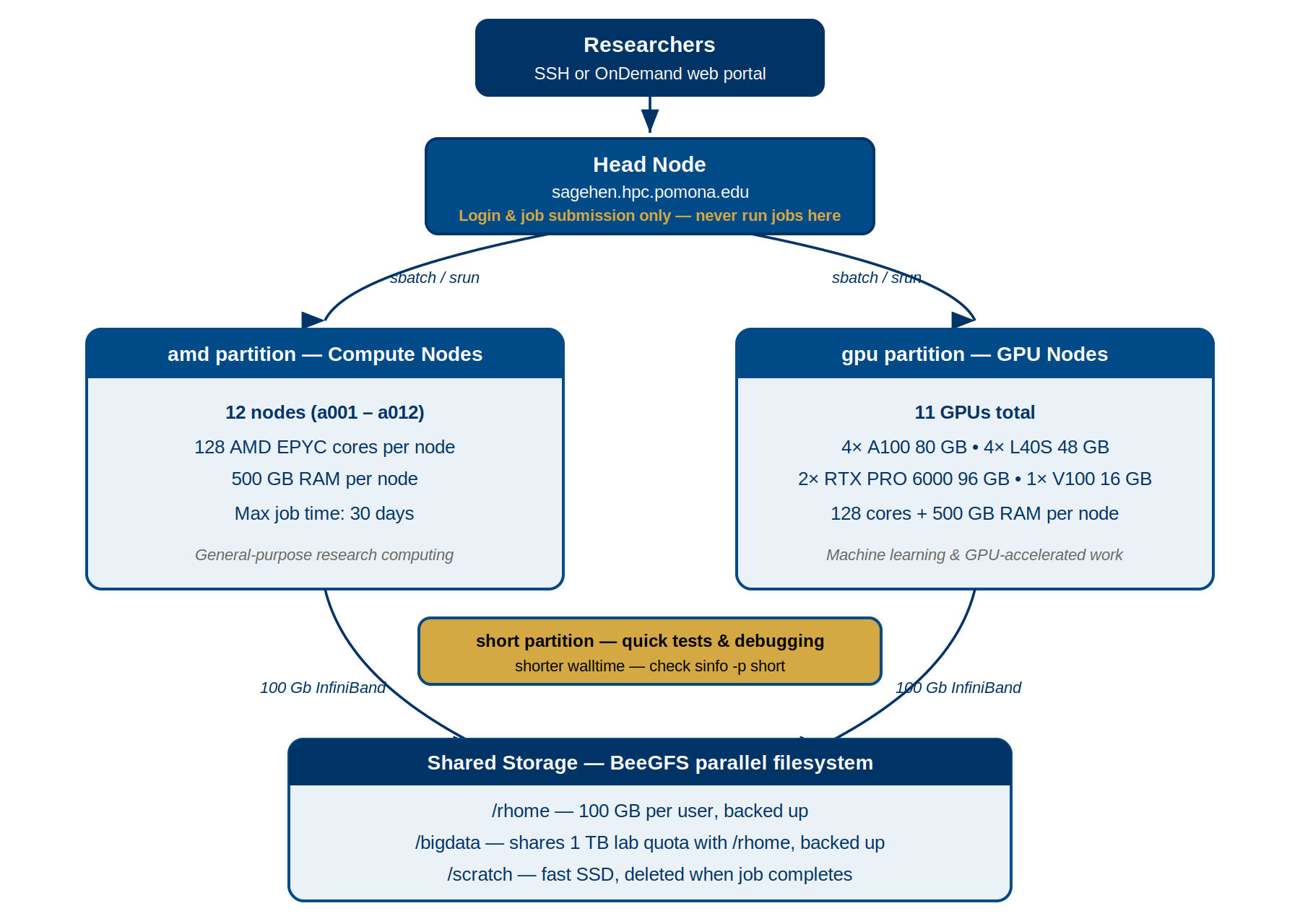
Image 1 of 1: ‘Diagram of the Sagehen HPC cluster. Researchers connect via SSH or the OnDemand web portal to the head node, which dispatches jobs via sbatch or srun to the amd partition of 12 compute nodes with 128 AMD EPYC cores and 500 GB RAM each, or the gpu partition with 10 GPUs total. A short partition serves quick tests and debugging with a shorter walltime. All nodes share BeeGFS storage over 100 Gb InfiniBand.’
How Sagehen HPC’s partitions fit into the
cluster: the head node dispatches jobs to the amd and gpu partitions,
with the short partition for quick tests.
Figure 2
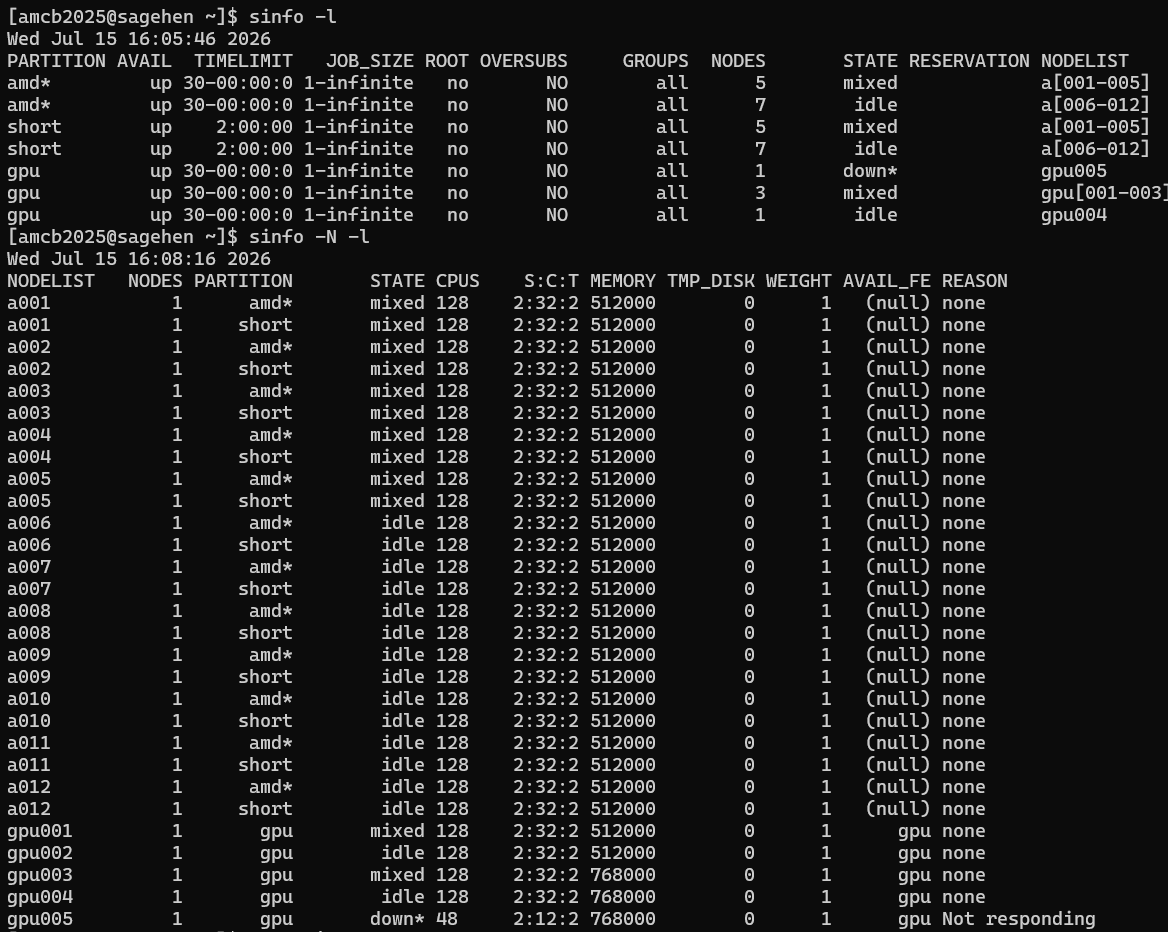
Image 1 of 1: ‘Terminal output of two sinfo commands on Sagehen. The partition view lists amd and gpu with a 30-day time limit and short with a 2-hour limit. The node view lists a001 through a012 with 128 CPUs and roughly 512 GB of memory each, plus five gpu nodes, one of which is down.’
Real sinfo -l and
sinfo -N -l output: the three partitions and per-node cores
and memory.
Figure 3
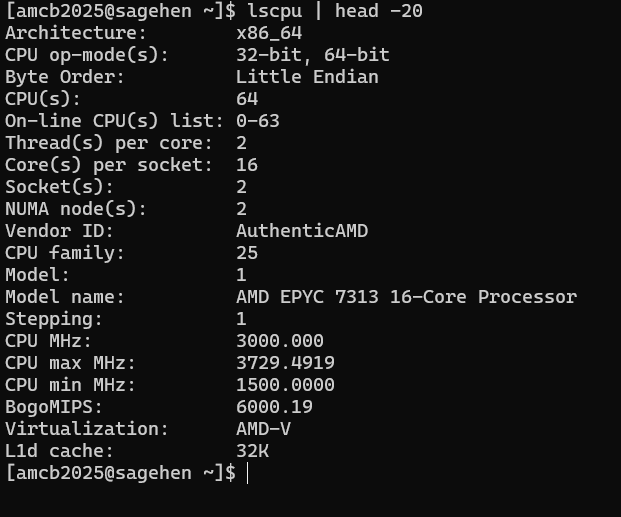
Image 1 of 1: ‘Output of lscpu piped to head, reporting x86_64 architecture, 64 online CPUs from two sockets of 16 cores with two threads per core, vendor AuthenticAMD, and the model name AMD EPYC 7313 16-Core Processor.’
lscpu on the head node — note it
reports 64 threads on dual AMD EPYC 7313 chips, not the 128 cores of a
compute node.
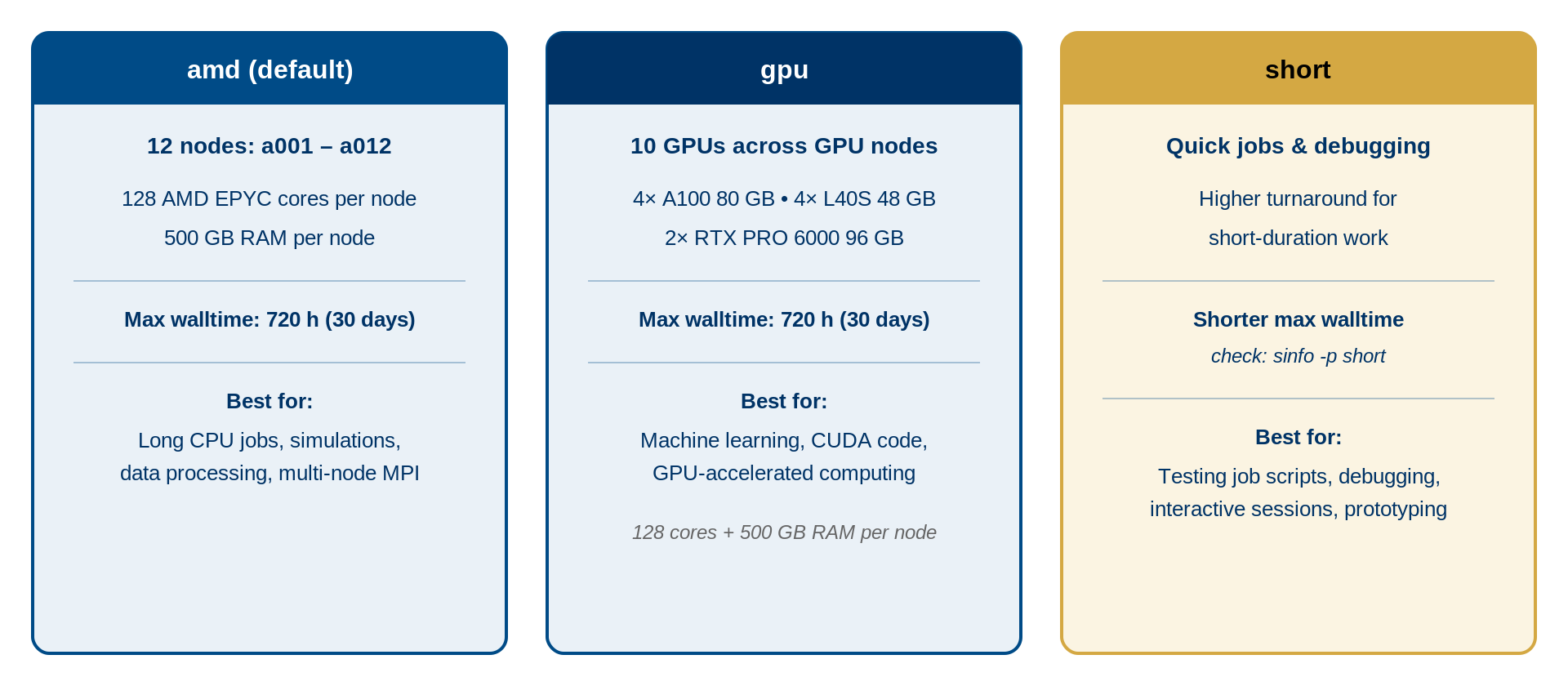
Image 1 of 1: ‘Three-column comparison of Sagehen HPC partitions. The amd default partition has 12 nodes a001 through a012 with 128 AMD EPYC cores and 500 GB RAM per node, a max walltime of 720 hours or 30 days, and is best for long CPU jobs, simulations, data processing, and multi-node MPI. The gpu partition has 10 GPUs: four A100 80 GB, four L40S 48 GB, and two RTX PRO 6000 96 GB, with a max walltime of 720 hours, best for machine learning, CUDA code, and GPU-accelerated computing. The short partition is for quick jobs and debugging with a shorter max walltime; check sinfo -p short.’
Side-by-side comparison of the three partitions
and what each is best for.
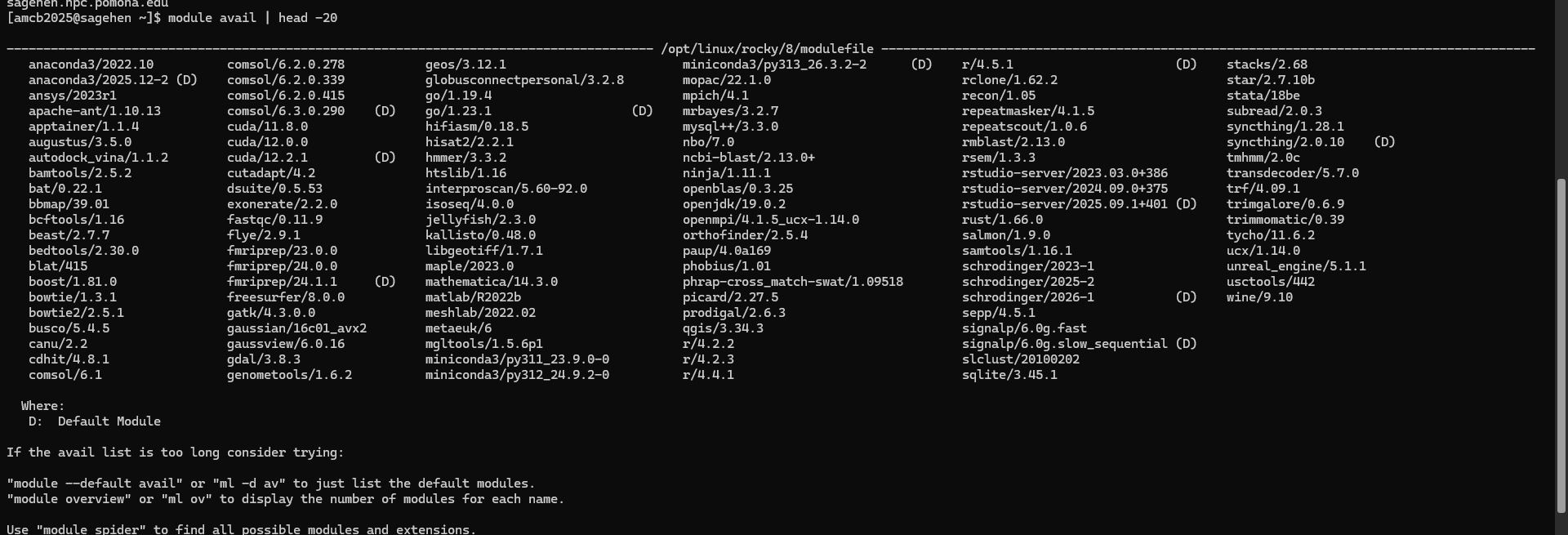
Image 1 of 1: ‘Terminal output of module avail on Sagehen showing a long multi-column list of software modules under /opt/linux/rocky/8/modulefile, including anaconda3, cuda, matlab, openmpi, r, and three miniconda3 versions with py313_26.3.2-2 marked as the default.’
The real module avail listing on
Sagehen HPC — miniconda3’s versions are in the middle column, with
(D) marking the default.
Figure 2
Image 1 of 1: ‘Before and after: loading the miniconda3 module prepends its bin directories to $PATH.’
{alt=‘A
terminal transcript comparing echo PATH before and after module load.
After loading miniconda3/py313_26.3.2-2, PATH begins with that module’s
bin and condabin directories under /opt/linux/rocky/8/software.’}
Figure 3
Image 1 of 1: ‘The expected Challenge 1 flow: list, purge, and switch between miniconda3 versions.’
{alt=‘Terminal
transcript of an Lmod session. module list shows
miniconda3/py313_26.3.2-2 as the only loaded module; after module purge,
module list reports no modules loaded; the user then loads
miniconda3/py312_24.9.2-0 and echo PATH shows that version’s bin
directory first.’}
Image 1 of 1: ‘Flow diagram of the SLURM job workflow. Write a job script my_job.sh, submit it with sbatch, the job waits in the SLURM queue as PENDING, the scheduler allocates resources, the job runs on a compute node as RUNNING, and when the job finishes it is either COMPLETED with output in slurm-JOBID.out or FAILED, in which case you check the error log.’
The life of a batch job, from writing the script
to collecting output.
Figure 2
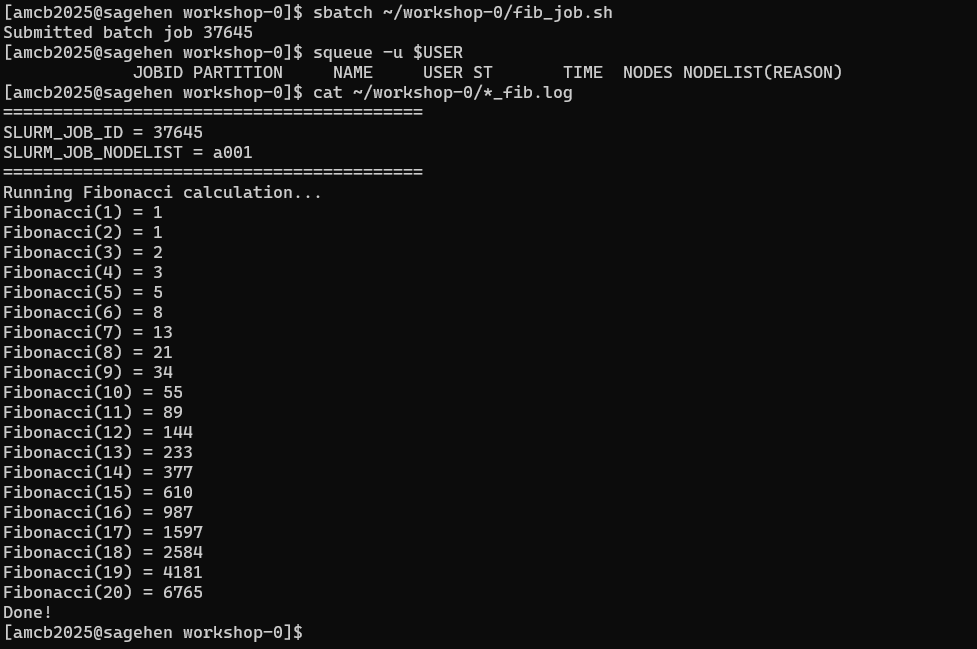
Image 1 of 1: ‘Terminal transcript of sbatch submitting a batch job, an squeue listing with headers but no rows because the job already completed, and the log file contents listing Fibonacci values 1 through 20, ending with 6765 and Done.’
Submitting the job and reading its log — it
finishes so fast that squeue is already empty by the time
you check.
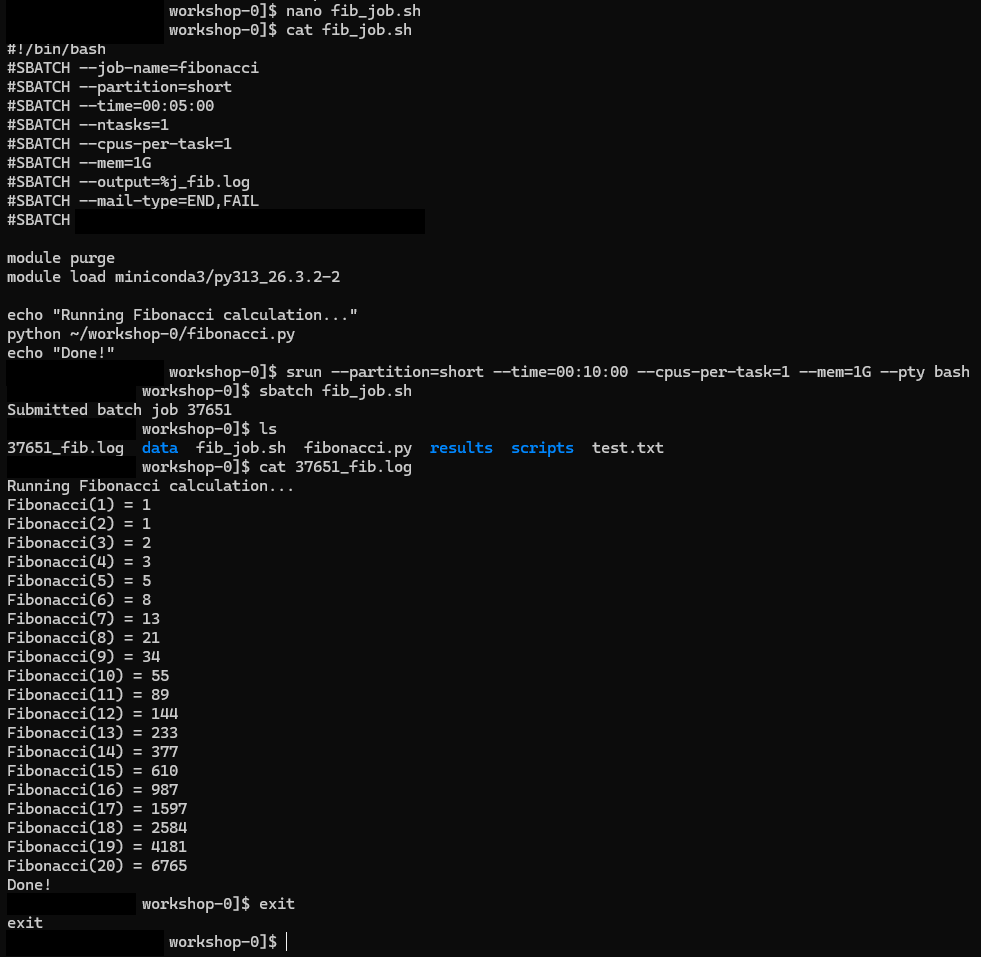
Image 1 of 1: ‘A long terminal transcript. The batch script is shown with cat, an srun command with a ten-minute limit opens an interactive shell and the prompt changes to node a001, sbatch submits the job from there, ls shows the numbered log file, cat prints Fibonacci 1 through 20 ending in 6765 and Done, and exit returns to the head node prompt.’
A full edit-test cycle in an interactive
session: the prompt changes from sagehen to compute node
a001 after srun --pty bash.
Figure 2
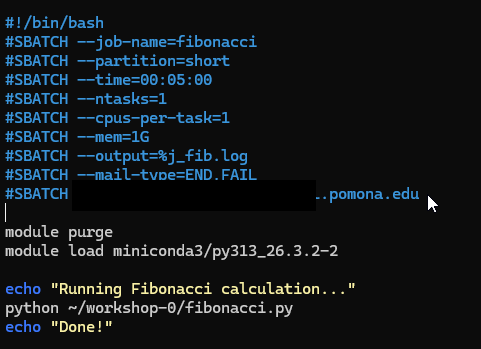
Image 1 of 1: ‘A syntax-highlighted batch script in a text editor. The SBATCH header for the fibonacci job on the short partition now includes mail-type END,FAIL and a mail-user line, above the module purge and miniconda3 load lines and the python command.’
The Fibonacci batch script with the two mail
directives added (students’ addresses are on the mymail.pomona.edu
domain).
Figure 3
Image 1 of 1: ‘An email client showing a message from ITS High Performance Computing. The subject reads Slurm Job_id 37651, Name fibonacci, Ended, Run time zero seconds, COMPLETED, Exit Code 0. The message body is empty.’
The email SLURM sends when the job ends — the
subject line carries the job ID, name, run time, state, and exit code.
Note it comes from the its-hpcmbx mailbox; don’t reply to it.

 {alt=‘A
short terminal transcript on Sagehen. mkdir creates a directory named
mydir, ls -la shows it is empty, and rm -ri prompts remove directory
’mydir’? before deleting it after the user types y.’}
{alt=‘A
short terminal transcript on Sagehen. mkdir creates a directory named
mydir, ls -la shows it is empty, and rm -ri prompts remove directory
’mydir’? before deleting it after the user types y.’}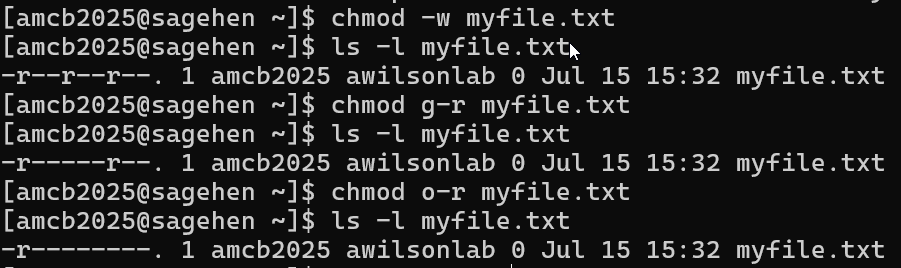
 {alt=‘A
terminal transcript comparing echo PATH before and after module load.
After loading miniconda3/py313_26.3.2-2, PATH begins with that module’s
bin and condabin directories under /opt/linux/rocky/8/software.’}
{alt=‘A
terminal transcript comparing echo PATH before and after module load.
After loading miniconda3/py313_26.3.2-2, PATH begins with that module’s
bin and condabin directories under /opt/linux/rocky/8/software.’}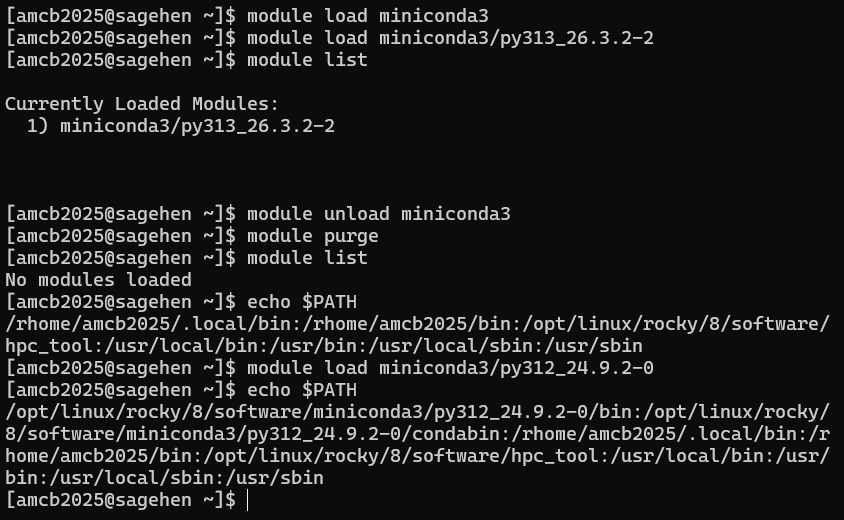 {alt=‘Terminal
transcript of an Lmod session. module list shows
miniconda3/py313_26.3.2-2 as the only loaded module; after module purge,
module list reports no modules loaded; the user then loads
miniconda3/py312_24.9.2-0 and echo PATH shows that version’s bin
directory first.’}
{alt=‘Terminal
transcript of an Lmod session. module list shows
miniconda3/py313_26.3.2-2 as the only loaded module; after module purge,
module list reports no modules loaded; the user then loads
miniconda3/py312_24.9.2-0 and echo PATH shows that version’s bin
directory first.’}