
Logging In and Dashboard Overview
Last updated on 2026-08-27 | Edit this page
Estimated time: 20 minutes
Overview
Questions
- How do you log into OnDemand?
- What does the dashboard look like?
- How do you navigate between sections?
- Where can you find session and account information?
Objectives
- Log into OnDemand using Pomona credentials and DUO MFA
- Identify the main areas of the dashboard
- Navigate the top bar and side menu
- Manage sessions and log out properly
Logging In
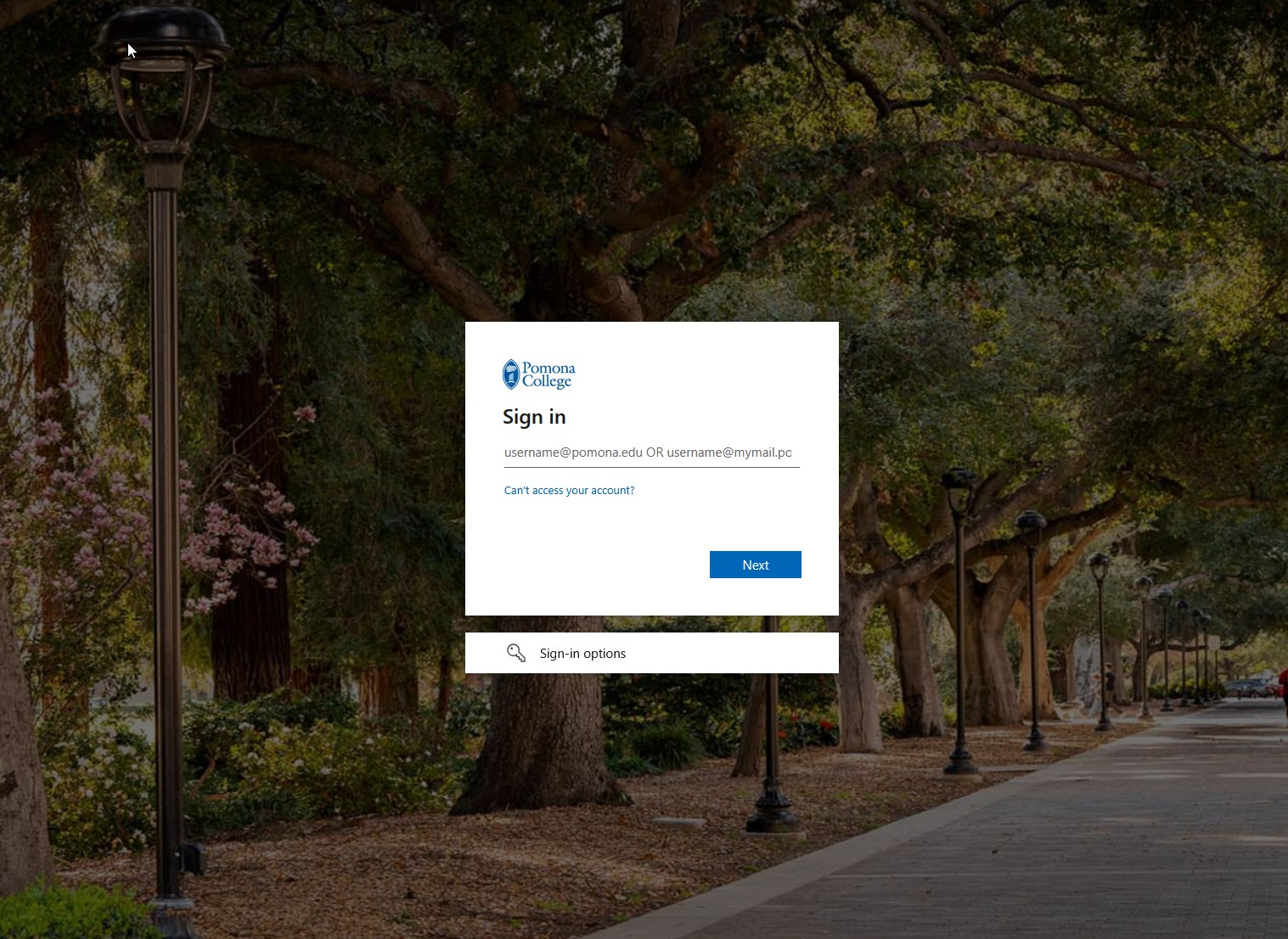
- Open your browser and go to https://ondemand.hpc.pomona.edu/
- Enter your Pomona username and password
- Complete DUO Multi-Factor Authentication at https://duo.pomona.edu
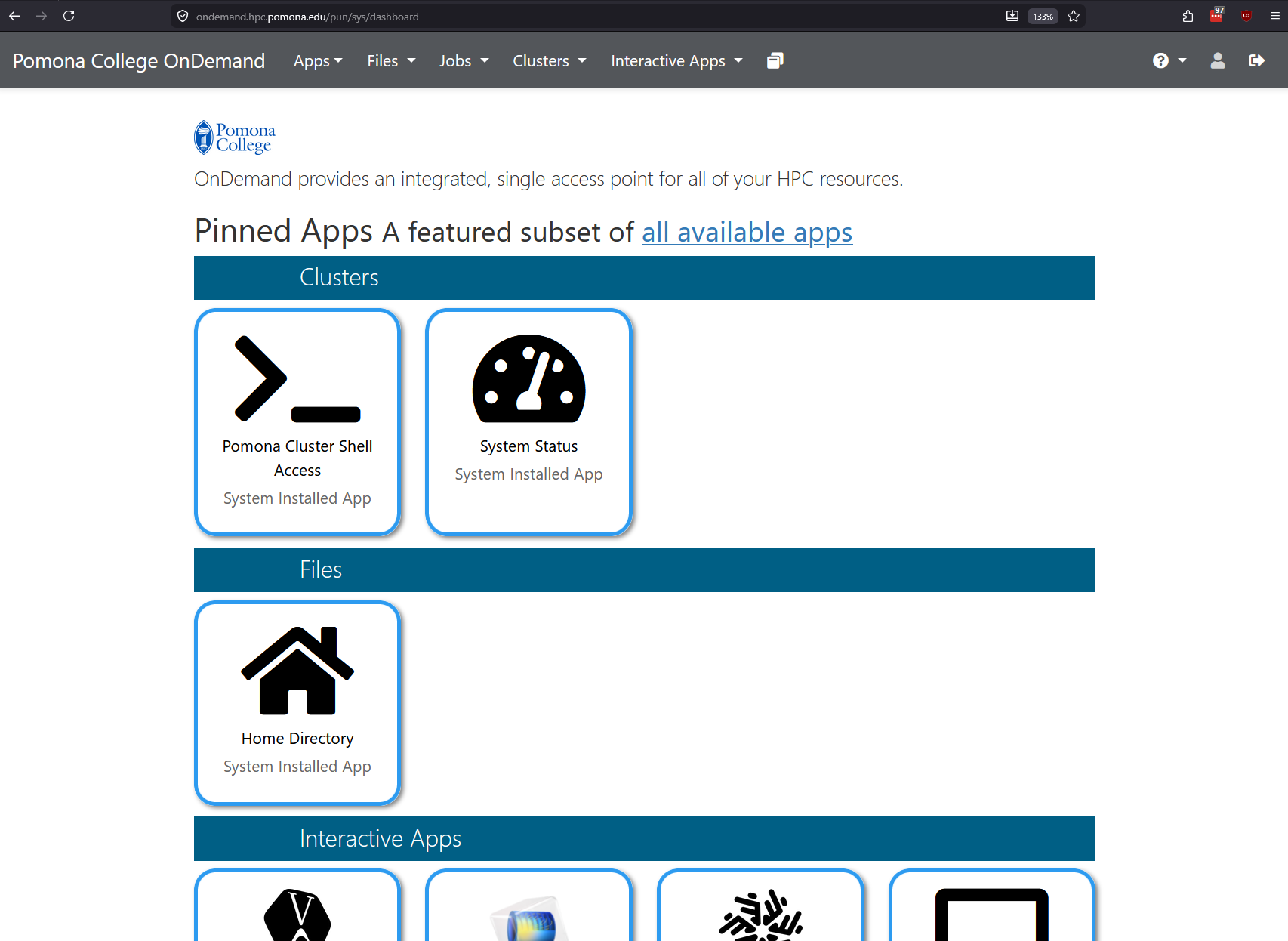
- The dashboard loads with your available resources
After authentication, your session persists for several hours. Your browser maintains the connection, allowing seamless navigation between sections.
Dashboard Layout
Top Navigation Bar
The top of every OnDemand page contains:
- OnDemand Logo (left): Click to return to the dashboard from any page
- Menu Hamburger (left): Opens/closes the main navigation sidebar
- Help Links (right): Access documentation and support
- Account Menu (far right): Your username with a dropdown for settings and logout
Tip: Bookmark the Dashboard
Save https://ondemand.hpc.pomona.edu/ as a bookmark for quick access. You will return to this page frequently during your work sessions.
Main Menu Structure
Click the hamburger menu to reveal the main navigation:
- Files – Home Directory, bigdata, scratch, tmpfs
- Jobs – Active Jobs, Job Composer, Cluster
- Accounts – Usage, Profile
- Interactive Apps – Jupyter Notebook, RStudio, Web Terminal
- Clusters – Sagehen HPC Shell Access
Status Indicators
OnDemand uses color-coded status indicators throughout the interface:
- Green: Job is running, connection is active
- Yellow/Orange: Job is queued or pending
- Red: Error or job has failed
- Gray: Completed or closed session
Session Management
- View active sessions in the “My Sessions” section
- Each session shows last access time and resource usage
- Sessions automatically expire after inactivity
- Check your Active Jobs regularly and close completed work to keep the dashboard clean
Logging Out
- Click your username (top right)
- Select “Sign Out”
- Always log out on shared or public computers
Contact its-hpc@pomona.edu if you have trouble logging in or accessing the dashboard.
-
Files section: Shows your files in
/rhome/<myusername>with upload and download buttons - Active Jobs: Displays a table with columns for job ID, name, user, status, time, and nodes
- Cluster view: Shows node status (idle, allocated, down) organized by partition
- Accounts/Usage: Displays CPU usage, storage quota, and job history
- Interactive Apps: A button or link to start Jupyter, RStudio, or Web Terminal
Common observations: - Different users may see different available partitions - Your quota depends on your research group allocation - The cluster status changes throughout the day as jobs complete and start
- Log in at https://ondemand.hpc.pomona.edu/ with Pomona credentials and DUO MFA
- The top navigation bar has the logo, menu, help links, and account dropdown
- The side menu organizes access through Files, Jobs, Apps, and Clusters
- Color-coded indicators show job and resource status at a glance
- Always log out on shared computers to protect your account