
RStudio and GPU Resources
Last updated on 2026-08-24 | Edit this page
Estimated time: 25 minutes
Overview
Questions
- How do you launch RStudio from OnDemand?
- What is the RStudio interface layout?
- How do you request GPU resources for interactive apps?
- How do you verify GPU access in Jupyter or R?
Objectives
- Launch an RStudio session and navigate the interface
- Execute R code and install R packages
- Request GPU resources when launching interactive apps
- Verify GPU availability and use GPU-accelerated libraries
Launching RStudio
- Click Interactive Apps in the left sidebar
- Select RStudio Server
- Configure resources (similar to Jupyter – cores, memory, time)
- Click Launch and wait for allocation
- Click Connect to RStudio when the session is ready
RStudio Interface Layout
Once launched, RStudio provides four panels:
- Script editor (top-left): Write and save R scripts
- Console (bottom-left): Execute R commands interactively
- Environment/History (top-right): View loaded variables and command history
- Files/Plots/Packages (bottom-right): Browse files, view plots, manage packages
Running R Code
Write code in the script editor or directly in the console:
First create a small sample file to work with, then read it back,
summarize, and plot (in real work you would read your own data from
/bigdata/lab/<labname>/ instead):
R
library(tidyverse)

# Create a small sample dataset in your home directory
dir.create("~/rstudio-demo", showWarnings = FALSE)
write.csv(data.frame(variable1 = rnorm(8), variable2 = rnorm(8)),
          "~/rstudio-demo/data.csv", row.names = FALSE)

df <- read.csv("~/rstudio-demo/data.csv")
summary(df)

ggplot(df, aes(x = variable1, y = variable2)) +
  geom_point() +
  theme_minimal()
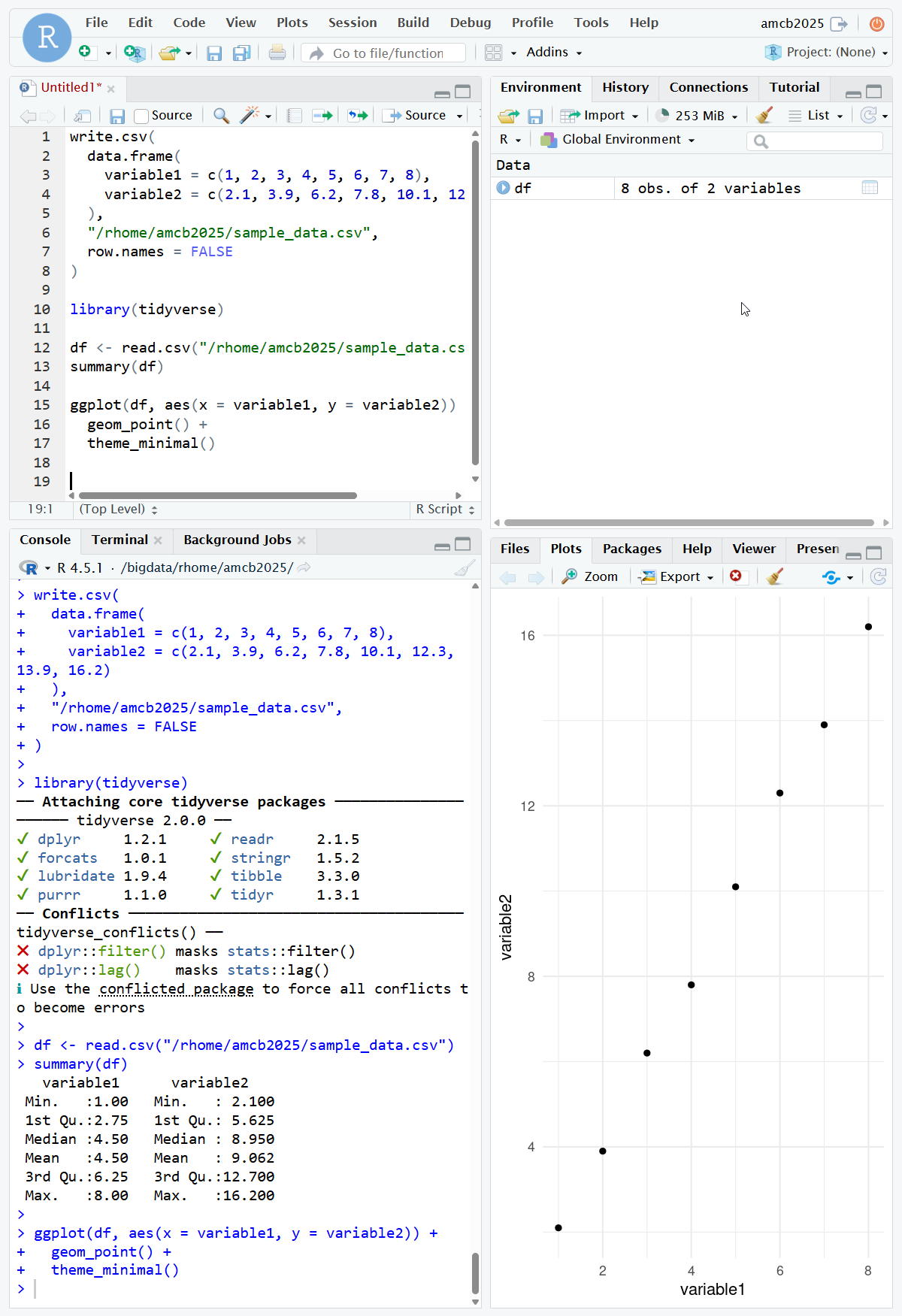
Installing R Packages
In the console:
R
install.packages("ggplot2")
install.packages("dplyr")
library(ggplot2)
Or use the Packages tab in the bottom-right panel to install graphically.
Save Your Work
Interactive sessions have time limits. Save scripts and results frequently with Ctrl+S. Download important files or save to /bigdata for durability. Do not wait until your session expires – save early and often.
Requesting GPU Resources
When launching Jupyter or RStudio, select GPU options in the resource form:
- GPU type: A100 (80 GB) or L40S (48 GB)
- GPU count: Usually 1 for interactive work
-
Partition: Select
gputo access GPU nodes
Resource Guidelines
- Small datasets (< 100 MB): 1–2 cores, 4 GB memory, no GPU
- Medium datasets (100 MB – 10 GB): 2–4 cores, 8–16 GB memory
- GPU work: Request only when needed – GPUs are a shared resource
- Close sessions when finished to free resources for others
Challenge: Launch RStudio and Explore
Launch RStudio from OnDemand with 1 core, 4 GB memory, and 1 hour
In the console, load the tidyverse package:
library(tidyverse)-
Create a sample data frame:
R
df <- data.frame( x = rnorm(100), y = rnorm(100), group = sample(c("A", "B"), 100, replace = TRUE) ) -
Create a scatter plot:
R
ggplot(df, aes(x = x, y = y, color = group)) +
  geom_point() +
  theme_minimal() +
  labs(title = "Sample Scatter Plot")
Save the plot with
ggsave("scatter.png")
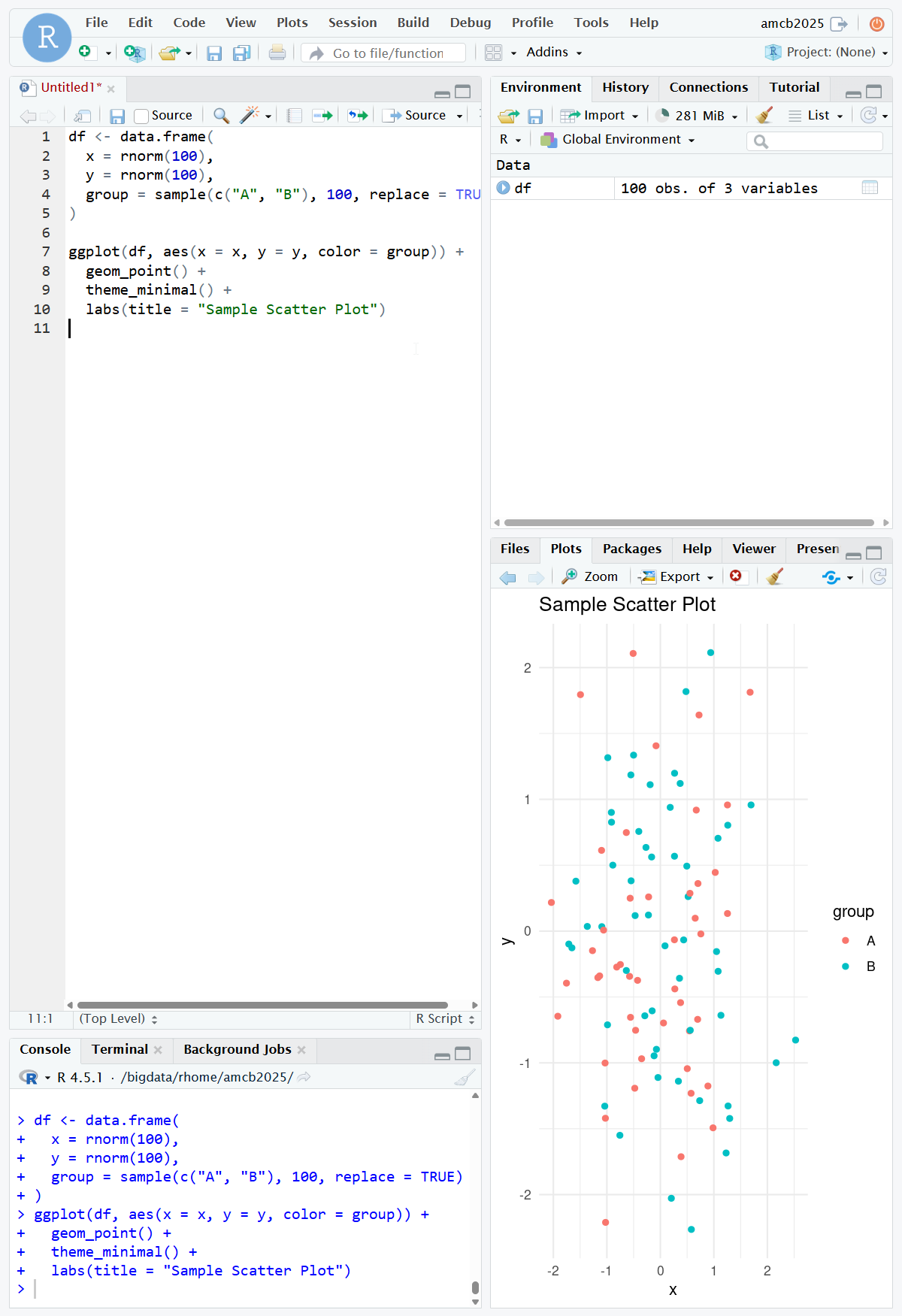
- RStudio launches after resource allocation (1–5 minutes)
- tidyverse loads with some startup messages (this is normal)
- The data frame appears in the Environment panel showing 100 observations of 3 variables
- A scatter plot appears in the Plots panel with points colored by group
- The file “scatter.png” is saved in your working directory and visible in the Files panel
If tidyverse is not installed, run
install.packages("tidyverse") first – this may take a few
minutes.
- Launch RStudio from Interactive Apps with configurable resources
- RStudio provides script editor, console, environment, and files/plots panels
- Install R packages from the console or the Packages tab
- Request GPU resources by selecting the gpu partition and GPU type (A100, L40S, RTX PRO 6000)
- Verify GPU access with torch.cuda.is_available() in Python or tf in R
- Save your work frequently – sessions have time limits