
Uploading, Downloading, and Editing Files
Last updated on 2026-08-27 | Edit this page
Estimated time: 25 minutes
Overview
Questions
- How do you upload files to Sagehen HPC through OnDemand?
- How do you download files back to your local computer?
- How do you create, rename, move, and delete files?
- Can you edit files directly in the browser?
Objectives
- Upload single and multiple files using the web interface
- Download files and directories from Sagehen
- Create directories and organize files
- Edit text files directly in OnDemand
- Manage file permissions through the browser
OnDemand File Manager
The file manager provides a graphical interface for managing files on Sagehen without using SCP or SFTP. Access it through the Files menu in the left navigation.
Uploading Files
Single File Upload
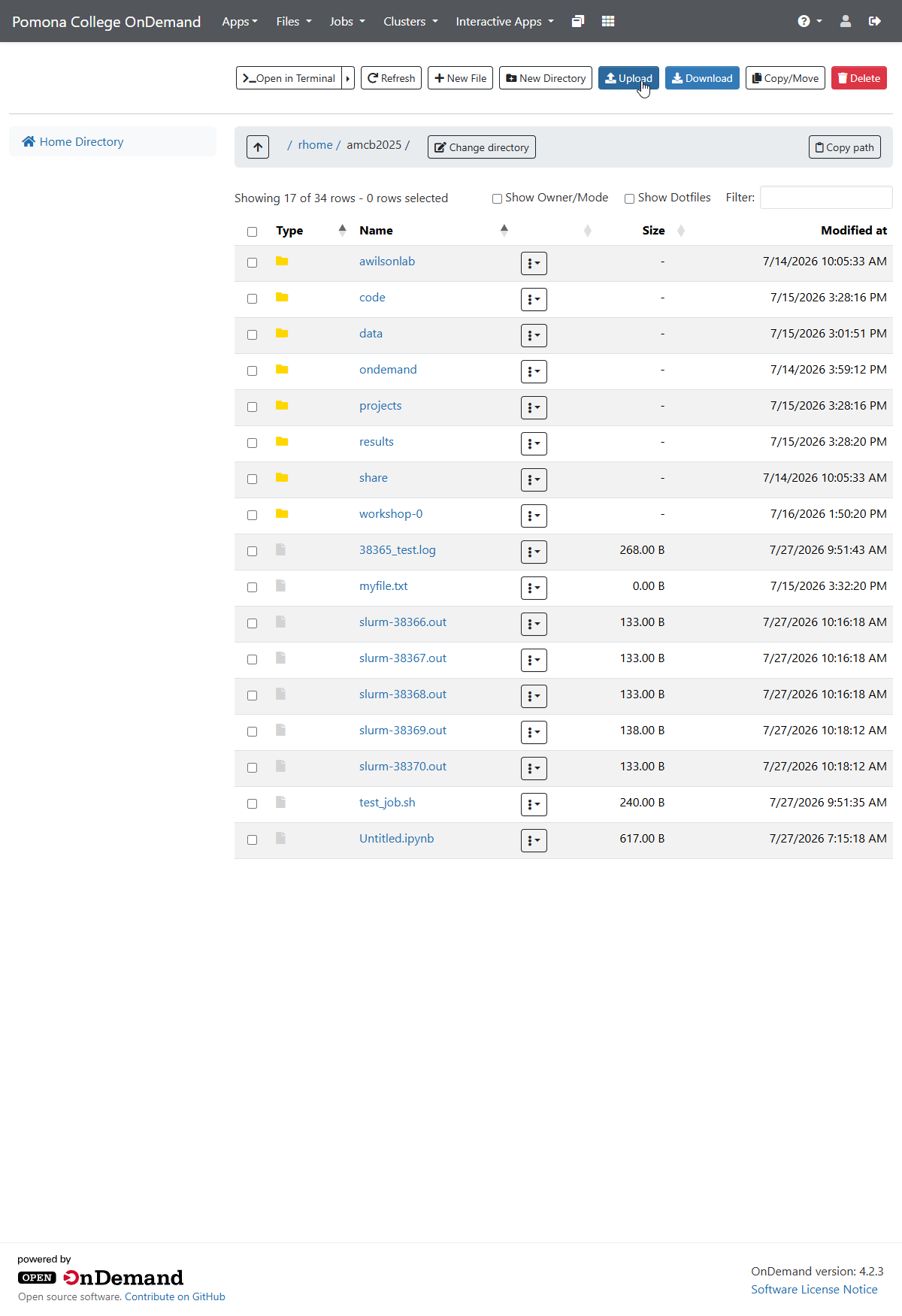
- Navigate to the desired directory in the file manager
- Click the Upload button (up arrow icon)
- Choose a file from your local computer
- Click Start Upload and wait for the progress bar to complete
Downloading Files
- Open the file’s dropdown menu (⋮) and select Download, or click the file and use the toolbar Download button
- For multiple files, select them with checkboxes, then click Download Selected – they arrive as a ZIP archive
- Downloads go to your browser’s default Downloads folder
File Operations
Creating Directories
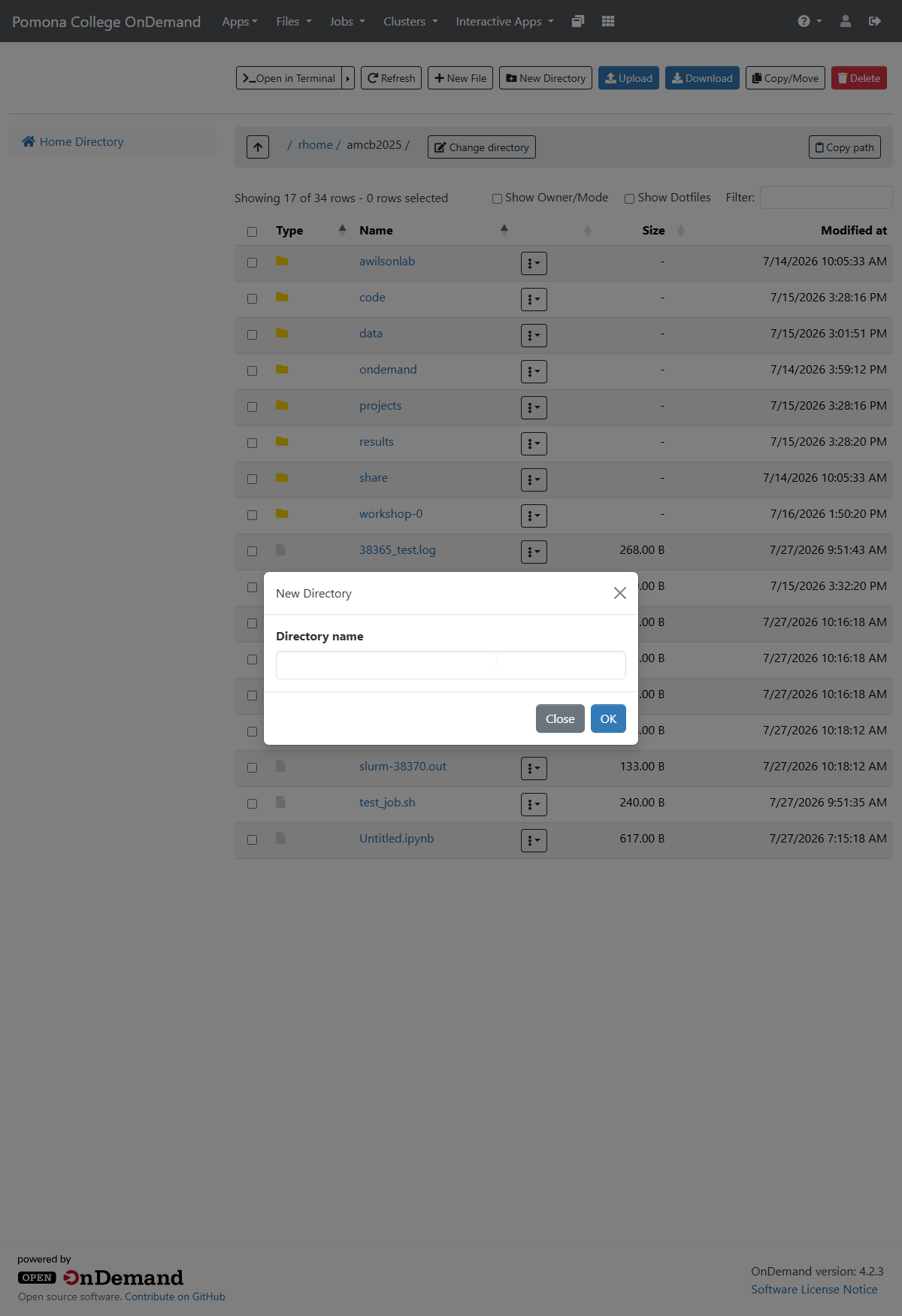
- Click New Directory
- Enter a name (e.g., “analysis_2026”)
- Click Create
Renaming
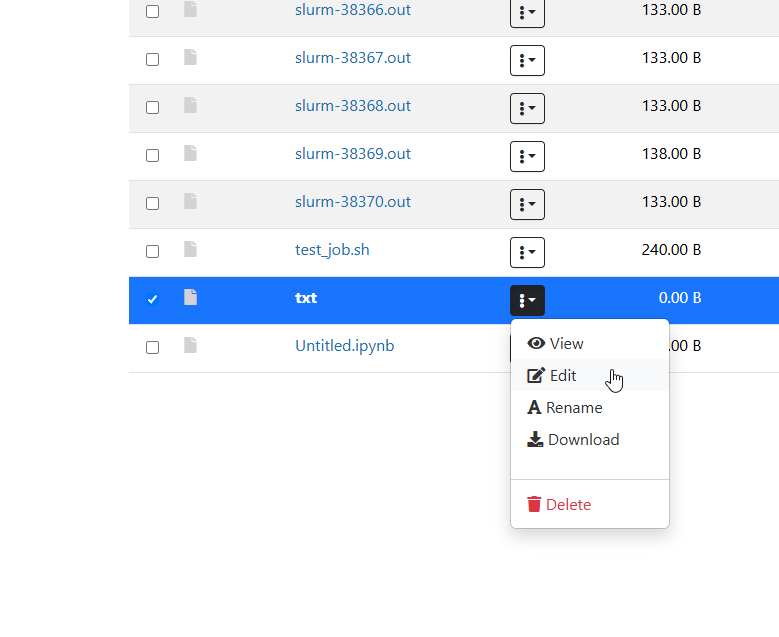
- Open the file’s dropdown menu (⋮) and select Rename
- Enter the new name and press Enter
Inline Text Editing
OnDemand includes a built-in editor for text files (.txt, .sh, .py, .R, and similar):
- Select a text file and click Edit (or double-click)
- The editor opens in your browser with syntax highlighting
- Make changes and click Save
For files larger than 10 MB, use a command-line editor in the Web Terminal instead.
Managing Permissions
- Use the file’s dropdown menu (⋮) a file and select Properties or Permissions
- View current permissions (e.g.,
-rw-r--r--) - Adjust read/write/execute for owner, group, and others
For executable scripts, ensure you mark them with execute permission.
Storage Quotas
Check your usage in Accounts > Usage or run
quota_check.sh in the Web Terminal. Monitor regularly to
avoid hitting limits mid-project.
Best Practice: Regular Cleanup
Check your storage quota monthly to avoid hitting limits mid-project. Remove old temporary files and archive completed work. If approaching quota limits, contact its-hpc@pomona.edu to request an increase rather than deleting valuable research data.
Challenge: Upload, Organize, and Download
- Create a file on your local computer called “sample_data.txt” with some text
- Log into OnDemand and upload this file to /bigdata
- Create a new subdirectory called “project_2026”
- Move sample_data.txt into project_2026
- Download the file back to your computer to verify the transfer
Then check: How much storage are you currently using? Is your quota close to the 1 TB limit?
- Your sample_data.txt uploads to /bigdata (typically
/bigdata/lab/<labname>) - The new directory “project_2026” appears immediately
- Moving the file into the subdirectory works via drag or cut/paste
- Downloading returns the original file content intact
- Run
quota_check.shin the Web Terminal to see your current usage
Common observations: - Upload/download speeds depend on file size and your internet connection - Creating directories is instant - File operations in OnDemand are slower than command-line but more intuitive - Your /rhome and /bigdata share the same 1 TB lab quota
- Upload files via drag-and-drop, single select, or multi-select
- Download single files directly or multiple files as a ZIP archive
- Create, rename, move, and delete files through the graphical interface
- Edit text files directly in the browser with syntax highlighting
- File permissions can be viewed and changed through the web interface
- Monitor your quota regularly with quota_check.sh or Accounts > Usage