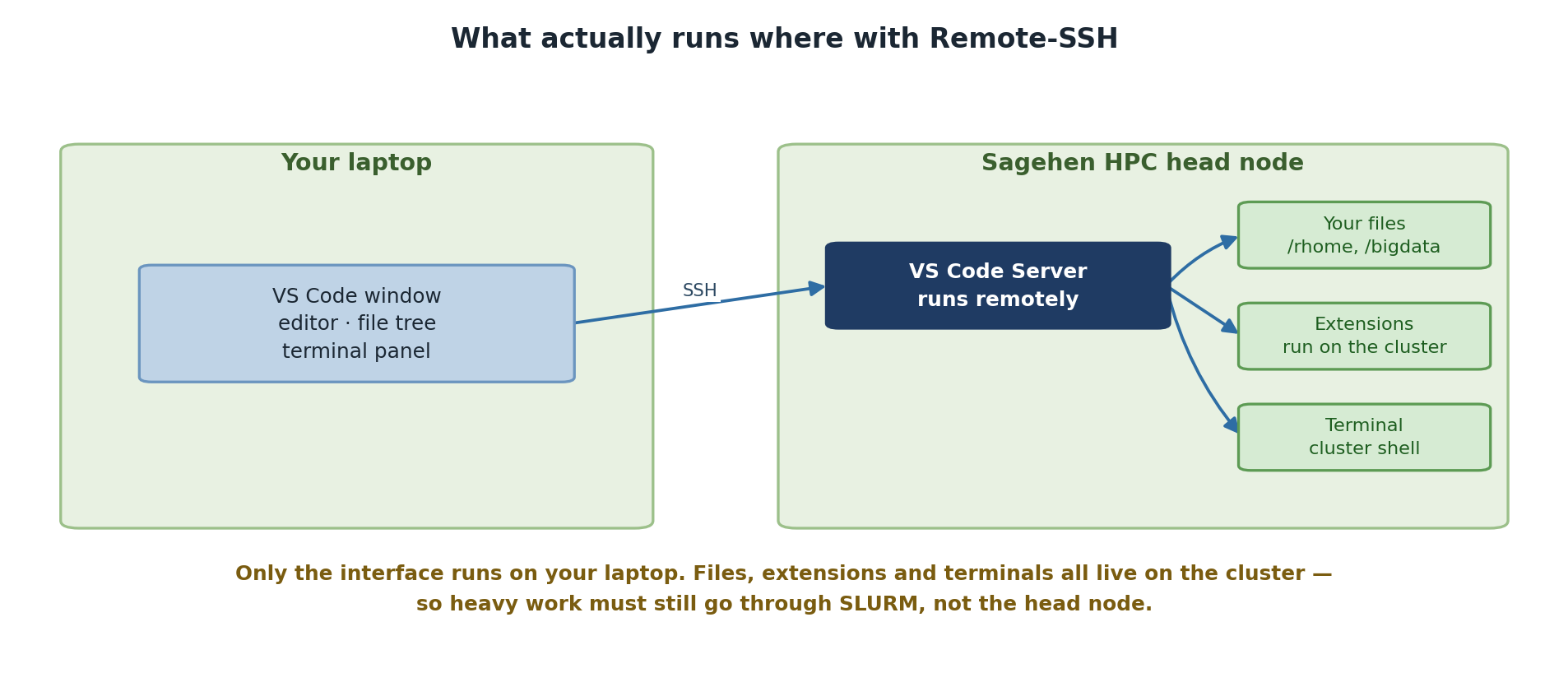
Image 1 of 1: ‘Two panels. On your laptop, the VS Code window provides the editor, file tree and terminal panel. Connected over SSH, the Sagehen HPC head node runs the VS Code Server, which in turn reaches your files in /rhome and /bigdata, extensions running on the cluster, and a terminal giving a cluster shell. A note explains that only the interface runs on your laptop, so heavy work must still go through SLURM rather than the head node.’
The window is local; everything else is on the
cluster.
Image 1 of 1: ‘A PowerShell window where ssh -G sagehen is piped to Select-String to filter key settings. The output shows the username, hostname sagehen.hpc.pomona.edu, serveralivecountmax 2, and serveraliveinterval 300.’
Verifying the effective config on Windows:
ssh -G sagehen filtered through
Select-String.
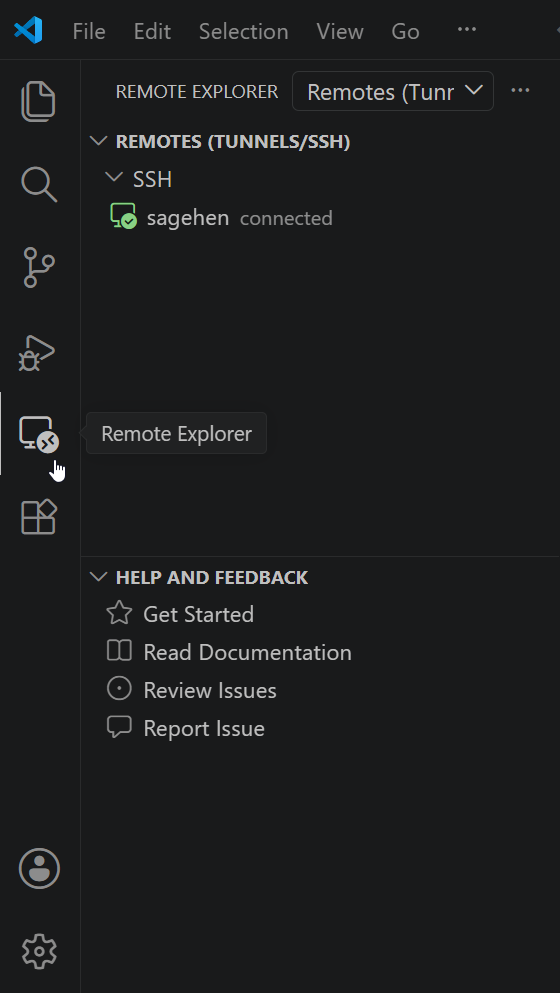
Image 1 of 1: ‘The VS Code Remote Explorer panel open from the activity bar. Under Remotes and an SSH group, a host named sagehen appears with a green connected badge.’
The Remote Explorer sidebar with the
sagehen host from your SSH config, shown here already
connected.
Figure 2
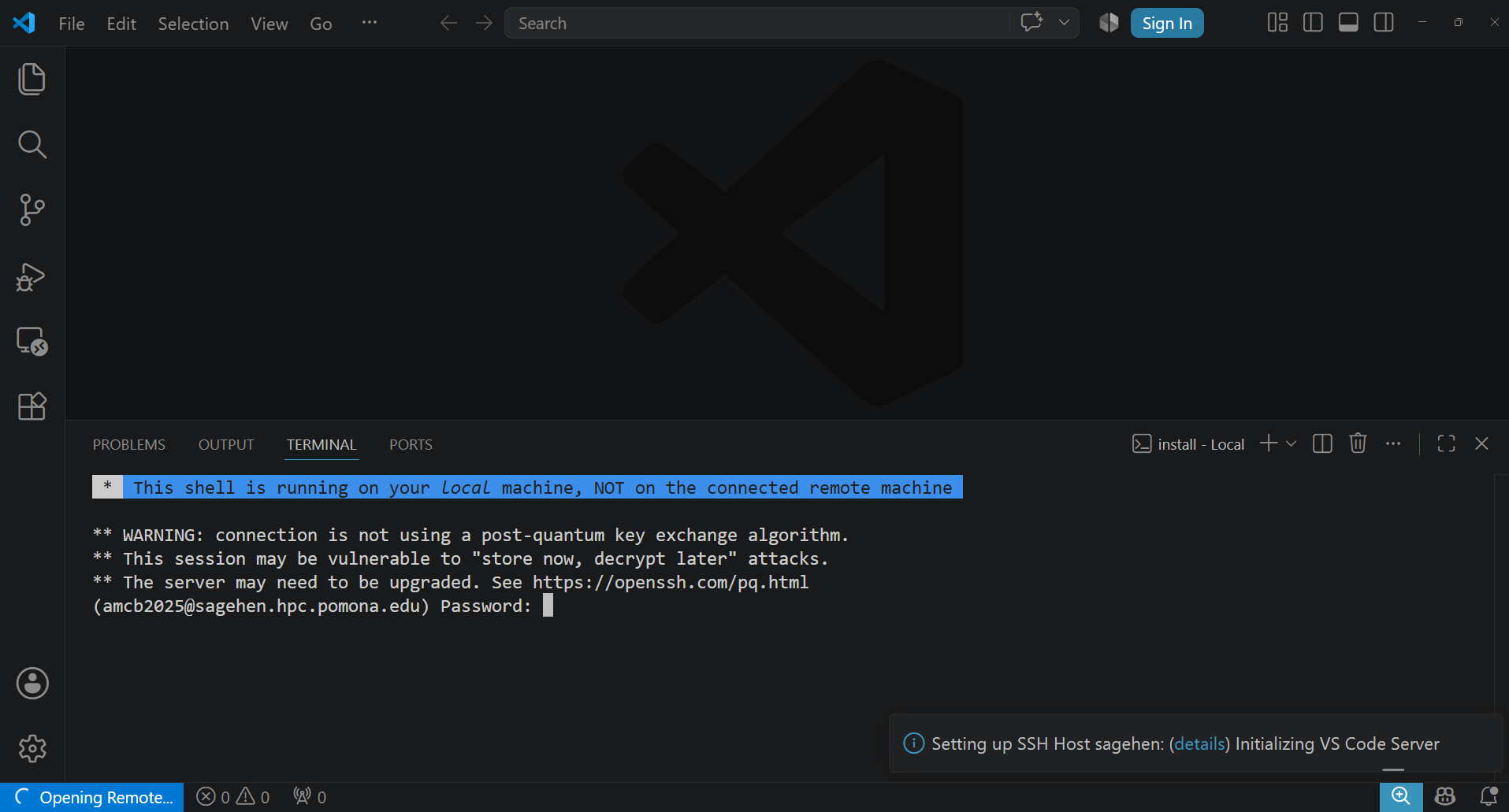
Image 1 of 1: ‘A VS Code window mid-connection. The integrated terminal notes this shell runs on the local machine, prints OpenSSH warnings that the connection is not using a post-quantum key exchange algorithm, and shows a password prompt for the user at sagehen.hpc.pomona.edu. A notification reads Setting up SSH Host sagehen, Initializing VS Code Server.’
Mid-connection: the login terminal asks for your
Pomona password while VS Code Server is set up on Sagehen. The OpenSSH
“post-quantum key exchange” warning above the prompt is expected — it’s
informational, not an error.
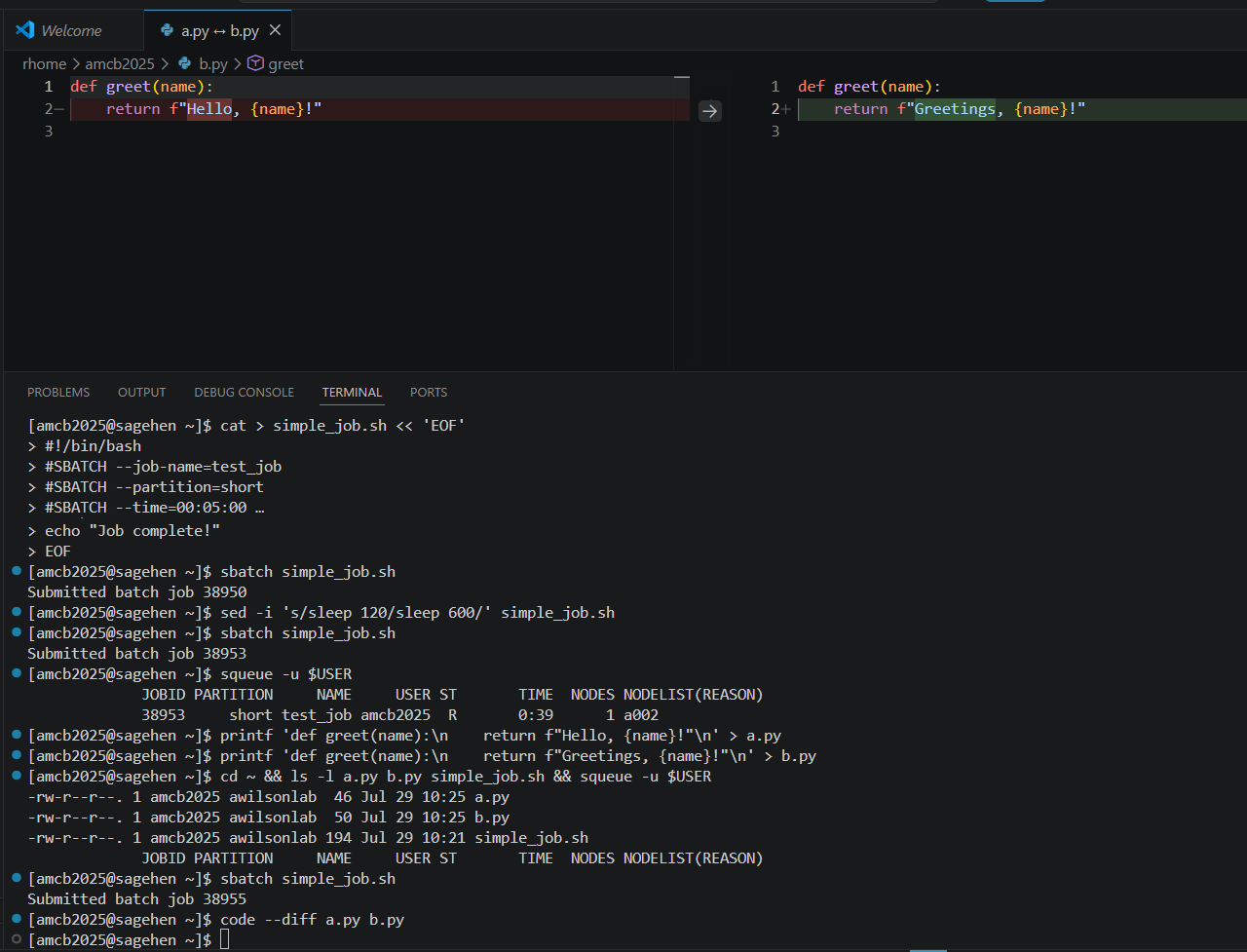
Image 1 of 1: ‘A VS Code diff editor comparing two Python files side by side. Both define a greet function; the left pane highlights the line returning Hello in red as removed, and the right pane highlights the line returning Greetings in green as added.’
The diff view comparing two Python files —
removed line red on the left, added line green on the right.
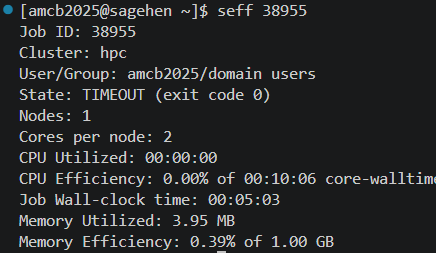
Image 1 of 1: ‘Terminal output of seff for a job on cluster hpc. The job ended in TIMEOUT state after five minutes of wall-clock time, used zero percent of its CPU core-walltime across two cores, and utilized under four megabytes of the one gigabyte requested.’
seff on a finished test job:
near-zero CPU and memory efficiency is your cue to shrink the next
request. (This example ended in TIMEOUT because the test deliberately
overran its 5-minute limit.)
Figure 2
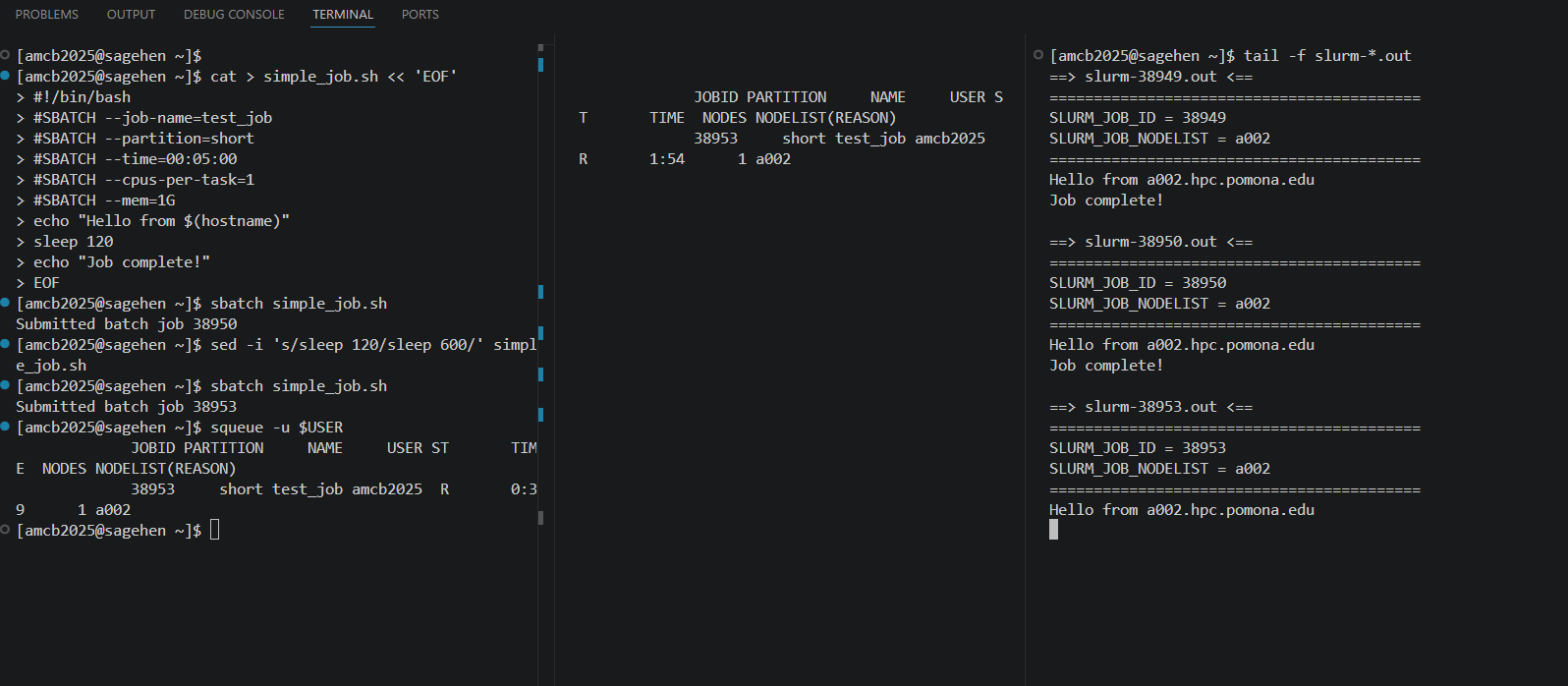
Image 1 of 1: ‘The whole workflow in three split terminals: sbatch on the left, squeue in the middle, tail -f on the log at right.’
{alt=‘VS
Code’s terminal panel split into three panes, all connected to Sagehen.
The left pane creates and submits a job script to the short partition,
the middle pane shows squeue output with the job running on node a002,
and the right pane tails the slurm output files ending with Job
complete.’}
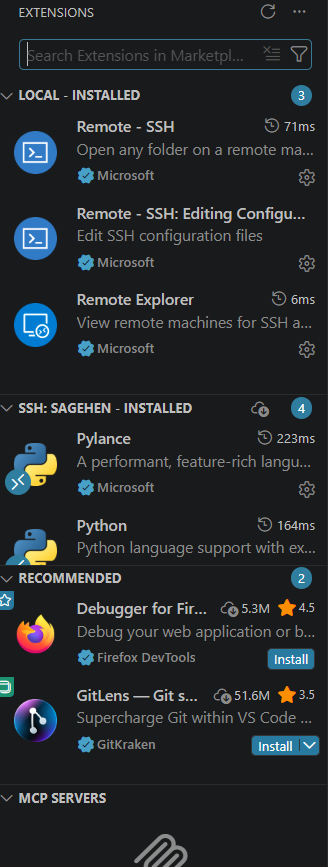
Image 1 of 1: ‘The VS Code Extensions sidebar while connected to Sagehen. A Local Installed section lists the Remote SSH extensions; a separate SSH SAGEHEN Installed section shows Pylance and Python installed on the cluster, with recommended extensions below.’
Local vs. remote: the Extensions sidebar
separates what’s installed on your machine from what’s installed on
Sagehen.


 {alt=‘VS
Code’s terminal panel split into three panes, all connected to Sagehen.
The left pane creates and submits a job script to the short partition,
the middle pane shows squeue output with the job running on node a002,
and the right pane tails the slurm output files ending with Job
complete.’}
{alt=‘VS
Code’s terminal panel split into three panes, all connected to Sagehen.
The left pane creates and submits a job script to the short partition,
the middle pane shows squeue output with the job running on node a002,
and the right pane tails the slurm output files ending with Job
complete.’}