
All in One View
Content from Why Reproducibility Matters
Last updated on 2026-08-27 | Edit this page
Overview
Questions
- What is computational reproducibility?
- Why does reproducibility matter for science and for you?
- What are the personal benefits of reproducible research?
Objectives
- Define computational reproducibility and distinguish it from replicability
- Understand the three levels of reproducibility
- Recognize personal benefits of reproducible research practices
What Is Computational Reproducibility?
Computational research has become the lifeblood of modern science. From genomics to climate modeling, from economics to physics, researchers rely on software to process data, run simulations, and draw conclusions. Yet there’s a growing problem: many computational results cannot be reproduced.
Let’s define what we mean carefully. There are several related but distinct concepts:
Reproducibility vs. Replicability
- Reproducibility (sometimes called “computational reproducibility”): Can another researcher take your code, data, and documentation and get the same numerical results you got?
- Replicability (sometimes called “experimental replicability”): Can another researcher independently conduct similar experiments or observations and reach the same scientific conclusions?
Replicability is what most scientists think of as “reproducibility” in the traditional sense: it’s about independent verification of findings. Computational reproducibility is a prerequisite for replicability but not sufficient by itself. You can reproduce code perfectly and still have the results be wrong due to flawed experimental design.
This workshop focuses on computational reproducibility: ensuring your code, data, and environment are documented and executable so others (or your future self) can run your exact analysis and get your exact results.
Determinism vs. Documentation
Another distinction:
- Deterministic reproducibility: The code gives the exact same numerical results every time it runs (like sorting a list or computing a deterministic statistic)
- Stochastic reproducibility: The code involves randomness, but you’ve controlled the random seed so anyone can reproduce your random choices
- Environmental reproducibility: The code runs the same way regardless of where it’s executed (different machines, operating systems, installed packages)
In research, you need all three. A stochastic algorithm that gives different results each time isn’t useful. Code that works on your laptop but breaks on the cluster is a problem. Code that depends on a package you’ll update next month might break later.
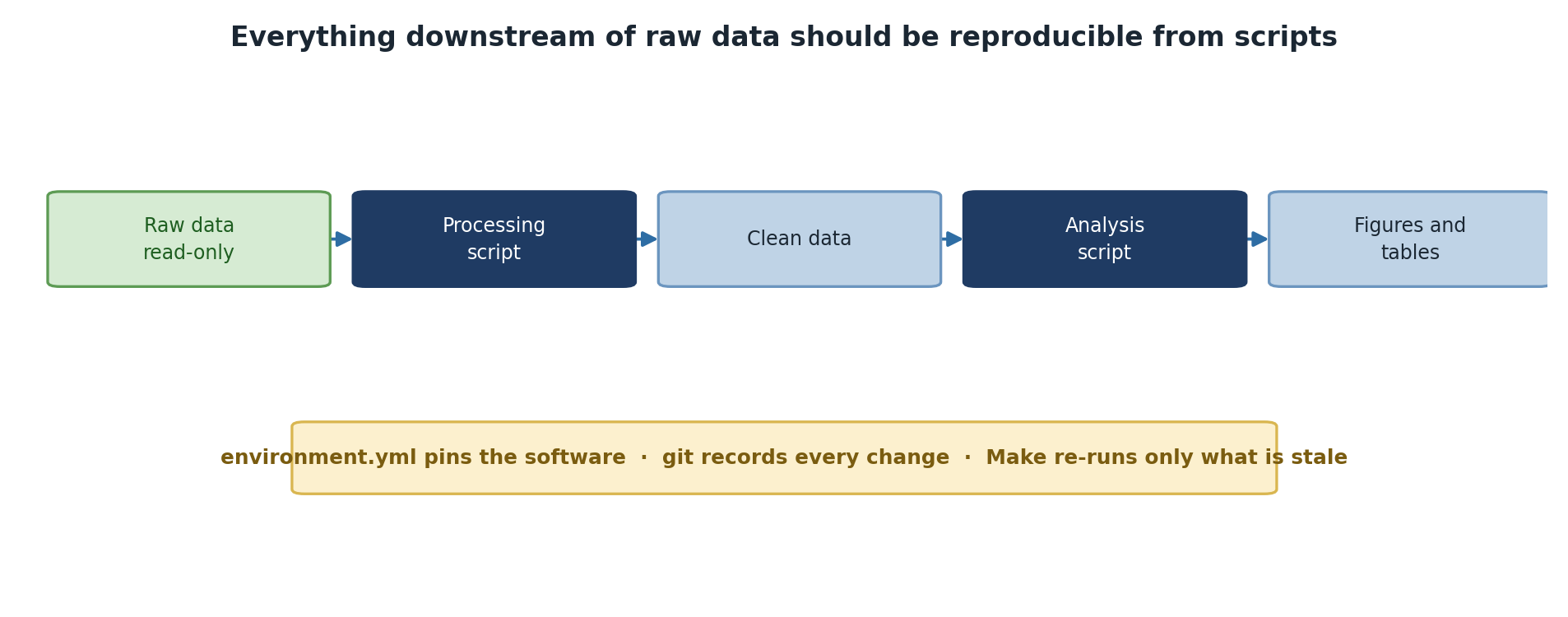
Three Levels of Reproducibility
Let’s think about reproducibility in practical layers:
Level 1: Same Results (Numerical Reproducibility)
Someone follows your documentation, uses your code and data, and gets the same numbers you did.
What you need:
- Code (scripts, programs, Jupyter notebooks)
- Raw data
- Complete documentation of the analysis steps
- Specification of software versions
- The computing environment (what libraries, what versions)
Level 2: Same Conclusions (Logical Reproducibility)
Someone understands your analysis methodology, adapts it to their own data or context, and reaches the same scientific conclusions.
What you need:
- Clear explanation of your methodology (written description, not just code)
- Justification for your choices (why this statistical test? why this cutoff value?)
- Understanding of limitations and assumptions
- Code that’s understandable and well-commented (not just runnable)
Level 3: Same Workflow (Process Reproducibility)
Someone can understand how you went from raw question to final figure, including the dead ends, iterations, and decision points.
What you need:
- Version control showing the history of your analysis
- Lab notebook or documented decisions explaining why you did things a certain way
- Scripts and code in a logical order matching your analysis progression
- Clear separation of exploration vs. final analysis
Personal Benefits: Why Reproduce Your Own Work?
Beyond scientific integrity, there are selfish reasons to care about reproducibility:
Your Future Self Will Thank You
Imagine: it’s three years later. You’re writing a grant application
that references your published work. A reviewer asks for details about
how you did that analysis. You open the folder… and find five scripts
with unclear names, Excel files with manually adjusted numbers, and data
files named mouse_brain_backup. You can’t even recreate
your own figure.
This happens to most researchers. The solution: be the kind of colleague you’d want to collaborate with. Document as if you’re leaving your project behind tomorrow.
Easier Collaboration
When you have reproducible code and a clear project structure:
- A collaborator can check out your repository and run your analysis without emailing you questions
- They can extend your code confidently, knowing what the baseline behavior is
- You can merge their improvements back in without breaking things
Faster Debugging and More Impactful Publications
When something breaks, you can identify exactly when it broke by looking at code history. You can reproduce the bug reliably and test whether your fix actually works.
Sharing code and data gets you more citations, builds your reputation as rigorous and trustworthy, and allows others to use your tools and methods.
Discussion: Your Reproducibility Challenge
In your own research (or research you’re familiar with):
- Think of a recent analysis you completed or reviewed
- Imagine someone else (or you, 3 years from now) trying to reproduce it
- What would be hard to reconstruct?
- What would be easy?
Discuss with a neighbor or note down 2-3 key obstacles.
Common discussion points participants typically raise:
Hard to reconstruct:
- Which version of a script produced the final results
- What software versions were installed at the time
- Manual steps performed in Excel or a GUI tool
- Why certain data points were excluded
- Parameter choices that were tested but not documented
Easier to reconstruct:
- Which raw data files were used (if well-named)
- The general analytical approach (if documented in a paper)
- Final figures and tables (if saved)
Key takeaway: If you find yourself saying “I think I used…” or “I’m not sure which version…”, that is a reproducibility gap this workshop will help you close.
- Computational reproducibility means someone can take your code, data, and documentation and get the same results
- There are three levels: numerical reproducibility (same numbers), logical reproducibility (same conclusions), and process reproducibility (same workflow)
- Reproducibility benefits you first: it’s easier to debug, extend, and share reproducible work
Content from The Reproducibility Crisis
Last updated on 2026-08-24 | Edit this page
Overview
Questions
- What evidence exists for a reproducibility crisis in science?
- What are the most common barriers to reproducibility?
- How can I assess my own reproducibility readiness?
Objectives
- Explain the reproducibility crisis with real-world examples
- Identify the most common barriers to computational reproducibility
- Use a reproducibility checklist to assess your own work
Real-World Examples
In 2011, a team at Duke University led by cancer researcher Anil Potti published analyses suggesting they could predict which patients would respond to specific cancer drugs. These papers were published in top journals like Nature and appeared to offer real clinical value. However, when independent researchers tried to verify the results, they found critical errors:
- Raw data files were mislabeled and misaligned
- Statistical analyses were performed inconsistently
- The code wasn’t available to examine
- Results couldn’t be reproduced
This led to retracted papers, lawsuits, and real harm to cancer patients who had enrolled in clinical trials based on faulty analysis.
In 2012, researchers discovered that a widely-used genetics software tool had a bug in how it handled missing data. This bug had been silently present for years, affecting hundreds of published papers. Researchers had to spend months tracking down affected analyses to understand which results were compromised.
A 2016 survey in Nature found that over 70% of researchers had failed to reproduce another scientist’s published experiment, and over 50% had failed to reproduce their own prior work.
Why This Matters Beyond Science
- For yourself: Have you ever come back to your own analysis six months later and wondered what you did? Which version of the data did you use? What script produced this figure?
- For your field: Unreliable results damage scientific progress. If 10% of published results are wrong due to subtle bugs, the entire research literature becomes a noisy signal.
- For society: Research informs policy, medical decisions, and public understanding. Irreproducible research erodes public trust in science.
- For your career: Showing your work thoroughly, with code and data available, demonstrates rigor and builds your reputation.
Common Obstacles to Reproducibility
Understanding why reproducibility is hard helps you solve these problems systematically:
“It Works on My Machine”
Your laptop has Python 3.11, numpy 1.24.3, and pandas 2.0.1 installed. Your collaborator has Python 3.9, numpy 1.21.0, and pandas 1.3.5. The code behaves differently. Maybe not obviously different; maybe a function signature changed, or a default behavior shifted, or there’s a subtle numerical difference in how floating-point operations are handled.
Solution: Capture your environment explicitly with conda or pip freeze, so you can recreate it exactly.
Manual Steps
You’ve got a script that processes data, but there are a few steps you always do manually:
- Open the output CSV, check for weird rows, delete them
- Open the figure in Photoshop to adjust colors and fonts
- Run the script three times with slightly different parameters and combine the results
These manual steps are invisible to someone trying to reproduce your work.
Solution: Automate everything, even the small things. Encode decisions in code.
Implicit Dependencies
Your analysis depends on someone having already installed a specific R package (but you forgot to document which version), a particular data file existing in a particular location, or a Python module you wrote last year but never published. When you share your code, these dependencies silently fail.
Solution: Make dependencies explicit. Use requirements files, configuration files, and clear documentation.
Dead Ends and Iterations
Science is iterative. You tried ten things; nine didn’t work. Your final code is clean and works, but it doesn’t explain why you chose this statistical test, why you filtered data this way, or what other approaches you considered.
Solution: Use version control (git) to preserve the history. Document key decisions. Separate exploratory code from final analysis.
Data Drift and Uncontrolled Randomness
You originally analyzed data in November 2023. The raw data file changes: more entries are added, some values are corrected. You run your analysis in June 2024 and get slightly different results. Which is “right”?
Your analysis uses random sampling, cross-validation, or Monte Carlo simulation. Each time you run it, you get slightly different results.
Solutions: Treat raw data as read-only. Version your data (or at least document its exact state). Set a random seed in your code and document it.
A Reproducibility Checklist
Here’s a practical checklist. Don’t expect to check all boxes immediately – that’s what this workshop is for:
By the end of this workshop, you’ll be checking these boxes.
Moving Forward
Reproducibility isn’t about perfection or following arbitrary rules. It’s a practical investment in your research. Code that’s reproducible is easier to understand, easier to fix when it breaks, easier to share, and easier to build on.
The tools we’ll teach you (Git, conda, Make, and SLURM) are used by researchers and engineers across the world precisely because they make reproducibility practical and efficient.
Exercise: Audit Your Own Work
Pick a recent analysis or project you have worked on. Rate yourself (1 = not at all, 5 = fully) on each checklist item above.
- What is your total score out of 50?
- Which items scored lowest?
- Which item would be easiest to improve first?
Share your lowest-scoring item with a neighbor and discuss strategies.
Most researchers score between 15 and 25 on their first self-audit. Common weak spots include:
- Single-command execution (most people run scripts manually in sequence)
- Environment capture (most people have never exported an environment file)
- Documentation of decisions (code comments say what, not why)
The easiest first win is usually creating a
requirements.txt or environment.yml – it takes
five minutes and immediately improves reproducibility.
- The reproducibility crisis is real, with major consequences for science and careers
- Common obstacles include environment differences, manual steps, implicit dependencies, and poor documentation
- A reproducibility checklist helps you identify and close gaps systematically
- Reproducibility is a practical investment in your research quality and impact
Content from Project Directory Structure
Last updated on 2026-08-27 | Edit this page
Overview
Questions
- How should I organize my research files?
- What’s the difference between raw data and processed data?
- How do I prevent accidental modification of raw data?
- Why do relative paths matter?
Objectives
- Design a standard project directory structure
- Understand why separating concerns (data/code/results) matters
- Make raw data read-only and tamper-proof
- Use relative paths to ensure code portability
A Common Disaster
Let’s start with a true story. A biologist has been working on a gene expression analysis for months. Her main analysis folder looks like this:
gene_analysis/
├── data/
│   ├── samples.csv
│   ├── samples_fixed.csv
│   ├── samples_fixed2.csv
│   ├── samples_final.csv
│   ├── samples_backup.csv
│   ├── data.xlsx
│   └── master_v3.csv
├── analysis.R
├── analysis_v2.R
├── analysis_final.R
├── results.csv
├── figure.png
├── figure_v2.png
├── figure_for_paper.png
└── notes.txt
Questions she can’t answer:
- Which data file is the original? Which was modified?
- Which analysis script is the one she actually used?
- What did she change between analysis.R and analysis_final.R?
- Can she hand this to a collaborator and they would know what to do?
This is preventable. The solution is a standardized project structure that clearly separates concerns.
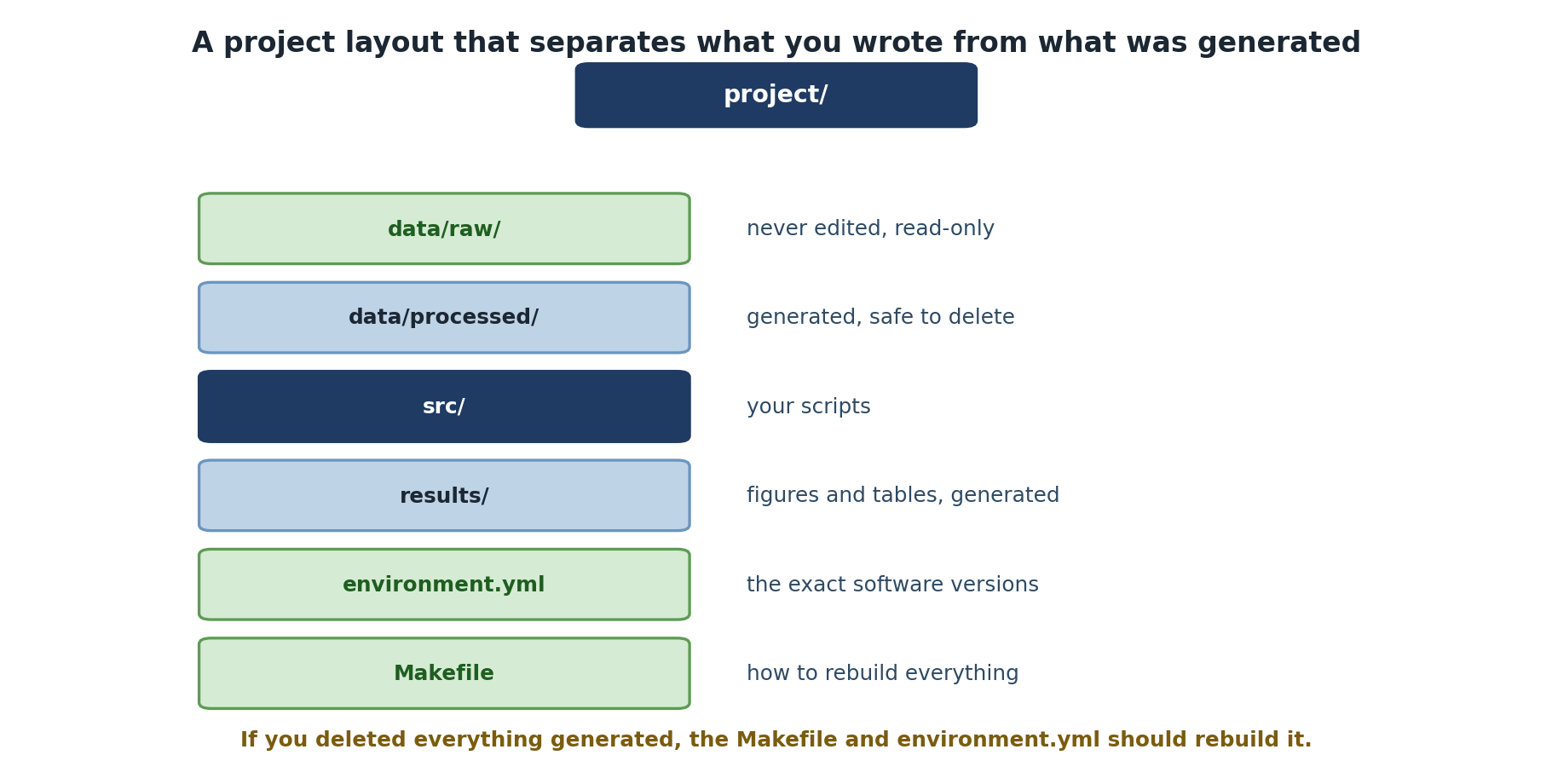
The Standard Research Project Structure
Here’s a widely-adopted structure for research projects:
project-name/
├── README.md              # Project overview and how to use it
├── LICENSE                # Legal license for your code
├── data/
│   ├── raw/              # Original, untouched data
│   └── processed/        # Cleaned/transformed versions
├── src/                  # Source code for analysis
│   ├── analysis.py
│   ├── visualization.py
│   └── utilities.py
├── results/              # Output files (figures, tables, summaries)
│   ├── figures/
│   └── tables/
├── notebooks/            # Jupyter notebooks for exploration (optional)
├── Makefile              # Automation commands
├── environment.yml       # conda environment specification
└── .gitignore            # Tell git what to ignore
Core Principle: Separate Concerns
The key insight is this: Your code, your data, and your results serve different purposes and should live in different places.
Raw Data: Sacred Ground
Raw data is your ground truth. It should:
- Never be modified: Only in specific, documented, version-controlled ways
- Be easily readable: In open formats (CSV, JSON, HDF5) not proprietary formats
- Be annotated: Include metadata about what each column means, units, data collection date
- Be preserved: Keep the original files, never overwrite them
Processed Data: Tracked and Documented
Processed data is the result of cleaning, filtering, or transforming
raw data. Each processed dataset should have a corresponding script that
generates it from raw data. You should be able to run
python src/clean_data.py and have
data/processed/samples_cleaned.csv regenerated identically
every time.
Making Raw Data Read-Only
A critical practice: make your raw data read-only so you can never accidentally modify it.
This removes write permissions. Now if you try to edit a raw data file, you’ll get an error. To deliberately modify raw data (rare!), you must explicitly re-enable writing:
In Git, add to your .gitignore to prevent accidentally
committing large raw data files. Instead, document how to obtain raw
data in data/raw/README.md with source URLs and MD5
checksums.
Relative Paths: Portability
Always use relative paths in your code, not absolute paths.
Absolute Path (BAD):
If anyone else clones your repository or you move it to a different location, this breaks immediately.
Relative Path (GOOD):
PYTHON
from pathlib import Path
data_file = Path(__file__).parent.parent / "data" / "raw" / "samples.csv"
df = pd.read_csv(data_file)
In R, the here package detects your project root and
builds paths relative to it:
R
data_file <- here::here("data", "raw", "samples.csv")
df <- read.csv(data_file)
Never use absolute paths in code you intend to share. Always use paths relative to your project root or the script location.
Exercise: Design Your Project Structure
Choose a recent analysis you’ve done or the project you’re about to work on.
-
Sketch your project structure: Draw or write out
what files would go in
data/,src/, andresults/for your project. - Identify raw data: What are the input files that start your analysis? Mark them as read-only.
-
Trace the pipeline: For one key result (a table or
figure), write down the path it takes:
- Raw data file(s) -> Processing script(s) -> Processed data file -> Analysis script(s) -> Result file
A completed example for a climate data analysis project:
climate-analysis/
├── README.md
├── environment.yml
├── Makefile
├── data/
│   ├── raw/                    # READ-ONLY
│   │   ├── temperature_2023.csv
│   │   └── README.md
│   └── processed/
│       └── temperature_cleaned.csv
├── src/
│   ├── clean_data.py
│   ├── analyze.py
│   └── visualize.py
└── results/
    ├── figures/
    │   └── trend_plot.pdf
    └── tables/
        └── summary_stats.csv
Pipeline trace for trend_plot.pdf:
data/raw/temperature_2023.csv
  -> src/clean_data.py
    -> data/processed/temperature_cleaned.csv
      -> src/analyze.py + src/visualize.py
        -> results/figures/trend_plot.pdf
Verify raw data is read-only:
- A standard project structure (data/src/results) makes research clear and reproducible
- Raw data is sacred: keep it original, unchanged, and read-only
- Processed data should be generated by scripts, not manually edited
- Results are artifacts that should be regeneratable from code
- Always use relative paths in code so it’s portable
- Separating concerns (data, code, results) prevents confusion and accidents
Content from README and Documentation Files
Last updated on 2026-08-24 | Edit this page
Overview
Questions
- What should a good README contain?
- How do I document data provenance and processing steps?
- How should I handle Jupyter notebooks in a reproducible project?
Objectives
- Write a comprehensive README for your project
- Document raw data provenance and processing steps
- Organize notebooks for reproducibility
The README: Your Project’s Front Door
A good README is essential for reproducibility. Someone should be able to read your README and understand:
- What the project is about
- Who to contact with questions
- How to set up their environment
- How to reproduce your analysis
- What the expected outputs are
- How to interpret results
Here’s a template:
MARKDOWN
# Gene Expression Analysis - Alzheimer's vs. Control

Brief description of the study and research question.

## Project Overview

What scientific question are you answering? What's the scope?

## Data

### Raw Data

- Where does the data come from?
- How much data is there?
- How to obtain it (see data/raw/README.md)

### Processed Data

- What processing steps were applied?
- See data/processed/PROCESSING_LOG.md for details

## Methods

Brief summary of analytical approach:

- Statistical tests used
- Key parameters or thresholds
- Software versions (see environment.yml)

## How to Reproduce

### Setup

1. Install conda
2. Clone repository: `git clone https://...`
3. Create environment: `conda env create -f environment.yml`
4. Activate environment: `conda activate gene-analysis`


### Run Analysis

```bash
make all
```

Expected runtime: ~5 minutes

## Project Structure


gene_analysis/
├── data/
│   ├── raw/            # Original data (READ-ONLY)
│   └── processed/      # Cleaned data
├── src/                # Analysis code
├── results/            # Output figures and tables
├── Makefile            # Automation
└── environment.yml     # Dependencies


## Authors and Contact

- Alice Smith (alice.smith@university.edu)

## License

This work is licensed under CC-BY 4.0 (see LICENSE)

## Citation

Smith et al. "Gene expression changes" *Journal* (2024)
doi: 10.1234/example
Documenting Data Provenance
Each raw data file should have a corresponding README explaining: - What the file contains - When it was generated - Any known issues or limitations - Column definitions and units - Data collection methodology
MARKDOWN
# data/raw/README.md

## How to Obtain Raw Data

The raw data files are too large to include in this repository.

### samples.csv
- Source: Gene Expression Omnibus (GEO) accession GSE12345
- Download: https://www.ncbi.nlm.nih.gov/geo/query/acc.cgi?acc=GSE12345
- Size: 450 MB
- Expected MD5 checksum: a1b2c3d4e5f6...
Document processing steps:
MARKDOWN
# data/processed/PROCESSING_LOG.md

## samples_cleaned.csv

Generated by: src/clean_data.py
Generated: 2024-02-20

### Processing steps:
1. Removed rows with missing values in key columns
2. Converted date strings to datetime format
3. Filtered to samples with coverage > 100x
4. Removed obvious outliers (>3 SD from mean)
Example: Reorganizing a Messy Project
Starting with a messy folder, we reorganize to:
MARKDOWN
gene_analysis/
├── README.md
├── LICENSE
├── .gitignore
├── environment.yml
├── Makefile
├── data/
│   ├── raw/
│   │   ├── samples.csv (original, read-only)
│   │   └── README.md
│   └── processed/
│       ├── samples_cleaned.csv (generated by clean.R)
│       └── PROCESSING_LOG.md
├── src/
│   ├── clean.R           # One script, clear purpose
│   ├── analyze.R
│   └── visualize.R
└── results/
    ├── figures/
    │   ├── heatmap.pdf
    │   └── volcano.pdf
    └── tables/
        └── de_results.csv
Now it’s clear what’s original data, each script has one job, results are generated not manually edited, and a colleague can clone it and immediately understand what’s going on.
Notebooks: The Exception
If you use Jupyter notebooks, they blur the line between code and exploration. For reproducibility:
Put exploratory notebooks in
notebooks/: These are for learning and trying thingsWrite final analysis as clean scripts in
src/: These are for reproducibility-
Don’t commit notebook outputs: Add to
.gitignore:.ipynb_checkpoints/ notebooks/*.ipynbOr clean them before committing:
If notebooks are part of your publication: Version them carefully, clear outputs before committing, and make sure they’re reproducible from scratch
A good practice: exploratory notebooks are for your benefit; your audience benefits from clean scripts and generated figures.
Exercise: Write a Stub README
Write a README for a project (real or hypothetical) with these sections:
- Project Overview (2-3 sentences)
- Data (where it comes from)
- How to Reproduce (setup and run commands)
- Project Structure (directory tree)
If you’re unsure about your project structure, discuss with a neighbor.
MARKDOWN
# Sagehen Climate Trend Analysis

Analysis of 30-year temperature trends in Southern California
using station data from NOAA.

## Data

Raw temperature data from NOAA Climate Data Online.
See `data/raw/README.md` for download instructions.

## How to Reproduce

```bash
git clone https://github.com/mylab/climate-trends.git
cd climate-trends
conda env create -f environment.yml
conda activate climate-trends
make all
```

Results appear in `results/` (~10 minutes).

## Project Structure

```
climate-trends/
├── data/
│   ├── raw/            # NOAA station data (READ-ONLY)
│   └── processed/      # Cleaned temperature data
├── src/                # Analysis scripts
├── results/            # Output figures and tables
├── Makefile
└── environment.yml
```
The README need not be long – clarity and completeness matter more than length.
- A comprehensive README is essential for reproducibility
- Document data provenance with source URLs, checksums, and download instructions
- Processing logs explain how raw data becomes processed data
- Jupyter notebooks should be exploratory; final analysis belongs in clean scripts
- A clear project structure section helps newcomers navigate your repository
Content from Conda Environment Management
Last updated on 2026-08-27 | Edit this page
Overview
Questions
- What is a computational environment?
- Why do software versions matter for reproducibility?
- How do I create and export conda environments?
Objectives
- Understand what comprises a computational environment
- Explain why “it works on my machine” happens
- Create and export conda environments
- Use environment files for reproducibility
The “Works on My Machine” Problem
A researcher publishes code and data accompanying a paper. A graduate student tries to run it:
They install TensorFlow, but results don’t match. The paper reports accuracy of 97.3%; they get 96.8%. After hours of debugging, they discover the paper used TensorFlow 2.8.0 while they installed 2.13.0 – a bug fix changed numerical behavior slightly.
This is the “works on my machine” problem. Your analysis depends not just on your code, but on a specific configuration of software. Sharing code without sharing environment is like sharing a recipe but not specifying ingredient quantities.
What Is a Computational Environment?
Your computational environment includes everything needed to run your code:
- Programming language version: Python 3.11 vs 3.9 (backward compatibility isn’t guaranteed)
- System libraries: The version of BLAS, LAPACK, GSL that your compiled code links to
- Package versions: numpy 1.24 vs 1.20 (API changes, numerical algorithms change)
- Operating system: Linux vs Mac vs Windows (path separators, line endings, floating-point implementations)
- Environment variables: Paths to data, API keys, configuration
- Compiler versions: GCC 9 vs GCC 12 (optimization flags produce different binaries)
- Module system (on HPC): Which modules are loaded (whether OpenMP, MPI, CUDA are available)
Why Versions Matter
Consider pandas.read_csv(). Between versions:
- pandas 1.3: parses dates automatically if they look like dates
- pandas 1.4: by default, dates are NOT parsed automatically
- pandas 1.5: date parsing is more lenient, accepts more formats
Your code df = pd.read_csv("data.csv") produces a
datetime column on one environment and a string column on another.
Downstream code breaks or produces different results.
Conda: Managing Environments
conda is a package and environment manager. It manages not just Python packages, but also system libraries and other dependencies.
conda comes in two flavors:
- Anaconda: Full distribution with hundreds of pre-installed packages (larger download)
- Miniconda: Minimal distribution, you install what you need (recommended for HPC)
On Sagehen HPC, conda is available via:
Creating an Environment
This creates a directory (in ~/.conda/envs/my-project/)
containing Python 3.11 and the specified packages with compatible
versions. Activate it:
Your shell prompt changes (shows (my-project) prefix),
and python, pip, etc. now refer to this
isolated environment.
Exporting Your Environment
When you’re happy with your analysis, export the environment specification:
This creates a file like:
Sharing Environments
Include environment.yml in your repository. Someone else
can recreate your exact environment:
Pinning Versions: Flexibility vs. Reproducibility
A practical approach:
-
During development: Be flexible
-
Before publishing: Pin exact versions
For future-proofing: Include both loose and strict versions in separate files (
environment.ymlandenvironment-lock.yml)
Expected output from each step:
BASH
$ module load miniconda3
$ conda create -n my-analysis python=3.11 numpy pandas scipy matplotlib
Solving environment: done
Proceed ([y]/n)? y
$ conda activate my-analysis
(my-analysis) $ pip install scikit-learn jupyter
Successfully installed scikit-learn-1.2.2 jupyter-...
(my-analysis) $ conda env export --no-builds | grep -v "^prefix" > environment.yml
(my-analysis) $ cat environment.yml
name: my-analysis
channels:
- conda-forge
- defaults
dependencies:
- python=3.11.7
- numpy=1.24.3
- pandas=2.0.1
...
$ conda deactivate
$ conda env create -f environment.yml -n test-import
$ conda activate test-import
(test-import) $ python -c "import numpy, pandas, scipy; print('Success!')"
Success!The key verification: the test-import environment runs
identically to my-analysis, confirming your
environment.yml is complete.
- Your computational environment includes language versions, package versions, system libraries, and OS configuration
- “It works on my machine” happens when environments differ; reproducibility requires capturing your environment
- conda is the recommended tool for research; it manages Python packages, R packages, and system dependencies
- Always export your environment with
conda env exportand include it in your repository - Pin exact versions before publishing for maximum reproducibility
Content from pip, Docker, and HPC Modules
Last updated on 2026-08-27 | Edit this page
Overview
Questions
- When should I use pip instead of conda?
- What is Docker and when should I use it?
- How do I document HPC module dependencies?
Objectives
- Use pip and requirements.txt for pure Python projects
- Understand when Docker provides value over conda
- Document HPC module dependencies for reproducibility
pip and requirements.txt
If you’re using pip (outside conda) or mostly installing from PyPI,
use pip freeze:
This generates:
numpy==1.24.3
pandas==2.0.1
scipy==1.10.1
tensorflow==2.8.0Others install it with:
Conda vs. pip
- Use conda if: You use R, C libraries, or other non-Python dependencies
- Use pip if: Your project is pure Python and uses PyPI packages
- Use both: Many projects use conda to manage system dependencies and pip to manage Python packages
Best practice – combine them in environment.yml:
YAML
name: my-project
channels:
- conda-forge
dependencies:
- python=3.11
- numpy=1.24.3
- scipy=1.10.1
- pip
- pip:
- tensorflow==2.8.0
- scikit-learn==1.2.2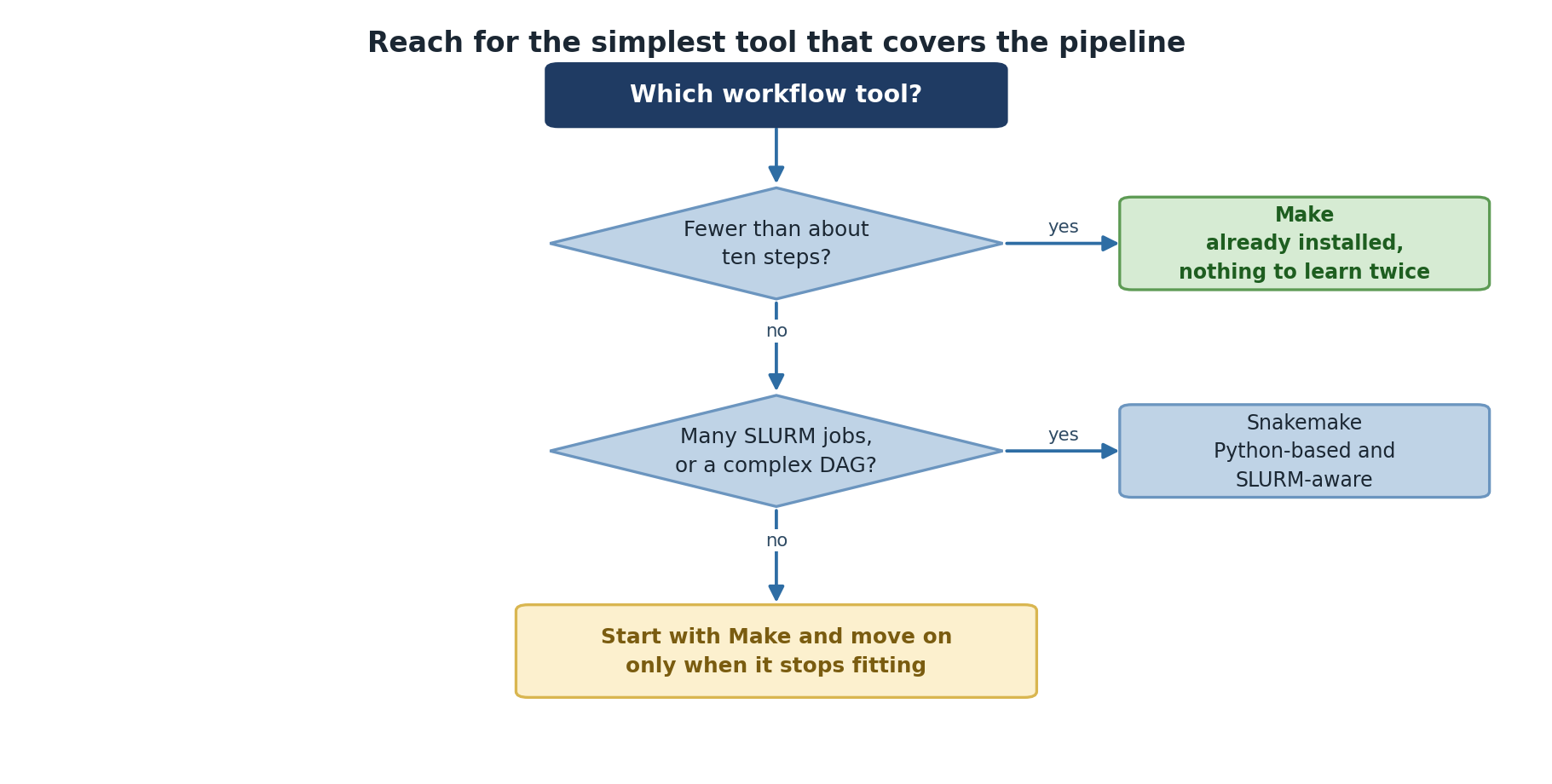
Docker: Maximum Environment Control
For even more control, Docker containerizes your entire environment: not just Python packages, but the operating system, all system libraries, compiler versions, everything.
What Is Docker?
Docker packages your code and environment into a container, a lightweight virtual machine. The container includes the operating system, all system libraries, programming languages and compilers, all software packages, and your code.
When you share a Docker container, anyone can run it identically on any machine with no setup needed.
Dockerfile Example
DOCKERFILE
FROM python:3.11-slim
WORKDIR /app
COPY . /app
RUN pip install -r requirements.txt
CMD ["python", "analyze.py"]Build and run:
When to Use Docker
Docker is powerful but adds complexity. Use it when: - Your environment is complex (many system dependencies, compiled code, specific OS requirements) - You need to run code on diverse machines (HPC cluster, cloud, collaborator’s laptop) - You want to publish your work with maximum reproducibility - You’re publishing a tool others will use
For simple Python analyses, conda is usually sufficient.
Docker on HPC
On most HPC clusters, Docker is not available for security reasons. Instead, some clusters support Singularity, which is similar to Docker but works in HPC environments:
BASH
# Singularity / Apptainer requires a Singularity recipe file or a docker:// URL, not a raw Dockerfile.
# Modern usage: apptainer build my-image.sif my.def
# Or pull and convert: apptainer build my-image.sif docker://image-name:tag
# NOTE: Singularity Community Edition is now Apptainer (post-2022). Both commands work; prefer apptainer.
singularity run my-image.sifCheck with the HPC team at its-hpc@pomona.edu whether Singularity is available on Sagehen.
Documenting HPC Module Dependencies
On HPC clusters using Lmod, you load modules that provide software:
(On Sagehen HPC the real module names are
openmpi/4.1.5_ucx-1.14.0, r/4.5.1,
cuda/12.2.1, and so on – run module avail to
see what is installed. There are no intel,
fftw, or gcc modules.)
These modify your environment but aren’t captured by
conda env export. Document them in a setup script:
BASH
cat > setup_modules.sh << 'EOF'
#!/bin/bash
module load miniconda3/py313_26.3.2-2
module load openmpi/4.1.5_ucx-1.14.0
conda env create -f environment.yml
conda activate my-project
EOF
chmod +x setup_modules.shRecord your module state:
Best Practices: Environment Reproducibility Checklist
Include in your repository:
my-project/
├── environment.yml           # conda dependencies
├── requirements.txt          # pip dependencies (if any)
├── setup_modules.sh          # HPC module setup
├── modules.txt               # Record of loaded modules
├── Dockerfile                # If using Docker
└── README.md                 # Instructions for setup
In your README, provide separate setup instructions for local machines (conda), HPC cluster (Sagehen modules), and Docker (if applicable), along with verification commands to confirm key versions match.
Exercise: Choose Your Environment Strategy
For your research project (or a hypothetical one), decide:
- Which tool? conda, pip, Docker, or a combination?
- What dependencies? List 5-10 key packages your analysis needs.
- HPC modules? If running on Sagehen, which modules do you need?
Write a one-paragraph justification for your choice.
Example answer for a bioinformatics project:
Tool: Conda + pip combination, because I need both Python packages (pandas, scikit-learn) and bioinformatics tools (samtools, bwa) that conda-forge and bioconda provide as pre-compiled binaries.
Dependencies: python=3.11, numpy, pandas, samtools, bwa, salmon, pip: deseq2, scanpy
HPC modules: module load miniconda3 (to
access conda itself), no other system modules needed since conda handles
everything.
Justification: Conda handles the complex binary
dependencies (samtools, bwa) that pip cannot install. Docker would be
overkill since all dependencies are available through conda channels,
and Sagehen provides Apptainer (module load apptainer) if a
container is ever needed.
- pip and requirements.txt are alternatives for pure Python projects
- Docker provides maximum reproducibility but adds complexity; useful for complex environments
- On HPC clusters, document module dependencies separately from conda
- Apptainer (formerly Singularity) is the Docker equivalent for HPC
clusters where Docker is unavailable – on Sagehen:
module load apptainer - Include environment files, setup scripts, and module lists in your repository
Content from Introduction to Makefiles
Last updated on 2026-08-27 | Edit this page
Overview
Questions
- What is Make and why is it useful for research?
- How do I write a Makefile?
- How do I define dependencies between steps?
Objectives
- Understand why manual step-by-step analysis is error-prone
- Learn Make syntax: targets, prerequisites, and recipes
- Write a basic Makefile that automates a multi-step research pipeline
The Manual Problem
A researcher has this analysis procedure:
- Download raw data
- Clean the data (remove bad rows, fix formatting)
- Run analysis (compute statistics)
- Generate figures
- Generate summary table
When they do this manually:
BASH
# Day 1
wget https://example.com/data.csv -O data/raw/data.csv
python src/clean_data.py

# Day 2 (need to rerun with new parameters)
# Did I clean the data? With what version of the script?
python src/clean_data.py
python src/analyze.py

# Day 3 (collaborator asks for new figures)
# Did I run analysis already? Do I need to rerun everything?
python src/visualize.py
Questions that arise: Did I skip a step? If I change the visualization code, do I need to re-run the analysis? If it fails halfway, where do I restart?
This is tedious and error-prone. The solution: Make, a tool that automates step-by-step workflows and only re-runs what’s necessary.
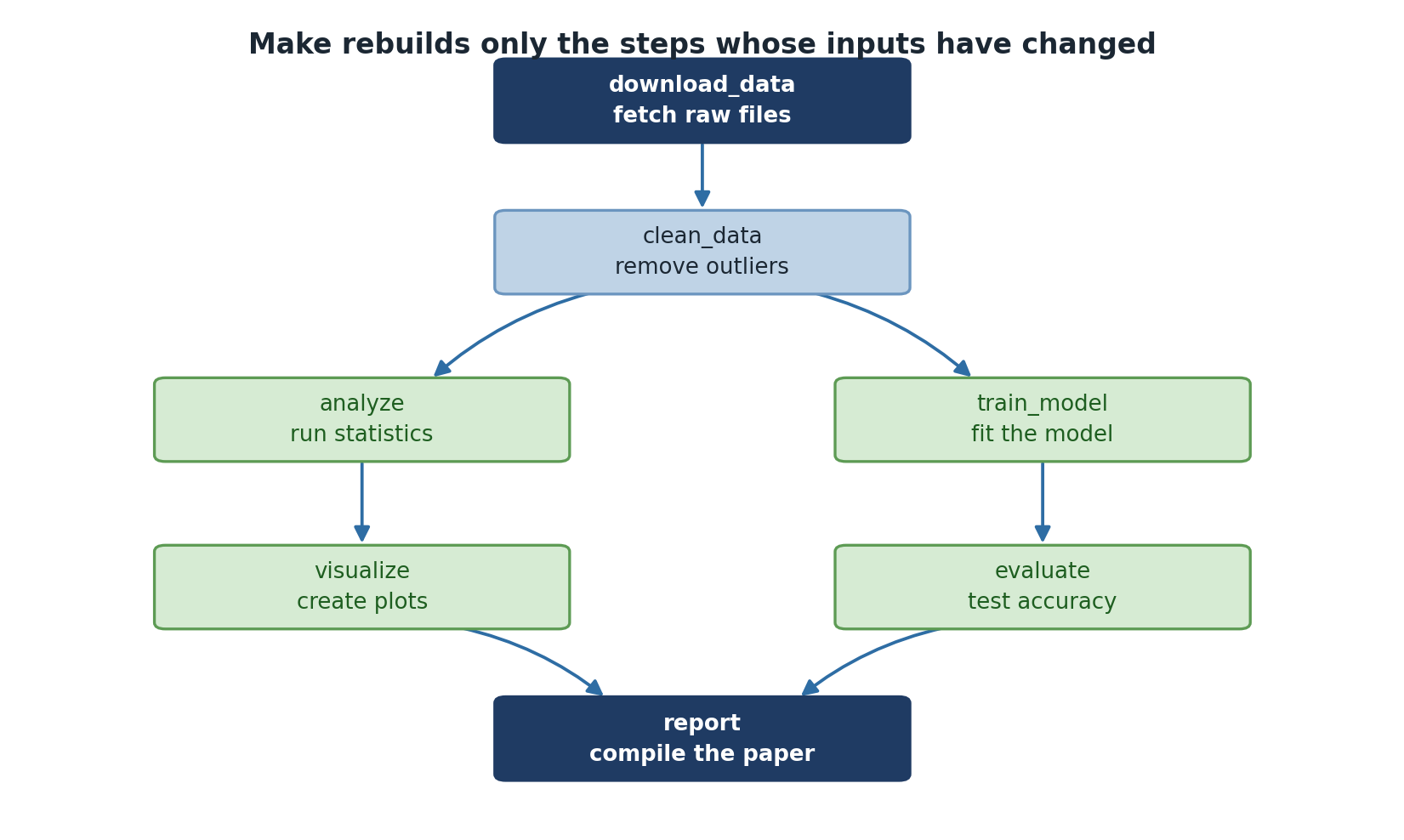
What Is Make?
Make is a tool that:
- Defines a series of analysis steps
- Tracks which outputs depend on which inputs
- Automatically re-runs steps when their inputs change
- Avoids re-running steps that haven’t changed
- Provides a single command to execute an entire pipeline
Make has been used in software development for decades and is equally valuable for research.
Why Make for Research?
- Explicit dependencies: You document which steps depend on which files
- Incremental re-running: If you change one script, only affected steps re-run
- Reproducibility: The Makefile is executable documentation of your analysis
- Parallelization: Make can run independent steps in parallel
- Sharing: Someone can read your Makefile and understand your entire workflow
Make Basics: Targets, Prerequisites, and Recipes
A simple Makefile:
MAKEFILE
# Target: what we want to create
# Prerequisites: what this target depends on
# Recipe: how to create the target
results/analysis.csv: data/processed/data_clean.csv src/analyze.py
	python src/analyze.py

results/figure.png: results/analysis.csv src/visualize.py
	python src/visualize.py
When you run make results/figure.png, Make does
this:
- Check if
results/figure.pngexists - If not, check if its prerequisites exist
- If
results/analysis.csvdoesn’t exist, make it first (by running its recipe) - If anything changed, re-run the recipe
A Complete Example
Here’s a realistic Makefile for a research project:
MAKEFILE
# Reproducible gene expression analysis pipeline
# Run with: make
# Clean with: make clean

PYTHON := python3
DATA_DIR := data
RAW_DATA := $(DATA_DIR)/raw/samples.csv
PROCESSED_DATA := $(DATA_DIR)/processed/samples_clean.csv
RESULTS_DIR := results

# Default target: what "make" runs if no target specified
.PHONY: all
all: $(RESULTS_DIR)/figures/heatmap.pdf $(RESULTS_DIR)/tables/stats.csv

# Download data
$(RAW_DATA):
	mkdir -p $(DATA_DIR)/raw
	wget https://example.com/samples.csv -O $@

# Clean data
$(PROCESSED_DATA): $(RAW_DATA) src/clean_data.py
	mkdir -p $(DATA_DIR)/processed
	$(PYTHON) src/clean_data.py

# Run analysis
$(RESULTS_DIR)/analysis.csv: $(PROCESSED_DATA) src/analyze.py
	mkdir -p $(RESULTS_DIR)
	$(PYTHON) src/analyze.py

# Generate figures
$(RESULTS_DIR)/figures/heatmap.pdf: $(RESULTS_DIR)/analysis.csv src/visualize.py
	mkdir -p $(RESULTS_DIR)/figures
	$(PYTHON) src/visualize.py

# Generate summary table
$(RESULTS_DIR)/tables/stats.csv: $(RESULTS_DIR)/analysis.csv src/summarize.py
	mkdir -p $(RESULTS_DIR)/tables
	$(PYTHON) src/summarize.py

# Clean up generated files
.PHONY: clean
clean:
	rm -rf $(RESULTS_DIR)

.PHONY: help
help:
	@echo "Available targets:"
	@echo "  make all      - Run entire pipeline (default)"
	@echo "  make clean    - Remove results/"
	@echo "  make help     - Show this help message"
Variables
Variables make your Makefile cleaner and easier to modify. Use
$(VARIABLE) to reference them. $@ is a special
variable meaning “the target name”.
.PHONY Targets
.PHONY declares targets that aren’t actual files (like
all, clean, help). Without this,
if a file named clean exists, make clean won’t
work.
Automatic Re-running
The beauty of Make: if you modify src/visualize.py, Make
automatically re-runs only the visualization step because
src/visualize.py (a prerequisite) has a newer timestamp
than the output.
Running the Makefile
BASH
make              # Run the entire pipeline
make results/figures/heatmap.pdf  # Run a specific target
make -n           # View what would happen (dry run)
make help         # Show help
make clean # Clean upExercise: Write a Basic Makefile
Create a Makefile for a three-step pipeline:
- Process raw data -> processed data
- Analyze processed data -> results
- Create figure from results -> figure
Define:
- Variables for data directories
- Targets for each output
- Prerequisites between targets
-
.PHONYtargets (all,clean,help)
Test with make -n (dry run) to see what would
execute.
MAKEFILE
PYTHON := python3

.PHONY: all clean help

all: results/figure.png

data/processed/data_clean.csv: data/raw/data.csv src/process.py
	mkdir -p data/processed
	$(PYTHON) src/process.py data/raw/data.csv data/processed/data_clean.csv

results/analysis.csv: data/processed/data_clean.csv src/analyze.py
	mkdir -p results
	$(PYTHON) src/analyze.py data/processed/data_clean.csv results/analysis.csv

results/figure.png: results/analysis.csv src/visualize.py
	$(PYTHON) src/visualize.py results/analysis.csv results/figure.png

clean:
	rm -rf results/ data/processed/

help:
	@echo "make all   - Run full pipeline"
	@echo "make clean - Remove generated files"
Expected dry-run output:
- Make automates multi-step workflows and only re-runs necessary steps
- Makefiles explicitly document data dependencies and analysis steps
- A Makefile target depends on prerequisites; if anything changes, the target is re-run
- Recipe lines must use TABs, not spaces
-
.PHONYtargets likeall,clean, andhelpmake your Makefile self-documenting
Content from Advanced Make Patterns
Last updated on 2026-08-27 | Edit this page
Overview
Questions
- What are pattern rules and automatic variables in Make?
- How do I use Make variables effectively?
- When should I use Make vs. other workflow tools?
- How do I debug Makefiles?
Objectives
- Use Make variables for DRY (Don’t Repeat Yourself) code
- Apply pattern rules and automatic variables for complex pipelines
- Debug common Makefile errors
- Understand when to use Make vs. other workflow tools
Pattern Rules and Automatic Variables
For complex projects with many similar steps, use pattern rules:
This single rule means any .csv file can be converted to
.json.
A Complete Advanced Makefile
MAKEFILE
# Reproducible analysis pipeline
# Usage: make              (run entire pipeline)
#        make clean        (clean results)
#        make help         (show help)

PYTHON := python3
SHELL := /bin/bash
.SHELLFLAGS := -eu -o pipefail -c

# Input and output files
RAW_DATA := data/raw/data.csv
PROCESSED_DATA := data/processed/data_clean.csv
ANALYSIS_RESULTS := results/analysis_results.csv
FIGURES := results/figures/main_plot.pdf results/figures/secondary.pdf
TABLES := results/tables/stats.txt

# Default target
.PHONY: all
all: $(FIGURES) $(TABLES)

# Download data (only if doesn't exist)
$(RAW_DATA):
	@echo "Downloading data..."
	mkdir -p data/raw
	$(PYTHON) src/download_data.py -o $@

# Clean data
$(PROCESSED_DATA): $(RAW_DATA) src/clean_data.py
	@echo "Cleaning data..."
	mkdir -p data/processed
	$(PYTHON) src/clean_data.py $< -o $@

# Run analysis
$(ANALYSIS_RESULTS): $(PROCESSED_DATA) src/analyze.py
	@echo "Running analysis..."
	mkdir -p results
	$(PYTHON) src/analyze.py $< -o $@

# Generate figures
$(FIGURES): $(ANALYSIS_RESULTS) src/visualize.py
	@echo "Generating figures..."
	mkdir -p results/figures
	$(PYTHON) src/visualize.py $< -o results/figures/

# Generate summary table
$(TABLES): $(ANALYSIS_RESULTS) src/summarize.py
	@echo "Generating summary table..."
	mkdir -p results/tables
	$(PYTHON) src/summarize.py $< -o $@

# Clean targets
.PHONY: clean clean-all help
clean:
	rm -rf results/

clean-all: clean
	rm -rf data/processed/

help:
	@echo "Reproducible Analysis Pipeline"
	@echo "============================="
	@echo ""
	@echo "Available targets:"
	@echo "  make all        - Run entire pipeline (default)"
	@echo "  make clean      - Remove results/"
	@echo "  make clean-all  - Remove results/ and processed data"
@echo " make help - Show this message"Make + HPC: Orchestrating SLURM Jobs
Make can orchestrate not just local commands but job submissions to HPC clusters:
MAKEFILE
SLURM_ARGS := --time=04:00:00 --cpus-per-task=8 --mem=32G

.PHONY: submit-processing
submit-processing:
	sbatch $(SLURM_ARGS) --job-name=process \
		--output=logs/process.log \
		src/process.sh data/raw/samples.csv data/processed/

.PHONY: submit-analysis
submit-analysis: submit-processing
	sbatch $(SLURM_ARGS) --job-name=analyze \
		--dependency=singleton \
		--output=logs/analyze.log \
		src/analyze.sh data/processed/ results/
We’ll cover SLURM integration in depth in later episodes.
Debugging Makefiles
When NOT to Use Make
Make is great for simple-to-moderate workflows but has limitations:
- No built-in parallelization control: Hard to parallelize interdependent jobs
- Complex data dependencies: Hard to express “if any file in this directory changes”
- Interactive feedback needed: Make doesn’t check for user input mid-workflow
For complex bioinformatics or machine learning pipelines with hundreds of jobs, consider:
- Snakemake: Python-based workflow tool, better parallelization
- Nextflow: Domain-specific workflow language, excellent HPC support
- Dask/Luigi: Python libraries for workflow orchestration
But for most research analyses, Make is simple, effective, and universal (available on virtually every Unix system).
Tips and Best Practices
-
Include a
.PHONY: alltarget: Defines the default workflow - Use variables: Makes your Makefile DRY and maintainable
- Add @echo statements: Provides user feedback on what’s happening
- Include help target: Document your pipeline
- Separate concerns: One rule per logical step
- Use relative paths: Makes Makefiles portable
-
Test your Makefile: Run
make cleanthenmaketo ensure reproducibility - Version your Makefile: Track it in git like any other source code
Exercise: Incremental Rebuilds
Given a working Makefile with targets for process,
analyze, and visualize:
- Run
maketo build everything - Touch only
src/visualize.py(touch src/visualize.py) - Run
make -nto see what would be rebuilt
Question: Why does Make only re-run the visualization step and not the earlier steps?
Then modify the Makefile to add a clean-all target that
removes both results and processed data.
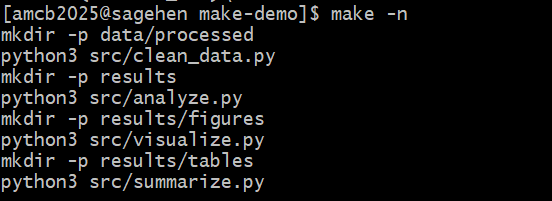
make -n on Sagehen HPC previews
every command in the four-stage pipeline without running anything.BASH
$ touch src/visualize.py
$ make -n
python3 src/visualize.py results/analysis.csv results/figure.png
Make only re-runs the visualization step because:
-
src/visualize.pyhas a newer timestamp thanresults/figure.png - But
src/analyze.pyhas NOT changed, soresults/analysis.csvis still up-to-date - And
src/process.pyhas NOT changed, sodata/processed/data_clean.csvis still up-to-date
Make traces the dependency graph and only re-runs targets whose prerequisites are newer than their outputs.
The clean-all target:
- Variables, .PHONY targets, and special variables ($@, $<, $^) make Makefiles clean and maintainable
- Pattern rules let you define one rule for many similar transformations
- Make can orchestrate HPC job submissions for parallel processing
- Debug with
make -n(dry run) andmake -d(debug output) - A good Makefile with help and clean targets makes your workflow self-documenting
- For complex pipelines with hundreds of jobs, consider Snakemake or Nextflow
Content from Git for Research Projects
Last updated on 2026-08-24 | Edit this page
Overview
Questions
- How do I use Git for research, not just code?
- What should and shouldn’t go in version control?
- How do I write meaningful commit messages for research?
Objectives
- Apply version control best practices to research projects
- Understand what to track and what to exclude from Git
- Write meaningful commit messages documenting analysis decisions
- Create a research-appropriate .gitignore
Git for Research: A Different Perspective
Most researchers use Git only for code, if at all. But Git is equally valuable for research data and analysis decisions.
Typically, code goes in Git. But the actual research (the decisions,
experiments, versions of analysis) often lives in folders with names
like analysis_v1/, analysis_v2_better/,
analysis_FINAL.txt,
analysis_REAL_FINAL.txt.
This is fragile. When someone asks, “What changed between v2 and v3?”, you can’t easily answer. You can’t revert to an earlier version if the new one breaks. You can’t compare approaches.
Git solves this, but we need to use it differently for research than for software development.
What Goes in Git?
YES: Track These
Code (scripts, notebooks, Makefiles)
src/analyze.py
src/visualize.py
Makefile
Documentation (README, analysis plans)
README.md
ANALYSIS_PLAN.md
METHODS.md
Small configuration files
config.yaml
environment.yml
.gitignore
Results (figures, tables): But carefully
- Small figures (PDF, PNG): OK to track
- Large figures or datasets: Better stored elsewhere
- Use git lfs (Large File Storage) for anything over a few MB
Writing Meaningful Commit Messages
A commit message should explain not just what changed, but why.
Bad Commit Messages
git commit -m "fix"
git commit -m "update script"
git commit -m "changes"
These are useless. Six months later, you won’t remember what these were about.
Good Commit Messages
git commit -m "Increase expression threshold from 5 to 10 to reduce noise

Rationale: Initial threshold produced too many low-significance hits.
Consultation with domain expert suggested 10 is standard in field.
Reduces output gene set from 4,500 to 1,200."
Commit Message Best Practices
Structure: Title (50 chars) + blank line + detailed explanation
Fix edge case in date parsing

The original code assumed all dates were in YYYY-MM-DD format.
However, some rows had MM/DD/YYYY format due to regional settings.
Added format detection to handle both cases.
Why is this better?
-
Searching history is useful:
git log --grep="date parsing"finds relevant commits - Understanding evolution: You understand not just code changes, but the reasoning
-
Blame context: When someone runs
git blame, they see why a line exists
Using Git History as a Lab Notebook
Your git log is a documented record of analysis evolution.
A .gitignore Template for Research
BASH
# Operating system
.DS_Store
Thumbs.db

# Python
__pycache__/
*.py[cod]
.env
.venv

# R
.Rhistory
.RData

# Data
data/raw/
data/processed/
*.csv
*.xlsx
*.fasta
*.bam

# Large files
*.pkl
*.npy
*.h5
*.hdf5

# Results
results/
*.png
*.pdf

# IDE
.vscode/
.idea/

# Job logs
*.log
slurm-*.out

# Sensitive
secrets.yml
credentials.jsonStep 1: Create a Project
BASH
mkdir my-research && cd my-research
mkdir src data results
echo "# My Research Project" > README.md
Step 3: Create .gitignore and Commit
BASH
cat > .gitignore << 'EOF'
data/raw/
data/processed/
results/
*.log
__pycache__/
.DS_Store
EOF

git add README.md .gitignore
git commit -m "Initialize project structure

Setup standard directories for data, source code, and results.
Created .gitignore to prevent accidental commits of large data files."BASH
$ git init
Initialized empty Git repository in /rhome/<myusername>/my-research/.git/
$ git add README.md .gitignore
$ git commit -m "Initialize project structure
Setup standard directories for data, source code, and results.
Created .gitignore to prevent accidental commits of large data files."
[main (root-commit) a1b2c3d] Initialize project structure
2 files changed, 8 insertions(+)
$ git add src/analyze.py
$ git commit -m "Add initial analysis script"
[main d4e5f6g] Add initial analysis script
1 file changed, 2 insertions(+)
$ git log --oneline
d4e5f6g Add initial analysis script
a1b2c3d Initialize project structure- Git is valuable for research beyond just code; track analysis decisions, methods, and evolution
- Use meaningful commit messages documenting why you made changes
- Avoid tracking: large raw data files, credentials, or binary intermediate results
- Your git log is a lab notebook showing the progression of your research
- .gitignore keeps large/sensitive/irrelevant files out of version control
Content from Branching and Collaboration
Last updated on 2026-08-24 | Edit this page
Overview
Questions
- How do I use branches for parallel experiments?
- How do I tag versions for publications?
- How do I collaborate with others using Git?
- When should I NOT use Git?
Objectives
- Use branches to explore different analysis approaches
- Tag specific commits as publication versions
- Collaborate using shared repositories and pull requests
- Recognize when to not use Git (large data files, sensitive data)
Using Branches for Experiments
Branches are where Git becomes powerful for research.
Scenario: Trying New Analysis Approaches
You have a working analysis on main. You want to try a
different statistical test without breaking the working code:
Naming Branches
Use a convention:
main # Production / paper version
develop # Working version
feature/add-confidence-intervals
experiment/logistic-regression
bugfix/date-parsing-errorThe Flow
BASH
# Start with main (stable)
git checkout main
# Create feature branch for new work
git checkout -b feature/confidence-intervals
# Make changes, test, commit
echo "confidence interval code" >> src/analyze.py
git add src/analyze.py
git commit -m "Add confidence interval calculation
Using scipy.stats.t.ppf for parametric intervals and
scipy.stats.bootstrap for non-parametric bootstrapped CIs."
# When satisfied, merge to main
git checkout main
git merge feature/confidence-intervals
git branch -d feature/confidence-intervalsComparing Approaches
Branches let you compare analysis approaches:
BASH
# Compare two methods
git log main...feature/logistic-regression --oneline
# See what figures changed
git diff main feature/logistic-regression -- results/
# See what the code difference is
git diff main feature/logistic-regression -- src/analyze.pyThis is documentation of your scientific decision-making process.
Tagging: Versions for Publications
Tag specific commits as versions:
BASH
# Tag the version submitted to journal
git tag v1.0-submitted
# Tag revisions
git tag v1.1-revision-1
# Create an annotated release
git tag -a v2.0-published -m "Final published version"Later, you can easily return to the published version:
Or compare:
Collaborating with Git
Shared Repository Workflow
Your lab shares a private GitHub repository:
BASH
# Clone the repository
git clone git@github.com:mylab/project.git
cd project
# Create a feature branch
git checkout -b feature/new-analysis
# Make changes, commits
git add src/
git commit -m "Add new statistical test"
# Push to GitHub
git push origin feature/new-analysis
# Open a Pull Request on GitHub
# Lab members review, discuss, approve
# Merge to main when readyWhen NOT to Use Git
Large Data Files
Git stores the entire history of every file. If you commit a 100 MB data file, then delete it, Git still stores it. Your repository becomes bloated.
Solution: Don’t track raw data. Document how to obtain it.
Binary Data
If you have large neuroimaging files (.nii), genomic data (.bam, .vcf), or simulation output (.pkl, .h5), Git diffs are meaningless for these. Document in README how to regenerate or where to find them.
Best Practices: Research Git Workflow
-
Initialize early: Start a project with
git initon day one - Commit often: Don’t wait for “finished” work. Commit incremental progress
- Meaningful messages: Document why you made changes
- Use branches: Experiment without breaking the main analysis
- Tag releases: Mark versions submitted to journals, published versions, etc.
-
Ignore appropriately: Use
.gitignorefor raw data and large intermediate files - Protect main: Use GitHub rules to prevent accidental commits to main
- Document decisions: In commit messages and in ANALYSIS_PLAN.md or README
Step 1: Create Two Feature Branches
BASH
# From main, create an analysis branch
git checkout -b feature/add-analysis
cat > src/analyze.py << 'EOF'
"""Example analysis script."""
print("Running analysis...")
EOF

git add src/analyze.py
git commit -m "Add initial analysis script"
# Go back to main, create a test branch
git checkout main
git checkout -b feature/add-tests
cat > src/test_analyze.py << 'EOF'
"""Tests for analysis."""
def test_imports():
import src.analyze
print("Import successful!")
EOF
git add src/test_analyze.py
git commit -m "Add test suite"BASH
$ git log --graph --all --decorate --oneline
* h8i9j0k (HEAD -> feature/add-tests) Add test suite
| * d4e5f6g (feature/add-analysis) Add initial analysis script
|/
* a1b2c3d (main) Initialize project structure

$ git checkout main
$ git merge feature/add-analysis
Updating a1b2c3d..d4e5f6g
Fast-forward
 src/analyze.py | 2 ++
 1 file changed, 2 insertions(+)

$ git log --oneline
d4e5f6g (HEAD -> main) Add initial analysis script
a1b2c3d Initialize project structure
The graph view shows how each branch diverged from main
independently. The merge brought the analysis branch back into main via
fast-forward, while the tests branch remains separate.
- Branches let you explore different analysis approaches without breaking working code
- Tag versions for submissions, revisions, and publications
- Collaborate using shared repositories, feature branches, and pull requests
- Git history demonstrates reproducibility: others can see exactly what changed and when
- Don’t track large data, binary files, or sensitive information in Git
Content from SLURM Pipeline Basics
Last updated on 2026-08-27 | Edit this page
Overview
Questions
- How do I automate job submission to SLURM?
- What are job dependencies and how do I use them?
- How do I write reproducible SLURM job scripts?
Objectives
- Understand SLURM job dependencies for sequential workflows
- Write bash scripts that run reproducibly on compute nodes
- Use job arrays to parallelize independent tasks
- Handle errors and verify job completion
The HPC Challenge
On a personal machine, your entire analysis runs on your laptop:
On an HPC cluster like Sagehen HPC with many cores available, you want to parallelize:
- Download data (1 job)
- Process samples in parallel (100 independent jobs)
- Merge results (1 job)
- Run analysis (1 job)
- Generate 50 different figures in parallel (50 jobs)
But each job must wait for its dependencies:
Download Data
    |
Process Sample 1    Process Sample 2    Process Sample 3    ...
    |                    |                    |
         Merge Results
            |
         Analysis
            |
      Figure 1     Figure 2    Figure 3    ...
How do you coordinate this? SLURM job dependencies.
SLURM Job Dependencies
SLURM has a --dependency flag that lets one job wait for
another:
BASH
# Submit a job that will run after job 12345 completes successfully
sbatch --dependency=afterok:12345 step2.sh

# Submit a job that will run after job 12345 completes (regardless of success)
sbatch --dependency=after:12345 step2.sh

# Submit a job that will run after ALL of multiple jobs complete
sbatch --dependency=afterok:12345,12346,12347 step2.sh
Making SLURM Scripts Reproducible
A reproducible SLURM job script follows this pattern:
BASH
#!/bin/bash
#SBATCH --job-name=my-job
#SBATCH --output=logs/%j.log
#SBATCH --error=logs/%j.err
#SBATCH --time=01:00:00
#SBATCH --cpus-per-task=4
#SBATCH --mem=8G

# Set bash to fail if any command fails
set -euo pipefail

# Source your environment
source /etc/profile.d/modules.sh
module load miniconda3
conda activate my-project

# Define paths
WORK_DIR=$(pwd)
DATA_IN="${WORK_DIR}/data/processed/sample_${SLURM_ARRAY_TASK_ID}.csv"
RESULTS_OUT="${WORK_DIR}/results/analysis_${SLURM_ARRAY_TASK_ID}.csv"

# Verify inputs exist
if [ ! -f "$DATA_IN" ]; then
    echo "ERROR: Input file not found: $DATA_IN"
    exit 1
fi

# Create output directory
mkdir -p "${RESULTS_OUT%/*}"

# Run analysis
echo "Starting analysis on $(hostname) at $(date)"
python src/analyze.py "$DATA_IN" "$RESULTS_OUT"

# Verify output was created
if [ ! -f "$RESULTS_OUT" ]; then
    echo "ERROR: Output file was not created: $RESULTS_OUT"
    exit 1
fi

echo "Job completed at $(date)"
Key points: 1. set -euo pipefail: Exit
immediately if any command fails 2. #SBATCH
directives: Request resources clearly 3. Path
verification: Check that inputs exist before processing 4.
Output verification: Check that output was created
successfully 5. Logging: Know what node ran the job and
when
SLURM Job Arrays for Parallel Processing
When you have many independent jobs (process 1000 samples), use job arrays:
BASH
#!/bin/bash
#SBATCH --array=1-1000        # 1000 parallel jobs
#SBATCH --time=00:30:00
#SBATCH --cpus-per-task=2
#SBATCH --mem=4G

# SLURM_ARRAY_TASK_ID is automatically 1, 2, 3, ..., 1000
SAMPLE_ID=$SLURM_ARRAY_TASK_ID
INPUT="data/processed/sample_${SAMPLE_ID}.csv"
OUTPUT="results/analysis_${SAMPLE_ID}.csv"

python src/analyze.py "$INPUT" "$OUTPUT"
Submit:
Check status:
Error Handling and Verification
Real workflows fail. Systems crash. Data corruption happens. Robust workflows detect and handle these:
BASH
#!/bin/bash
#SBATCH --time=01:00:00
set -euo pipefail

# Function to clean up on exit
cleanup() {
    local exit_code=$?
    if [ $exit_code -ne 0 ]; then
        echo "Job failed with exit code $exit_code"
        exit $exit_code
    fi
}
trap cleanup EXIT

# Verify inputs
INPUT="$1"
if [ ! -f "$INPUT" ]; then
    echo "ERROR: Input file $INPUT not found" >&2
    exit 1
fi

# Run analysis with error handling
if python src/analyze.py "$INPUT" "$OUTPUT" 2>&1 | tee analysis.log; then
    echo "Job completed successfully at $(date)"
else
    echo "ERROR: Analysis script failed" >&2
    exit 1
fi
Debugging Failed Jobs
When a job fails:
-
Check the log file:
-
Check SLURM error details:
-
Run interactively to debug:
Exercise: Create a SLURM Job Script with Dependencies
Create three scripts that simulate a three-step pipeline:
BASH
mkdir -p scripts logs

# Step 1: Preprocessing
cat > scripts/step1.sh << 'EOF'
#!/bin/bash
#SBATCH --job-name=step1
#SBATCH --output=logs/step1.log
#SBATCH --time=00:05:00
set -euo pipefail
echo "Step 1: Preprocessing"
mkdir -p results
echo "Processed data" > results/step1_output.txt
echo "Step 1 completed at $(date)"
EOF

# Step 2: Analysis (depends on Step 1)
# Step 3: Visualization (depends on Step 2)
Submit them with dependencies:
BASH
$ sbatch scripts/step1.sh
Submitted batch job 48201
$ JID1=48201
$ sbatch --dependency=afterok:$JID1 scripts/step2.sh
Submitted batch job 48202
$ JID2=48202
$ sbatch --dependency=afterok:$JID2 scripts/step3.sh
Submitted batch job 48203
$ squeue -u $(whoami)
JOBID PARTITION NAME ST TIME NODES
48201 amd step1 R 0:02 1
48202 amd step2 PD 0:00 1 (Dependency)
48203 amd step3 PD 0:00 1 (Dependency) The scripts’ SBATCH headers don’t set
 --partition, so all
three jobs land on amd – Sagehen’s default partition. Add
--partition=short (or gpu) when a step needs a
different one. Steps 2 and 3 show PD (pending) with reason
(Dependency) until their prerequisite job finishes
successfully.
- SLURM job dependencies enable reproducible, sequential workflows on HPC
- Use
--dependency=afterok:JOBIDto make one job wait for another to complete successfully - Job arrays parallelize independent tasks across compute nodes
- Robust scripts include input verification, error handling, and output verification
- Debug failed jobs by checking logs, using
sacct, and running interactively withsalloc
Content from Multi-Step SLURM Workflows
Last updated on 2026-08-27 | Edit this page
Overview
Questions
- How do I integrate Make with SLURM for automated job submission?
- How do I ensure HPC workflows are reproducible?
- How do I monitor and debug multi-job workflows?
- How do I make pipeline reruns idempotent?
Objectives
- Integrate Make with SLURM for automated, reproducible job submission
- Capture environment state and input checksums for reproducibility
- Monitor and debug multi-job workflows on Sagehen HPC
- Make pipelines idempotent so reruns do not waste compute
Why Multi-Step Pipelines Need a Pipeline Tool
Real research workflows almost never fit in one SLURM script. Preprocessing, training, and analysis each have different resource needs (CPU vs GPU, memory, time), and they must run in order. Doing this by hand means submitting one job, checking its status, manually submitting the next, and so on. The first time you forget to submit step 3 because you went to bed at 2 AM, you understand why pipeline tools exist.
Make is the simplest tool for this on HPC. It tracks dependencies
between targets, only re-runs what has changed, and can submit SLURM
jobs as part of building a target. The result: one make
command that submits the whole pipeline, with proper dependencies
between steps, and re-running it skips already-finished work.
Integration: Make Submitting SLURM Jobs
The most reproducible approach: use Make to orchestrate SLURM job submission.
MAKEFILE
# HPC-aware Makefile for gene expression pipeline

PYTHON := python3
# --parsable makes sbatch print ONLY the job ID (not "Submitted batch job 12345"),
# so the .jid files below contain something --dependency=afterok: can actually use.
SLURM := sbatch --parsable
SLURM_ARGS := --time=04:00:00 --cpus-per-task=8 --mem=32G

# Track job completion
JOB_DIR := .jobs
PREPROCESS_JOB := $(JOB_DIR)/preprocess.jid
ANALYSIS_JOBS := $(JOB_DIR)/analysis.jid
MERGE_JOB := $(JOB_DIR)/merge.jid
FIGURES_JOB := $(JOB_DIR)/figures.jid

.PHONY: all clean clean-all help status

all: $(FIGURES_JOB)
	@echo "Workflow submitted. Use 'make status' to check progress."

$(JOB_DIR):
	mkdir -p $(JOB_DIR)

# Step 1: Preprocess (must run first)
$(PREPROCESS_JOB): $(JOB_DIR) | data/raw/data.csv
	@echo "Submitting preprocessing job..."
	$(SLURM) $(SLURM_ARGS) --output=logs/preprocess.log \
		--job-name=preprocess \
		scripts/preprocess.sh > $@
	@echo "Preprocessing JID: $$(cat $@)"

# Step 2: Analysis (depends on preprocessing, runs in parallel)
$(ANALYSIS_JOBS): $(PREPROCESS_JOB)
	@echo "Submitting analysis jobs..."
	PJID=$$(cat $(PREPROCESS_JOB)) && \
	$(SLURM) $(SLURM_ARGS) --output=logs/analysis_%a.log \
		--job-name=analysis \
		--array=1-100 \
		--dependency=afterok:$$PJID \
		scripts/analyze.sh > $@

# Step 3: Merge results (depends on all analyses)
$(MERGE_JOB): $(ANALYSIS_JOBS)
	@echo "Submitting merge job..."
	AJID=$$(cat $(ANALYSIS_JOBS)) && \
	$(SLURM) $(SLURM_ARGS) --output=logs/merge.log \
		--job-name=merge \
		--dependency=afterok:$$AJID \
		scripts/merge.sh > $@

# Step 4: Generate figures (depends on merge)
$(FIGURES_JOB): $(MERGE_JOB)
	@echo "Submitting figures job..."
	MJID=$$(cat $(MERGE_JOB)) && \
	$(SLURM) $(SLURM_ARGS) --output=logs/figures.log \
		--job-name=figures \
		--dependency=afterok:$$MJID \
		scripts/figures.sh > $@
Two ideas in this Makefile do the heavy lifting. First, each step’s
“target” is a small file (.jobs/preprocess.jid) containing
the SLURM job ID, not the actual results. Make tracks these JID files
and uses them to express dependencies. Second, each step’s
sbatch call uses --dependency=afterok:$$PJID
to wait for the previous step to finish before starting. SLURM enforces
the ordering; Make just submits them in the right sequence.
The result: make submits the whole pipeline in seconds
and returns. SLURM runs the jobs in dependency order over the next
several hours. You can make status any time to see where
things stand.
Monitoring Multi-Job Workflows
Add a status target to your Makefile:
MAKEFILE
status:
	@echo "=== Pipeline Status ===" && \
	squeue -u $$USER -h --format="%.10i %.10j %.2t" | \
		grep -E "preprocess|analyze|merge|figures" || \
		echo "(No jobs found)"

clean:
	rm -rf results/ .jobs

clean-all: clean
	rm -rf logs/

help:
	@echo "Reproducible HPC Pipeline" && \
	echo "  make           Submit full pipeline" && \
	echo "  make status    Check job status" && \
	echo "  make clean     Remove results"
make status shows the SLURM queue filtered to just this
pipeline’s jobs. Useful for at-a-glance “where am I in the pipeline?”
without parsing squeue output by hand.
The clean target removes results and the
.jobs directory; running make again resubmits
the whole pipeline from scratch. clean-all also removes
logs, useful when starting truly fresh.
Idempotent reruns
A pipeline rerun should be safe: rerunning make after a
partial completion should pick up where things stopped, not redo
everything.
The Makefile pattern above is mostly idempotent because Make checks
file modification times. If .jobs/preprocess.jid exists and
is newer than the script, Make skips that step.
For full idempotence, the underlying scripts must also be idempotent.
A preprocessing script that always overwrites processed.csv
is idempotent. One that appends to a log file is not (rerunning
duplicates the entries). Design scripts to write fresh outputs and never
accumulate state across runs.
Reproducibility in HPC Workflows
To ensure HPC workflows are reproducible:
Document Environment
BASH
# In job scripts
module list > logs/modules_$(date +%Y%m%d).txt
conda env export > logs/environment_$(date +%Y%m%d).yml
Six months later when a reviewer asks “which version of Python
produced these results?”, the captured environment.yml is
the answer.
Record Exact Inputs
BASH
# Archive input data state
find data/processed -name "*.csv" -exec md5sum {} \; > logs/input_checksums.txt
If someone replaces data.csv with a different version a
year later, the saved checksums let you detect that the inputs are no
longer the ones the original results were derived from.
Include Computation Metadata
BASH
# In your results files, record provenance
echo "Generated: $(date)" >> results/metadata.txt
echo "Hostname: $(hostname)" >> results/metadata.txt
echo "SLURM Job ID: $SLURM_JOB_ID" >> results/metadata.txt
echo "Git commit: $(git rev-parse HEAD)" >> results/metadata.txt
The git commit hash is essentially mandatory. Without it, “the code that produced result.csv” is undefined six months later when the repo has moved on.
Verify Reproducibility
BASH
# Re-run same job with same inputs
sbatch job_script.sh
# Compare outputs to original run
diff original_results.csv new_results.csv
If the diff is non-empty, your pipeline has a non-determinism somewhere (random seeds not pinned, parallel order affecting numerics, environment drift). Tracking these down is tedious but worthwhile for any result you plan to publish.
Example: Complete Reproducible HPC Pipeline
A real research project structure:
project/
├── README.md
├── Makefile
├── environment.yml
├── scripts/
│   ├── preprocess.sh
│   ├── analyze.sh
│   ├── merge.sh
│   └── figures.sh
├── src/
│   ├── preprocess.py
│   ├── analyze.py
│   ├── merge.py
│   └── visualize.py
├── data/
│   ├── raw/README.md
│   └── processed/
├── results/
└── logs/
The Makefile:
MAKEFILE
.PHONY: all status clean help

JOB_DIR := .jobs

all: $(JOB_DIR)/figures.jid
	@echo "Full pipeline submitted to SLURM"
	@echo "Track progress: make status"

$(JOB_DIR):
	@mkdir -p $(JOB_DIR) logs

$(JOB_DIR)/preprocess.jid: $(JOB_DIR) data/raw/*.csv
	@sbatch --job-name=preprocess \
		--output=logs/preprocess.log \
		--time=02:00:00 --mem=16G \
		scripts/preprocess.sh > $@

$(JOB_DIR)/analyze.jid: $(JOB_DIR)/preprocess.jid
	@PJID=$$(cat $<) && \
	sbatch --job-name=analyze \
		--array=1-100 \
		--output=logs/analyze_%a.log \
		--time=01:00:00 --mem=8G \
		--dependency=afterok:$$PJID \
		scripts/analyze.sh > $@

$(JOB_DIR)/merge.jid: $(JOB_DIR)/analyze.jid
	@AJID=$$(cat $<) && \
	sbatch --job-name=merge \
		--output=logs/merge.log \
		--dependency=afterok:$$AJID \
		scripts/merge.sh > $@

$(JOB_DIR)/figures.jid: $(JOB_DIR)/merge.jid
	@MJID=$$(cat $<) && \
	sbatch --job-name=figures \
		--output=logs/figures.log \
		--dependency=afterok:$$MJID \
		scripts/figures.sh > $@

status:
	@squeue -u $$USER -h --format="%.10i %.10j %.2t" | \
		grep -E "preprocess|analyze|merge|figures" || \
		echo "(No jobs found)"

clean:
	@rm -rf results/ .jobs

help:
	@echo "  make           Submit full pipeline"
	@echo "  make status    Check job status"
@echo " make clean Remove results"Beyond Make: Snakemake and Nextflow
For more sophisticated pipelines (hundreds of steps, conditional branches, integration with cluster scheduling beyond SLURM), specialized workflow managers like Snakemake (Python-based) and Nextflow (Groovy-based) are worth considering. Both have native SLURM integration and richer dependency tracking than Make.
The tradeoff is complexity: Make is six lines of Makefile per step, with no extra runtime. Snakemake adds a Python-based DSL and a runtime daemon. Use Make until you outgrow it; only adopt a workflow manager when the project is large enough to justify the learning curve.
Exercise: Design a Multi-Step HPC Workflow
Sketch a Makefile for an HPC pipeline with these steps:
- Preprocess – 1 job, 2 hours, 16 GB RAM
- Analyze – 50 parallel jobs (array), 1 hour each, 8 GB RAM
- Summarize – 1 job, depends on all analysis jobs
For each step, specify:
- SLURM resource requests
- Dependency relationships
- Input and output verification in the job scripts
MAKEFILE
JOB_DIR := .jobs

$(JOB_DIR)/preprocess.jid:
	@mkdir -p $(JOB_DIR) logs
	sbatch --time=02:00:00 --mem=16G \
		--job-name=preprocess \
		--output=logs/preprocess.log \
		scripts/preprocess.sh > $@

$(JOB_DIR)/analyze.jid: $(JOB_DIR)/preprocess.jid
	@PJID=$$(cat $<) && \
	sbatch --time=01:00:00 --mem=8G \
		--job-name=analyze --array=1-50 \
		--output=logs/analyze_%a.log \
		--dependency=afterok:$$PJID \
		scripts/analyze.sh > $@

$(JOB_DIR)/summarize.jid: $(JOB_DIR)/analyze.jid
	@AJID=$$(cat $<) && \
	sbatch --time=00:30:00 --mem=4G \
		--job-name=summarize \
		--output=logs/summarize.log \
		--dependency=afterok:$$AJID \
		scripts/summarize.sh > $@
Each job script should include set -euo pipefail, input
file checks ([ ! -f "$INPUT" ] && exit 1), and
output verification. The dependency chain ensures preprocess finishes
before analysis starts, and all 50 analysis jobs finish before summarize
runs.
Exercise: Audit a Pipeline for Reproducibility
You inherit a colleague’s Makefile that produces
results/figure_3.pdf. List four things you would check or
add to make the pipeline fully reproducible six months later when they
have left the lab.
Verify that an
environment.yml(or similar) is committed and matches what the pipeline actually uses. Recreate the environment and check that runningmakeproduces identical output.Check that input data is either committed (small) or has documented provenance with checksums (large). Replace any “find this CSV on Box somewhere” notes with explicit paths and md5 hashes.
Add git commit hashes to result file metadata so future-you can map any result back to the code that produced it.
Run the pipeline twice and
diffthe outputs. Any non-zero diff means there is non-determinism that would prevent reproduction; pin the offending random seed or sort order.
- Integrate Make with SLURM for automated, reproducible job submission
- Track job IDs in files so downstream jobs can declare dependencies
- Use
--dependency=afterok:JIDso SLURM enforces ordering between steps - Capture environment state, input checksums, and compute metadata for reproducibility
- Make HPC workflows trackable with clear logging and a
make statustarget - Idempotent reruns require both Make’s modification-time tracking and idempotent scripts
- A complete HPC pipeline includes scripts, src, data, results, and logs directories
- Verify reproducibility by re-running and diffing outputs; non-zero diff means hidden non-determinism
Content from Sharing Your Research
Last updated on 2026-08-24 | Edit this page
Overview
Questions
- How do I license my research code?
- How do I publish code and data for maximum impact?
- What are persistent identifiers and why do they matter?
- How do I make research citable?
Objectives
- Choose appropriate licenses for research code
- Understand data repositories and persistent identifiers (DOIs)
- Publish research with proper attribution and citation
- Use CITATION.cff to make your work citable
The Publication Problem
A researcher publishes a paper with interesting findings. The paper is read by thousands; it’s cited in grant proposals and follow-up studies. But then:
- A collaborator wants to reproduce the results and asks for code
- A graduate student wants to build on the work and needs the data
- Five years later, the researcher needs to remember what they did
In each case, good documentation is essential. Yet many published papers lack available code, explanation of how to run it, documentation of data provenance, or a license specifying how others can use the work.
Licensing Your Research
Software licenses tell users what they can do with your code, whether they must share improvements, and your liability (usually, you have none).
Common Licenses for Research
MIT License: Most permissive
- Allow commercial use, modification, distribution
- Only requirement: include license and attribution
- Good for: Most academic research
Apache 2.0: Permissive with patent protection
- Like MIT, but includes explicit patent license
- Good for: Projects with concerns about patent litigation
GPL (General Public License): Restrictive
- Requires derivative works to also be open source
- Good for: When you want improvements shared back
Creative Commons BY 4.0: For data and documentation
- For research data and written documentation (not software)
- Requires attribution
Choosing a License
Use choosealicense.com:
- Want commercial use of your work? – MIT or Apache 2.0
- Want to protect against patents? – Apache 2.0
- Want others to share improvements? – GPL
- Licensing data (not code)? – CC-BY 4.0
Publishing for Reproducibility: Beyond GitHub
Step 1: GitHub Repository
Your research code should live on GitHub (or GitLab). But GitHub repositories can disappear if the account is deleted.
Step 2: Zenodo Archive
Zenodo (zenodo.org) is a free repository run by CERN that archives your code and data permanently, assigns a persistent identifier (DOI), indexes your work in search engines, and preserves it for decades.
To archive on Zenodo:
- Create a GitHub release tag
- Sign in to Zenodo with your GitHub account
- Enable Zenodo integration for your repository
- Create a release on GitHub
- Zenodo automatically archives it and creates a DOI
Step 3: Data Repositories
Raw data and large results belong in a data repository:
- Zenodo: General-purpose, free, 50 GB per dataset
- Figshare: Good for figures and supplementary materials
- Dryad: Specialized for research data, integrates with journals
- Field-Specific: NCBI GEO (genomics), OpenNeuro (imaging), PANGAEA (climate)
CITATION.cff File
Modern repositories use CITATION.cff files to specify how to cite your project:
YAML
cff-version: 1.2.0
title: Gene Expression Analysis Pipeline
authors:
  - family-names: Smith
    given-names: Alice
    affiliation: University of California
date-released: 2024-03-05
version: 1.0.0
doi: 10.5281/zenodo.7654321
repository-code: https://github.com/mylab/gene-expression
license: MIT
keywords:
  - gene expression
  - reproducible research
GitHub automatically reads this and displays citation options.
Open Science Practices
Preprints
Share your results before formal publication on bioRxiv (biomedical), medRxiv (medicine), or arXiv (physics, CS, math). This establishes priority, gets early feedback, and makes your work open immediately.
Open Access Publishing
Publish in open-access journals so your work is freely accessible. Higher citation rates, more impact. Many granting agencies now require open-access publication.
Exercise: Create a CITATION.cff
Create a CITATION.cff file for a project (real or
hypothetical) with:
- Your name and affiliation
- A title and version
- A license
- At least two keywords
Then verify that GitHub would display it correctly by checking the YAML is valid.
YAML
cff-version: 1.2.0
title: Sagehen Climate Trend Analysis
authors:
  - family-names: Smith
    given-names: Alice
    affiliation: Pomona College
date-released: 2025-03-15
version: 1.0.0
license: MIT
keywords:
  - climate
  - reproducible research
After pushing to GitHub, confirm that the repository page shows “Cite this repository” and generates a proper BibTeX entry from the CITATION.cff metadata.
- Choose an appropriate license (MIT for most research code, CC-BY for data)
- Archive code on Zenodo (or similar) to get a permanent DOI
- Publish data in appropriate repositories with clear access instructions
- Use CITATION.cff to specify how your work should be cited
- Include DOI and reproducibility statements in published papers
Content from Putting It All Together
Last updated on 2026-08-24 | Edit this page
Overview
Questions
- What documentation makes research reproducible?
- How do I create a complete reproducibility package?
- What checklist should I follow before publication?
Objectives
- Write comprehensive documentation for a research project
- Create a complete reproducibility package ready for publication
- Apply the reproducibility checklist to your own work
The Complete README
The centerpiece of research documentation is the README. A publication-ready README contains these sections:
1. Overview and Quick Start
MARKDOWN
# Gene Expression Analysis Pipeline

Analysis of differential gene expression in Alzheimer's disease.

## Quick Start

```bash
git clone https://github.com/mylab/gene-expression.git
cd gene-expression
conda env create -f environment.yml
conda activate gene-analysis
bash data/raw/download.sh
make all
```

Analysis completes in ~4 hours. Results are in `results/`.Reproducibility Statement
Include in your paper or supplementary material:
## Reproducibility Statement

This analysis was conducted using reproducible computational methods.
All code is available at [GitHub URL] and archived at [Zenodo DOI].
Raw data is available from [Data Repository]. Analysis was performed
on Linux using Python 3.11 with software versions specified in
environment.yml.

All results can be reproduced by:
1. Obtaining raw data (see methods)
2. Setting up environment: conda env create -f environment.yml
3. Running: make all

Computation time: ~4 hours on a standard laptop.
A Reproducible Research Checklist for Publication
Before submitting your paper or releasing your code:
Example: Complete Documentation Package
A publication-ready research project:
my-research/
├── README.md              # Main documentation
├── CITATION.cff           # Citation metadata
├── LICENSE                # MIT License
├── METHODS.md             # Detailed methods
├── RESULTS.md             # Results interpretation
│
├── environment.yml        # Reproducible environment
├── environment-lock.yml   # Pinned versions for maximum reproducibility
├── Makefile               # Automation
│
├── data/
│   └── raw/README.md      # Data source and access instructions
│
├── src/                   # Analysis code
│   ├── analysis.py
│   └── utils.py
│
├── results/               # Generated outputs
│   ├── figures/
│   └── tables/
│
└── .gitignore
When published with this documentation, your research is discoverable, citable, and reproducible.
Exercise: Create a Complete Documentation Package
Create a complete documentation package for a hypothetical or real research project.
Step 1: Write a README
Create README.md with at least these sections:
- Overview (2-3 sentences)
- Quick Start (requirements, installation, run)
- Methods (brief explanation of analysis)
- Results (summary of findings)
- License
A completed documentation package should contain these three files:
README.md:
MARKDOWN
# Sagehen Climate Trend Analysis

Analysis of 30-year temperature trends in Southern California
using station data from NOAA.

## Quick Start

```bash
git clone https://github.com/mylab/climate-trends.git
cd climate-trends
conda env create -f environment.yml
conda activate climate-trends
make all
```

Results appear in `results/` (~10 minutes).

## Methods

Linear regression on monthly mean temperatures (1993-2023).
Significance tested with Mann-Kendall trend test (p < 0.05).

## Results

Warming trend of +0.3C per decade (p = 0.002).
See `results/figures/trend_plot.pdf`.

## License

MIT License (see LICENSE)
CITATION.cff:
YAML
cff-version: 1.2.0
title: Sagehen Climate Trend Analysis
authors:
  - family-names: Smith
    given-names: Alice
    affiliation: Pomona College
date-released: 2025-03-15
version: 1.0.0
license: MIT
keywords:
  - climate
  - reproducible research
Verify on GitHub:
BASH
$ git add README.md LICENSE CITATION.cff
$ git commit -m "Add documentation and license"
[main f1a2b3c] Add documentation and license
 3 files changed, 45 insertions(+)
After pushing, confirm that GitHub displays the README on the repository page and shows “Cite this repository” from CITATION.cff.
- Comprehensive README is the foundation of research documentation
- Include overview, quick start, methods, results, and license in your README
- A reproducibility checklist ensures nothing is missed before publication
- The complete package includes README, LICENSE, CITATION.cff, environment.yml, and Makefile
- Checklist before publication ensures your research is discoverable, citable, and reproducible